
Cursor CLI does not automatically take control of the Browser pane in Cursor’s IDE or inherit the cookies from your usual Chrome profile. It runs Agent in a terminal. To inspect an authenticated staging page, add a browser bridge that runs on the machine and profile holding the test login, then confirm the page and account before you ask it to act.
For a Tabbit setup, Tabbit Browser with Tabbit CLI is a practical local route to evaluate. Cursor supports local Agent Skills and MCP configuration, while Tabbit documents a tabbit Skill and launcher for supported agents. The connection still needs a small real test in your own Cursor installation. Our local check confirmed Cursor CLI version 2026.09.10-fd3934a; it did not run a Cursor task through Tabbit. The separate Tabbit fixture check described below verifies the browser side only.
A Cursor CLI user reported that Playwright MCP worked in the UI and interactive mode but did not appear in a headless -p run. The report dates to 2025, so it does not establish a current bug. It does make one check clear: test the exact Cursor mode you plan to use. (Reddit report)
Key takeaways
Cursor CLI is the terminal client. Cursor’s native Browser is documented as an Agent tool, but the CLI docs do not say that the IDE Browser session transfers into
agent.A signed-in page is available only when the browser bridge can reach the intended local browser profile or another explicitly connected session.
Cursor CLI supports external MCP servers from
mcp.jsonand discovers local Agent Skills. Check that the tool or Skill is actually available in the current CLI session.Tabbit CLI can operate a running Tabbit browser through its installed Skill or launcher. Its task space separates task-owned tabs and variables; cookies remain tied to the selected profile.
Start with one account-free or test-account read. Confirm title, domain, account and expected text. Keep writes out of the first run.
Cursor Background Agents run remotely. Their browser and credentials must be configured for that environment; a workstation login is not implied.
Cursor CLI browser routes at a glance
| Route | Where it runs | Existing sign-in | Setup to verify | Good fit |
|---|---|---|---|---|
| Cursor IDE Browser | Cursor desktop Agent | Its own documented workspace/browser state | Browser tool is enabled and present in the Agent tool log | Visual debugging and testing a local app from the IDE |
| Local CLI + browser bridge | Your terminal host plus the selected browser | Only if the bridge connects to that profile | Same host, selected instance/profile, tool or Skill loaded | Reviewing an authenticated staging console from Cursor CLI |
| Local CLI + fresh automation browser | Local process or configured MCP browser | Usually no existing site login unless you configure one | Browser launch mode, profile and storage | Public pages or repeatable test accounts |
| Cursor Background Agent | Remote agent environment | No local profile by default | Remote browser and credentials must be provisioned deliberately | Work that can run away from your workstation |
The first row is the route covered by the existing Cursor Browser testing guide. This page covers the second row. These surfaces can use different sessions even when they belong to the same Cursor account.
Check what the local CLI can see
Cursor’s official CLI guide describes agent as a terminal client with Agent, Plan and Ask modes. The separate CLI usage docs say it can use shell and file tools, read MCP configuration from mcp.json, and use the editor’s rules system. Cursor’s Agent Skills docs list project-level .agents/skills/ and the local global directory ~/.agents/skills/. Those are useful extension points; they do not prove that a browser tool is available until the running session exposes it.
Begin with read-only checks:
agent --version
agent --help
Then check the current Cursor docs for the browser integration you want. In a local CLI session, ask it to name the browser-related MCP tools and Skills it can see, without navigating or changing a site. If you use Tabbit, install and open Tabbit Browser, confirm the documented tabbit Skill path, restart Cursor CLI and try /tabbit. If the slash menu does not list it, ask Cursor to use the local Skill based on the documented directory, or follow the Tabbit CLI setup guide to repair the installation. Do not proceed until the agent can identify the route it will invoke.
Cursor documents mcp.json as the CLI’s MCP configuration. An MCP server can expose browser tools, but the name of an MCP server alone does not prove it attaches to your existing browser. Ask whether it launches a clean browser, uses a persistent automation profile, or attaches to an already signed-in profile. The MCP versus CLI comparison explains why the protocol label is not enough to answer that. For Tabbit's product surfaces and local agent route, see what Tabbit Browser is.
Choose the browser that holds the login
If the task is to inspect an app under development, Cursor’s built-in Browser is often the shortest path. Its official Browser docs describe navigation, screenshots, console and network inspection for Agent. Use it from the IDE where the Browser tool is available, and verify the Agent action log. The existing Cursor Browser guide walks through a separate visual repair loop.
If the target is an already authenticated staging console, decide which profile may access it. A fresh Playwright or MCP browser may have an empty cookie jar; a persistent profile may still be the wrong user. If you need an approved existing browser, read the existing-browser connection guide and the first-task checklist before enabling writes.
For a local coding client, Tabbit Browser plus Tabbit CLI provides a route to evaluate. The Tabbit quick start documents installation, the tabbit Skill and first task. The full Tabbit CLI tutorial shows how to check the launcher, select an instance, name a task and recover a receipt. The setup depends on a local client that can read the Skill or invoke the supported launcher and a Tabbit runtime on the same machine. If Cursor is on a remote machine or container, that assumption needs its own verification.
Avoid treating a Cloud Agent as the same machine. Cursor describes Cloud Agents as remote. Their browser access is whatever the remote environment has been configured to provide; they do not automatically inherit desktop cookies or a live local tab.
Run one read-only staging check
Use a test account with the minimum access the task needs. Ask Cursor to state the route and browser profile it plans to use. Then give it one staging URL and a visible value to confirm. Do not give it a “fix anything you find” instruction on the first run. The browser-agent prompt template can help define the scope and stop conditions.
For example:
Use the installed Tabbit Skill for this local read-only check.
Open the approved staging URL: https://staging.example.test/releases
Return the page title, hostname, visible workspace/account label, and whether
the page contains “Release notes review”. Do not click, submit, edit, download,
or navigate to another account. Stop if the page asks you to sign in or the
workspace label differs from “QA Sandbox”.
Replace the URL and expected label with values approved for your own staging environment. Do not paste passwords, cookies, access tokens, or real customer details into the prompt. Sign into the selected test account in the browser yourself, then confirm the agent is looking at that same account. A successful HTTP response by itself is not enough; check the page title, host, visible workspace and expected label.
When Cursor returns the observation, compare each field with your expected values. A mismatched account, redirect, unexpected host or sign-in page is a stop condition. Close the task without writing. If the read works, review the browser task guide and add only one low-risk action in a later run. A human should approve any action that changes staging data.
One Cursor community post reports that IDE Agent could not see an enabled Browser tab and started searching for tools instead. That post concerns the IDE surface, not the CLI, but it shows why you should verify the active tool list rather than infer access from a visible tab. A Cursor CLI forum thread about links in the terminal transcript was later clarified by Cursor staff: the terminal emulator handles URL gestures. Clicking a link is not the same as giving the agent a browser tool.
A Tabbit task space for the staging review
Suppose a release manager wants Cursor CLI to read one authenticated staging page while they continue using the browser. With Tabbit, the user signs into the intended test account in the selected Tabbit profile, then asks Cursor to invoke the installed Tabbit Skill for a read-only title, workspace and label check. The CLI runs the task in its own task space, so the task’s owned page and variables stay separate from the person’s current work. The browser profile’s site storage is still shared, which is why the test account and visible workspace must be checked.
The existing Tabbit demo below is an account-free synthetic fixture. It shows the task-space result changing after a practice action. It is not a Cursor screenshot and not a signed-in staging test.
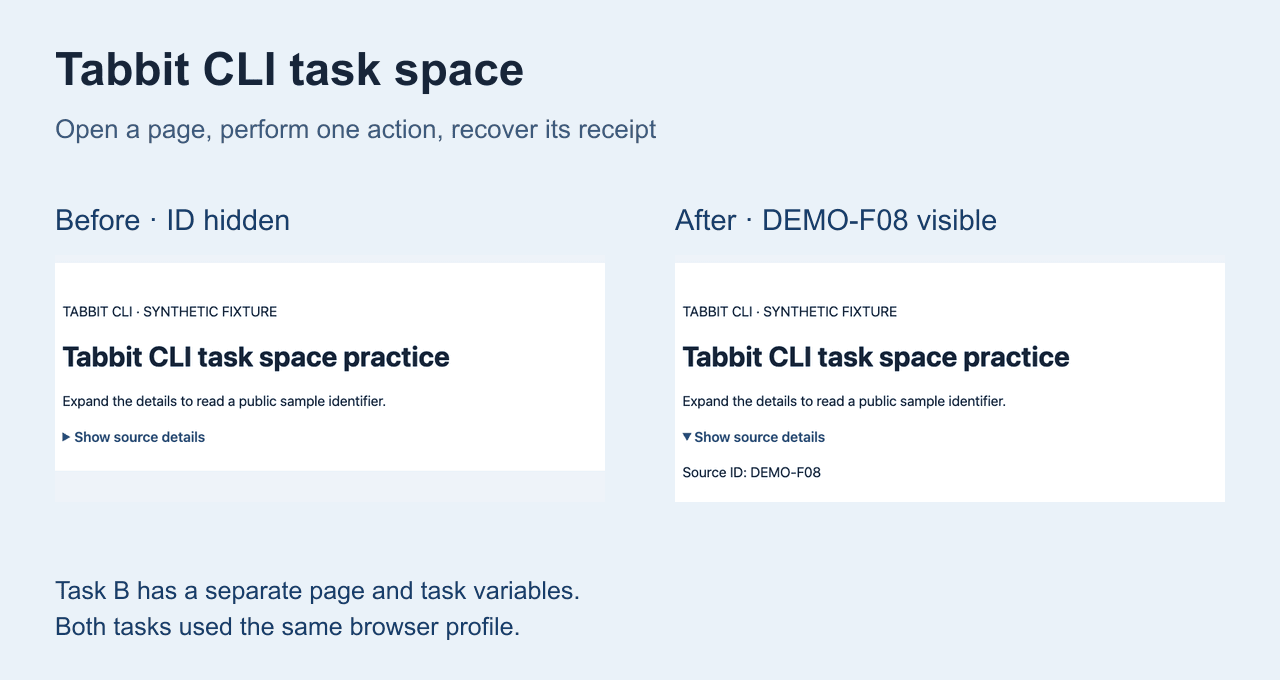
In a separate fixture verification for this topic, the signed-out page returned 401. After signing into the test account, a separate Tabbit CLI task opened /release and read the heading “Release notes review” and label “GEO-104 ready for review”. That confirms the Tabbit CLI side could use the selected profile’s test login in that fixture. It does not confirm that Cursor CLI invoked Tabbit. The final link between those two programs remains to be tested in the target setup.
For a fuller walkthrough, see the Tabbit CLI tutorial, the Claude Code integration example and the Codex setup. Tabbit is an option when its browser profile is the one you want the local agent to use. It is not a replacement for a staging account with limited permissions or a review before writes.
Troubleshoot by checking the boundary
| Symptom | Check | Next step |
|---|---|---|
/tabbit is not recognized | Is Tabbit installed and open? Does the Skill exist under a Cursor-supported local path? | Restart the client; inspect the current Tabbit install guide. |
| Agent says it has no browser tool | Is this Cursor CLI, Cursor IDE, or a remote agent? Does the current session list a browser MCP or Skill? | Use a supported local bridge or switch to the IDE Browser for IDE-only tasks. |
| The page redirects or shows a login screen | Did you select the expected Tabbit instance/profile and sign into the test account there? | Stop. Verify the browser session yourself, then repeat one read. |
| A separate task can still see the site as signed in | The task has separate ownership, but uses the chosen profile’s storage. | Use a dedicated test profile when cookie separation is required. |
| The agent cannot run the launcher | Is terminal execution allowed, and is the launcher available on the host running agent? | Check command approvals and use an explicit allowed path. Do not disable sandboxing just to make it work. |
| The Browser tool appears only in Desktop | Cursor’s native Browser and the terminal CLI are different client surfaces. | Use the browser integration documented for that surface, or connect a supported MCP/CLI bridge. |
One community forum report described terminal URLs that did not open. Cursor staff explained that the TUI emits terminal hyperlinks and the terminal emulator decides how to open them. The reporter then found that Foot uses Ctrl+Shift+O URL mode rather than a click gesture. This is a terminal navigation issue, not a way for the agent to inspect a logged-in page. Another Reddit user reported that browser MCP discovery differed between interactive and headless -p runs. Verify the exact mode; an older report does not prove current behavior. Use the browser-control walkthrough for the separate question of page interaction.
Pick the route by the job
| Job | Route to try first | Why | Boundary |
|---|---|---|---|
| Inspect a local app while editing in Cursor | Cursor IDE Browser | The native tool is documented for Agent visual checks. | Confirm the active tab and tool trace. |
| Read one signed-in staging page from terminal Cursor | Local Tabbit CLI or another explicit profile bridge | It can connect a local coding agent to a browser profile by design. | Verify the agent integration, selected profile and account. |
| Test a public site or disposable account | Fresh browser through an approved MCP/Playwright setup | Easier to repeat without touching your daily session. | A clean browser will not have your login unless deliberately configured. |
| Run a task away from your computer | Cursor Background Agent with provisioned remote access | It is designed for work in a remote environment. | Local browser data does not travel with the task automatically. |
Verdict: Cursor CLI can work with browser automation, but the installed CLI alone is not evidence that it can use your signed-in browser. For terminal review of staging, first choose a bridge that runs where the desired profile lives. Tabbit Browser plus Tabbit CLI is worth testing for that local setup. Start with a single read, confirm the account and page, and keep the first task away from writes. If your goal is to test a local development page from inside Cursor Desktop, use the separate Cursor Browser Agent guide.

FAQ
Does Cursor CLI have its own browser?
Cursor documents Agent in CLI as a terminal client with shell, file, web and configured MCP tools. Its Browser guide describes a separate Agent browser surface, so verify the tools available in your CLI session instead of assuming the IDE Browser is present.
Can Cursor CLI use my signed-in Chrome profile?
Not by default. A local browser bridge must explicitly connect to the browser and profile you intend to use. Confirm the selected account, tab and domain before asking the agent to read anything.
How can I connect Cursor CLI to a signed-in Tabbit browser?
Install and launch Tabbit Browser, confirm that the tabbit Skill or documented local launcher is available to Cursor, and restart the agent after setup. Verify the expected page with a read-only task; Cursor-to-Tabbit invocation should be tested on your own installed versions.
Does a separate Tabbit task keep cookies isolated?
A task has separate owned pages and task variables, but browser storage depends on the selected profile. Separate task space does not mean separate cookies. Use a dedicated test profile when the account or data must be isolated.
Can a Cursor Background Agent use my local browser session?
Do not assume so. Background Agents run in a remote environment, while the local browser profile stays on your machine unless you deliberately configure a supported connection. Check the execution host before granting access.
What is a safe first browser task?
Use a test account and ask for a read-only check of one known page. Have the agent return the page title, visible account or workspace, path and one expected label, then stop before clicking a control that changes data.