
Cursor Agent can use Cursor’s built-in Browser to navigate, click, type and read visual or diagnostic state. In a local UI task, give it the exact page, viewport and failure condition. After the edit, repeat the same interaction and read the result independently.
In our test, Cursor Agent CLI 2026.09.10-fd3934a edited the synthetic form and Tabbit independently tested it. We read the installed Cursor Desktop version 3.28.7. The CLI tool trace contained discovery, read and edit. It did not invoke the IDE Browser. The IDE Browser steps come from Cursor’s documentation.
Choose the browser route
Start with Cursor’s native Browser for a page your development workspace can reach. The official guide describes inline or separate presentation and session state isolated per workspace. Confirm which browser tool appears in the Agent action log if an external MCP is also installed. Its browser context and storage can differ.
In the IDE, use the command palette to open Browser and start a chat with @browser. In the tool approval dialog, review the origin and action before proceeding.
| Route | Context | Check first |
|---|---|---|
| Cursor Browser | Workspace state | Agent |
| External MCP | Connector configuration | MCP |
Cursor Browser Docs · Browser UI testing · Browser automation agent
Open the exact development page
Use the running app URL and route, including its port. With multiple dev servers, have the agent return the title and address it actually opened. Use fictional input values. If the page redirects or requests authentication, stop and determine which authorized test context the task needs.
Browser for agents · Browser agents
Give the agent a reproducible failure
Record the screen width, the control that fails and the visible or measured result. For a shipping form, compare the viewport width with document scroll width and verify that the entire button is inside the panel. If there is a console error, include the relevant message and the single action that triggers it.
@browser Open the exact development URL. At the target viewport, report the title, horizontal scroll width, and whether the Check estimate button stays within its panel. Change only the form CSS if the button overflows. Reload at the same width, click once with the sample postal code, and report the status.
Browser automation · Agentic browser security
Make the smallest code change
Ask for a patch restricted to the affected component. Preserve the desktop row, label, input and status behavior. A screenshot provides layout context, while the computed width and the status after clicking provide separate checks. Keep browser observation and source editing visible as separate steps.
Let an AI agent control a browser · Connect to an existing browser
Repeat the same test after the patch
Reload the same URL at the original narrow width. Confirm the form fits, press Check estimate once and read the visible result. Then reopen at desktop width to confirm the row stays horizontal. Compare the before and after results with the same inputs.
Cursor added wrapping and removed the input’s minimum width below 520 px. At the same measured 354 CSS px viewport, Tabbit recorded document scroll width changing from 510 to 354 px. A click returned Estimate ID: DEMO-D01. At 909 CSS px the controls still shared a row.
| Condition | Measured result |
|---|---|
| Before the patch | 354 px → 510 px |
| After the patch | 354 px → 354 px |
| Desktop check | Button and input share a row |
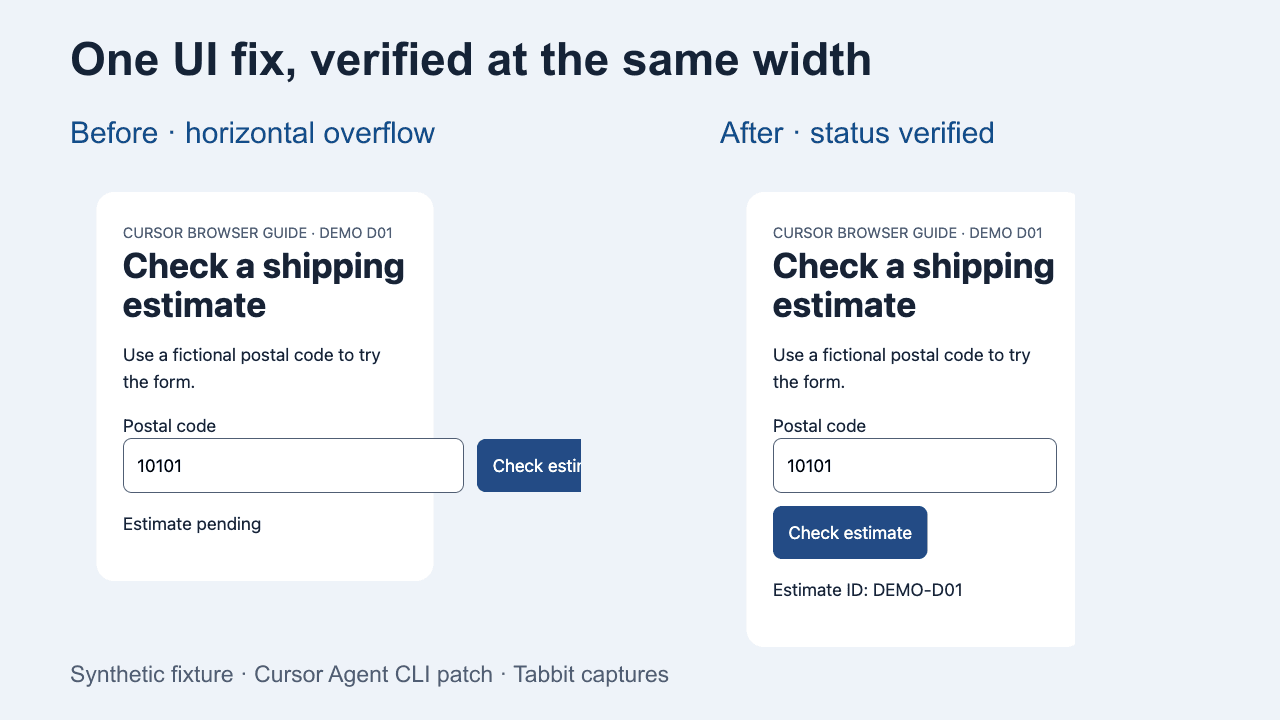
Open the repaired fixture · Browser agent first-task checklist
When the browser tool is missing
Check browser automation in Cursor settings and use the native Browser tool explicitly. A manual tab opening is a separate action from an Agent tool call. If the session reports no Browser tool, capture the exact limitation and identify the independent verification tool in your notes.
One user found the integrated browser through Cursor’s settings. Another reported an open Browser tab with no tool exposed in the active Agent session. Compare those symptoms against the action log. Reddit 1 · Reddit 2 · Cursor Forum

FAQ
Can Cursor Agent click buttons on a page?
The official Browser integration supports navigation, clicks, typing and screenshots in an authorized context.
How does Cursor reach a local development server?
Give the exact reachable URL and confirm the page title and address in the selected Browser context.
Can the Browser keep login state?
The official guide says browser state persists per workspace. Use a test workspace and approved accounts.
How should I report a responsive layout defect?
Record the viewport, exact action or control, observed behavior and expected result.
Is opening a tab proof that Agent used Browser?
Check the Agent action log for the native browser tool and the observed page state.
How can I verify a fix?
Repeat the same interaction after reload, compare the result and check any viewport the patch must preserve.