
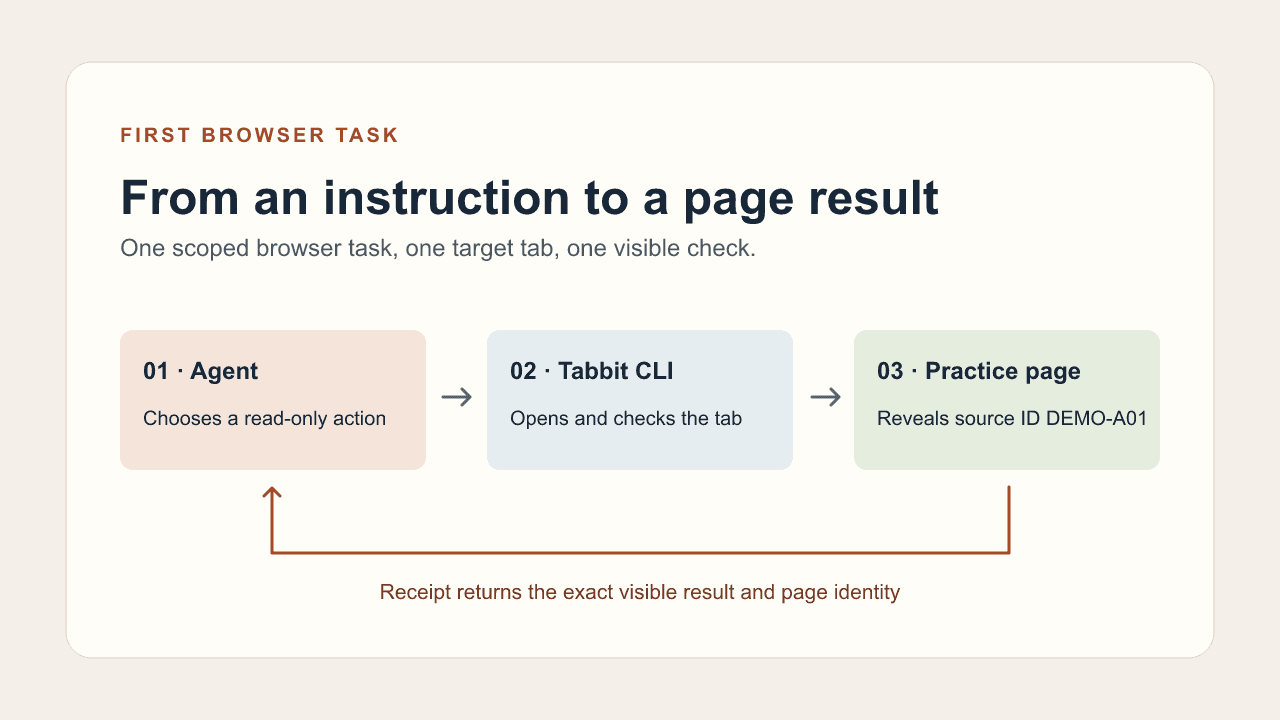
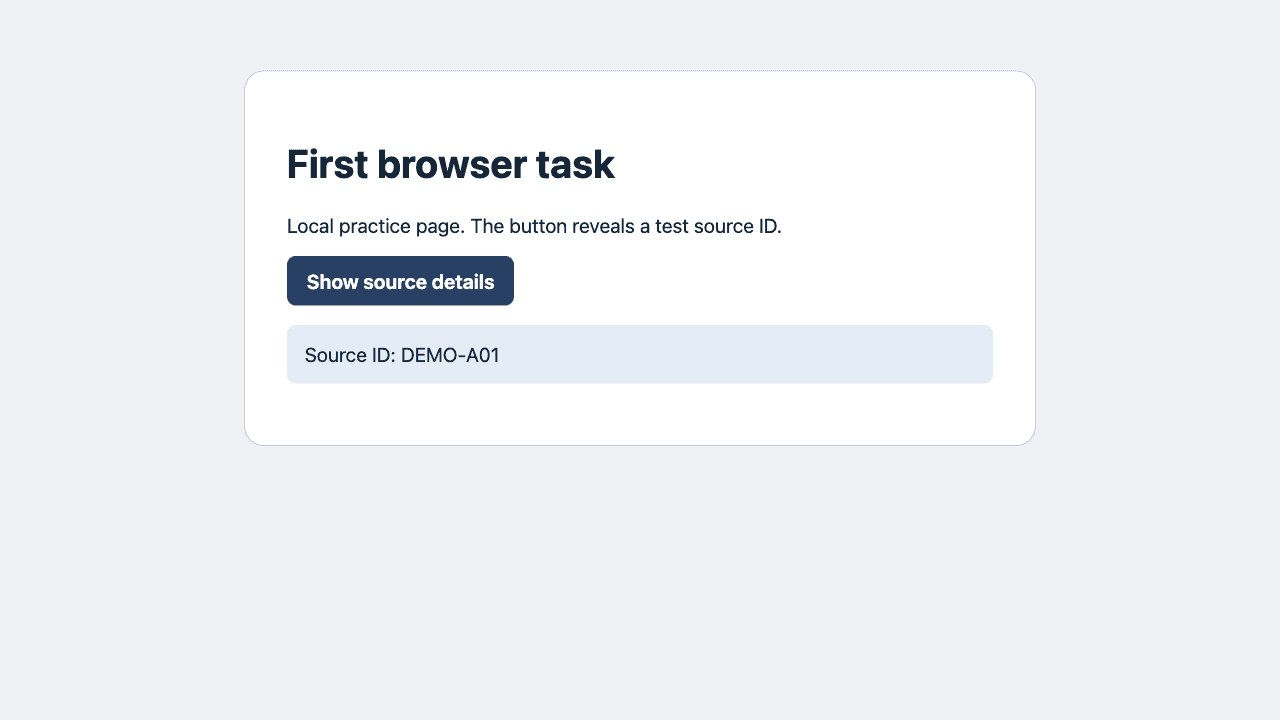
An AI agent needs a browser tool before it can click a page. The model interprets your instruction, the agent chooses and calls a tool, and the tool acts in a browser it is allowed to reach. Start with one page, one reversible action and one result you can read back. In our practice run, clicking Show source details revealed the exact source ID DEMO-A01.
One Windows user reported that the agent could open a search but timed out when clicking. Another user asked how to choose between browser tools, and a commenter pointed out that reading pages and integration testing need different tools. For a first run, ask for one visible result. r/AI_Agents · r/ClaudeAI
Separate the model, agent and browser
A chat answer can explain where to click. To perform the click, the client needs a browser capability that can navigate, inspect and act. A browser-native agent may provide it directly. An external client may use a skill, extension or MCP server. Check the actual tools available in your client before assuming a model or plan can use a given browser.
What is an AI agent? · Browser for an agent · Browser agents
Connect through the client you already use
Open the client’s tool or skills list and look for an installed browser capability. If the Tabbit skill is configured, invoke /tabbit and hand it the practice URL. If your client uses MCP, follow that connector’s setup and run the same read-only check after it appears in the tool list. When no browser tool is available, the chat can still produce instructions for you to follow manually.
Choose where the browser runs
Use a local connection when you need a known desktop tab, an authorized signed-in page, or a server on your own loopback. Use a dedicated remote browser when the task runs in a worker and you want a fresh session. A browser running remotely has its own loopback and profile. Decide who owns the browser and which page the connector is allowed to open before connecting.
| Connection | When to use it | First check |
|---|---|---|
| Local | Known desktop tab or loopback page | Read the target URL and heading |
| Remote | Fresh browser owned by the worker | Confirm the worker can reach the URL |
Tabbit CLI launch guide · Playwright connection guide
Connect to an existing browser · Codex Cloud and localhost
A connection is only the first check
An attached badge tells you a client connected somewhere. Compare the actual URL and page heading with the task, especially if the same browser has several tabs or profiles. Keep this proof before trusting an action.
Prove the connection with a harmless task
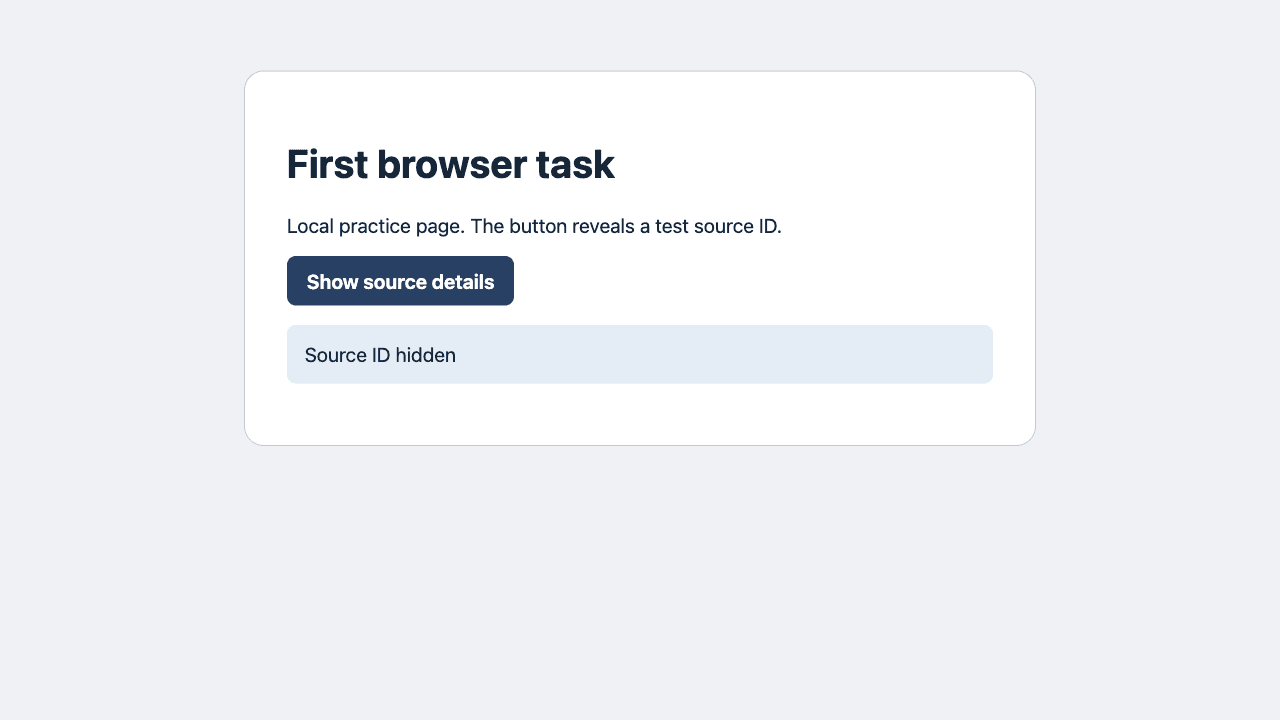
Open the practice page and ask the agent to read the heading, confirm exactly one Show source details button, and click it once. The task ends when the source ID is visible. This click reveals text within the page. It does not submit a form, write a saved preference, send a message or change an account.
Open the practice page. Read its heading and confirm exactly one button named Show source details. Click it once. Return the page title, the exact visible source ID and whether the URL changed. Stop if the page or button differs. Do not log in or submit anything.
Avoid granting more access than the task needs
The practice page needs a single tab and no signed-in profile. Start there before connecting a browser containing work accounts. For a background job, launch a dedicated profile rather than attaching to someone’s desktop. If the intended page requires access, verify that permission separately.
Read the result from the page
We opened the local fixture in a Tabbit CLI task. The page returned 200, the heading was First browser task, and the starting status was Source ID hidden. We selected the unique button by its visible name and role, clicked once and read Source ID: DEMO-A01. The URL stayed the same. The before and after screenshots show both states.
| Step | Verified result |
|---|---|
| Open the page | HTTP 200 · First browser task |
| Before clicking | Source ID hidden |
After clicking · Show source details | Source ID: DEMO-A01 |
Read the result independently
After the tool reports a successful click, make a separate read of the status. Report the actual value if it differs. A page can accept the input and still refuse the change or leave the previous content visible.
Repair a failure one step at a time
If the tool cannot open the page, check where the browser runs and which address it can reach. If it opens the wrong page, confirm the tab and URL. If the button cannot be found, inspect the current page again. If the click reports success but the expected ID is absent, stop and report the visible status. Only continue once you know which step failed.
Browser automation · First-task setup checklist
Expand the task after you have a receipt
Keep the page, button, actual result and access limits in the task receipt. For the next run, add a second read-only step or another public page and keep the same verification habit. Treat login, posting, sending, purchasing and changing saved data as different tasks with explicit permission and their own post-action checks.
Browser agent security · Browser automation agents

FAQ
Can a chat model click a page by itself?
The client needs a browser tool with access to a real session.
Which browser should I connect first?
Choose a session you own or are authorized to use and start with a public or local test page.
Does a remote browser have my local login?
Its profile is separate unless the connector explicitly attaches to an approved existing session.
What makes a good first task?
One page, one reversible interaction and a visible result you can check.
How do I know the click worked?
Read the expected result in the page, such as the exact source ID or a status message.
What if the page needs sign-in?
Stop and report the access requirement. Use an approved session after the owner authorizes it.