
A browser agent setup passes a useful first test when it can open the right page, read exact text, act on the right control, and prove the result survived a reload. An “attached” status tells you the tool has connected. Each later step needs its own check.
A browser-tool developer on Reddit described a rejected form that looked like a successful click in the action log. The agent kept going even though the page had not advanced.
This guide uses a no-account page with one reversible action. It works as a first check for a browser agent in a separate browser or one attached to your current browser. For a product example, Tabbit Browser shows how to give a browsing task a page as context. The acceptance steps are the same regardless of the agent.
Key takeaways
Ask for the exact URL, page heading and reference code before authorizing a click.
Match a button by its accessible name and check that there is only one candidate.
Record the starting state and use a reversible action.
Reload in the same session. Reopen in a different clean context only when you want to check session boundaries.
Keep the observed state and a redacted error report when a step fails.
What a passing setup looks like
| Check | What to ask for | What counts as evidence |
|---|---|---|
| Open | Navigate to the requested page | Actual URL and expected heading |
| Read | Copy the reference code | Exact page text, including case |
| Locate | Find the named button before clicking | One visible matching control |
| Act | Save the example preference once | Status changes from not saved to saved |
| Verify | Reload the same page in the same session | Saved status is still visible |
| Reset | Clear the example and reload again | The original status returns |
Keep this checklist separate from whether the agent wrote a convincing summary. For the underlying flow and controls, see the browser automation agent guide and browser automation overview.
Start with a clean page and one action
Open the no-account practice page. It stores one example flag in the current browser. No form or external service is involved. Use a separate browser profile or the tool's isolated session if you want your normal work kept outside the test. Learn how those sessions differ in the virtual browser guide.
The heading should be “Browser agent setup check” and the code should be “DEMO-A10.” A fresh session shows “Preference: Not saved.” If the page already says saved, choose “Reset example” before starting. Capturing a negative baseline matters because an old saved flag can make a run look successful even if the current click failed.
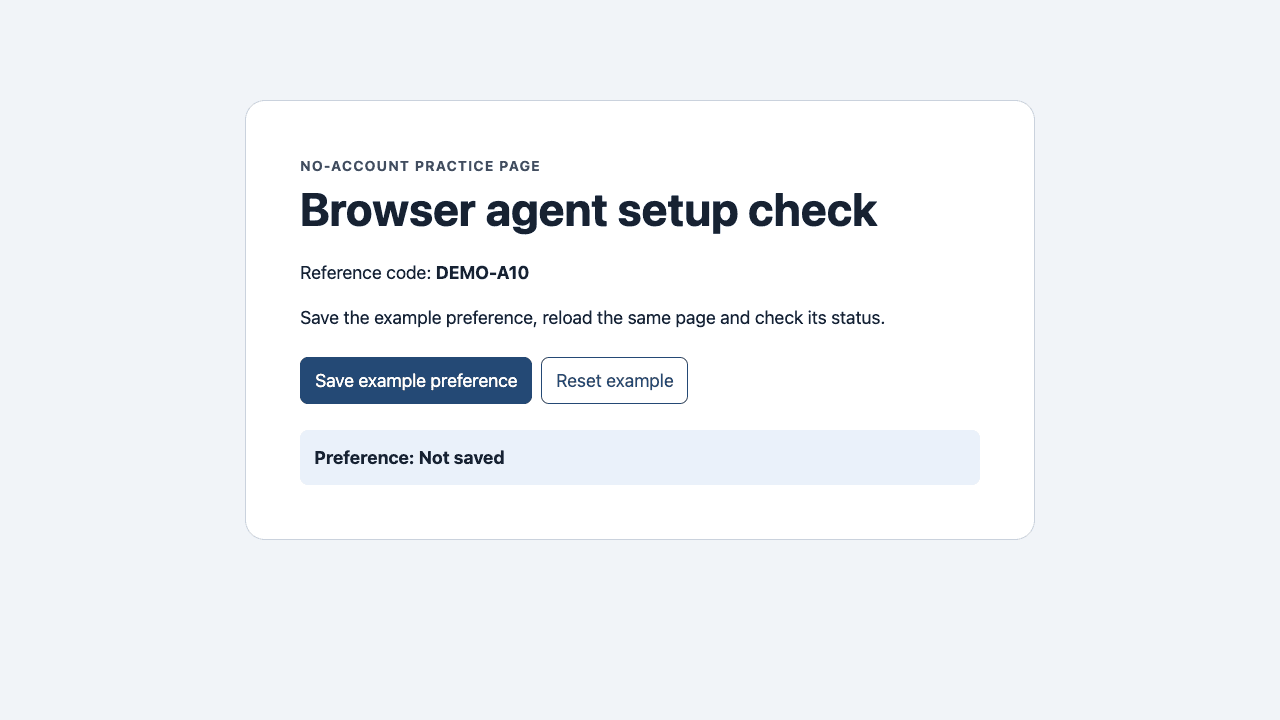
Step 1. Prove it opened and read the intended page
Have the agent return the final URL after navigation, the heading and the code exactly as shown. Verify the final URL if the first address redirects. A search result or a cached description can contain the same topic while hiding a sign-in page or an error. A precise identifier helps tell actual page reading apart from an answer inferred from the prompt.
When testing the read step, do not include the expected code in your instruction. Keep it in your own notes. If the agent gets it wrong, ask for the current title and a safe page excerpt. The issue might be a different tab, a consent dialog or a browser that cannot access the address.
Step 2. Locate and change one thing
Tell the agent to locate the visible “Save example preference” button and confirm there is one match. Then authorize one click. Tools with named locators can re-resolve controls after a page changes. If your tool uses temporary snapshot references, capture the page again after navigation or a dialog. Playwright MCP and agent-browser document snapshot-based browser actions.
Check for “Preference: Saved in this browser.” If the click appears to work but the status remains unchanged, stop and capture the page before retrying. Clicks on the wrong target and disabled controls require different fixes. A second click can create a duplicate on a real website, so first learn what happened on the harmless page.
Step 3. Reload and verify persistence
A status that changes in the current DOM can still disappear after a reload. Ask the agent to reload the same page in the same session and read the status again. In the local headless Chromium run, the status was still saved after reload. Resetting and reloading restored “Preference: Not saved.” A different clean browser context also showed “Preference: Not saved,” even while the original context had saved the value again.
| Local observation | Exact result | What it checks |
|---|---|---|
| Fresh context | Preference: Not saved | Baseline |
| After the named click | Preference: Saved in this browser | Immediate result |
| Same-context reload | Preference: Saved in this browser | Persistence |
| Reset and reload | Preference: Not saved | Recovery |
| Different clean context | Preference: Not saved | Session separation |
The fixture uses browser-local storage. A production website might store changes on a server, on another origin or per account. A fixture pass proves this control path and this session. It leaves the real website's permissions, login and business rules to a separate test. For a complex page, make the first live run read-only and verify one field against a source.
Step 4. Record the failure at the right layer
| Symptom | First thing to check | Save in your report |
|---|---|---|
| Wrong page or sign-in screen | Final URL and selected tab | Sanitized URL and heading |
| Page opens but code is wrong | Visible content and readiness | Expected code and actual text |
| Control cannot be found | Exact label, frame and current snapshot | Label and safe screenshot |
| Click succeeds but status is unchanged | Button state or page error | Action, time and visible status |
| Status changes then disappears | Same profile, origin and session | Status before and after reload |
Use an assertion against a visible state rather than a fixed sleep. Playwright assertions can wait for the requested condition, such as visible text. If you ask a tool to troubleshoot a real site, remove account details, tokens and private URLs from screenshots and logs. See the agentic browser security guide.
A QA user on Reddit reported that different runs stopped on database problems, stale cache or an onboarding overlay. Their case illustrates why the report should say where the browser stopped.
Try the read-and-verify handoff in Tabbit
In Tabbit Browser, open the practice page and use the current tab as context. The official Tabbit site shows page chat and Agent task execution. Ask page chat for the heading first if you only want a read check. Use Agent Mode when you want to test a real click and reload, and verify the page yourself.
Use only the current practice page. Report its actual URL, heading and
reference code. Find the one visible Save example preference button,
click it once, then report the visible status. Reload the same page in
the same session and report the status again. Stop if the page changes
origin or asks for any permission. Do not open other sites.
The screenshot and step log in this article come from the local fixture run in Chromium. The prompt is a way to repeat the checks with an agent. For the product context controls, see how Tabbit works. For adjacent decisions, read agentic browser versus browser agent and the agentic browser overview.
If the saved state survives reload, use the same checklist on the next read-only task you care about. Keep the requested result small enough that you can confirm it yourself.

FAQ
How do I know my browser agent setup works?
Run a small task that opens a specific URL, reads exact text, locates one named control, and changes a harmless state. Reload in the same session and verify the state on the page.
Does a successful connection prove a browser task will work?
A connection confirms the client can reach a tool or browser. Navigation, reading, element actions, and persistence are separate checks.
Can I test without logging in?
Yes. Use the practice page and its reversible example preference. It uses one browser storage value and does not ask for an account or send a form.
Why does the saved result disappear in another browser?
The example is stored in the current browser profile and origin. A clean or isolated browser context can have its own storage, so verify persistence in the same session first.
What should I save when a browser agent fails?
Record the intended and actual URL, the action, the current page text or screenshot, and the expected and actual result. Keep account data and authentication material out of the report.
Is an agent's completion message enough?
Check the source page or saved file yourself. For a stateful task, refresh or reopen the view and compare what it shows with the exact outcome you requested.