
Can an AI agent use the browser you already have open?
Yes, if its browser connector can attach to the running browser and you authorize access. Check whether it can select the exact tab or only open another tab in the same profile. The latter may still use your site login, but it can miss a form draft, a filter or the state that reproduces a bug.
Someone using an OpenClaw browser extension reported seeing a new tab followed by a Chrome session outside their default profile. The browser's appearance gave little away. A read-only check of the account and page state would have caught the switch. Original r/openclaw report
Pick the connection that fits the task
To debug a page exactly as you left it, ask the agent to identify that existing tab and read one visible marker without reloading it.
If the site login matters but the exact page state does not, a new tab in the correct profile can be sufficient.
For public research or reproducible tests, start with a separate browser context. It gives you a known starting point.
Before reusing a work profile, inspect the connector's access scope. Some connectors can reach data across that profile.
| Mode | What it starts with | What to verify |
|---|---|---|
| Attach to the existing tab | The live page and its current UI state | URL, tab identifier and the visible state you expect |
| New tab in an existing profile | Profile-level site state where the site permits reuse | The right account and workspace before any writes |
| New persistent automation profile | Its own state, which may survive tool restarts | Whether this profile was prepared for the task |
| New isolated browser context | A clean session unless explicitly initialized | That the task does not need an account from your personal browser |
Use the guide to browser profiles and tab groups to separate the profile from the way you organize windows. For an overview of how the client and its tools fit together, see what an AI agent does.
How extensions, debugging endpoints and native connections differ
An extension can connect an agent client to an existing browser. Install it only in the intended profile, follow the connector's current authorization flow, and check what pages it can actually see. A connector could retain the account while grouping its own tabs. For example, Claude Code's Chrome documentation describes session tab groups for pages that Claude opens. Consult the browser integration overview for related client choices.
A Chrome DevTools Protocol (CDP) connection targets a running compatible browser through an endpoint or a supported channel discovery mechanism. Playwright MCP's connection guide documents extension mode, CDP endpoints and channel selection. Chrome's remote debugging documentation says that from Chrome 136, the remote debugging command-line switches are ignored against the default Chrome data directory unless a nonstandard directory is specified. The official Chrome DevTools automatic connection guide describes a separate setup involving the in-browser remote debugging setting and a permission prompt. Chrome documents profile-wide access for that setup. Keep debugging endpoints private and scoped to a dedicated browser when you only need test data.
A browser-native agent can work through the browser's own interface. Whether it can use your current tab, all tabs, or only a selected set is a product decision. The name of the browser executable tells you little about its profile. Even an agent that launches Chrome can be using its own temporary profile. OpenClaw's browser documentation explicitly distinguishes its managed profile from the signed-in user attachment route. See browsers for AI agents and Playwright browser automation for the broader setup choices.
An actual comparison with two browser sessions
The editorial test ran Chrome for Testing 153.0.8010.12 and used a temporary browser profile. A test tab displayed No marker. The setup clicked the fixture's button to change the text to Demo Workspace. A second Playwright client attached over CDP to the same running browser. It found the tab and read the changed label without navigation. In a separately launched browser with a new isolated context, the same fixture started with No marker.
| Observation | Attached to the running browser | New isolated browser |
|---|---|---|
| Tab count before navigating | 1 existing fixture tab | 0 in the new context |
| Visible text when inspected | Demo Workspace | No marker |
| URL of fixture when inspected | Same fixture URL | Same fixture URL |
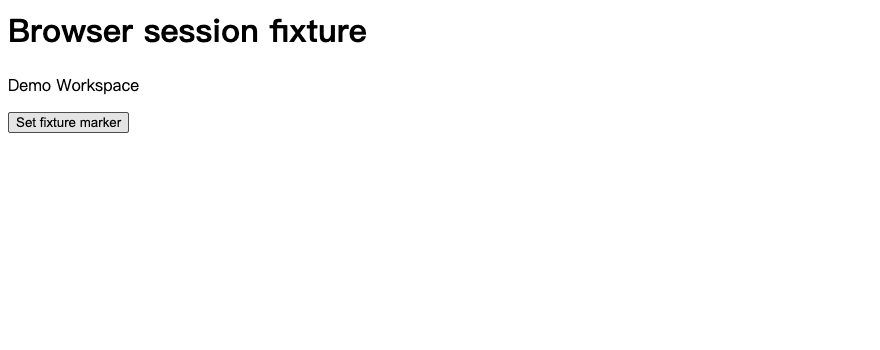
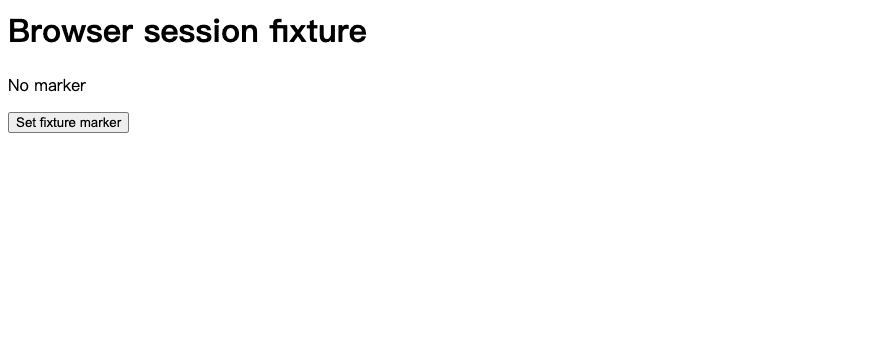
This is a demonstration of live page state, using a marker in a test page. It did not use a signed-in account or test persistence across browser restarts. Seeing the same URL alone would have missed the difference. In real work, a useful marker could be a workspace name, a selected date range or the exact error you reproduced.
Verify the work window before the agent acts
Open a separate work profile and log in yourself if the task requires it. Choose a test tenant or read-only account when available.
Identify the requested browser, profile and tab in the connector. Have the agent report the matching tab's URL, title and a visible workspace or page label. If there are two matches, ask it to wait for your selection.
For a task that depends on the current tab, ask it to inspect that tab without navigation or reload. If it cannot select the tab, choose a connector that can or transfer the task to a page you can reconstruct.
Stop if the site asks for sign-in, MFA or verification. Complete it yourself, then recheck the workspace and page before continuing. A user describing OpenClaw sessions reported that expiration could derail runs. That is one user's experience, and it supports planning a checkpoint rather than assuming session continuity.
Before submitting a change, inspect the account, target and proposed action. If a previous click may already have succeeded, inspect the result before trying again.
A useful first instruction is “Use the tab whose title matches the test dashboard. Read the workspace name and the currently selected date range. Return the final URL. Ask if two tabs match. Do not refresh, change a filter or submit anything.” Pair the instruction with the connector's technical permissions. Read more about browser-agent access risks and how to handle verification challenges.
Disconnect after the task
Stop the agent's browser session. Use its disconnect command, close its temporary tabs where appropriate, and revoke extension or debugging access through the relevant controls. Close an agent-owned test browser if you no longer need it. Check the connector's status afterward. Closing a single tab or stopping a chat can leave the bridge running. A work account's own sign-out is a separate action, useful when you want to end access at the website too.
Choose an existing tab when the page's live state is the point of the task. Choose a dedicated profile when you need a login without opening personal browsing to the connector. Start isolated for public pages and reproducible tests. These choices make the first check straightforward. Ask what tab the tool can see, what state it shows, and whether you can disconnect it.
Compare another setup in the browser for an agent guide.

FAQ
Can an AI agent reuse my Chrome login?
An approved connector may reuse the session of the selected browser profile. The website can still expire the session or require additional authentication.
Why does my agent open a new browser?
Its tool may be set to launch a managed or isolated profile. Choose an attachment mode if the client offers one, then verify the browser and tab.
Does a new tab in the same profile have the same state?
It can inherit profile-level login state where the site allows it. Form drafts and filters tied to the original page may stay in that tab.
How do I choose the work window?
Choose the intended profile and ask for the tab title, URL and visible workspace name. Approve any write only after checking the account and target.
How do I disconnect the agent?
End the browser session and revoke the connector's extension or debugging authorization as applicable. Verify that the connection is inactive.