
Install Tabbit's browser skill for Codex, verify that the local tabbit-cli can reach the intended Tabbit browser, then ask Codex to read a single page. Use a page you can open yourself and give the task an expected result you can check. In our macOS test, a fresh Codex run read three records from a protected local report after a separate Tabbit task established a synthetic session.
This guide covers setup and the first read. The Codex browser and Tabbit CLI comparison covers tool choice, and connecting an agent to an existing browser explains the broader profile and permission decisions.
Install the browser skill and check the CLI
Start with the official Tabbit CLI quick start. Install and launch Tabbit, start Codex so Tabbit can install the skill for the detected agent, and then restart Codex. On macOS, check for ~/.agents/skills/tabbit/SKILL.md. The skill gives Codex operating instructions. The launcher sends the browser request. Confirm each separately.
Open a fresh Codex conversation after installation. Use Codex's /skills picker and look for tabbit. If Tabbit's /tabbit shortcut is unavailable, select the skill or explicitly ask Codex to use it. Our independent discovery check called Codex App Server's skills/list with a forced refresh and found an enabled, user-scoped tabbit entry. That confirms discovery in the test environment.
On macOS, run these commands locally. The second line explicitly selects the launcher we tested, so a missing shell PATH entry cannot mask its presence.
codex --version
"$HOME/.local/bin/tabbit-cli" --version
"$HOME/.local/bin/tabbit-cli" diagnose
The tested versions were Codex CLI 0.166.0 and Tabbit CLI 1.22.6.0 with Tabbit Dev. Read the diagnostic locally. Keep the raw output out of shared logs because it may include information about the browser. If the launcher file is absent, return to the official setup. If the launcher runs but the connection check fails, open the intended Tabbit edition and retry the check. What Tabbit does as an agent browser explains how browser actions relate to its regular tabs.
Run one read and check the result
Choose a page that belongs to you or that you have permission to read. Open it manually in the intended Tabbit profile and note a visible heading or an expected count. Replace the URL in this prompt with that page's exact address.
Use the installed tabbit skill. Open the exact URL I provide in
one new task tab. Return only the page heading and the visible
record count. If sign-in is required, report it and stop.
Do not submit, download, or change anything.
Confirm that the answer matches the page. A successful diagnosis tells you that the launcher can reach the browser. The returned heading or count tells you that the task actually reached the requested content. A response drawn from web search alone cannot establish page access. See web search versus browser control for examples of what each can verify.
What carried across tasks in our test
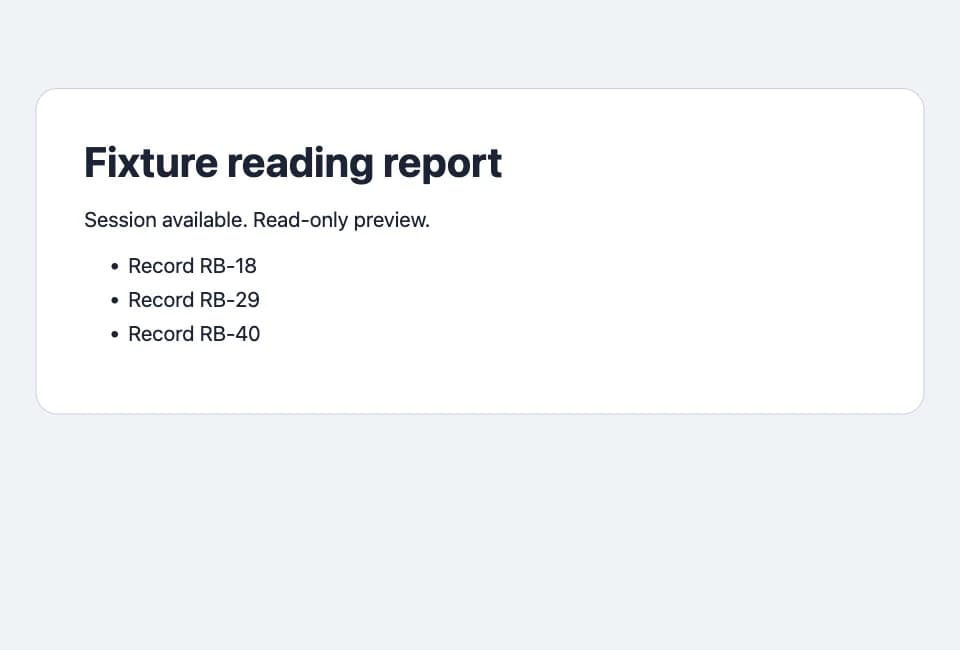
We built a loopback report with three fake records. A first Tabbit task received HTTP 401. A separate task visited a fixture route that set a synthetic HTTP-only session cookie. A fresh codex exec --ephemeral run then executed a bounded local command that called Tabbit CLI in another named task and read the report. We cleared the fixture cookie and checked access again.
| Check | Observed result |
|---|---|
| First read before seeding | HTTP 401, zero records |
| Fresh Codex run after seeding | Returned RB-18, RB-29 and RB-40, matching the visible report |
| Independent Tabbit CLI read | HTTP 200, the same three records |
| Read after clearing the fixture session | HTTP 401, zero records |
Codex returned the expected answer and exited with status 0. The fixture checked session reuse within the selected profile. It used no real website credentials and made no record changes. Separate browser tasks could access the same synthetic session in that profile, so treat task names as workflow labels. For another concrete workflow, see the Tabbit and Codex product-listing demonstration.
Diagnose the failing layer
| Symptom | Next check |
|---|---|
| Codex cannot find the skill | Start a fresh conversation, open the skill picker, and check the installed skill folder. |
The shell cannot find tabbit-cli | Run the stable launcher by absolute path and confirm its version. |
diagnose fails | Check that the intended Tabbit browser is running and reachable. |
| Connection succeeds but the page asks for sign-in | Open the page manually in the selected profile. Complete any required sign-in yourself and retry only the read. |
| Codex returns a plausible answer with the wrong count | Verify the exact URL, heading and rendered rows. Preserve the task receipt if the launcher returned one. |
A Codex user reported that another browser integration could claim a signed-in tab but timed out when reading its DOM. A Webcmd author separately reported that a posting attempt appeared to succeed before checking the actual result. These examples concern their own integrations. Both illustrate why the result needs an independent check. Codex issue #36278, Webcmd author’s field report
If a browser command times out, check its receipt and the resulting page before retrying. For a future write workflow, add a confirmation step before submission and verify the resulting record separately. The agent browser overview explains that difference, and the Tabbit CLI benchmark documents the scope of a separate tool evaluation.
A dedicated browser runtime configured with Codex and Playwright MCP has its own setup and access rules. If you are starting from a clean machine, get the browser from the Tabbit download page, then repeat the version, connection and page checks in that order.

FAQ
How do I connect Codex to Tabbit CLI?
Install or enable the Tabbit skill, verify the local CLI and browser connection, then ask Codex to read one page you have authorized.
Is /tabbit a built-in Codex command?
It is the Tabbit skill's invocation convention. Use Codex's /skills picker or explicitly name the installed tabbit skill if the shortcut is unavailable.
Does a new browser task inherit my sign-in?
Our separate tasks shared a synthetic HTTP-only session in the selected Tabbit profile. A different profile or an expired session can require a new sign-in.
What should I do if diagnose succeeds but a page is inaccessible?
Check the browser profile, target URL and page access separately. Open the target manually in the same profile to distinguish a sign-in requirement from a CLI connection issue.
Do I need Playwright MCP for this setup?
This setup uses the local Tabbit CLI. Playwright MCP is a separate option with its own browser and permission settings.