
Install the official Perplexity extension in the Chrome profile you already use. Sign in to Perplexity, pin the extension, and press Option+A on Mac or Alt+A on Windows to open the side panel. You can ask about the page straight away. If you want Perplexity Computer to open sites, switch tabs, or work on a form, you also need access to Computer and permission for it to use that browser. Comet is optional. Perplexity's extension setup guide
The difference between a page question and a browser task matters. A reader on Reddit wanted to analyze an entire discussion, including nested replies, without copying the link into a new conversation each time. Start with one visible page and check which parts the answer actually covers. Then try two tabs if you need an agent to do the navigation. This guide also walks through that two-tab task in Tabbit Browser for readers deciding whether they want a built-in agent. Original Reddit discussion
Key takeaways
The official listing is Perplexity, offered by Perplexity AI. Install it in the profile containing the tabs and site logins you intend to use.
The side panel supports questions about the current page. Browser actions require Computer access and browser permission, even when you start from that same panel.
In Settings → Browser use, verify the connection and keep Ask for permission for your first run. Use the narrowest task and site access that lets you finish.
Start with a read-only comparison. Require the exact source URL beside each finding and inspect any blocked or uncertain result yourself.
Chrome, Perplexity Cloud Desktop, and another browser profile each have their own session context. Verify which one is active before relying on an existing login.
Choose where to start Computer
| Where you start | Which browser the task uses | What you need to check |
|---|---|---|
| Perplexity side panel | The supported browser and profile where you opened it | Start on the page you want. Confirm whether you are asking a question or assigning a Computer task. |
| Perplexity on the web | Your own browser if the extension is active and local browser use is allowed | Keep the task page open while it is using your browser. The side panel can be closed. |
| Perplexity desktop app | The connected browser selected under Settings → Browser use | Update the app, enable browser use, and open the selected browser if it shows as offline. |
| Comet | Comet, with the browser capabilities built in | Sign in to the websites you need in Comet. The Chrome extension is unnecessary there. |
| Computer Cloud Desktop | Computer's separate remote browser environment | Complete the Cloud Desktop sign-in flow if needed. Your Chrome login does not establish a cloud session. |
If you already know the page and want to see the task beside it, start in the side panel. The web entry is useful when the deliverable is the center of the work and the browser is one source. The desktop app makes sense if you already keep Computer tasks there. All three can use the connected browser. Opening the desktop app by itself does not move Chrome sessions or grant access to local folders. Perplexity launch notes
Install and pin the official Perplexity extension
Select the browser profile first. If Chrome has separate personal and work profiles, open the profile where the intended site is available. Visit a known page and check which workspace or account is shown. An extension installed in one Chrome profile should not be assumed to exist in the others. How browser profiles separate accounts and tabs
Open the official listing. Look for Perplexity and verify that the listing says Offered by Perplexity AI. On desktop Chrome, choose Add to Chrome, review the permission dialog, and confirm Add extension. Edge, Brave, and Arc can use the Chrome Web Store according to Perplexity. Their buttons and toolbar menus may differ. Official Chrome Web Store listing
Pin it to the toolbar. In Chrome, open the puzzle-piece Extensions menu near the address bar, find Perplexity, and click its pin. Pinning keeps the icon visible and gives you a fallback when a shortcut is intercepted. It does not change which sites Computer can access. Chrome's extension controls
Sign in to Perplexity from that same profile. Login to Perplexity gives the extension its product account. Login to a destination site, such as a store or internal wiki, is separate. Confirm both before a signed-in task. Start on a normal web page. A browser settings page or a store listing is a poor place to test page reading.
Open the panel. Press Option+A on macOS or Alt+A on Windows. If that fails, click the pinned icon. Try asking for the heading visible on the page and one paragraph of context. Keep going to a Computer task only after the extension responds to the correct page. Perplexity's shortcut and panel guide
Installing the extension and opening its panel to ask about a page does not require Computer access. Delegating browser actions does. A working sidebar is evidence that the panel opens, so diagnose missing Computer access separately from the installation. Use the plan and availability information in Perplexity's Help Center and check the account currently signed in rather than inferring access from a second account. Official extension prerequisites
Verify that Computer is connected to the right browser
On the web, open Perplexity in the profile with the extension and go to Settings → Browser use. Check that Control this browser says Connected. If it says Get extension and you already installed it, verify that the extension is enabled in that profile and reload Perplexity. In the desktop app, use Settings → Browser use, enable browser use, and select the browser that has the extension. When that browser shows Offline, open it and check the status again. For a web task that uses your local browser, keep its Perplexity task page open.
Keep Ask for permission for your first run. When the access prompt arrives, verify the domain. Allow for this task is selected by default. Choose Confirm to approve that domain for the current run, or Deny if the site is outside your scope. For regular work on an approved domain, Always allow this site saves a standing rule. To add one directly, open Settings → Browser use → Site permissions, enter the domain, select Add, and choose its setting. To withdraw standing access, change that domain to Ask for permission or Never allow in the same list. The domain rule takes precedence unless the general setting is Never allow, which blocks all local browser use. To stop a running task, select Stop in the task. Official browser permissions guide
Think of the connected browser as the place where the agent can exercise the abilities your account already has. If the page contains customer records or if a button publishes a document, switch to an approved low-risk page for the first run. Read access in a browser still exposes page contents to the service handling the task. A precise request tells the agent what you want it to do. Site settings and your review of any permission prompt control what it may access. Browser-agent first-task checklist
Run a first read-only task and check the output
Pick a public pricing page that lists at least two plans. The point is to choose a page with a visible price and a limit you can verify in a minute. On a signed-in dashboard, a mistaken project or date filter is harder to spot. If you need to use a signed-in page first, choose a low-risk account view and ask for a narrow set of fields without asking for any changes.
Open the side panel beside the pricing page and ask a page question. You can paste this request:
From the page I have open, list the names and displayed prices of up to
two plans. State the billing period and one usage limit for each. Give
the current page URL and point out anything the page does not state.
Read the page only. Do not sign up, start a trial, or change billing.
Check the displayed currency, billing period, and whether the price assumes annual payment. Open the returned URL and find each limit on the page. If it links to a homepage or billing menu, ask for a direct page link and the heading above the relevant detail. If a row gives a number you cannot locate, write down unverified. An attractive table is easy to produce, so judge the answer by whether every important value can be found. Research with links that support each finding
Move from one page to a Computer task across two tabs
Use the public GitHub pricing page and the GitLab pricing page. Open the GitLab.com pricing tab if the page shows other deployment options. Give Computer a task with both URLs. Ask for one row per provider and the same units from both pages. If one site shows a rate per user per month and the other shows a whole workspace rate, ask the agent to keep the original units and mark the difference. That gives you a browser action to observe and a result you can check without authorizing an external change.
Use my current browser. Read these two pricing pages:
- https://github.com/pricing
- https://about.gitlab.com/pricing/
For each, list the displayed currency, billing interval, entry plan price,
and one stated usage limit. Give the source URL and the matching heading
per row. Mark unclear details as unclear. Ask if either site requires a
login or switches domains. Do not sign up, start trials, add payment
details, or change any settings. Stop after you return the comparison.
An example of a checkable row is GitHub · Free · USD 0 · billing interval unstated beside the price · 2,000 CI/CD minutes per month · GitHub pricing, Free heading. That row comes from the published page, not a Computer or Tabbit run. GitLab explicitly lists its Free price per user per month, so the output should keep the difference visible. Verify that the task requests access to the expected sites, and pause if it switches to a login screen. If Computer exposes a tab preview in the thread, use it to return to the corresponding live tab and inspect the context. Compare the result against both sources, starting with the line most likely to change your decision. On pricing pages that might be a monthly figure available only on an annual contract. A browser agent can also navigate signed-in tools and fill fields, but before you ask it to edit a doc or submit a form, get a reliable read-only result and define the exact point where the run should stop. A reusable browser-agent task prompt
What the extension can do once permissions are set
Ask about the page in front of you. Useful questions include which limit applies to a named plan, where a policy sets an exception, or which parts of a draft need sources. For a discussion page, list expanded replies separately from replies that were collapsed or unavailable. That distinction matters when you want an entire thread and the loaded page only shows a slice of it.
Act on a page with Computer. The publisher's examples include opening a signed-in tool, moving across tabs, reading a document, and filling form fields. For a Google Docs workflow, a low-risk first step is to request proposed comments in the reply with their exact placement. Decide yourself which comments to add. Editing and submitting are separate review points even when a site makes the action available. Perplexity's examples and feature details
Combine evidence across tabs. A status update can draw its due dates from a tracker and its context from a project page. Give Computer the exact pages, date window, expected column names, and a rule for contradictions. If the dashboard and tracker disagree, ask for both numbers with their dates instead of letting it reconcile them silently. Keep the report as a draft until a human checks the conflict. When the output has to move into a spreadsheet, review it as a small structured batch first. From browser research to an auditable table
Fix the failure you see
| Symptom | First thing to check | What to do next |
|---|---|---|
| Shortcut does nothing | Open Perplexity from Chrome's Extensions menu | Pin it. If the icon works, check the shortcut settings or use the icon. |
| Panel works but will not run a task | Confirm the Perplexity account has access to Computer | Try a Computer task from the web in the same profile, with Browser use connected. |
| Get extension appears after install | Check whether the extension is enabled in the current profile | Enable it in that profile and reload Perplexity. |
| Desktop app shows Offline | Confirm you selected the browser with the extension | Open that browser and look again in Settings → Browser use. |
| It sees a login page or a different workspace | Inspect the actual browser, profile, and target site | Sign in yourself in the intended place and retry the affected page. |
| It reaches the page but cannot see the expected information | Confirm the fields are visible to you and the task has site access | Ask it to mark the blocked field. Inspect lazy-loaded sections or another account manually. |
A reader discussing a move away from Comet said that they valued the flexibility to choose a browser. That preference is a useful reminder when troubleshooting. Keep the current profile if the issue is just a shortcut or connection. Consider a different surface if the workflow itself would be easier with a browser dedicated to agent work. Original discussion about browser choice · How to diagnose an extension that stops working
Try the same two-tab task with Tabbit Browser
If you want to use a separate browser for research, get Tabbit Browser from the download button below the article and open the two pricing pages in Tabbit Browser. Open the assistant input and enable Agent Mode. Give it the two URLs and the same evidence requirements from the Computer prompt. Leave the pages public for a first comparison so a difference in logins does not obscure the result. Ask for displayed prices and original billing periods, grounded in the two pages, with a note when a limit needs checking. Where to find Agent Mode and how it works
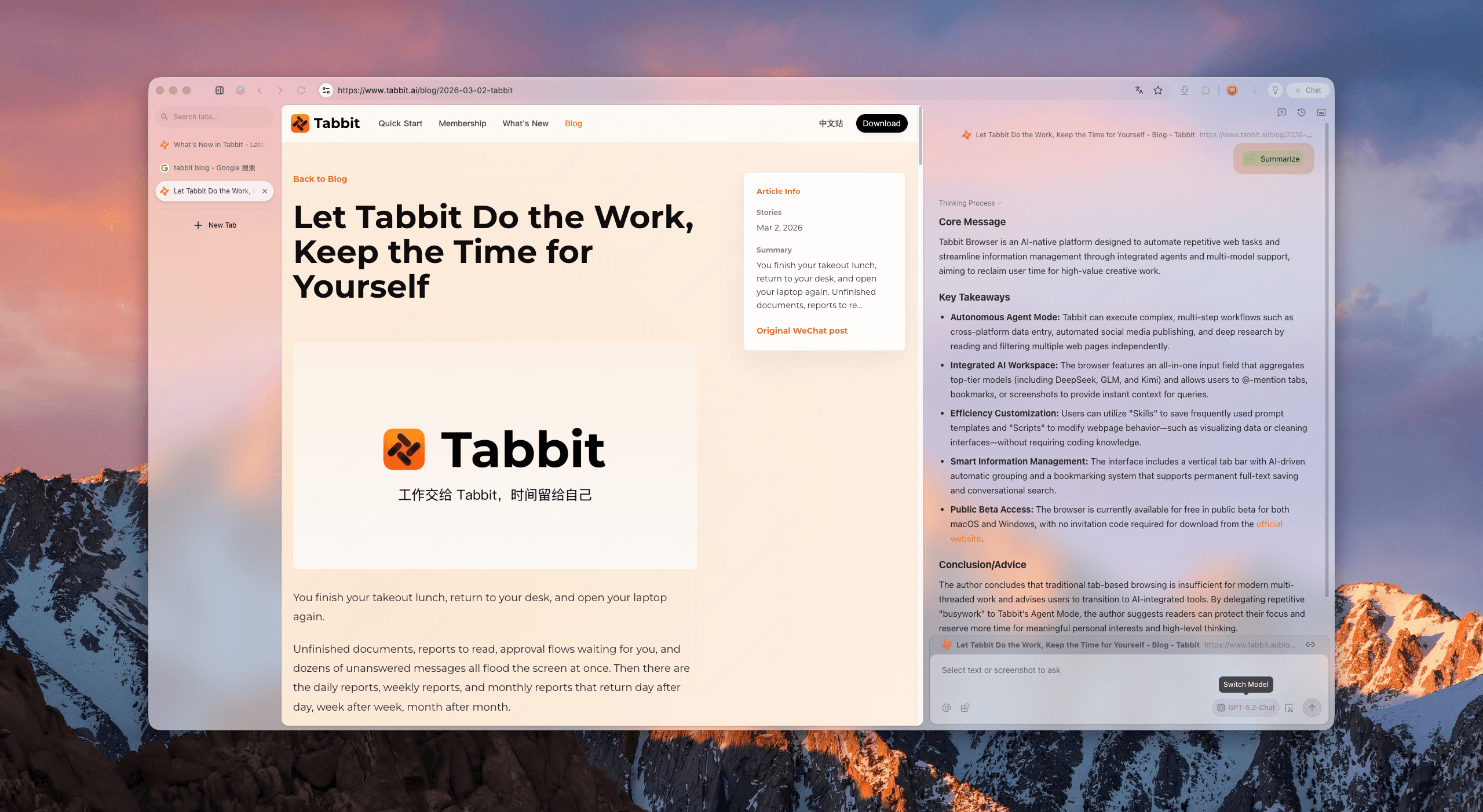
Review each output against the original pages. A useful run keeps the two prices attached to their respective URLs and leaves any unknown term visible. If you move the task to signed-in sites later, open the intended account in Tabbit first. A Chrome session does not automatically carry over and this browser workflow still depends on the pages you can access. This is an example you can run with the same inputs in both products. The article checks the documented setup and does not report a head-to-head product test.
The choice comes down to where the work lives. The Perplexity extension fits a Chrome profile you already use every day. Tabbit's built-in Agent Mode fits a research workflow you are comfortable opening in a dedicated browser. When you need to share a task definition with a teammate, save the pages, requested fields, and review point with the prompt so the result can be checked regardless of the browser. When a browser extension or a dedicated agent browser fits
Keep Chrome if its profile is where you work
Install and pin the official extension, check that Browser use is connected, and test the current page before assigning a multi-tab task. For a signed-in workflow, trust the output only after you confirm the profile and source page, then make the final edit or submission yourself. If your priority is a browser with its own Agent Mode, open those same two pages in Tabbit Browser and try the same read-only comparison.

FAQ
Can I use Perplexity Computer in Chrome without Comet?
Yes. Add the official Perplexity extension to the Chrome profile you want to use, then sign in to Perplexity there. Browser actions require access to Computer and permission to use that browser.
How do I open the Perplexity side panel if the keyboard shortcut fails?
Open Chrome's Extensions menu and click Perplexity. Use the pin beside it to keep the icon in your toolbar. The documented shortcut is Option+A on macOS and Alt+A on Windows.
How do I let Computer access just one website?
Choose Allow for this task when the access prompt names the expected site. For a lasting rule, add its domain in Settings → Browser use → Site permissions. You can later switch the same entry to Ask for permission or Never allow.
Why does Perplexity Computer show Offline or Get extension?
On the web, make sure the extension is enabled in the current browser profile and reload Perplexity. In the desktop app, confirm that the selected browser is the one with the extension, then open that browser.
Will the Perplexity extension work in Safari or Firefox?
The extension works in browsers that install from the Chrome Web Store, such as Chrome, Edge, Brave, and Arc. Perplexity excludes Safari and Firefox from its supported extension browsers.
Can Perplexity Cloud Desktop use the sites I signed in to in Chrome?
Cloud Desktop uses its own browser session. If a site needs authentication, use the Cloud Desktop sign-in flow, or choose your connected Chrome profile to work in its existing session.