
Juggling work tasks, client deliverables, personal finances, and leisure reading in one browser often ends in chaos. In a Reddit discussion, one user noted the confusing boundary between Spaces and Profiles: "I loved Spaces until I realized they all shared the same cookies unless I explicitly created separate Profiles and bound them. When migrating to other browsers, managing multiple profile windows became a nightmare for RAM." Another user on r/browsers pointed out a similar trap with tab groups: "Tab groups don't isolate anything. If I open a client link in my work tab group, it still logs me in with whatever account is active in the browser. It's just color-coding."
The root issue is that people use visual grouping tools when they need security sandboxes, or open heavy multi-window profiles when they just need a cleaner desk.
This guide breaks down the exact architectural differences between browser profiles, workspaces, and tab groups, explains how to combine them into an effortless daily setup, and shows how Tabbit Browser organizes multi-project workflows without turning your machine into an overheating radiator.
Key takeaways
Profiles provide hard identity isolation: Separate cookies, extensions, histories, and bookmarks across distinct OS windows.
Workspaces provide context isolation: Switch cleanly between projects in a single window without window sprawl or duplicate extension overhead.
Tab Groups provide micro-organization: Color-code and collapse short-lived sub-tasks; they offer zero cookie or account separation.
Avoid profile overload: Running four or five profiles simultaneously drains system RAM; use two profiles at most and organize projects inside them with workspaces.
Combine workspaces with AI: Tools like Tabbit's Smart Tab Organization automatically sort research sprawl so you do not spend half your morning manually filing tabs.
Profiles vs. Workspaces vs. Tab Groups at a glance
| Feature | Browser Profiles | Browser Workspaces | Tab Groups |
|---|---|---|---|
| Primary purpose | Hard identity & account isolation | Project & workflow context switching | Sub-task clustering & tab decluttering |
| Data isolation (Cookies/Logins) | Complete isolation (Separate databases) | Shared across workspaces by default | Shared across all tabs |
| History & Bookmarks | Fully independent | Shared across workspaces | Shared across all tabs |
| Extensions & Add-ons | Installed separately per profile | Shared across all workspaces | Shared across all tabs |
| Window layout | Separate OS windows | Single window (One-click toggle) | Single tab strip (Expand/Collapse) |
| System RAM overhead | High (Multiplies browser processes) | Low to Moderate | Minimal |
| Best for | Work vs. personal Google accounts, client logins, screen sharing | Client projects, sprint research, weekly routines | Temporary task comparison, flight booking, article batches |
Level 1: Browser Profiles (The Hard Identity Sandbox)
A browser profile is an independent data container on your file system. When you create a new profile in Chromium or Firefox, the browser generates a distinct user directory with its own SQLite databases for cookies, cache, local storage, autofill credentials, bookmarks, and installed extensions.
When you must use a Profile
Conflicting accounts for the same service: If your company uses Google Workspace or Microsoft 365, logging into your corporate email in the same session as your personal Gmail will cause Google account collision prompts throughout the day. A dedicated work profile eliminates this completely.
Screen sharing and presentation privacy: When presenting your screen on Zoom or Google Meet, browser autocomplete suggestions, bookmarks bar items, and search history can expose personal habits. Opening a dedicated work profile ensures zero personal data leaks.
Enterprise extension requirements: If your employer requires compliance extensions or monitoring tools, you should keep them strictly quarantined inside a corporate profile rather than running on personal banking or shopping tabs.
The trade-off: Window sprawl and memory cost
Profiles operate in separate top-level windows. If you work across three client profiles and one personal profile, you end up with four full browser windows running side by side. As explored in our deep dive on why Chrome uses so much RAM, each profile window runs duplicate extension background pages and renderer processes. Furthermore, clicking a link inside an external app (like Slack or Discord) frequently routes into whichever window the OS considers default, breaking your mental context.
If you are planning to migrate or restructure profiles, consult our checklist on backing up browser data before switching to avoid losing saved passwords and bookmark trees.
Level 2: Browser Workspaces (Context Switching Without Window Juggling)
Workspaces—popularized by modern productivity browsers as detailed in our guide on browsers with workspaces like Arc—are designed for clean context switching inside a single window.
Instead of opening a brand new browser instance, a workspace creates isolated sets of open and pinned tabs. Switching from your "Sprint Planning" workspace to your "Market Research" workspace swaps the visible tab list instantly, while keeping you inside one window and one set of browser controls.
Why workspaces feel faster
Zero window management: You do not have to minimize, resize, or hunt through your macOS Mission Control or Windows Taskbar for the right window.
Shared credentials where helpful: If you use the same Spotify, GitHub, Figma, or Jira account across multiple projects, you log in once and access your tools across all workspaces without re-authenticating.
Resource efficiency: Workspaces avoid launching duplicate extension engines, keeping memory usage predictable.
The common pitfall
Because workspaces share cookies by default, they do not prevent account cross-contamination. If you open your personal YouTube in a "Work" workspace, you are still logged into your personal Google account. Workspaces organize tasks and mental focus, not legal or identity boundaries. For a broader look at designing a distraction-free setup, explore our guide on choosing a browser for productivity.
Level 3: Tab Groups (Immediate Task Clusters)
Tab groups are the most granular, lightweight organizational layer available in standard browsers like Chrome, Edge, and Safari.
A tab group is simply a colored visual label attached to a subset of tabs on your active tab strip. You can name the group, assign a color, drag tabs into it, and click the header to collapse or expand the group.
Where tab groups shine
Tab groups excel at short-lived, exploratory sub-tasks that take anywhere from ten minutes to a couple of days:
Comparing four competitor pricing pages for a quick report.
Holding three flight options and two hotel tabs while planning a trip.
Bundling reference documentation while writing a specific pull request or article.
The limitations
Tab groups offer zero cookie or account separation. They are also vulnerable to clutter: once you have more than 25 tabs open across five collapsed groups on a traditional horizontal tab bar, tab titles shrink into unreadable icons. That is why pairing grouping techniques with vertical tabs or reviewing whether vertical tabs are better for heavy browsing makes such a dramatic difference.
For a complete framework on triaging tab backlogs, read our guide on organizing too many browser tabs without losing work.
The Recommended Strategy: A 3-Tier Multi-Layer Setup
To achieve clean separation without choking your laptop's memory, avoid using only profiles or only tab groups. Instead, combine all three layers:
[Layer 1: Profiles]       ---> 2 Profiles Max: "Work" (SSO/Corporate) vs. "Personal" (Private/Leisure)
                                  │
[Layer 2: Workspaces]     ---> Inside each Profile: 3-5 Project Spaces (e.g. "Roadmap", "Client A", "Content")
                                  │
[Layer 3: Tab Groups]     ---> Inside each Workspace: Temporary clusters for the active morning task
Set up 2 Profiles maximum: One for your core employer or client with strict SSO requirements, and one for your personal life.
Build Workspaces for active projects: Inside your work profile, create separate workspaces for your major responsibilities (e.g., "Client Q3 Launch", "Hiring & Reviews", "Daily Operations").
Use Tab Groups for ephemeral sub-tasks: Within any active workspace, group the 4–6 tabs related to your immediate 2-hour task, then close them when finished.
A practical option: Tabbit Browser
If managing this multi-layer hierarchy manually feels like extra administrative work, modern AI-native browsers offer a much smoother alternative.
Tabbit Browser is built from the ground up for tab-heavy knowledge workers. It combines native workspaces with Smart Tab Organization, AI-powered vertical tab management, and the Tabbit vs Chrome productivity stack.
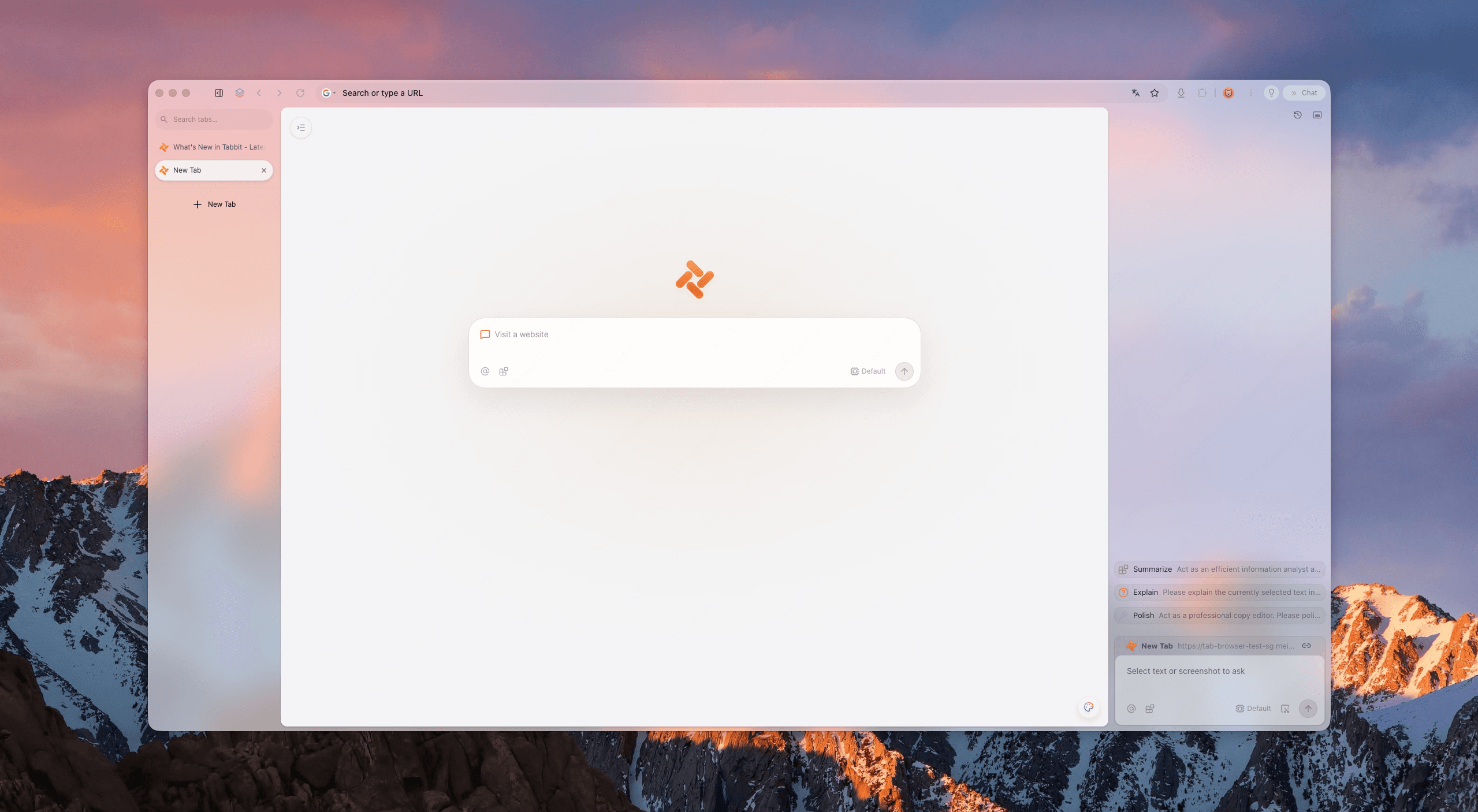
1. Workspaces with clean vertical tabs
Tabbit replaces the cramped horizontal tab strip with an intuitive vertical sidebar. You can organize your distinct work streams into named workspaces and toggle between them with a single click or keyboard shortcut. Tabs remain readable, titles never get clipped, and switching projects is instant.
2. Smart Tab Organization: AI that sorts the mess
When deep research generates dozens of scattered tabs across your workspace, you do not have to drag tabs one by one into manual folders. Tabbit's Smart Tab Organization analyzes page context and automatically groups related articles, documentation, and tools into structured clusters with descriptive titles.
3. Agent Mode in dedicated task groups
When you need to conduct deep research across ten sources or run multi-step web workflows, Tabbit's Agent Mode runs autonomous tasks in dedicated, isolated tab groups. Your primary workspace remains completely undisturbed while the agent reads, synthesizes, and compiles findings in the background. If your daily routine involves heavy synthesis, see how Tabbit functions as a dedicated research browser.
What to keep in mind
Tabbit excels at workflow organization, project focus, and conversational context with @ in the Omnibox. However, if your employer requires a dedicated enterprise profile managed via strict MDM policies and corporate certificates, maintain that dedicated profile for internal corporate portals, and use Tabbit as your high-efficiency primary browser for research, writing, and multitasking.
Which separation method fits your situation?
| Your daily scenario | Recommended mechanism | Ideal configuration | Mistake to avoid |
|---|---|---|---|
| Two separate Google / Microsoft accounts that must never cross | Browser Profiles | Create a "Work" profile and a "Personal" profile in separate windows | Using tab groups and expecting login cookies not to collide |
| Freelancer or consultant handling 5 client projects | Workspaces | Create one workspace per client inside a single browser window | Opening 5 heavy profile windows that consume 12GB of RAM |
| Conducting deep research on 20 tabs for a single article | Tab Groups or Smart AI Organization | Group tabs by sub-topic inside your current workspace | Leaving tabs sprawling across your main tab strip |
| Sharing screen in client meetings or company all-hands | Dedicated Work Profile | Open your clean work profile so personal search history and bookmarks never autocomplete | Screen-sharing a personal profile window with private tabs open |
| Managing complex research and multi-step web tasks | Tabbit Browser (Workspaces + Agent Mode) | Use Tabbit's workspaces and let Agent Mode run background lookups in isolated tab groups | Manually clicking through 30 tabs to compile data by hand |
The short answer
Separate identities with Profiles, separate projects with Workspaces, and separate immediate tasks with Tab Groups.
Using profiles for everything bogs your machine down in heavyweight windows. Using tab groups for everything leads to accidental login leaks and unreadable tabs. The sweet spot is running one work profile and one personal profile, using workspaces inside them for context switching, and letting tab groups handle short-lived tasks.
If you want a cleaner desktop without the cognitive overhead of manual tab sorting, download Tabbit Browser for macOS or Windows. Set up your project workspaces, let Smart Tab Organization tidy up your research sprawl, and keep your focus sharp from morning to evening.

FAQ
What is the main difference between a browser profile and a workspace?
A profile is an independent browser environment with its own cookies, logins, history, extensions, and bookmarks running in a separate window. A workspace is a project-focused tab collection within the same window that shares cookies, logins, and extensions unless explicitly containerized.
Do browser tab groups keep my personal and work logins separate?
No. Tab groups are purely visual tags and collapsing headers inside a single window. They share all cookies and active login sessions with every other tab in that browser profile.
Why does opening multiple browser profile windows slow down my computer?
Each profile window runs its own set of background processes, active extensions, and rendering pipelines. Running three or four profile windows simultaneously multiplies RAM and CPU overhead significantly compared to managing tabs inside one window.
How do I stop personal bookmarks and search history from showing during a work screen share?
Use a dedicated work browser profile. Profiles keep search history, autocomplete suggestions, bookmarks, and open tabs isolated so personal browsing data never appears during presentations.
Can I use different extensions in different browser workspaces?
In most browsers, workspaces share the same extension set because they share the underlying profile. If you need work-specific extensions disabled on personal pages, you need separate browser profiles.
How does Tabbit Browser help organize work and personal browsing?
Tabbit combines lightweight workspaces with Smart Tab Organization and vertical tabs. It lets you switch project contexts in a single window, groups sprawling tabs using AI, and isolates background tasks in dedicated Agent tab groups.