
Codex can operate a browser when the current session has a browser tool and can reach the page. Start by choosing where the browser should run. The desktop built-in browser works for a local preview. An approved external browser can use an existing profile. A local CLI or cloud task needs its own available tool and route to the site.
A developer on r/codex described using the built-in browser to annotate a localhost preview. That is a good starting point if your app is already running locally. If the page lives in a signed-in Tabbit profile, the external-tool example below shows a different route.
What to check first
Use @Browser for a local desktop preview; use a compatible extension for a site already open in its browser profile.
A terminal session needs a browser tool of its own. In the cloud, verify the route to the site from the cloud environment.
Compare the final URL and visible page text with what you expected before asking Codex to interact.
A separate browser profile starts without the login from your regular browser. If the task needs that login, select and verify the existing profile first.
Choose the entry point for your environment
In the ChatGPT desktop app, start with the built-in browser for an unsigned public page or a local preview. Open the page in a new tab and use @Browser in the Codex task. The built-in browser uses a separate profile. If you need a site already open in a regular browser, use a compatible extension or an external tool approved for that profile. OpenAI lists Chrome, Edge, Brave, Opera and Vivaldi for its browser extension. Availability can depend on the app version, rollout and workspace controls.
Open the exact URL in a new @Browser tab, then refer to that tab in your prompt. If you need an existing login, confirm which external browser and profile the extension connects to before opening the page. For a remote task, start with an approved staging URL or a server started inside the cloud environment.
| Environment | Browser route | When it fits and what to check |
|---|---|---|
| ChatGPT desktop | @Browser | Local preview or public page. The built-in profile has its own session. |
| ChatGPT desktop with extension | Supported external browser | Signed-in page. Confirm the connected profile and site access. |
| Local Codex CLI | Tabbit CLI or browser MCP | Terminal workflow. Confirm the current process can call the tool. |
| Codex cloud | Browser tool in the remote environment | Use a reachable test URL. Laptop localhost requires a separate authorized connection. |
Official browser documentation Official extension support
If you are deciding whether the task belongs in a browser or a coding agent, compare the roles in Tabbit / Codex.
Check a local CLI or cloud task separately
A local terminal task can use an installed browser tool if that tool is available to the process and allowed by its execution policy. For Tabbit, verify the installed launcher and load the skill in the active agent session. An MCP server is another option when the client exposes it and the server actually has a browser backend. In the cloud, localhost belongs to the cloud environment. A laptop’s dev server or signed-in profile is unavailable unless you have separately connected it through an authorized route.
For remote development, check where the app and browser run in Why Codex Cloud Can't Open Your Computer's Localhost.
If your terminal workflow needs reproducible element selection, see agent-browser CLI tutorial for snapshots, refs, and sessions.
Confirm the browser before testing a workflow
Ask the session to identify the tool it will use, the target URL and whether the profile is separate or already signed in. If the expected tool is missing, check the client version, feature settings, workspace permissions and tool availability. If the tool opens but the page fails, verify the URL and which machine owns the service. If you see a login page instead of the expected view, confirm the profile rather than repeatedly sending the prompt.
| What you see | What to check next |
|---|---|
| No browser tool | Check the active session’s tool list, then check setup and workspace policy. |
| Connection refused | Confirm which machine runs the browser, then check where the server listens and which port it uses. |
| Unexpected URL or heading | Compare the final URL, including hostname and port, with the expected page. Stop if they differ. |
| Sign-in page | Confirm the browser profile and authorized account before reading private data. |
If the tool is working and you are choosing a model for browser tasks, see GPT-6.1 Terra browser use: fast, capable, affordable.
Give Codex a read-only first task
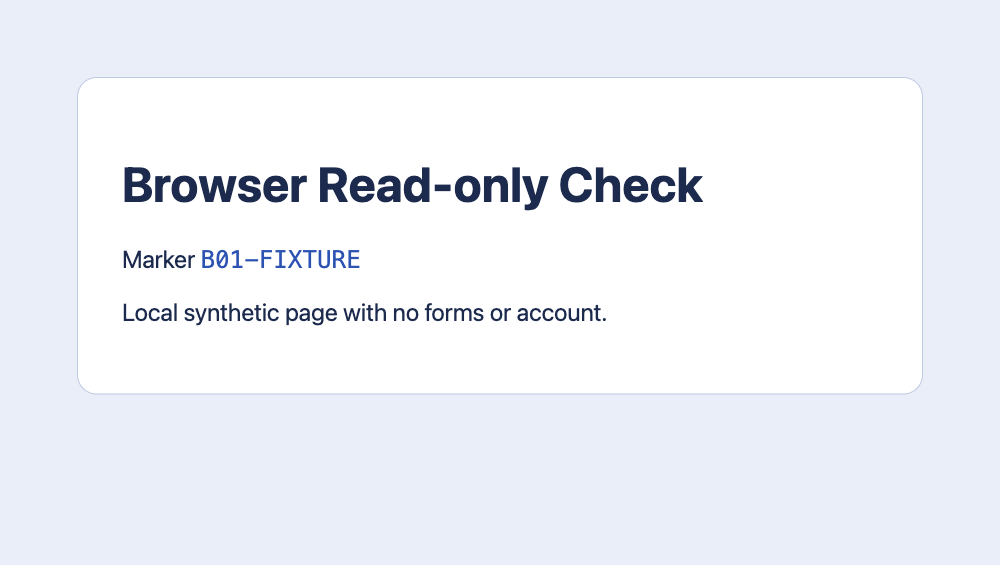
Use one known page. Ask Codex to open the exact URL and return the final URL, page title, first heading and a unique visible marker. Set the boundary explicitly: no clicking, typing, forms, downloads or sign-ins. If the returned heading or marker is different, stop and report the mismatch. Check the browser tool receipt alongside the text answer so you can tell whether the browser actually reached the page.
Replace the sample URL and marker with values you can verify on your own page.
Open http://localhost:3000/ in the browser tab I specified. Read only. Return the final URL, page title, first visible heading, and the visible marker B01-FIXTURE if present. Do not click, type, submit, sign in, or download. If the URL changes unexpectedly or a login page appears, stop and report what you see.For a repeatable pass or fail check, use How to Test Your Browser Agent Setup.
Example: Use an existing Tabbit profile
Suppose the dashboard you need is open in Tabbit Browser and your Codex session runs locally. The Tabbit CLI is a separate browser tool. Follow the official setup guide, then ask Codex to identify the Tabbit tab it will use and read one known heading from it. If Codex cannot see the launcher or the tab, check the integration before changing permissions.
This route uses the selected Tabbit profile. It does not give a remote session access to your laptop. If the page needs no login and @Browser can already reach it, start there.
Compare this route with the built-in browser in Codex Browser vs. Tabbit CLI: Which Path Fits Your Task?.
Keep access tied to the task
Use a clean profile for a public check. If a later task requires an authenticated site, verify the chosen browser and allowed origin before granting it access. Browser permissions, the terminal sandbox and cloud network access govern different things. Review any write against its destination and expected result. One r/codex user used the desktop browser for local preview and annotations. Another reported a disabled-browser error despite a visible setting being on. Treat those reports as experiences to check against your own setup.
OpenAI r/codex · @Browser r/codex · Local browser use
For an existing login, check which session is available in Can Codex Read a Dashboard You Already Signed Into?.
If the page is already open, review how to connect to that tab in Can an AI Agent Use Your Existing Browser Tabs?.
Start with one page
For a local preview, open a single tab in @Browser. For a signed-in page, choose the approved browser that holds the session. Tabbit CLI is useful when that session already lives in Tabbit. If a cloud task cannot reach the URL, fix the network route before changing the prompt.

FAQ
Can I use the desktop built-in browser from any Codex CLI?
Only if that session exposes the tool. Check the CLI’s configured browser integrations before using a desktop example.
Can Codex reach my laptop’s localhost from the cloud?
Cloud localhost belongs to the remote environment. Run the app there or use an approved test URL that the remote browser can reach.
How do I confirm the browser tool is available?
Ask Codex to name the actual tool and browser profile, then open a known public page. Look for a tool result or a visible tab.
What should the first browser task return?
Ask for the final URL, page title, first heading and a known visible marker. A mismatch is a reason to pause before clicking.
Which profile should I use?
Use the separate desktop profile for public pages and previews. For a signed-in site, choose the authorized browser profile that already holds the session.