
Why Codex sees a sign-in page that you do not
Codex can read a signed-in dashboard when its browser tool is using an authorized session that has access to that dashboard. The desktop app's built-in browser has a separate profile. If you are signed in to the site in Chrome, opening the same URL in the built-in browser can still show a sign-in page. The official browser extension can work with an existing tab in a supported browser and profile after you grant site access. Built-in browser documentation · Browser extension documentation
One Codex user reported that opening the Apple site in the built-in browser led to a sign-in screen where they could not continue. The post describes a symptom. It does not establish whether the site, the browser session or a product issue caused it. Start by identifying which browser is open before retrying sign-in. Original r/codex report
What to check first
The Codex account identifies you to Codex. The website account belongs to the browser session you selected.
@Browserdirects the desktop chat to the built-in profile. Mention the supported external browser or an existing tab to use that connection.Site access, website authentication, and permission to read a specific record are separate checks.
After signing in or switching accounts, ask Codex to report a visible workspace label before it reads business data.
Save a narrow result that you can verify, such as the report name and date range. Leave credentials in the sign-in flow.
Choose the browser and account explicitly
| What the task needs | Starting point | How to tell it is right |
|---|---|---|
| A dashboard already open in your work browser | The approved browser extension and work-profile tab | Expected host, workspace label and dashboard heading |
| A separate session for a test account | The built-in browser and a human sign-in in that browser | Test workspace and correct role on the page |
| A local or CLI automation workflow | A connector configured for that workflow and a dedicated test browser | Check the actual connector and target. A CLI alone does not inherit the desktop browser |
| A public page or a mock dashboard | A fresh session | The intended page loads without any account |
In the desktop app, the official setup starts in Settings > Computer Use. Select the browser, follow its extension setup, and confirm that the control reads Manage. Switch to the profile where the extension is enabled. In a Codex chat, mention the browser or the existing tab and grant access only for the relevant site. Availability depends on the app version, rollout and workspace settings. If the browser is absent, confirm its toggle and check the organization's policy before changing tools. Extension setup and troubleshooting
A tab group helps identify the task, but profiles determine which account is available. Read the browser profile guide and how to connect an agent to an existing browser. For how the model and tools fit together, see what an AI agent is.
Same test dashboard, two browser sessions
The editorial fixture ran on localhost. Two isolated contexts in Chrome for Testing 153.0.8010.12 opened the same /dashboard URL. In the first context, the test clicked the fixture's demo sign-in button, which granted a synthetic session without a username or password. The second context opened the same URL without signing in. The final URL and page title matched. The visible headings did not.
| Check | Signed-in context | Fresh context |
|---|---|---|
| Final path | /dashboard | /dashboard |
| Visible heading | Demo Operations Dashboard | Sign in to Demo Operations |
| Workspace | North Lab | No workspace displayed |
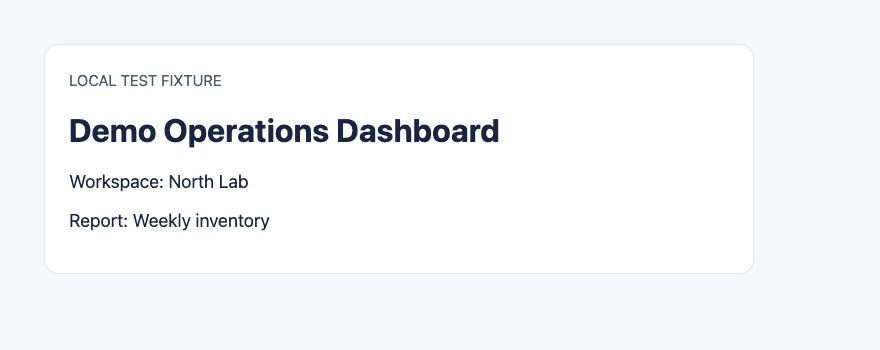
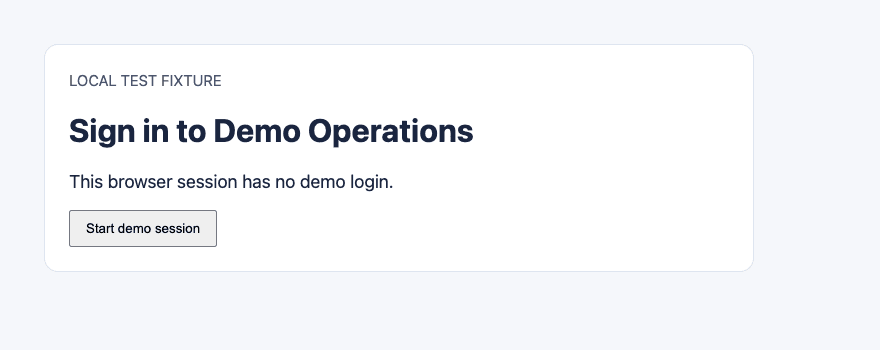
This test demonstrates browser-session isolation. It used a local test site and a synthetic sign-in, so it does not verify enterprise SSO or the Codex extension itself. On a real dashboard, use a workspace label, read-only account role and report heading as markers. Some sign-in pages return HTTP 200. A successful navigation is not enough to establish access.
Diagnose what Codex can actually see
Verify the destination. Compare the final host and path with the page you intended. A redirect to a different identity provider can be part of normal sign-in. If the host is unexpected, stop and check with your organization.
Verify the browser and profile. Read the browser mention in the chat and inspect the currently visible page. For multiple profiles, open the intended work tab and mention that tab. If there are two matching tabs, ask Codex to wait for you to choose.
Verify the site permission. Check the relevant domain settings and whether your organization permits the extension. A site permission lets the tool reach the site. The site still checks the user's role, organization and access to that report.
Verify the account and view. Request the visible workspace and report title. A dashboard can open successfully while showing the wrong tenant or a read-only role with access to a different dataset.
Recover from expiration in the same browser. Take over sign-in and any MFA yourself. Recheck the workspace and report after the redirect. Stop if there is a policy block or CAPTCHA you cannot handle through the normal site flow.
When an extension fails to connect, a useful first question is whether the browser shows Manage in Computer Use. That check separates a missing connection from a website that rejected the current session. A recent community report about browser access being unavailable illustrates the symptom, with no evidence that a single workaround fits all clients. Original r/codex thread
For permissions and site verification, see browser-agent security risks and how CAPTCHA challenges work. For local testing, see Playwright browser automation. A Codex product-entry workflow in Tabbit is a separate example of an approved browser connection and result review, not evidence that the same login works across products.
Keep the result and stop before credentials
A useful task request is “Use the approved North Lab tab. Report the visible workspace name, the report heading and the date range. If the tab shows sign-in, a different workspace, or a request to submit anything, stop and tell me what changed. Do not export data.”
For a completed read, save the report name, source URL if it is safe to share, date range and selected output fields. If a URL carries sensitive parameters, keep the host and safe path. Leave session cookies, codes, passwords and tokens out of chat, screenshots and receipts. If the task also requires a write, confirm the workspace, affected record and change, then reread the result before retrying.
Use the extension route when you need the actual signed-in tab. Use the built-in browser for a separate test account or local page when permitted. If the browser, identity or site authorization is uncertain, the next step is a read-only check of the visible state. The guide to browsers for AI agents compares further setups.

FAQ
Can Codex reuse my Chrome login?
The desktop extension can use an authorized tab in the profile where it is enabled. The built-in browser uses its own profile, so you may need to sign in there separately.
Why does Codex show a sign-in page?
The tool may be using another profile, a fresh context or an expired website session. Check the browser and final host before trying to sign in again.
Do I need to sign in again after connecting?
If the selected browser session already has access, another sign-in may be unnecessary. The website can still require reauthentication or MFA.
How can I tell which work account Codex is using?
Mention the target tab and request the visible workspace, role and report heading. Compare those values with the account and organization you intended.
What should I save after a dashboard task?
Save the report heading, safe source location, date range and necessary output. Keep credentials and session data in the website sign-in flow.