
A request to localhost goes back to the machine or network environment that made it. If Codex Cloud sends the request from a hosted environment, http://localhost:3000 refers to that environment. It does not reach a development server bound to your computer's loopback address.
A Reddit user described a preview repeatedly opening a port their project did not use. That is a reason to record the actual destination before changing network settings.
First identify where the browser or command runs. Then choose a local browser, start the app inside the same hosted environment, or use a preview URL the remote environment is allowed to reach. The Tabbit and Codex comparison explains the product roles. The network boundary depends on where the browser runs.
Key takeaways
The port identifies a listener inside the environment that owns the address.
A cloud terminal and a browser on your computer can get different results from the same URL.
Changing the bind address does not create a route to your laptop.
Verify a preview from the environment that will actually use it.
Check a unique response marker, even when the status is 200.
Map the request before changing the server
| Where the request starts | What localhost names | First thing to verify |
|---|---|---|
| Browser on your computer | The local network stack | The dev server is listening on the expected port |
| Browser or command in a hosted VM | The VM's own loopback | A service exists in the same environment |
| Browser or command inside a container | The container's network namespace in the usual isolated setup | Whether the service is inside that container or elsewhere |
| Browser connected to an HTTPS preview | The preview's domain is the destination | Access, build identity and expected result |
The IANA registry classifies 127.0.0.0/8 as loopback. OpenAI describes Codex Cloud environments as hosted and documents their own internet access and private networking policies. A cloud environment does not inherit your computer's local network access. IANA IPv4 registry, OpenAI cloud environments, OpenAI workspace administration.
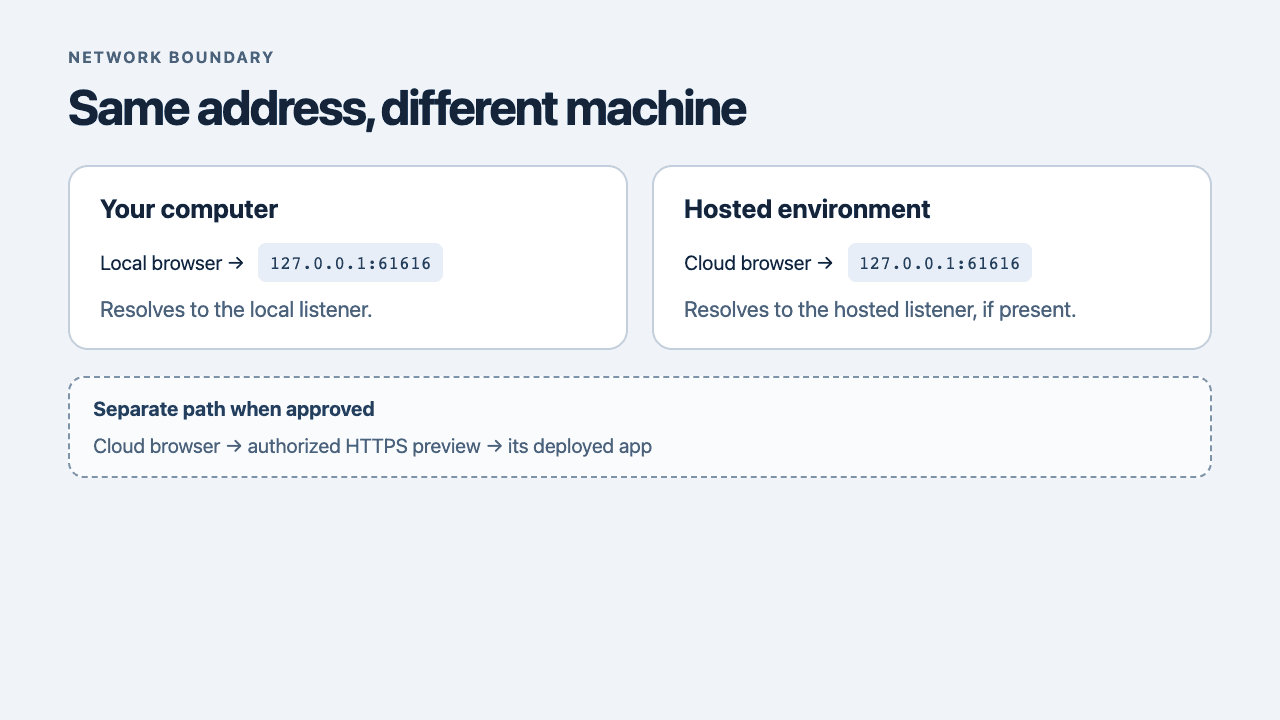
The useful question is “Which process made this request?” If a remote tool tells a browser on your computer to open a page through an approved connection, the browser makes the request locally. If the tool launches a browser in a hosted VM, that browser makes the request remotely. The virtual browser guide and browser agent overview explain the two execution patterns.
The same address returned two different responses
A local experiment used a Mac host and an Alpine Linux guest running in Apple Virtualization. A Node server bound to 127.0.0.1:61616 on the host returned host-loopback. In the guest, the same address and port initially refused the connection. Starting a separate guest listener on the same port produced guest-loopback. The host continued to return its own response.
| Requesting environment | Listener in that environment | Result |
|---|---|---|
| Mac host | Host service | host-loopback |
| Alpine guest | None | Connection refused |
| Alpine guest | Guest service | guest-loopback |
| Mac host after guest started | Host service | host-loopback |
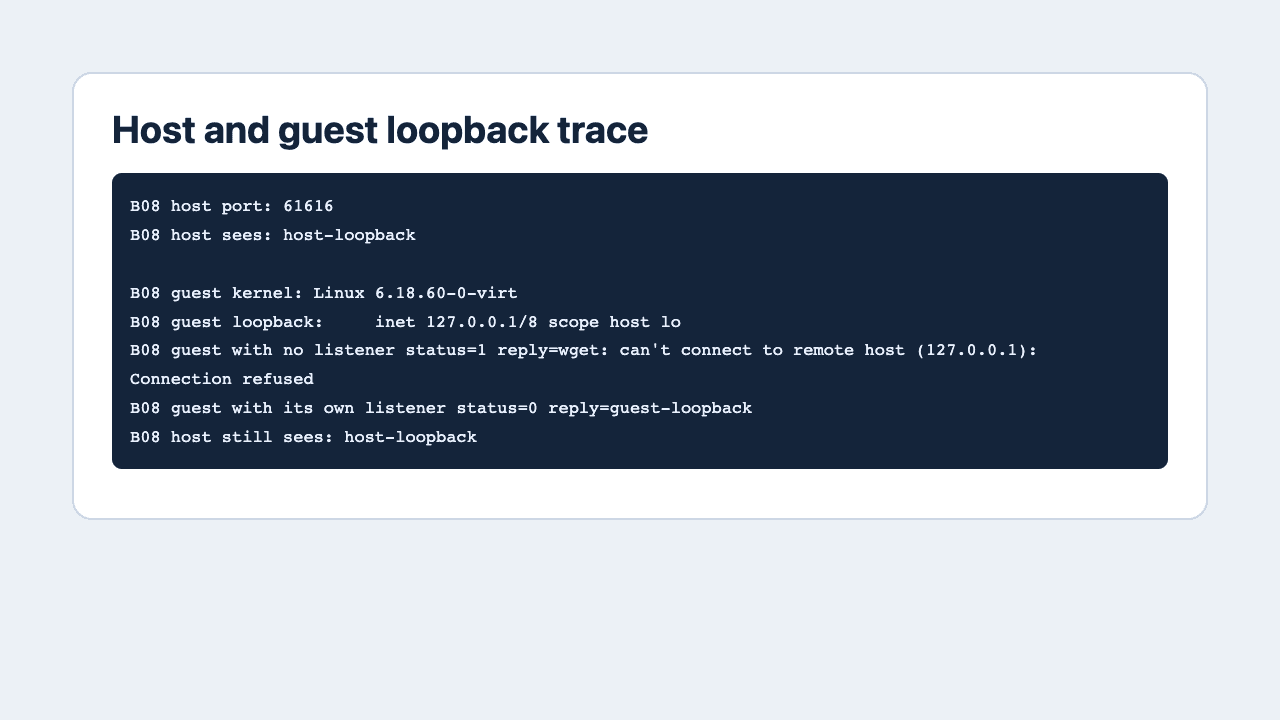
This was a real separate guest network stack on the same Mac. The guest had no external network adapter. The experiment demonstrates loopback isolation. It did not run a Codex Cloud task or test a live preview.
You can repeat the check with a VM or an isolated container. On the host, run this Node command, choosing an unused port. Keep the server running. In a second terminal, query it once on the host and once inside the separate environment. Keep the URL identical.
node -e "require('node:http').createServer((_, res) => res.end('host-loopback\n')).listen(61616, '127.0.0.1')"
curl --noproxy '*' -fsS http://127.0.0.1:61616/probe
Use the same command inside the guest to start its own listener, changing only the response text to guest-loopback. Check both responses. Host-network mode can share the network namespace in some container configurations, so use a normal isolated VM or container for this check. Docker Desktop's documented host.docker.internal hostname is a distinct container-to-host route in its environment. See Docker networking.
Choose where to run the app and the browser
| What you need | First option | Check before relying on it |
|---|---|---|
| Inspect a dev server on your computer | Use an authorized browser on the same computer | Browser opens the exact port and sees the local build |
| Run integration tests in a hosted task | Start the test server in that task's environment | Client and listener share the intended network |
| Let a cloud browser review a test copy | Use an approved HTTPS preview | Remote browser reaches it and sees the expected build |
| Reach a private test service | Use a workspace-approved private route if available | Identity, route, domain and permissions are correct |
For a local UI check, keep the browser and server on the same machine. OpenAI's desktop browser guide describes opening a local app in a desktop browser. Tabbit Browser can open a local page in the browser on your computer, and its page tools can help inspect that page when permitted. That workflow keeps the browser request local. See how Tabbit works. A separate Tabbit Tango check opened a synthetic local URL in Tabbit Browser and read the expected local marker.
For a hosted preview, use a dedicated test copy and authorize only the intended audience. Reachability, credentials and workspace network policy are different checks. An HTTPS response from the preview only proves the cloud reached something. Look for a build marker or a distinctive screen state before asking an agent to draw conclusions.
Read the failure in the environment that saw it
“Connection refused” often means nothing is listening at that address and port from the caller's point of view. A timeout, browser policy denial, authentication screen or certificate error points to a different check. Log which browser or command sent the request, the exact destination without secrets, the error and the expected instance. The browser debugging guide shows how to distinguish a page response from a failed data request.
A developer working with local Python environments asked which parts of Codex ran locally and which ran in the cloud. For a browser error, answer that question separately for the command, the browser and the server.
Ask the agent for the selected URL and a harmless identifying marker. If you only need to verify rendering, keep the first action read-only. The first browser task checklist, browser automation guide and agentic browser security guide cover verification and access. Choose the smallest route that reaches the intended test copy, then prove the response came from it.

FAQ
Can Codex Cloud open localhost on my computer?
A cloud-side request to localhost stays inside its hosted environment. Use an approved browser running on your computer, run the app in the environment that needs it, or provide an authorized preview URL.
Whose localhost is it when Codex opens a browser?
It belongs to the process sending the request. A browser on your computer uses your computer's loopback. A browser or command in a hosted environment uses that environment's loopback.
Does binding the app to 0.0.0.0 make it reachable from Codex Cloud?
It listens on more interfaces within the app's own environment. It does not create a route, grant access, or open a firewall from the cloud.
Does host.docker.internal point to my laptop from Codex Cloud?
It is a hostname documented for Docker Desktop's container-to-host access. It does not provide a general route from a hosted Codex task to your laptop.
When should I use a remote preview?
Use an authorized preview when the cloud-side browser or command needs to see a deployed test copy. Confirm access from that same environment and check the expected build or test marker.
How can I tell whether I reached the right server?
Compare the final URL, response and a unique marker tied to the intended instance or build. A 200 response can come from a different service using the same port.