
In agent-browser, open the page, take an interactive snapshot, act on a ref from that snapshot, then verify what changed. Take a fresh snapshot before the next ref-based action if the page changed. A ref such as @e3 is a way to address a control in the current browser state. The number alone does not tell you which control it represents.
A user asked whether ref-based control would hold up on single-page apps with frequent DOM changes. Another commenter argued for checking whether a failed action is visible and reproducible. The exercise below isolates both questions. r/ClaudeAI · r/AI_Agents
How the CLI and session fit together
The CLI sends commands to a background process so several commands can work with a running browser. Give the task an explicit --session name and use it on every line. A snapshot describes the current tab. A tab selection identifies which page to work on, while the session identifies the browser state the commands share.
Session management · Tabbit and agent-browser comparison · Browser agent · Browser automation
Open the fixture and read a snapshot
Use an installed agent-browser CLI with a browser it is configured to launch. Check the official installation instructions for your platform. Save the fixture locally and serve its directory on loopback, or use the hosted exercise page. Read the title and the names of the buttons in the snapshot. The output shows ref=e2; the action syntax is @e2.
Official setup · Snapshots · Open the practice page
Run the fixture safely
The fixture is plain HTML with no accounts. Save it as fixture.html in an otherwise empty directory. Run the HTTP command there and leave it running in another terminal. Use the sample URL only after confirming that the page title matches. If you use the hosted page, substitute that URL for the loopback URL.
python3 -m http.server 4173 --bind 127.0.0.1agent-browser --session refs-demo-a open http://127.0.0.1:4173/fixture.html
agent-browser --session refs-demo-a snapshot -i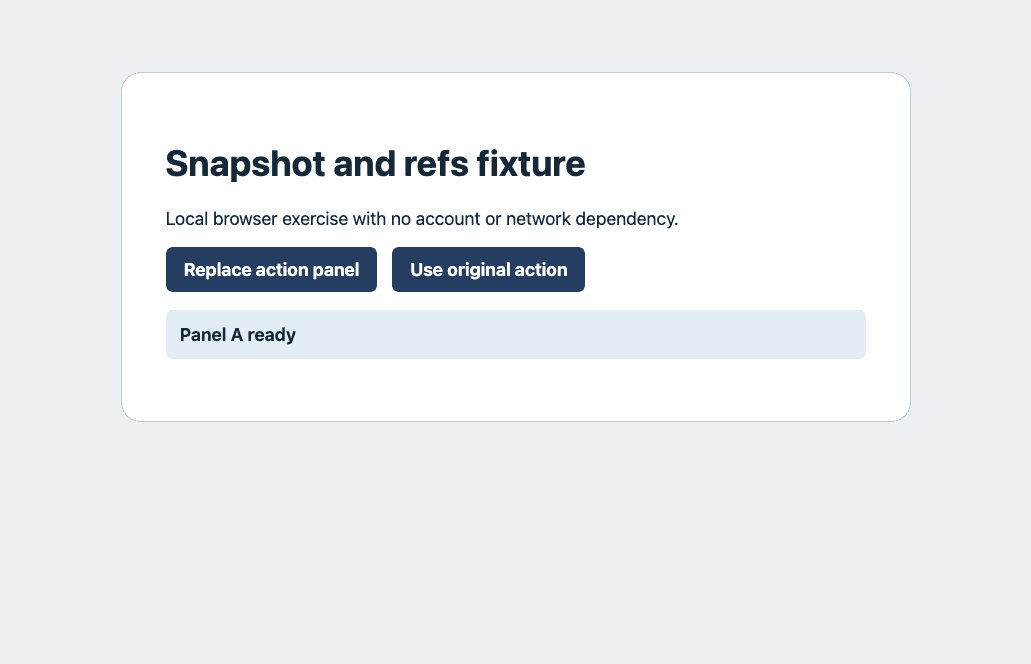
Read only the part of the page you need
Start with snapshot -i when choosing a control. If the next decision depends on explanatory text or an error message, inspect the full snapshot or read the status directly. The absence of text from a filtered snapshot does not prove the text is absent from the page. A scoped snapshot is useful after you confirm the container, especially on a page with repeated controls.
Reproduce an obsolete ref
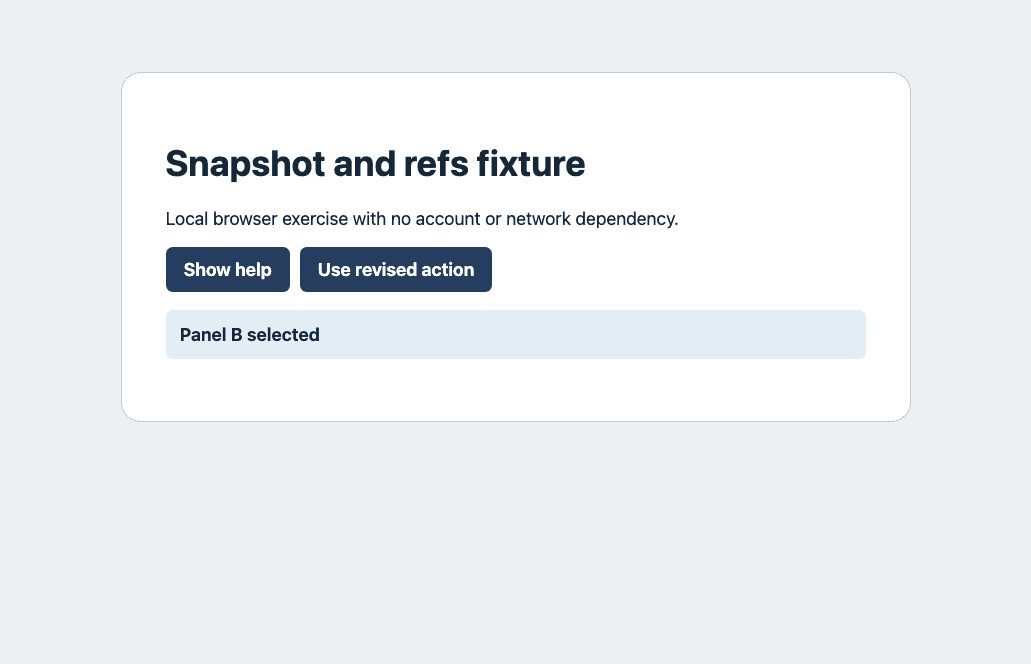
Click the control that replaces the panel. The page URL stays the same, but its original buttons are gone. In our 0.41.2 run, the old @e3 returned exit code 1 and a message that the tool could not locate the original button. A separate read still showed Panel B ready, confirming the requested action did not happen.
agent-browser --session refs-demo-a click @e2
agent-browser --session refs-demo-a get text '#status'
agent-browser --session refs-demo-a click @e3
Panel B ready
✗ Could not locate element with role=button name=Use original actionTake a fresh snapshot and check the result
The new snapshot gave Use revised action the ref @e5. We clicked it and read Panel B selected. On version 0.26.0, the same exercise reused the number @e3 for the revised button after a fresh snapshot. Read the role and label each time. Your browser or tool version can produce different ref numbers.
agent-browser --session refs-demo-a snapshot -i
agent-browser --session refs-demo-a click @e5
agent-browser --session refs-demo-a get text '#status'| Control or state | Observed result |
|---|---|
| Original button | Use original action · @e3 |
| Replacement button | Use revised action · @e5 |
#status | Panel B selected |
Know which evidence you have
The first receipt shows an accepted click and a changed panel. The error receipt is a failed lookup of the old name. The final state proves a different action occurred after a new observation. Those are three different outcomes. Keep the snapshot and the status together if you need to debug the next run.
What the current implementation can retain
The current snapshot documentation says surviving DOM elements can keep their refs across same-document changes. When a node is replaced, the tool can look for a unique element with the same role and name under the documented rules. The practice page removes the old name entirely, so that fallback cannot find it. When two controls share a name, take a fresh observation and add context before acting.
Keep independent jobs in different sessions
Name sessions by task, such as refs-demo-a and refs-demo-b. The test opened the same URL in a second session using a separate temporary profile. It showed Panel A ready while the first session still showed Panel B selected. A separate browser profile matters when persistent state is involved. A session name should not be treated as a guarantee that two clients attached to the same external browser have separate identities.
agent-browser --session refs-demo-b open http://127.0.0.1:4173/fixture.html
agent-browser --session refs-demo-b get text '#status'
agent-browser --session refs-demo-a get text '#status'
Browser automation agent · Browser agent security · Connect an existing browser
Browser used in the experiment
Both runs used the real Tabbit Browser Dev executable with temporary profiles on macOS. The product experiment exercised agent-browser. Tabbit CLI separately checked the article page. This records one working configuration, and the official installation guide remains the setup reference for your platform.
Choose the right kind of isolation
A tab selects a page within a browser. A named session lets multiple CLI invocations use the same task state. A profile determines where browser data lives for a managed local launch. If you need a repeatable test, keep launch settings fixed within a session and use a separate temporary profile for the next run. Changing a launch setting in the current CLI can restart the browser.
Close the session and diagnose failures
Confirm the expected state before closing each named session. Use session list to check which sessions are still active. Close only the sessions you own. If a fresh ref also fails, check the URL and tab, then read the current role, name and visibility. Wait for the expected UI state instead of repeating an obsolete click.
| Failure or observation | What to do next |
|---|---|
| Old ref after replacing the panel | Take a new snapshot and find the revised action |
| Same ref number in a new snapshot | Confirm the new label and role |
| New ref also fails | Check the tab and the visible state |
agent-browser --session refs-demo-a close
agent-browser --session refs-demo-b close
agent-browser session list
First-task checklist · Debug browser errors

FAQ
What does snapshot -i return?
It shows an interactive view of the current page, including roles, visible names and refs.
Why is an old ref unreliable after a page change?
The original control may have disappeared or the current snapshot may map the identifier differently.
Can I paste @e5 from this guide into any page?
No. Read the ref for the named control in your own snapshot.
Does the same URL guarantee the same refs?
No. A single-page app can replace controls without navigating.
What should I verify after clicking?
Read the actual result, such as a status message, changed URL or persisted value.
How do I close my practice session?
Run close with that session name and check session list if needed.