
If Claude Code says the browser extension is not connected, run /chrome in the same CLI session that returned the error. If the extension is missing, check the browser and profile. If the session says Not connected, choose Reconnect extension. When the browser tool still returns the generic error, compare the account and organization in Claude Code and the extension before asking IT to check the connection.
A developer on r/ClaudeCode could use the extension from Desktop while the CLI failed. Signing back into Claude Code and restarting Chrome and the CLI worked for that developer. The side panel and Desktop are separate clients, so verify the CLI connection on its own. Original Reddit report.
If you only need to read an approved page, the last section shows where a separate browser tool fits.
Key takeaways
Read
StatusandExtensionin/chromeseparately. They point to different checks.Compare the account and organization. One Claude account can belong to several organizations.
On a first setup, restart the browser so it picks up the native messaging configuration. Use
Reconnect extensionfor a dropped session.Try one read-only task on a known page. A site prompt or login page after navigation belongs to the site-access stage.
If the generic error persists on a managed network, send IT the exact error and ask them to check the approved egress for
bridge.claudeusercontent.com.
Identify which stage failed
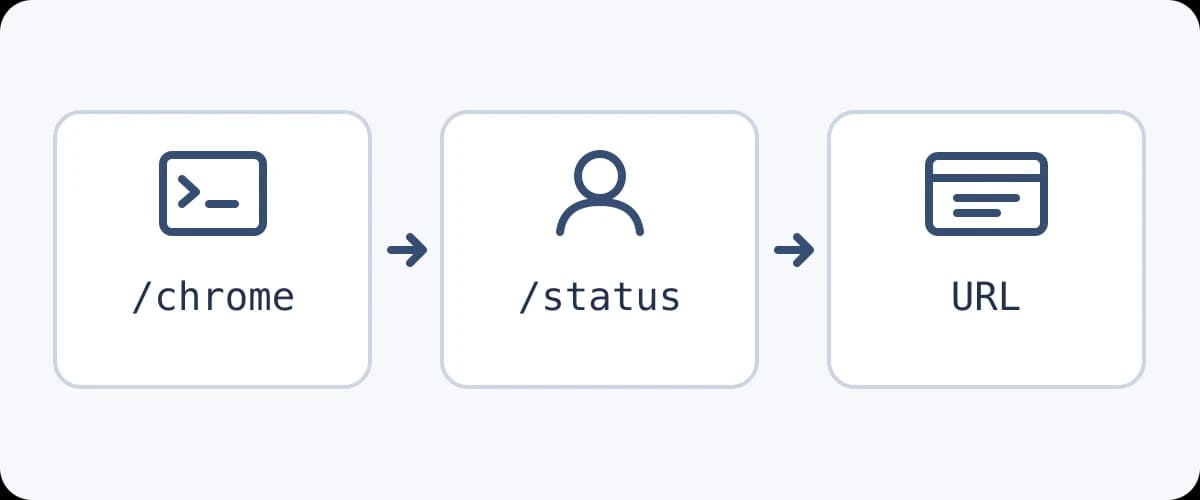
Run /chrome in the current CLI session. The official guide shows Status: Enabled and Extension: Installed for a working integration. If the extension is missing, check the browser and profile. If the status says Not connected, the running session lost its bridge connection. A site permission prompt or a login screen after navigation is a later stage. Record which browser and version you selected.
| Symptom | Check |
|---|---|
| Extension not detected | Profile and installation |
| Not connected | Session connection |
| Browser extension is not connected | Account, organization or egress |
Not logged in | Sign in to Claude Code with the eligible direct account |
| Browser opens the page but asks for access | Check the site permission or sign in on that site |
Check account and organization
Claude Code requires a direct eligible Claude plan and interactive /login for this integration. An API key, a setup token or a third-party provider does not make the official extension available. Compare the organization shown by /status with the organization in the browser extension. The same account can belong to multiple organizations. Before signing out of the extension, note that Anthropic says saved shortcuts and scheduled tasks are lost.
Compare the active organization before resetting credentials
Run /status in Claude Code and check the organization in the extension's account controls. If your personal account and work workspace share an email address, compare the actual workspace, not just the email. Confirm that an organization owner has enabled Claude in Chrome where your plan requires it. If you switched organizations, finish that change and retry in a fresh CLI session so you can verify the new context. Official connection requirements.
If the extension already shows the expected organization and only the CLI fails, reauthenticate the CLI before signing out of the extension. Save any work you need before restarting. The browser's site login is a separate credential. For what a shared browser session makes visible after you connect, see how agents use existing tabs and how to identify the profile that holds a dashboard login.
Check the browser and network separately
Open a supported browser with the official extension enabled in the intended profile. The Claude Code docs list Chrome and Edge and detect the extension in several other Chromium-based browsers. WSL is unsupported for the integration. If the account and organization match and no browser connects, ask your IT administrator whether the approved egress can reach bridge.claudeusercontent.com and satisfies organization IP allowlists. One blocked website after connection points to site permission instead.
Check which window the CLI can actually use
Open the browser profile you intend to use and inspect its extensions page. An extension installed in a personal profile can coexist with a work profile where it is absent or disabled by policy. If /chrome offers a browser choice, use it and keep the matching window open. On first setup, quit and reopen the browser so it can load the native messaging host configuration. Then start a fresh session with claude --chrome if the old session still lacks browser tools. Official setup and browser selection.
A second Reddit user had already enabled the extension and restarted Chrome and still received the generic connection error. That report is a reason to keep the installation check separate from account, session and network checks. Original Reddit report.
Check the managed network only after the local checks
Ask IT to verify which approved public IP reaches Anthropic from the relevant client and whether it matches the organization's allowlist. Access to a normal website in Chrome is a separate connection. Leave corporate proxy, VPN and browser policies in place while diagnosing. Share browser and extension versions, Claude Code version, the exact error, timestamp and time zone, and whether /chrome detected the extension. Keep credentials and private browsing data out of the report.
Reconnect and perform a read-only test
From /chrome, select Reconnect extension and check the status again. Anthropic documents that this restarts the session connection from Claude Code 2.1.290. Earlier versions only opened the reconnect page, so update if you depend on this recovery step. Then open a known public or local test page in the selected browser and report the exact URL, page title and a visible marker. Keep the test read-only and verify the tool result rather than relying on a status badge.
If a previous conversation still lacks browser tools, exit and start again with claude --chrome. Keep the approved test profile open and use a page whose content you already know, ideally a public page without login or redirects. A good test returns evidence from the browser tool itself. Use the first browser task checklist to set up a known page. For an independent browser runner, the agent-browser session guide explains how to keep a named session separate.
Use the browser tool to open https://example.com.
Report the final URL, the page title, and the main visible heading.
Use the browser result as evidence. Do not submit or change anything.
For that example, the heading should read Example Domain. An enabled badge alone does not prove that the current session can complete a task. If the tool reaches the page and prompts for access, follow the Claude Code site-permissions guide. If the title or URL belongs to a sign-in page, verify the selected profile and sign in yourself where required.
What to do after the read-only test
| Result | Next action |
|---|---|
| Correct URL, title and heading | Continue with the same session and profile. Ask for the next action explicitly. |
| Public page works, one private site fails | Review that site's permissions, redirects and browser sign-in. |
| The generic error persists after account, profile and reconnect checks | Give IT or Anthropic support the error, versions and the result of the public-page test. |
| Your workflow can use another browser tool | Choose it explicitly and validate its own session and permissions. |
When a separate browser tool fits the task
If your workflow specifically requires Claude in Chrome, stay with the Anthropic integration and escalate the remaining failure. If you only need Claude Code to open an approved page and read visible text, Tabbit Browser's Claude Code setup documents a separate route. Once configured, give the same read-only prompt to the Tabbit browser tool and check which session it uses. This requires a separate browser setup and any relevant site sign-in.
For application-owned automation, compare Claude Agent SDK browser tools with an API or MCP connection before choosing a browser. The right next step depends on whether your task needs an existing browser session or a controlled interface to the data.

FAQ
Is the same Claude account enough to connect?
Compare the organization as well as the account. The extension and Claude Code need to use the same organization for this integration.
Why does /chrome say the extension is not detected?
Check that the official extension is installed and enabled in the intended running browser profile. After first enabling the integration, restart the browser so it can read the native messaging configuration.
Can a company network cause the connection error?
Yes. Ask IT to check whether the approved proxy or network egress can reach bridge.claudeusercontent.com and satisfies the Claude organization's IP allowlist.
What does Reconnect extension do?
From Claude Code 2.1.290, it restarts the current session's failed connection. Earlier versions only opened the reconnect page, so update if the browser tools do not return.
Why does the Claude side panel work when the CLI fails?
The side panel has its own session. Run /chrome in the failing CLI and compare its account, organization and selected browser against the extension.
How can I confirm Claude Code can read a page?
Ask the browser tool for the final URL, title and visible heading of a known public page. If all three match, test the intended site separately under its own permissions.