
Key takeaways
Use
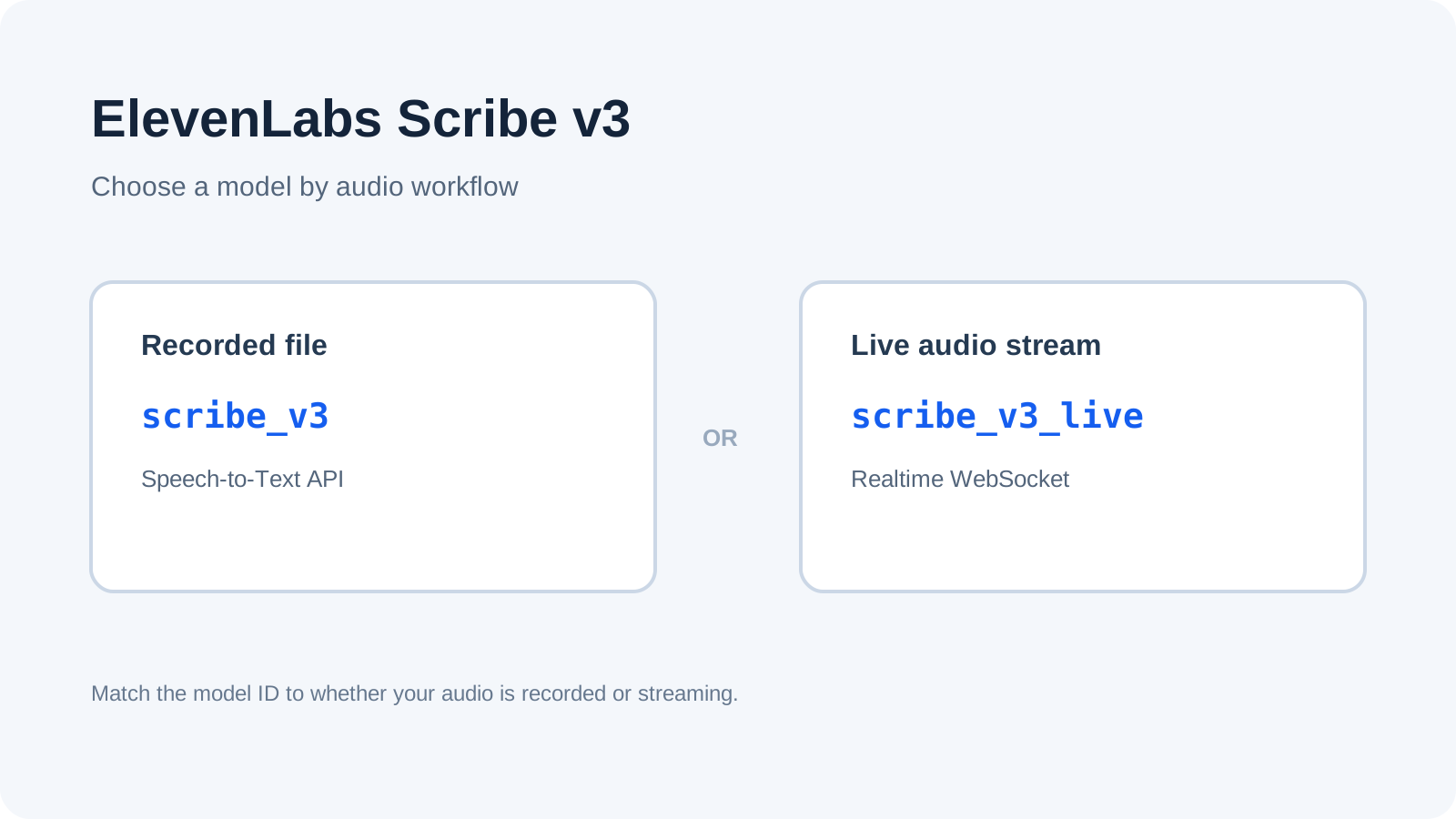
scribe_v3for a recording you already have and submit for transcription.Use
scribe_v3_livewhen your application streams audio and needs transcription while it is happening.These model IDs belong to different workflows. Match the ID to the endpoint and connection type.
The November 2026 changelog says Scribe v2 and Scribe v2 Realtime remain available. Do not assume an existing integration must be migrated immediately.
A third-party app needs to expose the new model ID before you can select it there. Check that app’s release notes; a request or announcement does not prove support.
Scribe v3 at a glance
| Your audio workflow | Model ID | API pattern | Choose it when |
|---|---|---|---|
| Upload an existing audio file | scribe_v3 | Speech-to-Text request | You need a completed transcript from a recording. |
| Send audio as it is captured | scribe_v3_live | Realtime WebSocket stream | Your product needs interim/final transcript events during a live session. |
The release names are similar, but the choice starts with the input. Ask: Do I have a file, or am I streaming audio now? A Reddit user reported that Scribe v3 was not selectable in their Whisperian 0.28.0 app, even though the API model had launched. That is a reminder to check the client’s own model picker and release notes.
Recorded audio: configure scribe_v3
For a meeting recording, interview file, or other audio asset that already exists, use the batch Speech-to-Text workflow. The official create-transcript API reference documents POST /v1/speech-to-text; the November 9 changelog maps this recorded-audio workflow to scribe_v3.
The transcription guide describes options such as word timestamps, speaker diarization, number formatting, secondary-language handling, keyterm prompting, entity detection, and transcript editing. Check the request schema and your account’s current feature availability before building around any optional field. The official docs say keyterm prompting and transcript editing use additional usage.
This pattern is simpler when your application can wait for a job to finish before showing the transcript. It also gives you a file-based input boundary: upload the recording, request a transcript, then store or review the result according to your own application’s policy.
Live audio: configure scribe_v3_live
Use Scribe v3 Live when the audio arrives continuously, such as a microphone or call stream, and the interface needs text while the session is in progress. The official Realtime Speech-to-Text guide describes a WebSocket streaming workflow, and the changelog assigns scribe_v3_live to real-time transcription.
The Live model’s documented features include turn prediction, multilingual mode, speaker diarization, word timestamps, entity detection, transcript editing, and a keyterm library. These capabilities do not make the two model IDs interchangeable: the client still needs a streaming connection and event handling.
If the user only needs a transcript after a recording ends, live streaming adds a connection lifecycle that may not help. If your product must display words during a call, waiting to upload the finished file will not satisfy that interaction.
Choose by the integration you actually have
| Situation | Configuration decision | Check before shipping |
|---|---|---|
| You upload a WAV or other supported recording and process the response later | Start with scribe_v3 and the Speech-to-Text API | Accepted file formats, request limits, and optional fields in the current API reference. |
| Your UI listens to an ongoing microphone or call | Start with scribe_v3_live and the realtime WebSocket guide | Audio chunk format, reconnect behavior, event lifecycle, and how the app handles partial text. |
| A desktop transcription app lists only Scribe v2 | Keep the existing option until the app adds v3, or use an API path you control | The vendor’s current release notes. Do not infer compatibility from ElevenLabs’ API launch. |
| You need a transcript after a live event | Decide whether the completed recording is available as a file | Batch processing may fit better if immediate text is unnecessary. |
This is a configuration guide, not a latency or accuracy comparison. ElevenLabs publishes its own benchmark claims in the announcement; they are not independent measurements and are not needed to choose the API mode.
A safe Scribe v2 migration checklist
The changelog says both earlier model IDs remain available. That gives teams room to migrate deliberately rather than changing a production setting on the day a new version appears.
Write down the current path. Record whether the client uploads a file or streams audio, which endpoint it uses, and which model ID is configured.
Check the release mapping. For recorded audio, evaluate
scribe_v3; for real-time streams, evaluatescribe_v3_live.Verify the client surface. If an app provides a model picker, confirm the exact ID is selectable. If it hides model IDs, check vendor documentation or ask the vendor; do not assume.
Test your own acceptance criteria. Use representative audio you are authorized to process. Compare transcript completeness, speaker labels, timestamps, language handling, and downstream behavior. This article does not report a benchmark.
Review optional usage. If enabling keyterms or transcript editing, check the current ElevenLabs pricing page and account terms. Rates can change; this guide does not state a per-minute price.
Keep a rollback path. The changelog states v2 remains available. Confirm its availability for your account and keep the old configuration documented until the new path is accepted.
Do not send sensitive recordings until your team has checked the applicable terms, retention requirements, and any needed agreement. The accessible docs reviewed here do not establish a universal retention or training guarantee.
Use Tabbit to review the migration context
A model ID change can be spread across API docs, a changelog, and the release notes for the transcription app your team uses. Tabbit Browser can keep those pages and a migration checklist in one browser workspace while you compare them. It does not call the ElevenLabs API, upload recordings, or confirm an app’s support status.
A practical review is: open the official changelog, the Speech-to-Text guide, and your app’s current release notes; then record the workflow, exact ID, source URL, and unresolved questions. The research workflow with source links shows how to keep conclusions tied to pages. For recurring web checks, review browser agent prompt templates and the first browser-agent task checklist.
A MacWhisper user asked whether changing an API key would enable Scribe v3 or whether an app update was needed. This is useful context, but it does not confirm the app’s current support. Tabbit helps a human reconcile pages before editing an integration; it is not a substitute for credentials review, code-level testing, or checking how an app handles audio. Keep credentials and private recordings out of browser notes.
Decision: which Scribe v3 model should you configure?
If your input is a file, use scribe_v3. If your input is a live stream, use scribe_v3_live. Then confirm the matching endpoint, connection behavior, and optional usage in the current official docs. If you configure Scribe through a third-party app, wait until that app documents the model ID.
For teams reviewing a multi-step migration, Tabbit Browser can help organize the documentation trail. Start from the browser research setup, and use local browser agent guidance, permission boundaries, safe reuse of a login session, and browser automation choices to decide where the review belongs. If you need to connect a local tool to an existing browser, see the existing-browser connection guide and the Tabbit CLI guide.
Frequently asked questions
Use the FAQ below to settle the common configuration checks before changing an integration.

FAQ
What is the ElevenLabs Scribe v3 model ID?
Use `scribe_v3` for recorded audio and `scribe_v3_live` for real-time streaming, according to ElevenLabs’ November 2026 changelog. Match the ID to the API workflow.
Should I use Scribe v3 or Scribe v3 Live?
Choose Scribe v3 for an audio file you submit for transcription. Choose Scribe v3 Live when your application streams audio and needs transcription during the session.
Does Scribe v3 replace Scribe v2?
The November 9 changelog says Scribe v3 and Scribe v3 Live succeed the v2 models, which remain available. Check current account and client availability before planning a migration.
Does keyterm prompting cost extra?
ElevenLabs’ Speech-to-Text documentation says keyterm prompting and transcript editing use additional usage. Check the live pricing page and your account terms for current rates.
Does my transcription app support Scribe v3?
Only if the app exposes or documents the relevant model ID. Check the app’s current release notes or settings; the API launch alone does not confirm third-party support.
What are ElevenLabs’ audio retention and usage terms?
The documentation reviewed for this guide does not establish a universal retention, training, or rights guarantee. Check the current terms and any organization-specific agreement before sending audio.