
When Codex reports that browser access is unavailable, capture the first actual error and identify which browser path failed. A missing tool, a denied origin and a browser that cannot reach a running page call for different checks. Start with an exact URL and a read-only task.
Capture the error and the environment
Save the verbatim error, time, app version and build, operating system, Codex entry point and browser tool. Note whether the browser opened, whether the address changed and whether a simple public page works in the same path. Redact account IDs, private URLs and tokens before sharing. An error before any navigation is more likely to involve tool availability, binding or policy than the target page itself.
| Check | Choose |
|---|---|
| Tool missing | @Browser / Computer Use |
| URL or heading differs | URL / localhost |
| Login page | Confirm profile |
Check the tool and the effective permission
For the desktop built-in browser, confirm the current session has @Browser and the relevant local browser setting is enabled. For a supported extension, check Settings > Computer Use and the active browser profile. A workspace rule can disable a capability or block an origin even if a local setting looks enabled. Ask an administrator to confirm the effective setting if it is managed. Changing a local configuration file cannot override a managed denial.
Separate browser connection from page reachability
Once a tool starts, use the exact URL it needs to open. A refused connection indicates that the browser reached an address without a listener or a local rejection. Check the address, actual port, process and network path before restarting the agent. Cloud localhost refers to the cloud runtime. A login screen means a page was reachable but the session may have a different browser profile or no authentication.
Reproduce one real error and verify recovery
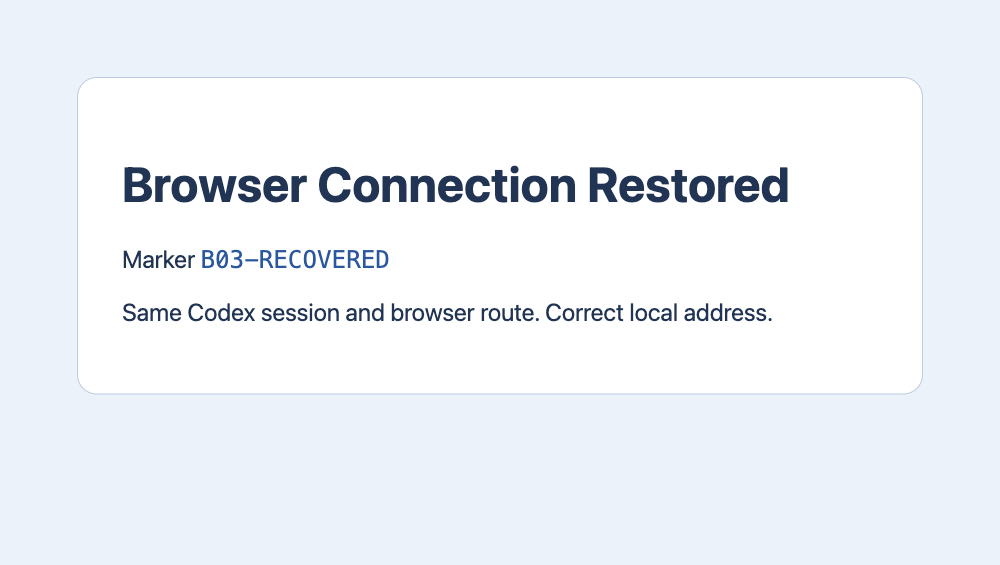
In the same desktop Codex task, we used external Tabbit CLI against a synthetic HTTP page. We first requested the loopback port 60206 with no listener and the browser returned net::ERR_CONNECTION_REFUSED. We changed only the target URL to port 60205, where the fixture was listening. The same browser task and tab returned HTTP 200, heading Browser Connection Restored and marker B03-RECOVERED. The local app bundle was 26.1029.61003, build 24614. This verified a transport repair. Native Browser Use permissions and cloud routes were outside this test.
GET http://127.0.0.1:60206/ → net::ERR_CONNECTION_REFUSED
GET http://127.0.0.1:60205/ → HTTP 200 → B03-RECOVERED| Environment | Check |
|---|---|
| 60206 | ERR_CONNECTION_REFUSED |
| 60205 | HTTP 200 · B03-RECOVERED |
If it still fails, rerun a controlled check
For a supported extension, OpenAI documents checking the site's blocklist, updating the app, checking the extension in the active profile and trying a fresh chat before restarting the app. Change one condition, then repeat the same read-only check with the same target and browser path. Keep the old and new tool results side by side. If the expected marker still does not appear, report the error through the documented support channel.
What actual reports can tell you
One r/codex user reported that desktop access worked while a separate CLI or editor context failed. Another saw a saved-permissions error even with browser tabs visible. Both suggest useful diagnostic questions. The reports do not establish a shared cause, and file changes described by a forum user should not be treated as a general fix.
r/codex · Browser access r/codex · Saved permissions
Does restarting Codex always restore browser access?
Restarting can clear stale session state. A denied origin, missing tool, wrong port or cloud routing problem still needs its own check.

FAQ
Does restarting Codex always restore browser access?
Restarting can clear stale session state. A denied origin, missing tool, wrong port or cloud routing problem still needs its own check.
Can cloud Codex reach my laptop’s localhost?
Once a tool starts, use the exact URL it needs to open. A refused connection indicates that the browser reached an address without a listener or a local rejection. Check the address, actual port, process and network path before restarting the agent. Cloud localhost refers to the cloud runtime. A login screen means a page was reachable but the session may have a different browser profile or no authentication.
What if @Browser is missing?
For the desktop built-in browser, confirm the current session has @Browser and the relevant local browser setting is enabled. For a supported extension, check Settings > Computer Use and the active browser profile. A workspace rule can disable a capability or block an origin even if a local setting looks enabled. Ask an administrator to confirm the effective setting if it is managed. Changing a local configuration file cannot override a managed denial.
How do I verify a fix?
For a supported extension, OpenAI documents checking the site's blocklist, updating the app, checking the extension in the active profile and trying a fresh chat before restarting the app. Change one condition, then repeat the same read-only check with the same target and browser path. Keep the old and new tool results side by side. If the expected marker still does not appear, report the error through the documented support channel.
What should I record when browser access fails?
Save the verbatim error, time, app version and build, operating system, Codex entry point and browser tool. Note whether the browser opened, whether the address changed and whether a simple public page works in the same path. Redact account IDs, private URLs and tokens before sharing. An error before any navigation is more likely to involve tool availability, binding or policy than the target page itself.