
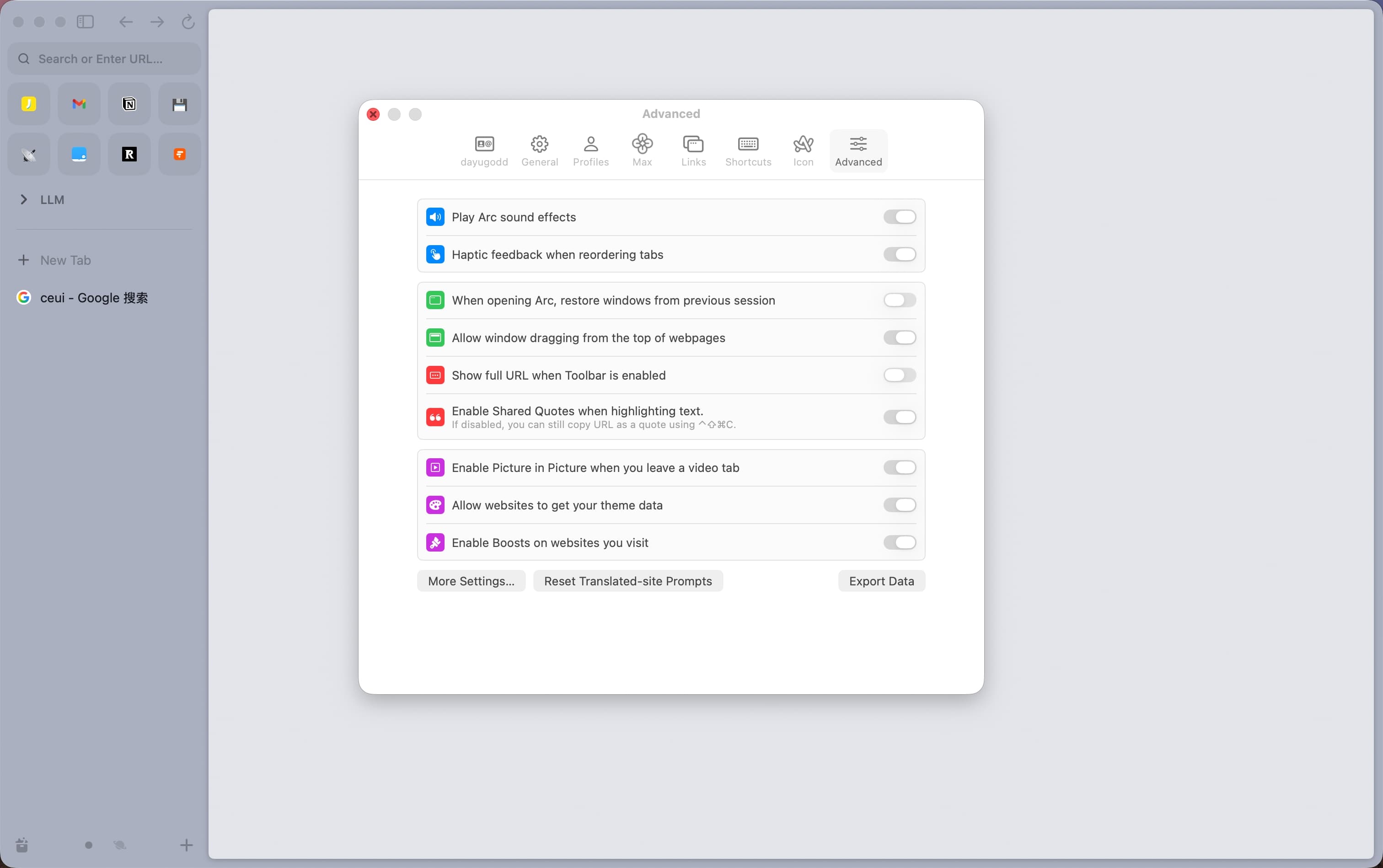
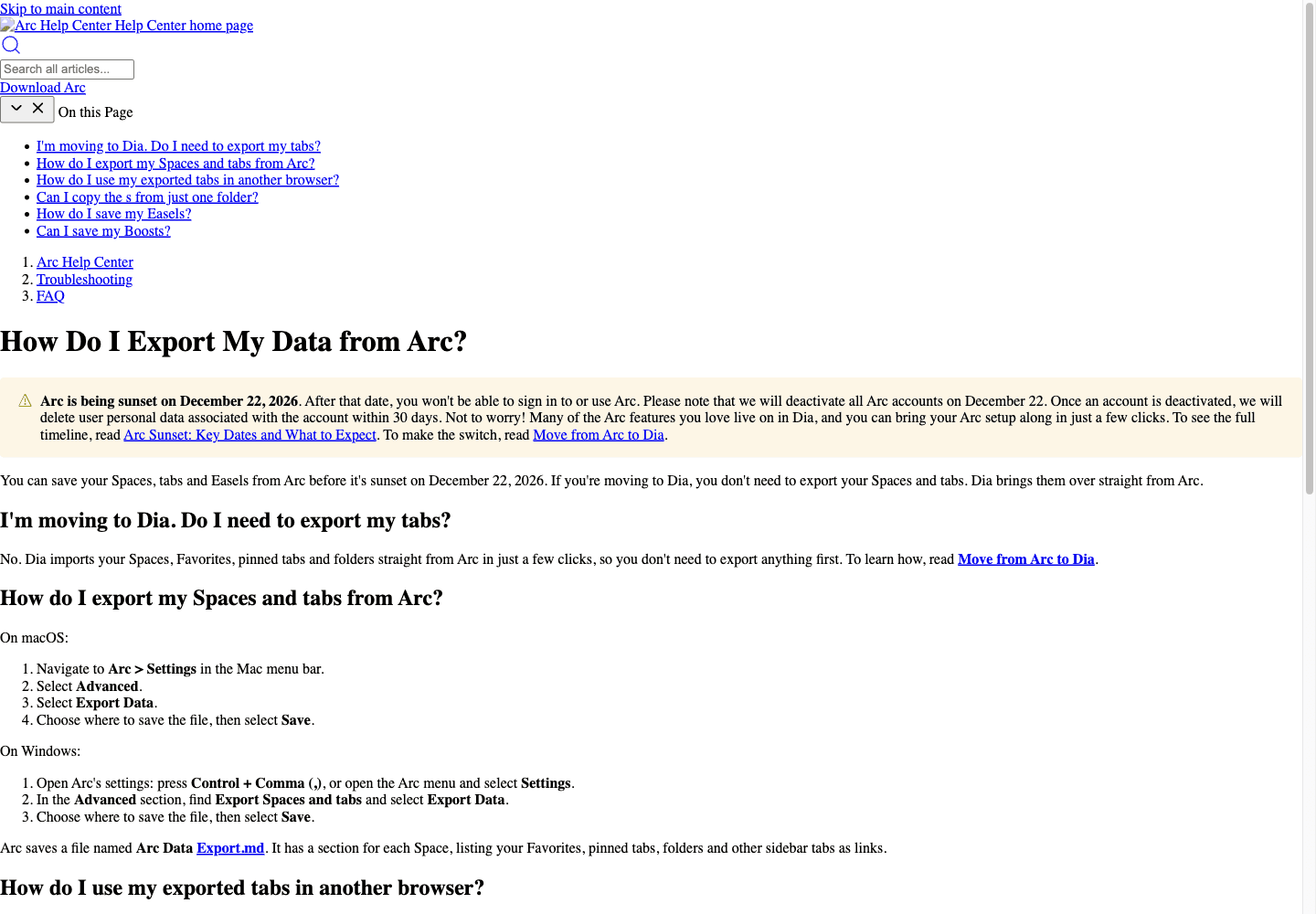
To export Arc browser tabs, open Settings → Advanced → Export Data on macOS. On Windows, open Settings with Ctrl+, then Advanced → Export Spaces and tabs → Export Data. Arc saves Arc Data Export.md: a list of links grouped by Space. It is not a standard bookmarks HTML file. These are the current official instructions, checked October 28, 2026.
That distinction matters when you search for “Arc browser export bookmarks.” In an older r/ArcBrowser thread, goethert could not find a way to move bookmarks to Chrome. That historical complaint explains the search; it does not describe today's updated exporter. Start with the current official route, then verify what the destination actually received.
This guide covers the documented macOS and Windows steps, file checks, Dia's separate importer, and an Arc to Zen workflow. Native Arc exports and destination imports were not tested for this article. Images include a supplied macOS settings screenshot and official documentation. For the shutdown explanation, see the separate Arc status article.
Key takeaways
The built-in exporter produces Markdown, not importable bookmark HTML. Renaming
.mdto.htmldoes not convert it.The file lists Favorites, pinned tabs, folders and other sidebar tabs in a section for each Space, according to Arc. Check your own file for missing items.
Dia can import supported data straight from Arc. Its importer and the link-list export are different routes.
Moving links to Zen does not automatically recreate Arc Spaces, account separation, passwords, extensions or active logins.
Keep Arc and your original export until important URLs and your everyday work pass a destination check. Arc's official deadline is December 22, 2026.
Arc export options at a glance
| Route | What the source provides | What to verify |
|---|---|---|
| Arc's Export Data | Arc Data Export.md, with Space sections and sidebar links | Important URLs, titles, Space coverage and folders |
| Copy All Links for one folder | A pasted list of links; macOS also offers a Markdown option | Nested folders and title retention in the pasted result |
| Dia's direct Arc import | Officially supported categories including passwords, history, tabs, Profiles, Folders, bookmarks and extensions | Each category in the actual destination; website authentication separately |
| Manual move to Zen or another browser | Links you open and save yourself | Saved folders, reopened pages and reconstructed workspaces |
| Third-party conversion | Depends on the converter and the source format it accepts | Input compatibility, output structure, missing links and duplicates |
The first two rows follow Arc's export help. The Dia categories come from Arc's migration FAQ. Third-party converters have their own limits; a tool that reads StorableSidebar.json is not necessarily able to read the new .md export.
Before exporting: inventory the work you need
Write down the Spaces and profiles you use, then choose a few URLs you must not lose. Include a Favorite, a pinned tab, a nested folder item and a normal sidebar tab where those exist. Use that small list as a check after exporting and after importing. This is a suggested validation method, not a claim that every Arc configuration has been tested.
Yang Wong also described exporting Spaces as the awkward part of leaving Arc in a November 27, 2025 X post. That predates the current official exporter. It supports checking your organization explicitly, not a claim that today's export button is absent.
Save unsent forms and unfinished documents in the applications that own them. A link back to an editor does not preserve text that only exists in a browser tab. Treat passwords, extensions and local downloads as separate items in your browser-switching backup checklist.
If you have several Arc profiles, inspect each one. The current help page describes a section for each Space but does not establish complete coverage of every multi-profile configuration. Record which profile you exported from; repeat the check rather than assuming one file contains everything. Do not delete profiles to simplify the migration.
Export Arc tabs and Spaces on macOS
Open Arc and choose Arc → Settings in the Mac menu bar.
Select Advanced.
Select Export Data.
Choose a folder you control and select Save.
Find
Arc Data Export.mdand open it in a text editor.Compare its Space sections and links with your inventory before making changes in Arc.
These steps are documented by Arc. If the option is missing, check that you have the current supported Arc version. The official farewell page says the latest version adds the export option and provides desktop download links for returning users. Do not use an unrelated download site to obtain an older exporter.
For a single folder, Arc also documents right-click folder → Copy All Links. On macOS, hold Option while that menu is open to select Copy All Links as Markdown, which keeps link titles. Paste the result into a local document and check it. Use this as a narrow fallback, not proof that the whole sidebar has been copied.
Export Arc tabs and Spaces on Windows
Open Arc's Settings with Ctrl+,, or use Arc menu → Settings.
In Advanced, find Export Spaces and tabs.
Select Export Data.
Choose a destination and select Save.
Open
Arc Data Export.mdin a text editor and compare the links with Arc.
The output name and described contents are the same in the official Windows and macOS instructions. This does not mean the apps have identical menus or that every profile was independently tested. Do not follow a Mac-specific Library path on Windows simply because an older conversion guide uses it.
If you only need a folder, try the documented Copy All Links action. The help page labels the Option-key Markdown variant as macOS-specific; this article does not promise that shortcut on Windows.
Check the export before importing anything
Open the file as text. You should find sections you recognize and links you can inspect. The acceptance check is:
usable link backup = file opens + expected sections exist + important URLs reopenFirst, search for the test URLs from your inventory. Compare the actual URL, not just a title that several pages share. Next, inspect nested folders and duplicate links. Finally, open a small sample in a different browser. A sign-in page can be normal for a private site; a missing, truncated or wrong URL needs fixing before you proceed.
Keep the original file unchanged. If you want to edit or convert it, work on a copy. Store a second copy somewhere you can still access if the original device fails. The file can contain private project names and internal URLs, so choose the location accordingly.
What the Markdown file does and does not establish
Arc describes links and Space sections. It does not describe a complete, restorable browser profile backup. Passwords, cookies, extension state, history, unsaved page content and downloaded files are not promised as contents of this Markdown file. A Space heading is useful for rebuilding organization; it does not itself become a workspace or an isolated account in another app.
For a browser that accepts bookmark HTML, the handoff is different. Our Chrome bookmarks export guide explains that format. Changing a filename extension does not change a list of Markdown links into a Netscape-style bookmarks document.
Arc to Zen: rebuild from links or validate an HTML conversion
For a small working set, the documented route avoids format conversion: open the URLs from your Markdown file in Zen, select the relevant tabs, right-click and choose Bookmark Tabs…. Zen's official bookmarks guide documents saving selected tabs into a new folder, and Bookmarks → Manage bookmarks opens the Library. Create a folder per project or Space so you can check one set at a time.
For a large collection, you may prefer a converter. Read its current documentation before running it. The arc-export repository describes conversion from Arc's sidebar storage to HTML; it is a third-party project, and this article has not tested it against the current Arc release. Do not assume a sidebar JSON tool accepts Arc Data Export.md. Keep the original data and inspect a small converted sample first.
Mozilla documents Import and Backup → Import Bookmarks from HTML in the Firefox Library. Zen says its bookmarks system is inherited from Firefox, but this article has not verified that exact importer in a current Zen installation. Locate the HTML import control in your installed version, choose a genuine HTML bookmarks file, then search the Library for a known title and URL. Do not point an HTML importer at the Markdown file.
A comment by Ill-Possession1 in the older Reddit export thread reports an unsuccessful Zen HTML import. That is a historical personal report, not proof of a current Zen defect. It is a reason to inspect the imported folders and test the result rather than treating the absence of a new sidebar tab as the only signal of failure.
Bookmarks and workspaces serve different purposes. Recreate the workspaces you need and test their account behavior separately. Use the Arc-style workspace comparison for that decision; the Zen and AI article addresses a different requirement and does not certify Arc migration.
Importing Arc into Dia is a separate operation
According to Arc's current FAQ, select Arc when Dia asks which browser to import during setup. If Dia is already installed, macOS uses Dia → Import from Another Browser in the menu bar; Windows uses Dia app menu → Import from another browser.
The official mapping is Spaces → Profiles and Folders → Tab Groups. Arc also lists Favorites, pinned tabs with custom names, passwords, history, bookmarks and extensions among supported data. This is a vendor statement, not an import test completed for this guide. Check a project, a saved password, essential extensions and sites that require authentication before relying on the destination. “Passwords imported” and “every website is still logged in” are different checks.
You do not need the Markdown file to start Dia's direct import. Keeping an independent link export can still help you verify coverage. Compare the Dia and Arc workflow differences only after confirming the data you need is present.
Missing data and failed imports: what to check
| Symptom | First check | Next action |
|---|---|---|
| Export Data is absent | Current Arc version and the platform-specific settings location | Use official update/download guidance; contact Arc support if still missing |
| A Space or important link is absent | The active profile, the actual URL and the saved file | Recheck that profile; copy the missing folder's links separately |
| Zen or another importer rejects the file | Is it Markdown or genuine bookmarks HTML? | Open Markdown links manually, or validate a compatible conversion |
| Import completed but nothing appears | Search the destination's bookmarks Library and folders | Find a known URL before repeating imports and creating duplicates |
| A work site asks you to sign in | URL validity and the site's authentication requirements | Sign in through the normal site flow; a URL list is not a login session |
| Easels or Boosts did not move | Their separate export limits | Save Easels as PNG; Arc says Boosts cannot be exported |
Arc documents saving an Easel through its bottom-right Share → Share Via… control as a PNG image. Easels do not transfer to Dia. Boosts cannot be exported and do not transfer to Dia. A PNG preserves the rendered Easel image, not an editable replacement for the original.
If tabs are missing before export, stop the migration and investigate the source. A session manager may help preserve an existing working set, but it cannot guarantee recovery of data already gone. The sync troubleshooting guide explains why you should preserve a good local copy before changing sync settings.
Finish with a destination check
Choose the route by the data you need. For a portable list of Arc links, use the official Markdown export. For Dia's supported Arc data categories, use its direct importer. For Zen, rebuild from the links or test a compatible HTML conversion, then reconstruct your organization. None of these labels alone proves a complete migration.
Open one real project outside Arc. Confirm its important URLs, folder organization, required extensions, authentication and an independent saved copy of the work. Keep the source until that check passes, and finish before the official deadline. Only then use the Arc alternatives guide to compare longer-term choices. This article does not claim that Tabbit Browser has a tested Arc-specific importer.

FAQ
Can Arc export bookmarks as an HTML file?
The current official exporter saves Arc Data Export.md, a Markdown list organized by Space. It is not a bookmarks HTML file. Open and bookmark the links yourself, or independently evaluate a converter that explicitly supports its input format.
How do I export Arc tabs on Windows?
Open Settings with Ctrl+, or from the Arc menu. In Advanced, find Export Spaces and tabs, select Export Data, and choose a save location. Open the saved file and check important links before deleting anything.
Does the Arc export preserve Spaces and login sessions?
The Markdown file records Space sections and sidebar links. That does not recreate browser workspaces, profiles, passwords, cookies or login sessions. Check those items separately in the destination browser.
Do I need to export a file before importing Arc into Dia?
According to Arc, Dia imports supported data directly from Arc on macOS and Windows. Choose Arc during setup, or use Import from Another Browser later. The Markdown export is a separate copy of your links.
Can I import Arc Data Export.md directly into Zen?
Do not feed it to an HTML bookmarks importer. For a small set, open the links in Zen and bookmark them into folders. If you use a converter, confirm it accepts your actual source file and test the resulting HTML before importing a large collection.
Can I save Arc Easels and Boosts?
Arc says an Easel can be saved as a PNG through Share and Share Via. Easels do not transfer to Dia. Boosts cannot be exported and do not transfer to Dia.