
You are about to replace a computer, test another browser, or reinstall Chrome. The bookmarks are the part you keep thinking about: years of saved links, nested folders, and one folder you absolutely cannot recreate from memory. A Reddit user moving from one Android phone to another put it plainly: “How can I get a copy of my bookmarks without using google sync? A text document would even be fine.” (original post)
The desktop answer is short. Open Chrome's Bookmark Manager, choose Export bookmarks, and save the HTML file. Then open the file and check it before you close the old browser. This guide covers the clicks, the mobile limit, the import step, and where Tabbit Browser fits if you want a desktop browser with a more organized workspace.
Key takeaways
Chrome's official desktop route is Bookmark Manager → More → Export bookmarks.
The export is an HTML file. It is portable and readable, but it contains bookmarks, not passwords, browser history, or a live window of open tabs.
Open the saved file before you rely on it. A file from the wrong Chrome profile can look valid while missing the links you expected.
Chrome sync is useful for signed-in devices, but it is not the same thing as a file you can inspect and keep offline.
Android and iPhone users generally need desktop Chrome or sync as the bridge. Do not hunt for a desktop-only menu that the mobile app does not show.
Tabbit can be a practical desktop destination for an imported, verified library. It does not replace mobile Chrome sync or restore a running tab session.
Chrome bookmark export at a glance
| Task | What to do | What you get | Boundary |
|---|---|---|---|
| Make an offline copy | Bookmark Manager → More → Export bookmarks | One .html file | Bookmarks only |
| Move to another browser | Export HTML, then use the other browser's import command | Folders and saved links | Menu names differ |
| Use another signed-in device | Turn on Chrome sync | Account-backed browser data | Not an offline file |
| Save open work | Bookmark all tabs into a named folder | URLs grouped in a folder | No unsaved form text or live page state |
| Move a mobile library | Let desktop Chrome or sync act as the bridge | Bookmarks available on desktop | The mobile app does not expose the same export flow |
If you are also moving passwords and open tabs, use the broader browser backup checklist. If duplicate or missing items are the problem, read why browser sync fails across devices first.
How to export bookmarks from Chrome on desktop
Google's Chrome Help instructions place export under Bookmark Manager. The labels may be slightly different if Google has rolled out a menu experiment, but the object you need is the manager, not the general Settings page.
Open Chrome on the computer that currently has the bookmarks.
Open the three-dot menu, then choose Bookmarks and lists and Bookmark manager. On common desktop builds,
Ctrl+Shift+Oopens the manager on Windows and Linux;Command+Option+Bis the macOS shortcut shown by Chrome's bookmark UI. If the shortcut does nothing, use the menu.In Bookmark Manager, open the More menu at the top right.
Select Export bookmarks.
Save the HTML file with a name that tells you which profile and date it came from, such as
chrome-personal-bookmarks-2026-09-15.html.
The file is the handoff. Do not rename it to .txt or paste its contents into a document. Browsers expect the Netscape-style bookmark HTML structure, and the import picker may reject a file that has been reformatted.
If you use Chrome profiles, repeat the export for each profile you care about. A work profile and a personal profile have separate bookmark trees. This is the easy detail to miss, especially when both profiles use the same Google Account.
Check the file before you close Chrome
An export that completed without an error is not automatically the export you wanted. Open the HTML file in a browser. You should see the folder names and a useful sample of links. Click a few links from different folders, including one folder you rarely open.
Use this check:
| Check | Pass condition | If it fails |
|---|---|---|
| File exists | Finder or File Explorer shows the saved .html file | Export again to a known folder |
| File opens | A browser displays bookmark folders | The export may be empty or damaged |
| Profile matches | A personal or work-only folder is present | Switch Chrome profile and export again |
| Sample links work | Several folders contain expected URLs | Compare with Bookmark Manager before deleting anything |
| Copy is stored safely | A second copy exists on a private drive or encrypted storage | Keep the original browser until you make one |
This matters because the main risk is often selection, not the export command. A user in an older r/chrome migration thread could not get sync to work and wanted clear manual instructions. A commenter suggested exporting to a flash drive, importing on the new computer, and checking the result. The post is old, so its exact menu labels are historical; the underlying HTML handoff is still the useful idea.
Keep the file private. Bookmarks can reveal work systems, medical portals, internal documents, or pages you meant to keep quiet. If you put the file in cloud storage, use a private location and remove old copies when the move is complete.
Chrome sync is useful, but it is not your only copy
According to Google's Chrome sync help, signing in can save bookmarks and other browser data in your Google Account and make them available on signed-in devices. When you sign out, bookmarks and other info can remain only on the device. That is a reason to check the account and device state before switching.
Sync answers “can I see this on another signed-in device?” Export answers “do I have a file I can inspect and import later?” They solve different problems. Keep both when a library matters.
The HTML export also has a narrower scope. It does not include saved passwords, cookies, extension settings, history, or a running browser window. For open tabs, bookmark the window into a dated folder first. The too-many-tabs system explains why a URL list cannot preserve a form you have partly filled in or a page state that only exists in memory.
What Android and iPhone users can do
The current Google Help page gives the export steps for On your computer. The mobile section explains how to open and manage bookmarks, but it does not present the same Bookmark Manager → Export bookmarks command. That is why mobile searches feel circular.
There are three practical paths:
Use Chrome sync as a bridge. Sign in on the phone and desktop with the same Google Account, wait for the bookmarks to appear on desktop Chrome, then export from the desktop manager.
Use an existing desktop profile. If the bookmarks already exist on a Mac or Windows computer, export there and copy the HTML file to private storage.
Keep the mobile copy in place while you move the desktop copy. Do not delete or reset the phone profile just because the desktop export is complete.
A YouTube tutorial from Foxtecc is titled “Can You Export Bookmarks from Chrome on Android? (explained)” and had about 9.2K views when checked. That search demand is real, but a video description is not a Chrome capability guarantee. If you need an independent file, the desktop route remains the clear official path.
If your actual goal is finding one old page on a phone, export may be overkill. Browser history and bookmark search is the better starting point. If the goal is changing browsers, keep the HTML file and use the destination browser's official import screen.
Import the HTML file into another browser
The destination browser normally has an Import bookmarks, Import favorites, or Import from HTML command in its bookmark manager. In Chrome, Google's import instructions say to open Bookmarks and lists → Import bookmarks and settings, choose a file, and select Open, then Done. Imported bookmarks may land in the bookmarks bar or an Other bookmarks folder depending on whether the destination already has bookmarks.
Before importing, decide whether you want a merge or a clean replacement. Importing into a profile that already contains the same tree can create duplicates. For a cautious migration, create a temporary profile or a clearly named destination folder, import there, compare, and only then reorganize.
If you are leaving Chrome for a different engine, start with alternatives to Google Chrome. If you are keeping a Chromium workflow but want a second place for project work, your second browser lays out that trade-off.
A practical desktop destination: Tabbit Browser
Tabbit Browser makes sense after the HTML file has passed its checks. It is a desktop option for someone who wants to bring over a browser library and then work with named spaces, rather than treating every saved link as part of one endless tab strip. It is not necessary for exporting the file, and it does not change Chrome's mobile limitation.
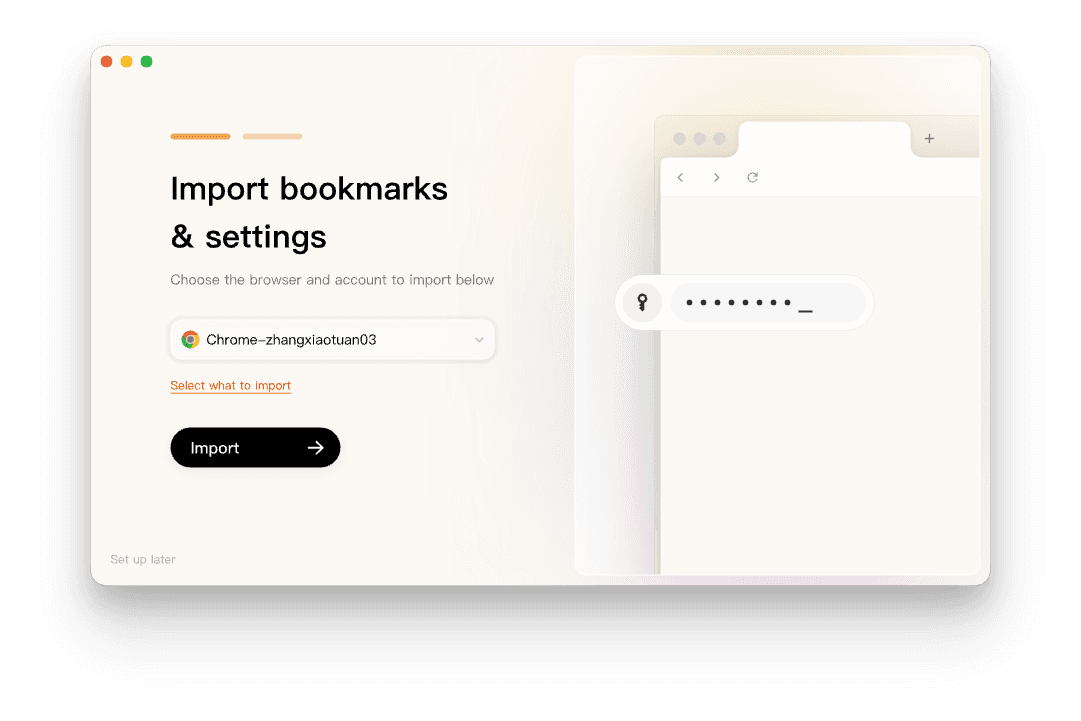
A careful handoff looks like this:
Export the Chrome profile to HTML and open the file.
Install Tabbit from the AI browser download page.
In setup, choose the Chrome profile or import path that matches the copy you checked.
Open bookmarks from several folders after import. Keep Chrome installed until those checks pass.
Use Smart Tab Organization only after the library is visible. It can help with a working set; it is not a substitute for the exported file.
Tabbit is a desktop browser. It does not recreate a live Chrome window, and it does not put the imported folders on a phone. If phone access is the deciding requirement, keep the browser that already handles that sync. If enterprise policy, a required extension, or leaving Chromium matters more, compare Tabbit and Chrome before you move.
The useful separation is simple: Chrome produces the portable artifact; Tabbit can be the desktop place where you use it. The backup remains yours.
Choose the right route
| Situation | First move | Why | Watch for |
|---|---|---|---|
| Switching desktop browsers | Export HTML, open it, then import | Portable and easy to verify | Duplicates in an existing profile |
| Reinstalling Chrome | Export before reset | Gives you a file outside the profile | Wrong Chrome profile |
| Phone-only workflow | Keep sync enabled or use desktop as bridge | Mobile Chrome lacks the same export UI | Sync is not an offline archive |
| Many open tabs | Bookmark all tabs first, then export | Preserves URLs in a named folder | Forms and page state do not travel |
| Moving into Tabbit | Import the checked profile/file, then inspect folders | Good for desktop organization | No mobile app and no live-window restore |
| Leaving Chromium entirely | Export first, then choose another engine | The HTML file remains useful | Browser features and extensions differ |
Final verdict
To export bookmarks from Chrome, use the desktop Bookmark Manager and choose Export bookmarks. Save the HTML file with a profile and date in its name. Open it, test a few folders, and store a private second copy before you wipe or hand over the old computer.
That file is more dependable as a handoff than a vague hope that sync finishes. If you want a desktop browser to use the verified library, install Tabbit Browser, import the profile, and check the folders before you retire Chrome. Keep Chrome or another mobile browser for phone sync when you still need it.

FAQ
How do I export bookmarks from Chrome on a computer?
Open Chrome's Bookmark Manager from Bookmarks and lists, open its More menu, and choose Export bookmarks. Save the resulting HTML file somewhere you can find, then open it to check the folders and links.
What format does Chrome use when exporting bookmarks?
Chrome exports bookmarks as an HTML file. Other browsers can usually import that file through their bookmarks or favorites manager.
Can I export Chrome bookmarks from Android or iPhone?
Google's current export instructions describe the desktop Bookmark Manager, not an equivalent export command in the mobile app. On mobile, use Chrome sync or move the bookmarks through desktop Chrome, then keep an independent HTML copy if you need a backup.
Is Chrome sync the same as exporting bookmarks?
No. Sync keeps browser data in a signed-in Google Account and makes it available on signed-in devices. An HTML export is a separate file you can inspect, copy, and import without relying on a live sync connection.
Can Tabbit import Chrome bookmarks?
Tabbit Browser can import supported browser data during setup, including bookmarks in the import workflow shown in its onboarding. Check the imported folders before removing Chrome, and remember that Tabbit does not recreate a live window of open tabs or provide a mobile app.