
AI web search finds sources and brings back an answer. A page reader can inspect the contents of an open page. Browser automation can click, type, navigate and check what changed afterward. These tools can share one chat box, so the quickest way to tell them apart is to ask what evidence each can return.
Imagine asking an assistant to check whether an invoice is available. A search citation can point to the vendor's instructions. A page reader can tell you what the invoice tab displays if the tool can see it. Downloading the invoice requires a separate action in an authorized browser session or an integration that can retrieve the file. The public instructions, the text on the screen and the downloaded PDF answer three different questions. A Reddit user described using search for documentation and a connected browser to fill out travel forms. That choice reflects the work each tool was asked to do. Tabbit Browser will serve as a practical example of how to pick among search, current-page chat and Agent Mode. Original Reddit post
Key takeaways
Start with web search if you need public sources, then open the cited page when an exact claim matters.
Use a page reader when you already have the right tab and only need its visible content explained.
Use browser control when the answer depends on opening a menu, changing a filter, downloading a file or completing another interaction.
A browser must have the right session and account permissions for private content. Knowing the address is only the first step.
Set a visible success condition before delegating a click. A changed page, a record ID or a file gives you something you can check.
Web search, page reading and browser control at a glance
| Tool | What you give it | What it can return | What to check |
|---|---|---|---|
| Web search | A public question, keywords or domains | Links, retrieved excerpts and a cited answer | Source date and the passage supporting the claim |
| Page reader | A specific URL, open tab or selected text | A summary, explanation or fields from available page content | Correct tab, visible section and any omissions |
| Browser control | A goal, browser context and allowed actions | An observed page state, collected fields or an action result | Correct account, target and independent completion signal |
Some AI web search tools fetch more than snippets. OpenAI's API documentation, for example, distinguishes a search action from opening a page and finding text in it. Search and page reading may be combined inside one request. The distinction matters when the result says “according to the documentation” and your question is “what does my account show right now?” An exact citation should support the claim beside it. It cannot identify a private account state by itself. OpenAI web search documentation
Reading a page can still require a browser
A public webpage may render its records after JavaScript runs. A help article might put an answer behind a tab, and a list might load more items only after you scroll. A tool that reads the initial HTML or a short excerpt can miss all three. A browser can render the page and interact with the control that reveals the information. That can be a read-only workflow from the account owner's point of view, even though the tool performs clicks.
Ask the assistant to report the filter, tab or page number it saw. For example, “Read the total shown under Completed with the March date filter” has a stronger check than “Find my total.” If a page contains several totals, the label and filter are part of the answer. A browser agent can decide which interaction comes next. For a repeated job, a script that names the exact controls and expected result can make the workflow easier to debug. Playwright locators
A click and a saved change are separate events
Clicking “Save” may trigger client-side validation, open a confirmation, or send a request that later fails. Some sites even show the new value immediately and roll it back when the server rejects the update. The meaningful test is what the next page, response or refresh tells you about the record.
A participant in r/AI_Agents described the ambiguous moment when a form times out after Submit. The site may have accepted the change and lost the response. Checking the destination before retrying can prevent a duplicate. Original discussion
For a download, look for the intended file and verify its contents. For an internal record, reopen the record and check the field. For a draft message, check that the recipient and text appear in the editor, then stop there if sending wasn't part of the task. These checks are part of browser automation, whether an AI agent chooses the actions or a script runs them. For an overview of how an agent decides what to do after observing the page, see the agentic browser guide.
Why your dashboard still asks the AI to sign in
A URL tells a browser where to send a request. The website uses the request's session and the account's permissions to decide what data to return. The same address can show a sign-in form in one browser, a project list in another and an access-denied page for an account without the right role. Public search can locate the address or the vendor's help article. Those results carry no proof about which view your account will receive.
Browser context is the first thing to check. A managed cloud browser may have its own sign-in state. A desktop application can also use a separate browser context, even if it runs on the same machine. An agent connected to a supported, already signed-in browser can use the pages that connection exposes, within the account's permissions. The product's setup determines which case applies. A tab group is usually an organizational label, while browser profiles and workspaces can have very different implications for what a tool can reach. Playwright authentication · OpenAI cloud browser documentation
If the right account is present, check the workspace and role before you ask the agent to continue. A company portal might let you view your own invoices while hiding the billing menu for the organization. In the same Reddit discussion, another participant reported that a bot kept working on the sign-in page after its session expired. That failure can look like progress if you only review the steps it attempted. Original discussion Use the site's supported sign-in process, then have the assistant re-check the destination before it proceeds. A CAPTCHA challenge, an SSO prompt and a request for administrator access are different stop conditions. The tool should tell you which one appeared.
Try the same request three ways
Use the public Form Authentication practice site and ask one question: “Can I reach the Secure Area, and what confirms that I got there?” The site provides its own demonstration credentials. Keep the exercise inside the practice site.
Search for the site and its instructions. Ask for the public login page and a link. This establishes where the demo starts. Even a result that quotes the protected heading describes the demo, rather than showing the state of your browser.
Read the page in an unsigned session. Open the protected address and inspect the resulting page. Record the current URL and visible heading. In the test, the browser reached /login and showed the Login Page heading and a message requiring sign-in.
Operate the browser and verify the result. Use the credentials printed by the practice site, submit the login form, and inspect the resulting URL and heading. The test reached /secure, where the page displayed Secure Area and a success message. Signing out brought it back to /login and displayed a logout message.
This is a small test with a clear pass condition. A real dashboard adds things the demo doesn't cover, including multi-factor login, different account roles and restrictions on automated access. If you adapt the test, use an approved sandbox and choose one field that can be independently checked. If the job is just “tell me where the account settings live,” the public help center may already give you the answer. If it is “tell me which setting this account uses,” the authorized session or an approved account API is part of the task. A real seller backend walkthrough illustrates why knowing the menu path is only one piece of the work.
Choosing a mode in Tabbit Browser
The Tabbit Quick Start Guide describes three relevant entry points. Use search in the Omnibox when you need public sources, open Chat while viewing a page when the question is about the content in front of you, and select Agent in More Modes when the next step requires operating the site.
For an internal dashboard, start with a small goal such as opening the Reports menu and reading the label beside the date selector. Name the intended site and workspace. Tell the agent to stop if a sign-in prompt or access denial appears. Ask it to report the page heading and filter value so you can compare its answer with the page. Tabbit's browser-use workflow can expose execution steps.
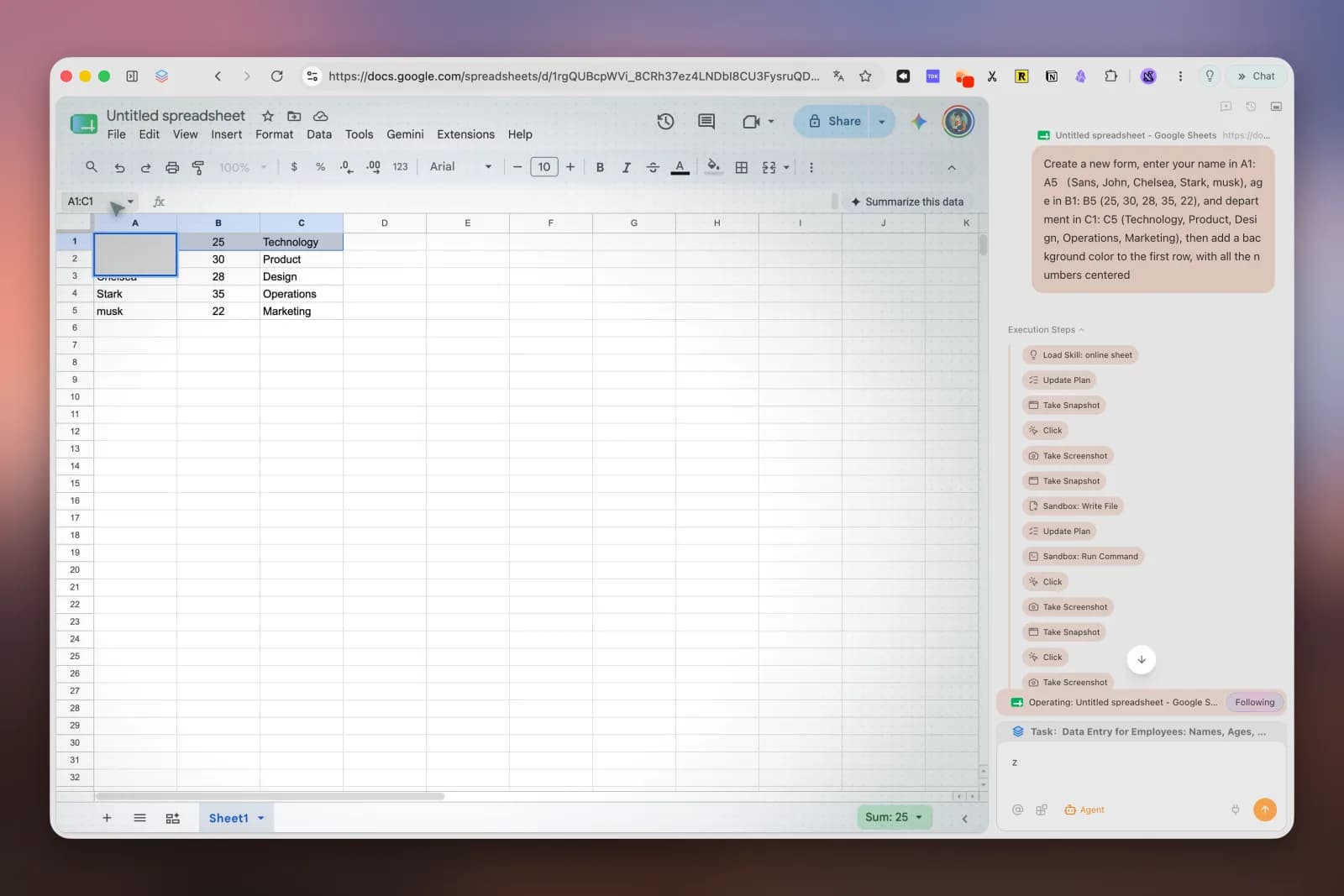
Use the page chat if you can already see the information and only need help interpreting it. Add an agent once navigating the interface becomes part of the job. For high-impact edits, make review the final step before any submission. This gives you a chance to compare the target account, proposed change and current record while all three are still visible.
Match the tool to the result
| What you need | Start with | Evidence that answers the request |
|---|---|---|
| Where the vendor documents a billing feature | Web search | Link and a matching passage in the official instructions |
| What the open invoice says | Page reader | Invoice number or total from the visible document |
| Whether an invoice is available after setting a date range | Authorized browser control | Selected dates and the matching row or empty state |
| A repeatable export of a known record set | Authorized API if available, otherwise an approved browser workflow | Expected file or response and a check of record count or identifiers |
| A change in a production account | Approved workflow with a review checkpoint | Correct account and values before submission, persisted record afterward |
Use the smallest tool that can show the result you need. For public facts, get a citation. For an open page, get the visible label and value. For a website action, specify the account, the allowed steps and the result that proves the task finished. Tabbit is a reasonable place to try that progression if you want the page and the agent's execution steps in the same browser.

FAQ
Why can AI search the web but not click a button?
Search retrieves sources and can sometimes open a page for reading. A click requires a browser control tool or a site integration that can perform the corresponding action.
Can AI web search read a dashboard behind a login?
Ordinary web search can find public help pages or the sign-in URL. Account-specific data requires an authorized session, a connected API, or another approved way to give the assistant that data.
Will a cloud browser inherit my desktop login?
A separate browser session starts with its own state. Check whether the product explicitly supports sharing your current session or requires you to sign in through its own browser.
When should I use an API instead of browser automation?
Use an authorized API if it exposes the exact record or action you need and your organization permits it. Browser control is useful when the supported workflow is only available through the website or you need to inspect what a person would see.
How do I know if a browser agent actually completed an action?
Ask for evidence tied to the task, such as a receipt, a persisted field after reload, or an exported file. A click or a completion message alone cannot distinguish success from validation errors or a timeout.