
You pin a tab because you want it close at hand. Then the title shrinks to a favicon, the tab sits at the far left, and you wonder whether it is now protected. It is not. A Chrome pinned tab is a compact open tab, not a bookmark, backup, or permanent lock.
Chrome's documented desktop workflow is simple: right-click a tab, select Pin, and right-click it again when you need Unpin. Pinned tabs move to the left and show only the site's icon. Reddit users still run into the other half of the story: one r/chrome poster wrote, “If you accidentally press Cmd+W (Ctrl+W) pinned tab will be closed and lost” (thread). This guide covers the useful shortcut and its boundaries, then shows where Tabbit can make a busy tab strip easier to manage.
Key takeaways
Right-click a tab and choose Pin. The tab becomes smaller and moves to the left.
Right-click a pinned tab and choose Unpin to return it to the normal tab strip.
Drag pinned tabs within the pinned section to change their order.
Closing a window or tab can still remove a pinned tab. Pinning is not backup.
Use bookmarks, groups, or startup pages when you need storage or repeatable recovery.
Chrome pinned tabs at a glance
| Action or control | What it does | Use it when | Boundary |
|---|---|---|---|
| Pin | Moves an open tab left and reduces it to its favicon | You revisit the same page during this session | It remains an open tab and can be closed |
| Unpin | Restores the normal tab width and position | You need the title visible again | It does not delete the page |
| Drag | Changes the order of pinned tabs | You want a stable left-to-right sequence | It only changes the current tab strip |
| Bookmark | Saves the page address | You need to find the page later | It does not preserve live page state |
| Tab group | Keeps related open tabs together | A project has several active pages | It is a workspace choice, not a pin |
| Startup pages or session restore | Reopens a selected set or the previous session | You want repeatable opening behavior | Restore depends on settings and session state |
How to pin a tab in Chrome
Open the page you want nearby.
Right-click its tab.
Select Pin.
Look at the left side of the tab strip. The tab should be narrower and show the site's favicon.
Google's Chrome Help guide documents this desktop action and describes pinned tabs as smaller tabs that show only the site's icon. Pin a small set of pages you use while working, such as a calendar or a reference dashboard. If you pin every tab, the left edge stops being a useful signal.
Unpin a tab
Right-click the pinned tab and select Unpin. Chrome returns it to the ordinary tab area, where the title can be visible again. A reader on Reddit opened a page full of small tabs and said, “I didn't realize pinning tabs was a thing, I must have pinned it on accident” (r/chrome thread). If a tab suddenly looks like a tiny icon, Unpin is the first thing to try.
Reorder pinned tabs
Drag a pinned tab left or right within the pinned section. Keep the order meaningful: for example, communication first and reference second. Do not drag it into the ordinary tab area if your goal is still to keep it pinned. Chrome's help page also lists arranging tabs as part of its tab-management controls.
What pinning changes, and what it does not
Pinning changes the tab strip. It does not save a copy of the URL, preserve a form, or make the page immune to closing. A pinned tab can still disappear when you close it intentionally, close its window, or otherwise lose the session. The Reddit complaint above is a useful warning, but it is a personal report rather than a promise about every Chrome build.
Pinning also does not make a tab a group. A second r/chrome discussion asked for “groups of pinned tabs” because related pages can be difficult to keep compact together (thread). Chrome treats these as separate ways to arrange the tab strip. If you need several pages to open and close together, use a tab group. Read our Chrome tab-group guide for the group workflow.
Choose the right tool for the job
| Your actual goal | Better fit | Why |
|---|---|---|
| Keep one live page close while you work | Pin | It saves tab-strip space and keeps the page nearby |
| Find a page next week | Bookmark | It stores a link rather than depending on an open window |
| Keep research pages together | Tab group | It gives the set a name and a collapsible boundary |
| Reopen a known set every time | Startup page | Chrome can open selected pages when it starts |
| Recover an accidental close | Session restore | Restore tools address lost tabs more directly |
| Back up before switching browsers | Export browser data | A saved file or bookmark export is more portable |
Chrome's Tips page explains that you can save bookmarks for all open tabs and configure a set of pages to open at startup. Chrome's sync documentation covers account-based synchronization, but sync should not be treated as a complete backup of every live tab state. For search-heavy work, browser history and bookmarks may be a better recovery path than a row of icons.
A practical option: Tabbit Browser
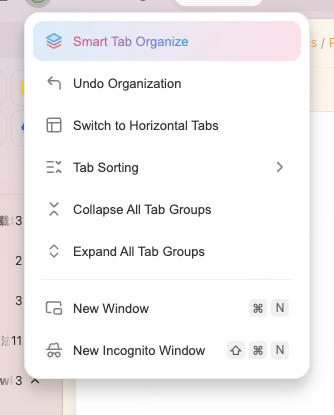
Pinning helps only after you can identify the right tab. In a crowded window, titles collapse, similar favicons repeat, and the page you meant to keep is easy to miss. Tabbit Browser's vertical sidebar gives tab titles more room to read. Its Smart Tab Organization menu can make a first grouping pass, as shown in the Tabbit interface image.
The sensible workflow is modest:
Use Tabbit's sidebar to see which pages are open and which belong together.
Keep a few frequently used pages compact with Chrome's native Pin action when that is the behavior you want.
Put a project set into a named group, or save important links as bookmarks.
Before closing a window, use the recovery method that matches the risk: bookmark export, startup pages, or session restore.
Tabbit does not turn a Chrome pin into a lock, and it does not promise to sync Chrome's pinned state across devices. That trade-off is useful to state plainly: Tabbit addresses the cost of finding and organizing pages, while Chrome still owns the native pin behavior. If your main issue is a wall of unreadable tabs, see our guide to too many browser tabs or the case for a vertical-tab browser.
A simple rule for pinning
Pin a page when it is both open and repeatedly useful during the current session. Bookmark it when you need the address later. Group it when several pages belong to one project. Use startup pages or session restore when reopening matters more than keeping a tiny icon visible.
This rule also prevents a common mistake: treating a pin as a safety mechanism. If the page contains work you cannot recreate, save the link and any data separately. If you are changing browsers, read about browser sync problems before assuming your current arrangement will follow you.
FAQ
How do I pin a tab in Chrome?
Right-click the tab and select Pin. Chrome moves it to the left side of the tab strip and shrinks it to the site's icon.
How do I unpin or reorder a pinned tab?
Right-click a pinned tab and choose Unpin. To reorder pinned tabs, drag a pinned tab within the pinned section of the tab strip.
Do pinned tabs reopen after I close Chrome?
A pinned tab belongs to a window session, not to a permanent backup. Its return depends on how Chrome restores the window and session, so use bookmarks or a startup-page set when recovery matters.
Are Chrome pinned tabs available on phones?
Chrome's current Android help lists pin, reorder, unpin, and close actions. Desktop instructions do not automatically apply to iPhone or every mobile layout, so check the controls on your device.
Are pinned tabs the same as bookmarks or tab groups?
No. A pin keeps an open tab compact and nearby. A bookmark saves a link, while a tab group organizes related open tabs.
Can Tabbit save my Chrome pinned tabs?
Tabbit Browser can make a crowded tab set easier to see and organize, but this article does not claim that it backs up Chrome pin state or locks a tab against closing.
Bottom line
Right-click, choose Pin, and use the compact left-side tab for pages you need during the current session. Use Unpin when the favicon is no longer enough. For anything you need to recover later, add a bookmark, group the project, or configure startup pages. When the real problem is finding pages in a crowded browser, try Tabbit Browser.

FAQ
How do I pin a tab in Chrome?
Right-click the tab and select Pin. Chrome moves it to the left side of the tab strip and shrinks it to the site's icon.
How do I unpin or reorder a pinned tab?
Right-click a pinned tab and choose Unpin. To reorder pinned tabs, drag a pinned tab within the pinned section of the tab strip.
Do pinned tabs reopen after I close Chrome?
A pinned tab belongs to a window session, not to a permanent backup. Its return depends on how Chrome restores the window and session, so use bookmarks or a startup-page set when recovery matters.
Are Chrome pinned tabs available on phones?
Chrome's current Android help lists pin, reorder, unpin, and close actions. Desktop instructions do not automatically apply to iPhone or every mobile layout, so check the controls on your device.
Are pinned tabs the same as bookmarks or tab groups?
No. A pin keeps an open tab compact and nearby. A bookmark saves a link, while a tab group organizes related open tabs.
Can Tabbit save my Chrome pinned tabs?
Tabbit Browser can make a crowded tab set easier to see and organize, but this article does not claim that it backs up Chrome pin state or locks a tab against closing.