
A Firefox user listed the basics that still break on mobile: "Can't search the history, since it isn't sorted by date. Just a useless random list." Another line in the same thread said you also cannot edit or delete bookmarks from search, so you scroll the manager by hand. Desktop users hit a quieter version of the same wall. You remember a sentence, an error string, or a pricing table. The History page returns nothing useful.
That is not a memory failure. Most browsers index titles and URLs. They do not index the words you actually read. The native options below are worth trying first. If you still need the page text itself, the save step has to change. Tabbit's knowledge-base bookmarks are one way to do that.
Key takeaways
Classic history and bookmark search match metadata. They usually miss body text, notes, and folder names.
Chrome's
@historyand@bookmarksshortcuts speed up title and URL lookup. They do not change what is indexed.Chrome's optional AI history search can store page contents locally, but only after you enable it, only for later visits, and currently only in the US with English Chrome.
For pages you must recover later, save a searchable title plus context, or keep the page text itself.
Tabbit's knowledge-base bookmarks keep full page text, support highlight saves, and let you query that library from the Omnibox.
Why the search fails at a glance
| What you remember | What native search usually indexes | Likely result | Better next step |
|---|---|---|---|
| A phrase from the article body | Title and URL only | Miss | Full-text save, or search the open web again with that phrase |
| A vague topic in different words | Exact title/URL tokens | Miss or noise | Semantic or AI search over saved text; rename the bookmark |
| Part of the site name or URL | Titles and URLs | Hit, if the clue is strong | Use @bookmarks or @history |
| Why you saved it | Nothing (no note field in common bookmark UIs) | Miss | One-line note or highlight at save time |
| A page from months ago | Recent history surfaces; older rows get hard to browse | Partial | Dedicated History search, export, or a saved archive |
The browser kept proof that you visited a URL. It did not build a search index around how you actually remember the page.
What browsers actually store
Google's own Chrome materials treat history and bookmarks as lightweight lists. The desktop History help explains that History lists pages you visited in Chrome for the last 90 days and that you can search from the History page. The bookmark help shows how to find bookmarks from the address bar with @bookmarks. Neither page claims that classic search reads the article body.
A Chrome user on Reddit put the lived experience plainly: they "searched for keywords I remembered from the content - nothing. Only finds stuff if it's in the page title or URL." Third-party guides that walk through the same UI hit the same wall. Bookmark Manager and @bookmarks still match titles and URLs, not folder names or page text.
Firefox is not magically free of the problem. Mozilla's bookmarks guide still centers on names, tags, the Library, and address-bar suggestions. Tags help when you use them. They do not invent a full-text index of every page you ever opened.
There is a newer Chrome path worth naming accurately. History search powered by AI can store page contents locally after you turn the feature on. Google says it is for users in the US using Chrome in English, that only sites visited after enablement can appear in AI best matches, and that local storage may affect performance. Treat it as an optional regional upgrade, not as the default behavior of every Chrome profile.
Age makes the metadata problem worse. Another Chrome user kept years of history on purpose and still said the History tab did a poor job “pulling anything older than last 30 days.” Whether the data is still on disk or only hard to browse, the practical result is the same: old visits stop behaving like a searchable library.
First aid with the tools you already have
Before you change browsers, try the cheap moves. Google's Chrome blog on address-bar shortcuts documents @tabs, @bookmarks, and @history.
Try the narrow filter. Type
@bookmarksor@history, press Tab or Space, then enter the strongest title or domain fragment you still remember.Open the full History page (
Ctrl+Hon Windows,Cmd+Yon macOS in common Chrome builds) and search there. Use a date window if you roughly remember when you read the page.Open Bookmark Manager and search by title. If a result appears, right-click and reveal its folder so you can clean the name.
If Chrome AI history search is available on your profile, turn it on for future visits. It will not rewrite the past.
These steps fix lookup friction when the metadata is good. They do not fix a bookmark titled Untitled or a Stack Overflow tab whose title is a truncated error code you no longer recall.
If your real problem is still-open tabs rather than archived links, use the too many browser tabs system first. If sync keeps deleting or duplicating the library, that is browser sync problems, not weak search.
Save for retrieval, not for comfort
History is a trail. Bookmarks are a shortlist. Neither becomes a knowledge base until you leave a clue that matches how you will search later.
When you bookmark something you expect to need again:
Rewrite the title so it contains the project word you will type in six weeks.
Prefer one shallow folder tree over ten overlapping ones. Folder fights are a known failure mode once libraries grow.
Add one short note only when the title cannot carry the reason. "Postgres partial indexes for billing query" beats
Great article.Close the live tab after you verify the saved entry opens. Keeping both is how piles restart. The Chrome tab-group walkthrough helps for active work; it is not an archive.
People keep tabs open because a dead bookmark feels permanent. Carnegie Mellon researchers studying tab overload described that fear as a "black hole" once something leaves the visible strip; the university's summary of that CHI work is still a useful read. The same fear applies to History. Scrolling a month of visits is not a search strategy. A browser for productivity setup should reduce re-finding time, not reward an ever-growing unsorted bar.
What does not fix the indexing gap
A few common moves look productive and still leave you stuck:
Making more bookmark folders. Hierarchy helps when you browse by project. It does not help when you search by a remembered sentence.
Installing another extension that only searches titles faster. Speed without new fields is still metadata search.
Leaving every useful page open forever. That turns retrieval into tab hunting, which we already covered in the too many tabs guide.
Assuming Google web search will always recover the same URL. Titles change, paywalls appear, and posts get deleted.
If the page mattered for work, treat save-time as part of the task, the same way you would name a file before closing a document.
Saving pages you can search later in Tabbit
Native shortcuts help when you remember the title. They stall when you remember the idea.
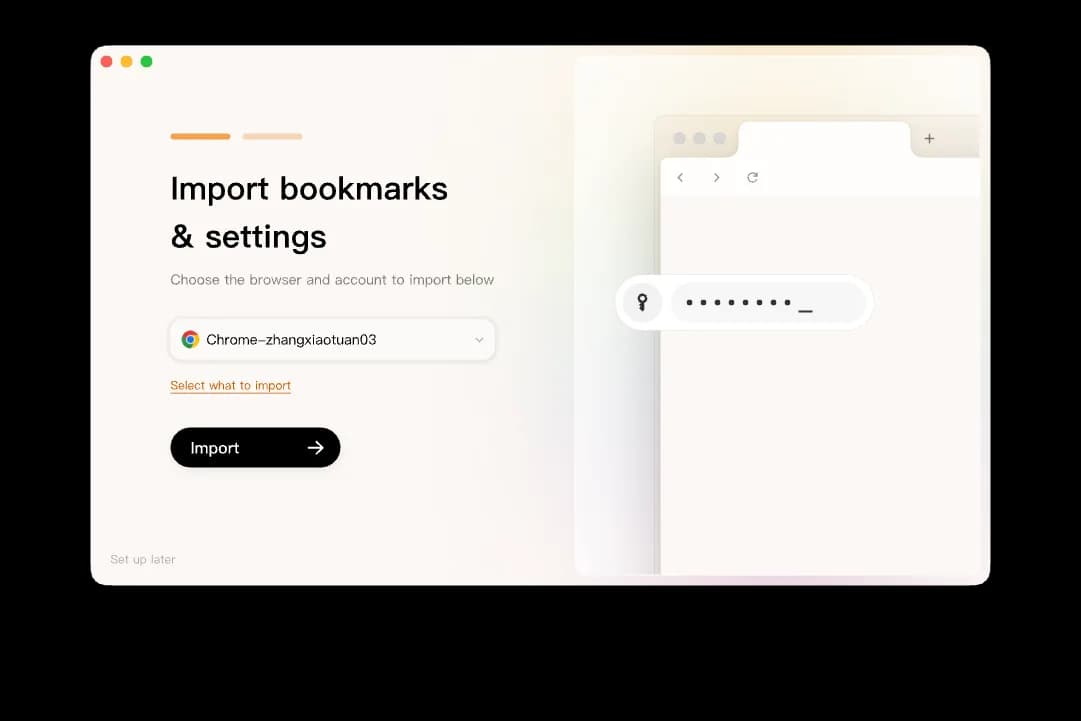
During setup you can import bookmarks, history, passwords, cookies, and extensions from Chrome, Edge, or Safari. That move is the same class of migration covered in our backup-before-switching checklist. Import gets the library into Tabbit. It does not automatically upgrade every old title-only bookmark into a full-text capture. For pages that matter, save them again inside Tabbit's knowledge-base bookmarks so the readable text stays available even if the live URL later breaks.
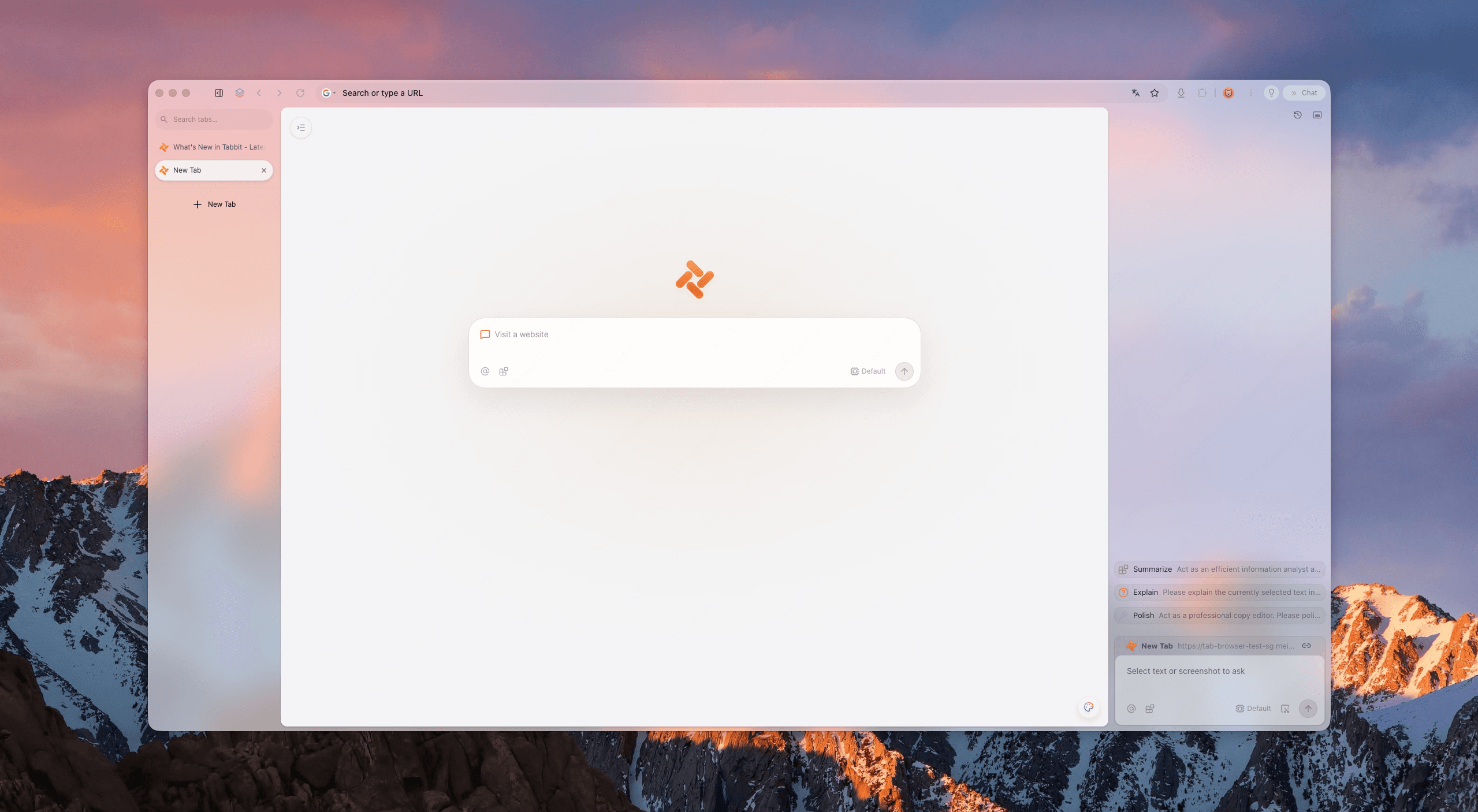
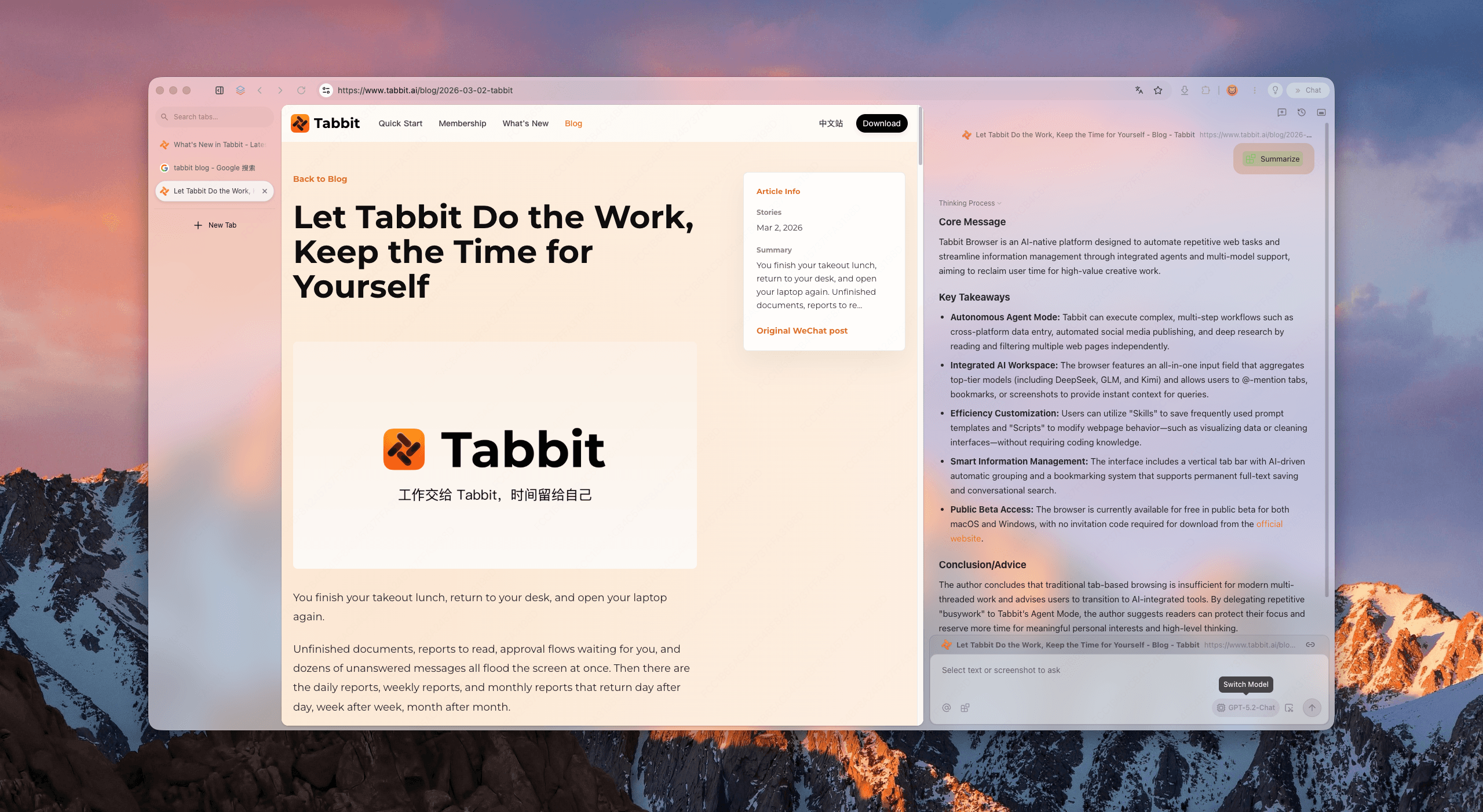
In Tabbit, bookmarks are closer to a small knowledge base: permanent full-text save, highlight-level saves, and retrieval through AI chat. In the Omnibox you can type @ and point at bookmarks, open tabs, tab groups, screenshots, or local files instead of pasting six URLs into another chat. You are searching the material you saved, not just the titles.
A useful pattern for research work:
Using @bookmarks, find anything I saved about API rate limits or exponential backoff.
Quote the original wording when you can.
List the source titles so I can reopen the exact page.
If the backlog is still a pile of open tabs, run Smart Tab Organization first, then save the durable references. For longer investigations, the research browser guide maps how Agent Mode, @ citations, and bookmarks fit together. Compare migration trade-offs in Tabbit vs Chrome before you move a work profile.
Boundaries to keep honest:
Full-text capture is for pages you choose to keep. It is not a silent camera of everything you ever opened.
Tabbit is desktop-only today (macOS and Windows). Keep a phone browser if mobile history still matters.
Agent Mode and model calls send the prompt and required context to the selected provider. Review privacy terms for confidential material.
A browser session manager mindset still applies: live forms and uploads are not restored by a bookmark URL alone.
Which tool fits which recovery job?
| Situation | Best first tool | Why | Risk to check |
|---|---|---|---|
| You remember part of the title or domain | @bookmarks or @history | Fast metadata match | Weak titles still hide the page |
| You remember a sentence from the body | Full-text archive or web search for that phrase | Metadata search cannot invent body matches | Classic history will keep failing |
| You need the page after the URL dies | Knowledge-base bookmark or other offline capture | Title-only bookmarks rot | Confirm the capture before closing the live tab |
| You are switching browsers | Export HTML + verified import | Sync is not a backup | Leave the old browser installed for a week |
| Dozens of mixed open tabs | Groups, then Tabbit Smart Tab Organization | Retrieval starts with sorting | Misclassification needs a human pass |
| US English Chrome and future visits only | Chrome AI history search | Official content-aware option | Not global; not retroactive |
What to do next
Browser history and bookmarks feel broken because they were built as light lists, not as search engines for the articles you read. Use @history, @bookmarks, and the History page when you still have a title clue. Rename bookmarks so future queries can hit. For work you cannot afford to lose, stop trusting title-only stars.
If you want the save step to include searchable text, install Tabbit and run this short path:
Download Tabbit for macOS or Windows from the AI browser page or your regional site (
tabbit.aiinternationally,tabbit.comin China).Import bookmarks and history from Chrome, Edge, or Safari during setup. Spot-check a few folders before you change defaults.
Re-save the references you still rely on as knowledge-base bookmarks so the page text stays searchable.
In the Omnibox, use
@bookmarks(or ask in chat with that context) to recover pages by idea, not only by title.Keep the old browser installed until those critical pages reopen cleanly.
No native history search will retroactively index pages you already closed. The fix is to change what you keep when the page still matters.

FAQ
Why can't I find a page in Chrome history when I remember the content?
Default Chrome history search matches page titles and URLs, not the body text you read. If the words you remember never appeared in the title, the History page and address-bar search can miss the visit. Save important pages with a clearer title, or use a tool that keeps the page text searchable.
How do I search bookmarks from the Chrome address bar?
Type @bookmarks in the address bar, press Tab or Space, then enter words from the bookmark title or URL. Google documents the same flow in Chrome Help. The filter still does not search page content or your folder names.
Does Chrome AI history search index page contents?
Google's History search powered by AI can store page contents locally after you turn the feature on, and only for sites you visit afterward. It currently requires the US and Chrome in English. It is not the same as classic title-and-URL history search.
Are bookmarks better than history for finding pages again?
Bookmarks work better when you consciously save a page and give it a searchable name. History is a trail of visits, not a filing system. Both fail if you only remember a sentence from the article and the browser never indexed that sentence.
Can Tabbit import my Chrome bookmarks and history?
Yes. During setup Tabbit can import bookmarks, history, passwords, cookies, and extensions from Chrome, Edge, or Safari. Import moves the library into Tabbit. It does not by itself turn every old title-only bookmark into a full-text archive until you save pages with Tabbit's knowledge-base bookmarks.
What should I do if a bookmarked page is dead?
First check the Wayback Machine or your own export if you kept one. Going forward, save important references in a tool that keeps the page text, such as Tabbit knowledge-base bookmarks, so a moved URL does not erase the material you need.