
To bookmark a group of tabs in Chrome, first decide what you mean by “bookmark.” On desktop Chrome, Save group keeps a live tab group that you can find again from Chrome’s tab-group controls. Bookmark All Tabs makes a normal folder of page URLs. The folder is portable and easy to export, but it is not a snapshot of the group’s color, position, or live page state.
That distinction matters when you are trying to close a project without losing it. Chrome’s official help currently says that a closed group is not deleted and can be opened again from the bookmarks bar or the menu. The exact labels vary by Chrome version, so this guide gives you the stable workflow and a fallback. It also explains when a large pile of tabs needs a different organization tool. If your problem is already hundreds of tabs rather than one project, Tabbit Browser’s Smart Tab Organization appears later as a practical third route.
Key takeaways
Use Save group when you want Chrome to remember an active group and, with sync enabled, carry changes across devices.
Use Bookmark All Tabs when you want a regular bookmark folder containing the current URLs.
To bookmark only one existing group, put that group in its own window first if your Chrome build does not offer a group-level bookmark command.
A bookmark folder does not preserve a group’s color, live open state, or exact position. Reopen it in a new tab group or group the tabs again.
Right-click a tab → Add tab to group is still the starting point. Saving comes after the tabs belong together.
Small, obvious sets are easiest to manage manually. When selecting and naming tabs becomes the work, use an organizer and review its suggestions.
Save group or bookmark folder? A quick comparison
| Method | What it saves | How you reopen it | Sync or portability | Main trade-off |
|---|---|---|---|---|
| Save group / close a saved group | Chrome-managed group and its tabs | Tab groups menu or saved-group area in the bookmarks bar | Can sync with history and tabs when configured | UI and behavior vary by version; still tied to Chrome’s group model |
| Bookmark All Tabs | Page titles and URLs in a folder | Open the folder, optionally as a new tab group | Easy to move, export, and share as bookmarks | No color, live state, or guarantee of the original group structure |
| Session restore | Recent window and tab session | Reopen the closed window or restart with restore enabled | Local/session behavior; not a deliberate archive | Fragile as a project record and easy to overwrite |
| Tabbit Smart Tab Organization | A proposed organization of open pages | Review groups and keep project contexts in custom desktops | Designed for a large working context, not Chrome bookmark export | AI suggestions need a human check and require using Tabbit |
Choose based on the thing you are protecting. If it is the current Chrome workspace, save the group. If it is a list of sources you may use elsewhere, bookmark the URLs. A browser productivity setup works better when active work and long-term references do not live in the same pile.
Create the Chrome tab group first
If the tabs are not grouped yet, Chrome’s current desktop path is:
Right-click one of the tabs.
Select Add tab to group, then choose New group or an existing group.
Give the group a short name and choose a color.
Drag related tabs into the colored boundary, or right-click another tab and add it to the group.
Click the group name or colored circle to collapse it when you need room.
Google’s Chrome Tips page confirms the create, name, color, collapse, and reorder actions. Google’s older but still useful tab-groups explanation suggests grouping by topic, urgency, or progress. Pick one primary rule: Client launch is easier to maintain than a group that is simultaneously “work,” “urgent,” and “read later.”
Select several tabs at once
You do not need to drag every tab individually. On Windows, Linux, and ChromeOS, hold Ctrl while selecting separate tabs. On macOS, hold Command. For a continuous range, select the first tab, hold Shift, and select the last. Right-click any highlighted tab and choose Add tabs to group.
This is a good shortcut while the tab strip remains readable. It is not a cure for an invisible tab strip. A Reddit user described the boundary as the point where “the number of tabs ... exceeds the maximum number that can be displayed at once.” At that point, vertical tabs in Chrome can improve visibility, but you still have to decide what each page is for.
How to save a live Chrome tab group
Chrome’s group-saving UI has changed names and placement across desktop releases. When you right-click the group label, look for Save group, a save toggle, or the current Close group action. Chrome Help currently says a closed group is not deleted and can be reopened from the bookmarks bar or from More → Tab groups. In Settings → Appearance, Chrome also exposes options such as Show tab groups in bookmarks bar and Automatically pin new tab groups to the bookmarks bar in versions that support them.
Use this path when the group is a recurring workspace such as Weekly reporting or Job search:
Finish adding the tabs and give the group a meaningful name.
Right-click the group label and choose the save or close-group option shown by your version.
Find it again from the bookmarks-bar tab-group area or More → Tab groups.
If you use Chrome on another computer, confirm that the same Google Account has history and tabs sync enabled.
Google’s Chrome Help page says group changes are automatically saved and synced when browsing history and tabs are synced. That is useful, but it is not a reason to skip a test: open the group on the second device before you close the only live copy. Sync also means that deleting or ungrouping a saved group can affect other devices using the same account.
Save group is not the same as bookmark every page
The terms are easy to mix up because Chrome displays saved groups near bookmark controls. A saved group remains a Chrome concept. A bookmark folder is a collection of links. The first is better for resuming a working context; the second is better for archiving sources or moving a set to another browser.
One current Reddit discussion describes tab groups as “live bookmark folders” because the user wants to close one project and open another in a few clicks. That is a useful mental model, not a promise that a group and a bookmark folder behave identically. If you need a portable list, create the folder explicitly.
How to bookmark one group as a normal folder
If your Chrome version shows Bookmark group or Bookmark tabs in group on the group label, you can use it directly. If it does not, the following fallback works with Chrome’s stable Bookmark All Tabs command:
Right-click the group label and choose Move group to new window.
Check that the new window contains only the tabs you want to save. If needed, use Ctrl/Command-click or Shift-click to move a precise selection first.
In that window, open More → Bookmarks → Bookmark All Tabs. Chrome Tips documents this path. You can also press Ctrl + Shift + D on Windows/Linux/ChromeOS or Command + Shift + D on macOS.
Name the new folder after the project and choose Bookmarks bar or another location.
Keep the live group open if you still need it, or close the temporary window after confirming that the folder exists.
The result is a folder of URLs. It does not capture unsaved form entries, scroll position, login state, or a web app’s current session. It also does not necessarily retain the group’s color or its relationship to other groups. A Reddit thread about bookmarking grouped tabs captures the same pain point: the URLs were saved, but reopening them later did not automatically reproduce the old grouping. That is why the recovery step matters.
Reopen the folder as a group
Open the folder from the bookmarks bar or Bookmark Manager. In current Chrome builds, the folder context menu may offer Open all in new tab group. Choose it when available, then rename and recolor the new group if needed. If the option is absent:
Choose Open all in new window.
Select the resulting tabs with Ctrl/Command or Shift.
Right-click the selection and choose Add tabs to group.
Name and color the new group.
This is two separate operations—restore URLs, then create a group—but it is less fragile than assuming that a normal bookmark folder stores live group metadata. If you have a recurring set, prefer Chrome’s saved-group control and use the folder as a backup or exportable reference list. If your team is weighing current Chrome alternatives or a browser to replace Chrome, export a small bookmark folder first; it gives you a cleaner migration test than carrying every live tab.
What bookmarking does not preserve
Before closing a carefully arranged workspace, check the boundary:
| If you need to preserve… | Use… | Why |
|---|---|---|
| The group as a Chrome workspace | Save group and verify sync | Chrome can reopen the group through its own controls |
| The page addresses for research | Bookmark All Tabs | The folder is easy to sort, export, and move |
| The exact page session | Keep the window open or use a dedicated session tool | Bookmarks do not store page state or unsent work |
| A large pile classified by topic | A tab organizer, then save only durable references | Classification is the bottleneck, not the bookmark click |
Treat bookmarks as references, not a database of live browser state. Remove duplicates and pages that no longer support the project before saving. A folder named Launch research — 2026-09 is more useful than ten folders named Tabs.
Desktop and mobile are different
The instructions above are for desktop Chrome. On Android, open the tab switcher, touch and hold a tab, and move it into a group or create a group from the tab-group interface. Google’s Android Chrome Help says creating or editing a group automatically saves and syncs changes across devices signed in to the same Google Account. The controls are not the desktop right-click menu, and mobile Chrome may automatically open groups from other devices depending on sync settings.
For a cross-device workflow, make the important distinction before you close anything:
Chrome group sync is useful when you want the group to remain a Chrome-managed workspace.
Bookmark sync is useful when you want page links available across devices.
Bookmark All Tabs is a manual snapshot of the current URLs; it does not continually update as you add or remove tabs.
Use a rule you can maintain
Groups become noisy when each name uses a different logic. Choose one rule per window or desktop:
| Rule | Example names | Best when | Failure mode |
|---|---|---|---|
| Project | Website launch, Hiring, Japan trip | Pages support one deliverable | Too many one-page projects |
| Status | Inbox, Reading, Waiting | The next action matters most | Different projects mix together |
| Time | Today, This week, Later | Deadlines drive the work | Later becomes a permanent drawer |
| Domain | Docs, GitHub, YouTube | The site predicts the action | One project crosses many sites |
| Scenario | Knowledge base, AI news, Finance | Context is stable across tools | Labels become vague buckets |
For most knowledge work, project first and status second is a workable compromise. Save a group only when you would recognize its purpose next week. For broader workspace-style browser ideas, separate projects at the desktop level and use groups for smaller tasks inside each one. The Tabbit versus Chrome comparison covers the browser-level trade-offs, while our guide to browsers with AI features is useful if organization is only one part of the decision.
When sorting is harder than saving: Tabbit Browser
Chrome solves the final click well. It does not decide what a mixed pile of 80 pages means. If you spend more time inspecting tabs than saving them, Tabbit Browser can be a practical third route: organize the open pages first, then keep only the durable references you actually want to bookmark.
Open Tabbit’s tab-management menu and choose Smart Tab Organize. The default organization proposes topic-based groups. You can also use custom rules such as domain, topic, or scenario, then move durable contexts into custom desktops. The point is not to replace Chrome’s bookmark folder; it is to reduce the first classification pass.
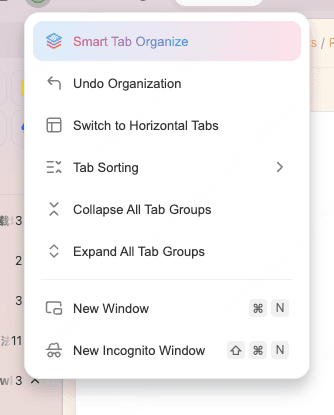
Use this workflow:
Close duplicate, expired, and clearly finished pages.
Run Smart Tab Organize and review each proposed group.
Rename vague groups and move exceptions yourself.
Place active projects in custom desktops.
Bookmark or export only the references that should survive the session.
Tabbit is not the right answer for every reader. If you have ten tabs, need Chrome’s mobile sync, or cannot move work into another browser, native Chrome groups and folders are simpler. If the issue is browser automation rather than organization, read about browser automation and the safety boundaries of an agentic browser before giving any tool access to sensitive pages.
Which method should you choose?
| Your goal | Best choice | Why | Next step |
|---|---|---|---|
| Keep a recurring Chrome workspace alive | Save group | Preserves the Chrome-managed group model | Save it, enable the needed sync settings, and verify another device |
| Save one group as links for later | Bookmark All Tabs | Produces a normal folder that is easy to move | Isolate the group in a window, bookmark all tabs, then name the folder clearly |
| Reopen links and accept a fresh group | Bookmark folder → Open all in new tab group | Restores URLs while letting you reset the structure | Recolor and rename the new group |
| Keep exact page state or unsent work | Leave the session open | A bookmark cannot capture live page state | Finish or save the work inside the site first |
| Sort dozens or hundreds of mixed tabs | Tabbit Smart Tab Organization | Reduces the manual classification pass | Organize, review, then bookmark durable references |
| Only need readable titles | Vertical tabs in Chrome | Improves visibility without changing storage | Turn on vertical tabs, then group or bookmark |
Final answer
For how to bookmark a group of tabs in Chrome, use the method that matches the object you want to keep. Right-click the group label and use Save group or Close group when you want Chrome to manage a reusable live group. Use More → Bookmarks → Bookmark All Tabs—or Ctrl/Command + Shift + D—when you want a regular folder of URLs. If you need to save only one group and your version lacks a group-level bookmark command, move it to a new window first.
The folder is not the group: it does not preserve color, live state, or every bit of session context. Reopen it as a new tab group when the menu offers that option, or group the restored tabs again. For a small, clear project, Chrome is enough. For a large pile where deciding what belongs together is the real cost, try Tabbit, review the proposed structure, and then keep only the references worth saving.
Sources

FAQ
How do I bookmark a group of tabs in Chrome?
If your desktop Chrome version shows Save group on the group label, use it to keep the live group available from the bookmarks bar or Tab groups menu. If you need a normal bookmark folder, move the group to its own window and choose More, Bookmarks, Bookmark All Tabs, then reopen the folder as a new tab group when you need it.
What is the difference between Save group and Bookmark All Tabs?
Save group keeps a Chrome tab group as a browser-managed group and can sync its changes when the right Google Account sync settings are enabled. Bookmark All Tabs stores the current tabs as URLs in a folder, so it is easier to export or move but does not preserve the group color or live tab state.
How do I bookmark all open tabs in Chrome?
On desktop Chrome, open the More menu, choose Bookmarks, and select Bookmark All Tabs. You can also use Ctrl + Shift + D on Windows, Linux, or ChromeOS, or Command + Shift + D on macOS, then choose a folder and name it.
Can I reopen bookmarked tabs as a group?
Yes, open the bookmark folder menu and choose the option that opens all bookmarks in a new tab group when your version provides it. Otherwise open them in a new window, select the tabs, and create a group again; the folder saves URLs, not the original group styling.
Do saved Chrome tab groups sync across devices?
Google says tab-group changes can be saved and synced when browsing history and tabs are synced with the same Google Account. Platform and version behavior can differ, so check an important group on a second device before closing the only live copy.
Does bookmarking a tab group preserve its color and live state?
No. A normal bookmark folder preserves page titles and URLs, not the group color, open or closed state, tab position, or page session. Use Chrome's saved-group control when preserving the live group matters more than portability.