
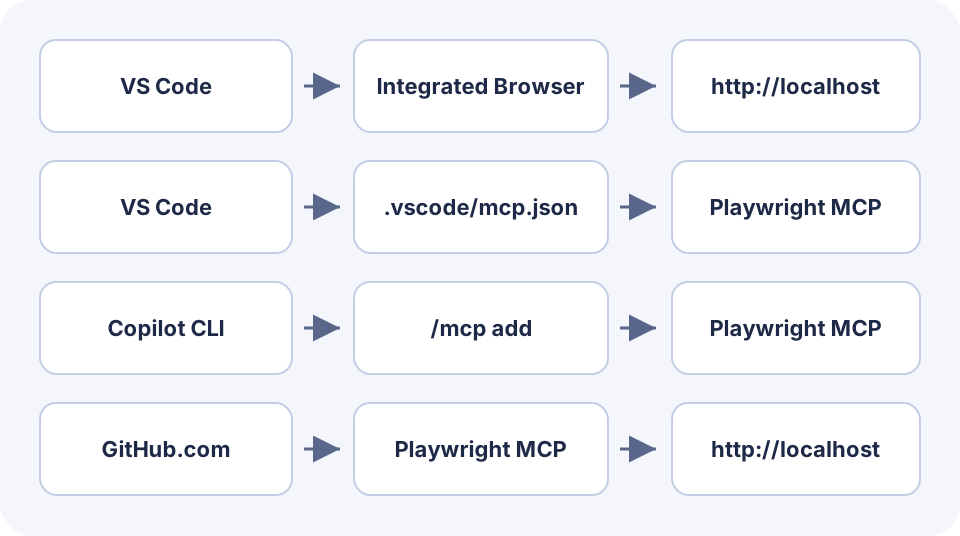
GitHub Copilot can click through a browser test when a browser tool is available to the Copilot session and authorized for the task. In VS Code, the integrated browser has its own agent tools. A workspace can also register a separate Playwright MCP server. On GitHub.com, the cloud agent runs in a different environment. Its default Playwright MCP reaches localhost there. The name Copilot alone tells you little about which browser or localhost is in use.
Before installing anything, name the client, the target URL and one result you can verify. “Open the test app, press Enable demo, and read the status as ON” makes it possible to find where the setup fails. “Test the website” leaves the tool and success condition open. VS Code browser tools GitHub Copilot MCP overview
A developer on Reddit reported that Copilot failed to open a browser for a test. The post left out the client and its enabled tools, which are the first details you need to reproduce the problem. If you're already debugging an app in VS Code, try the integrated browser first. Add Playwright MCP when your setup specifically needs the Microsoft server. Browser testing discussion
Key takeaways
VS Code's integrated browser tools can open and interact with a page directly.
Register Microsoft Playwright MCP with
serversin.vscode/mcp.jsonfor a VS Code workspace.Configure standalone Copilot CLI separately. Its interactive command is
/mcp add.GitHub's default cloud Playwright MCP can reach only the cloud environment's localhost.
A browser test passes when the expected page state is observed after the action.
Identify the environment first
| Session | Browser route | Verify before starting |
|---|---|---|
| VS Code agent with built-in browser tools | Integrated browser tools | Current agent harness, browser tools enabled, and accessible target URL |
| VS Code agent with Playwright MCP | MCP server registered in the relevant workspace or profile | Server starts, browser tools are discovered and enabled, and the page is reachable |
| Copilot CLI | An MCP server configured for that terminal session | Current CLI version, model availability and the server tool permission |
| Copilot cloud agent on GitHub.com | Default Playwright MCP, configured for its localhost | App runs on the cloud host and the agent can reach the service from that host |
If GitHub.com returns connection refused, confirm the app is listening inside the cloud task. In some remote VS Code Agents window sessions, the integrated browser can proxy traffic through the remote VS Code host. Check which host your browser actually uses before changing the port. Cloud agent tool reference Integrated browser network settings
For another example of why localhost follows the execution host, see testing localhost from a cloud agent.
Try the integrated browser in VS Code first
Start your app and open its URL in the integrated browser. Start a local agent session in Chat, open the tool picker, and check that browser tools are enabled. If they're missing, check workbench.browser.enableChatTools and your organization's policy. Ask the agent to open the same URL and read a visible heading. Seeing the page in your browser is only the first check. The agent also needs permission to call its browser tool. VS Code browser tool instructions
Once the agent can read the page, ask it to click one control and check the result. For a regression you expect to run on every pull request, capture the steps in a Playwright test and keep it in the repository.
Register Playwright MCP in the VS Code workspace
Use Node.js 18 or newer. The example pins a package version so teammates can use the same setup. Merge the entry into .vscode/mcp.json, open MCP: List Servers, and start playwright from the server menu. Check its output if discovery fails. In a Copilot harness session, VS Code forwards eligible servers. If the entry requires interactive input, use the portable configuration format where appropriate or follow the editor's setup guidance.
{
  "servers": {
    "playwright": {
      "type": "stdio",
      "command": "npx",
      "args": ["-y", "@playwright/mcp@0.0.84", "--isolated"]
    }
  }
}
Check that the current agent has browser navigation and snapshot tools enabled. If the browser executable is missing, use the server's install tool when your permissions allow. Open the test URL and ask for a page snapshot before giving the agent permission to click.
The sample uses an isolated browser session. For a page that needs a signed-in profile, establish the connection and authorization separately. Use the fixture's account or a test account and verify its visible workspace label. VS Code MCP configuration reference Microsoft Playwright MCP repository Attaching to an existing browser
If you already configured Playwright MCP in another coding agent, reuse the command and flags when they fit. Enter the server in VS Code's configuration format.
Configure the CLI and cloud agent separately
In an interactive Copilot CLI session, enter /mcp add and choose a local STDIO server. Give it the same command and arguments as the VS Code example. Save the entry, then check /mcp show playwright for the server's status. For user-level JSON, use ~/.copilot/mcp-config.json with mcpServers. A repository can also supply a portable .mcp.json. If a project defines the same server name, the project definition takes precedence over user config. GitHub Copilot CLI configuration
For a GitHub.com cloud task, start the web app as part of the task and use the port on that host. Ask the agent to confirm the process is running and the page has the expected heading before it clicks. A Reddit user reported an “already in use” error in the web agent. For that symptom, preserve the exact error and the task context before retrying. Cloud agent report
Verify one visible state change
Start an app or use a test page you control. Put a visible identifier in it and choose a harmless action with a predictable result. Confirm the initial status before clicking and read the final status in the same browser. Capturing a screenshot can supplement the result. The test is easier to reproduce when it also returns the button label, expected state and fixture ID.
For a repeatable first check, save this HTML as copilot-fixture.html in a folder served by your test app. Open the served URL and reload before each run. The button stays on the page so you can check the same fixture before and after the click. Adapt the browser agent prompt template when the flow needs a second assertion.
<!doctype html>
<meta charset="utf-8">
<title>Copilot test fixture</title>
<h1>COPILOT-DEMO</h1>
<p>Status: <output id="status">OFF</output></p>
<button type="button" id="enable">Enable demo</button>
<script>
  document.getElementById("enable").addEventListener("click", () => {
    document.getElementById("status").textContent = "ON";
  });
</script>| Step | Evidence to keep | Where to look if it fails |
|---|---|---|
| Confirm browser tools | Enabled tool names in the current session | Tool picker, or MCP startup and permissions |
| Open the test page | Final URL, visible page heading and fixture ID | Agent host, local port, browser profile |
| Check and perform the action | Initial OFF, click Enable demo | Locator, approval and expected UI state |
| Read the result | Same fixture ID and final ON | Wrong page, duplicate control or unverified state |
Use the browser tool to open the approved test URL ending in copilot-fixture.html. Confirm the fixture ID is COPILOT-DEMO and the visible status is OFF. Click Enable demo once. Read the ID and status again and check that they are COPILOT-DEMO and ON. Report the URL, tool, click target and observed values. Stop if the URL, ID or initial status differs.The original GitHub debugging walkthrough follows a similar reproduce-and-verify loop on a larger app. For a first task, keep one control and one assertion. Browser-agent first task Playwright browser automation
Diagnose the first failing step
If the server exits before discovery, inspect the startup output for the command, Node version and configuration scope. If the server starts and the agent still offers no browser tools, open the tool picker in that same session. Check the agent's tool selection, workspace trust and organization policy. This connected-but-no-tools checklist walks through the handoff from server to agent.
If the agent can call the tool but receives connection refused, verify the exact URL and port where the browser runs. If it opens the right page but the action stalls, check whether the control is visible, enabled and uniquely identified. Give the agent the control's accessible name and the expected state. This guide to browser agents that cannot click covers overlays and other common causes.
For a local VS Code smoke test, start with the integrated tools. For a team that shares the Microsoft server's tool configuration, add it in the workspace and keep the setup reproducible. In a terminal or a GitHub.com task, check the host and tool list there. Then run the same small assertion before expanding the scope.

FAQ
Can GitHub Copilot click a web page?
It can use available and approved browser tools. In VS Code, those tools can come from the built-in browser or from a registered MCP server.
Does cloud Copilot use my local VS Code browser?
The cloud agent runs in a separate environment. GitHub's default Playwright MCP there is configured for localhost in that environment.
Where do I configure Playwright MCP for VS Code?
For a workspace running the VS Code configuration format, add the server to the servers object in .vscode/mcp.json.
Why is the server connected but the tool unavailable?
Check that the current agent session discovered and enabled the tool, that policy permits the call, and that the browser can reach the test page.
What proves the test completed?
Record the starting state, the observed browser action and the exact final state of a known fixture, using the same browser session.
Do I need Playwright MCP to test a page in VS Code?
The integrated browser already provides browser tools for supported agent sessions. Add the separate server when you need Microsoft's Playwright MCP tools or a shared MCP configuration.