
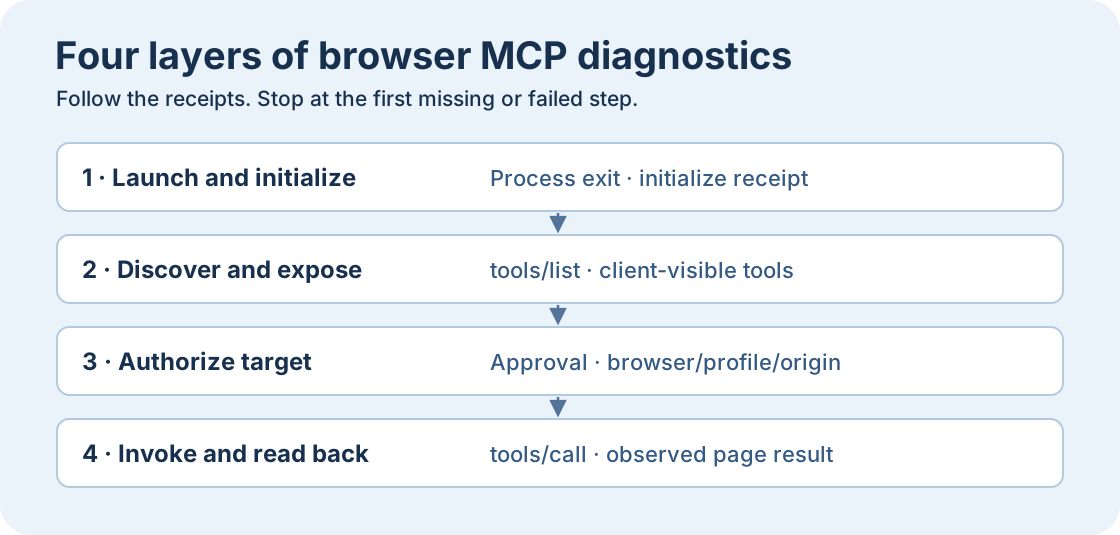
A Connected badge does not guarantee that your agent can use a browser. Identify the first missing receipt. The server must initialize, the current client must expose the browser tool, the action must be permitted, and an actual call must return the expected page state. Check one layer at a time.
1. Did the server start and initialize?
Read the first launch or handshake error. For a local stdio server, check whether the client can resolve the command and start it in its actual working environment. For a remote server, check the configured endpoint and transport with its approved login. In our local diagnostic, launching a deliberately missing command returned FileNotFoundError, errno 2. There was no initialize receipt.
2. Did the client expose the tool?
Read the raw tools/list response and compare it with the tools shown in the active agent session. An empty server list differs from a client filtering a populated list. Also check tool schemas, client mode and whether discovery finished. Our pinned Playwright MCP 0.0.84 returned 25 tools, including browser_navigate. A deliberate filter in our test client exposed zero. That filter is a diagnostic example, not Playwright’s default behavior.
MCP · Tools VS Code · MCP servers
3. Is this browser and target permitted?
If the tool is visible, check workspace policy, the selected browser and profile, and permission for the exact origin and action. In our test, Playwright’s origin routing filter rejected an unlisted loopback origin with net::ERR_BLOCKED_BY_CLIENT. The disallowed test server received zero HTTP requests. This example is an application routing filter. Treat actual managed and network controls separately.
Playwright MCP · Configuration
4. Did the agent actually invoke the tool?
Search the task trace for tools/call. A plan or a natural-language answer does not prove an action ran. In our harness, stopping after discovery produced zero calls. An explicit browser_navigate and browser_snapshot against the allowed origin later returned J01-FIXTURE. The harness did not run a language model. For a live agent, confirm that the selected mode and model expose tools and that the prompt gives the exact tool, URL and read-only result.
| Step | Expected result |
|---|---|
| initialize | FileNotFoundError · errno 2 |
| tools/list | 25 → 0 |
| Origin filter | ERR_BLOCKED_BY_CLIENT · 0 requests |
| tools/call | 0 → J01-FIXTURE |
Use one minimal check before a workflow
Ask the agent to open an approved local or public page, return the final URL, title and known marker, and stop. Compare the model response with the browser result. If direct invocation succeeds but the model keeps skipping it, inspect the client’s tool selection or approval trace. If invocation reports an error, keep the tool name and structured error and fix that layer before retrying.
| Tool | Expected result |
|---|---|
browser_navigate | URL · title |
browser_snapshot | J01-FIXTURE |
What practitioners reported
A user on r/mcp reported a tools/list timeout after a successful connect on a specific stdio server. Another user on r/ClaudeAI reported the same connectors worked in Chat but did not expose callable tools in the Code tab. These are separate environments. Together they show why the raw protocol and the active client session both matter.
Can Connected mean the browser tools are ready?
Connected can indicate a server connection. Confirm the tools visible to your session, an authorized invocation and a verified page result separately.

FAQ
Can Connected mean the browser tools are ready?
Connected can indicate a server connection. Confirm the tools visible to your session, an authorized invocation and a verified page result separately.
How do I verify initialization?
Read the first launch or handshake error. For a local stdio server, check whether the client can resolve the command and start it in its actual working environment. For a remote server, check the configured endpoint and transport with its approved login. In our local diagnostic, launching a deliberately missing command returned FileNotFoundError, errno 2. There was no initialize receipt.
Why can the active session show zero tools?
Read the raw tools/list response and compare it with the tools shown in the active agent session. An empty server list differs from a client filtering a populated list. Also check tool schemas, client mode and whether discovery finished. Our pinned Playwright MCP 0.0.84 returned 25 tools, including browser_navigate. A deliberate filter in our test client exposed zero. That filter is a diagnostic example, not Playwright’s default behavior.
How do I check permissions?
If the tool is visible, check workspace policy, the selected browser and profile, and permission for the exact origin and action. In our test, Playwright’s origin routing filter rejected an unlisted loopback origin with net::ERR_BLOCKED_BY_CLIENT. The disallowed test server received zero HTTP requests. This example is an application routing filter. Treat actual managed and network controls separately.
How do I know a tool actually ran?
Search the task trace for tools/call. A plan or a natural-language answer does not prove an action ran. In our harness, stopping after discovery produced zero calls. An explicit browser_navigate and browser_snapshot against the allowed origin later returned J01-FIXTURE. The harness did not run a language model. For a live agent, confirm that the selected mode and model expose tools and that the prompt gives the exact tool, URL and read-only result.