
Start with a role and accessible name when the browser exposes the control. Inspect a small part of the DOM when you need to identify a particular record. Reach for a fresh screenshot when the missing information is visual, such as which section of a chart is highlighted or what is covering a button.
A Playwright community post describes an agent selecting the ninth matching Add to Cart button with .nth(8) when the task was to act on a specific product. The buttons already had names. What the agent needed was a way to connect each button to its product. A screenshot might help orient it, but a product ID or a card scoped by its heading gives the next action a clear target.
Tabbit Browser offers one way to apply this workflow inside a browser tab. The same decision applies whether the agent uses a browser CLI, MCP or an application-specific runner.
Key takeaways
Roles and accessible names describe what a control does. Scope the locator to the intended row, form or dialog when names repeat.
The live DOM can expose record IDs, attributes and relationships. A node’s existence does not establish that it is visible, enabled or reachable by a pointer.
A screenshot shows the current rendered view. Vision interprets it and may hand the action back to a semantic locator.
Refresh observations when the target moves or the page changes. Confirm the task’s outcome separately from the click.
Three ways to observe the same page
| Input | What you get | Typical gap | First use |
|---|---|---|---|
| Scoped DOM | Nodes, text and attributes from the running page | Hidden or stale nodes may still match | Find the row with a known record ID |
| Accessibility snapshot | Roles, accessible names and selected states | App-specific IDs and pixel geometry may be absent | Identify a labeled textbox or button |
| Screenshot interpreted by vision | Rendered layout, colors and visual relationships in one captured view | Pixel position changes with viewport and layout | Inspect an overlay or a canvas mark |
The DOM is the browser’s live document. A JavaScript update can leave it different from the HTML originally sent by the server. A snapshot is another representation of the page: it can preserve a heading hierarchy or the selected state of a control while omitting CSS classes and business data. A screenshot preserves the appearance at capture time and can show pixels that have no individual document node. Playwright ARIA snapshots · Playwright locators
This choice concerns what information the model receives. How it sends the action is a separate question. A browser tool may expose semantic locators and a mouse API together. A wider computer-use tool can also handle surfaces outside the browser, depending on its permissions and implementation.
Use semantics for the action and DOM attributes for the record
Imagine two invoice cards with a Save button in each. A button name tells the agent which operation is available. The surrounding invoice heading or a stable record attribute tells it which invoice it is about to change. Find the invoice first, then look for the button within that container. Require a single match and check the intended record again before making a consequential change.
Roles and names can be missing or misleading. A Playwright user discussing custom dropdowns reported controls without useful roles and considered test IDs. In an app you maintain, correct the label and keyboard behavior where appropriate. A stable test ID can also act as a locator contract. On a third-party page, look for the trigger in its actual container and inspect what opens. A custom dropdown may be a button that opens a menu, so asking for a combobox before inspecting the widget can be the wrong query.
A valid locator still needs a usable target. Playwright’s click normally checks visibility, stability, event reception and enabled state. If a spinner or consent dialog is taking pointer events, diagnose that condition before retrying. Our guide to buttons agents cannot click breaks down those cases. Playwright actionability
Use vision when the answer is in the pixels
A chart canvas can contain a blue series and a red series even when a DOM inspection finds only one canvas. A screenshot can reveal the mark or legend the agent needs. Some apps provide a separate accessible legend, a keyboard interface or a data export. Look for that path when the goal is to identify a value precisely or act repeatedly on the same item. The HTML canvas element supports fallback content, so the presence of canvas alone does not tell you what semantic alternatives an app provides. MDN canvas reference
When you can connect a visual cue to a real element, use that identity for the action. A screenshot may show which of two visually similar menus is expanded. The agent can then click an item in the named menu by role. When the control is painted inside a canvas with no exposed subcontrol, a point or gesture may be the available action. For Playwright mouse input, coordinates use viewport CSS pixels. Account for screenshot scale and crop origin, and keep the same viewport through the action. Playwright Mouse API
Watch for changes between observation and action. A lazy-loaded banner can shift a chart, a tooltip can receive the next click, and a virtual list can reuse a row for a different record. A locator can resolve again against the current page, but even a fresh match can identify the wrong object if the query only says “the first row.” Re-observe the relevant area, confirm the business identity, and check the result after acting.
Put both observations in one Tabbit workflow
Suppose an agent needs to save an item code and select a color in a chart editor in the same tab. Start by reading the form’s roles and labels. Identify the Item code field and Save item button, then require a saved status for the intended code. For the painted color picker, capture the active viewport when the selection is needed and check the resulting color label or visible state afterward.
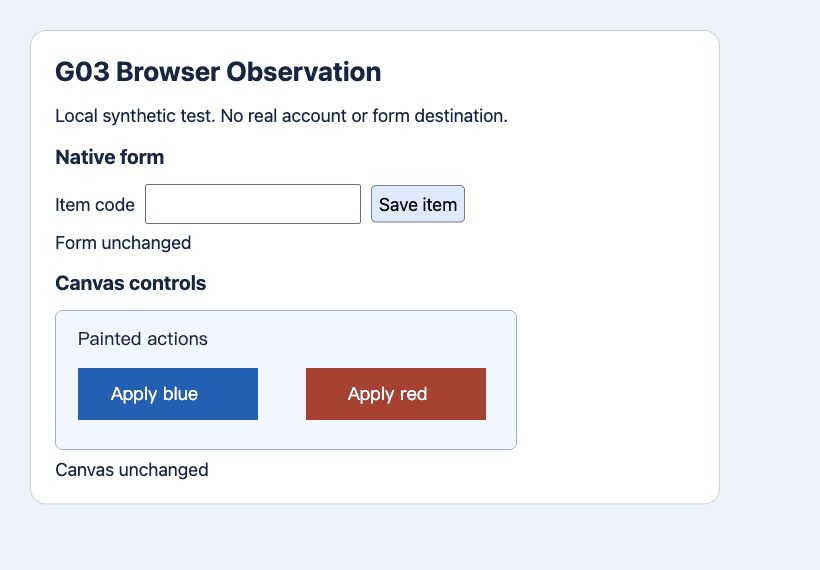
The screenshot illustrates why the form and the canvas benefit from different inputs. It also gives you two independent outcome checks. The form status can confirm a saved item, while the canvas status can confirm a selection. A general “success” message from an agent would leave those outcomes ambiguous.
The Tabbit CLI quick start documents browser access. The Tabbit CLI guide covers task setup and receipts. If you use MCP, the Playwright MCP project documents structured snapshots and browser actions, and the setup walkthrough shows where to begin. The choice between those interfaces concerns how your agent connects. The page still determines whether a semantic locator, a targeted DOM read or an image can answer the current question. See the browser control guide for the connection options.
Decide what the agent should do next
| Situation | Next step | Evidence to require |
|---|---|---|
| Several records have the same action label | Scope by record heading or stable ID | One matching action inside the intended record |
| The snapshot misses a control you can see | Check the widget’s current DOM and capture its viewport if needed | A usable semantic target or a fresh, unambiguous image |
| A layout changed after capture | Re-observe before using any saved position | Target visible in the current view and tied to the right object |
| The tool says the click succeeded but the page is unchanged | Read the status or record state before retrying | A verified result, a known failure, or a pause for review |
Keep observations small enough to answer the immediate question. A targeted observation plan helps avoid repeatedly sending a full page or screenshot. For scheduled workflows, compare cost per confirmed success, including retries and review, since a cheap observation can lead to an expensive correction. If the real task is a record lookup or export and the application exposes a documented interface, consider an API or MCP tool with an explicit record identifier.
For a first workflow, put the target record and success signal in the agent prompt. Use the first-task checklist to decide when a missing receipt should stop the run. The practical default is semantic targeting for named controls, scoped DOM for identity, and fresh vision for visual gaps. Tabbit fits when those observations and actions belong in the browser tab you are already working in.

FAQ
Is an accessibility snapshot the same as the DOM?
No. The DOM contains document nodes and attributes. A snapshot presents a tool-specific view of computed roles, names and states, which can omit layout, classes and app-specific identifiers.
Can a DOM-based browser agent use a canvas?
It can locate the canvas element and any semantic controls the app exposes. If an individual target exists only as painted pixels, inspect an image or use an app-provided interface for that target.
When should a browser agent retake a screenshot?
Capture a new view after scrolling, zooming, resizing, opening a dialog or changing the layout if the next action depends on position. After the action, inspect the result again when the outcome is visual.
Does browser vision always click coordinates?
No. Vision interprets the screenshot. A hybrid tool can use that interpretation to pick a semantic locator or keyboard action, and use coordinates when the target has no reliable element identity.
What should I verify after clicking Save?
Check the intended record for a saved status, persisted value or reliable transaction receipt. If the result is ambiguous, read the state before retrying to avoid a duplicate submission.
Which approach should I start with on a new site?
Start with role and name for labeled controls. Add scoped DOM attributes for repeated records and screenshots where the action depends on appearance or geometry.