
Claude Code can read and click pages in Chrome through Anthropic's Claude in Chrome extension. Install it in the profile you want Claude to use, start a terminal session with claude --chrome, and open /chrome to check the connection. For a public page or a local app, the separate Browser pane in Claude Code Desktop gives you a clean profile. Claude Code Chrome guide
One developer installed and enabled the extension, restarted, and still saw a connection error. Check whether the running Claude Code session can use the extension before asking it to work on a signed-in site. Reddit troubleshooting thread
Key takeaways
The CLI integration needs the official extension, version 1.0.36 or later, and an eligible Anthropic subscription signed in through
/login.Use the extension when the task needs a browser profile where you are already signed in. Use Desktop's Browser pane for a separate profile.
Verify the selected browser and the target tab. An installed extension can exist in several profiles.
Start with a reversible action on a public page. Check the visible result before giving Claude a task that can change data.
Which browser route fits your task?
| Route | Session Claude uses | Choose it when |
|---|---|---|
| Claude in Chrome | The profile connected through the extension | A task needs a specific existing browser session |
| Claude Code Desktop Browser pane | A clean profile separate from your personal browser | You need to preview a local app or inspect a public page |
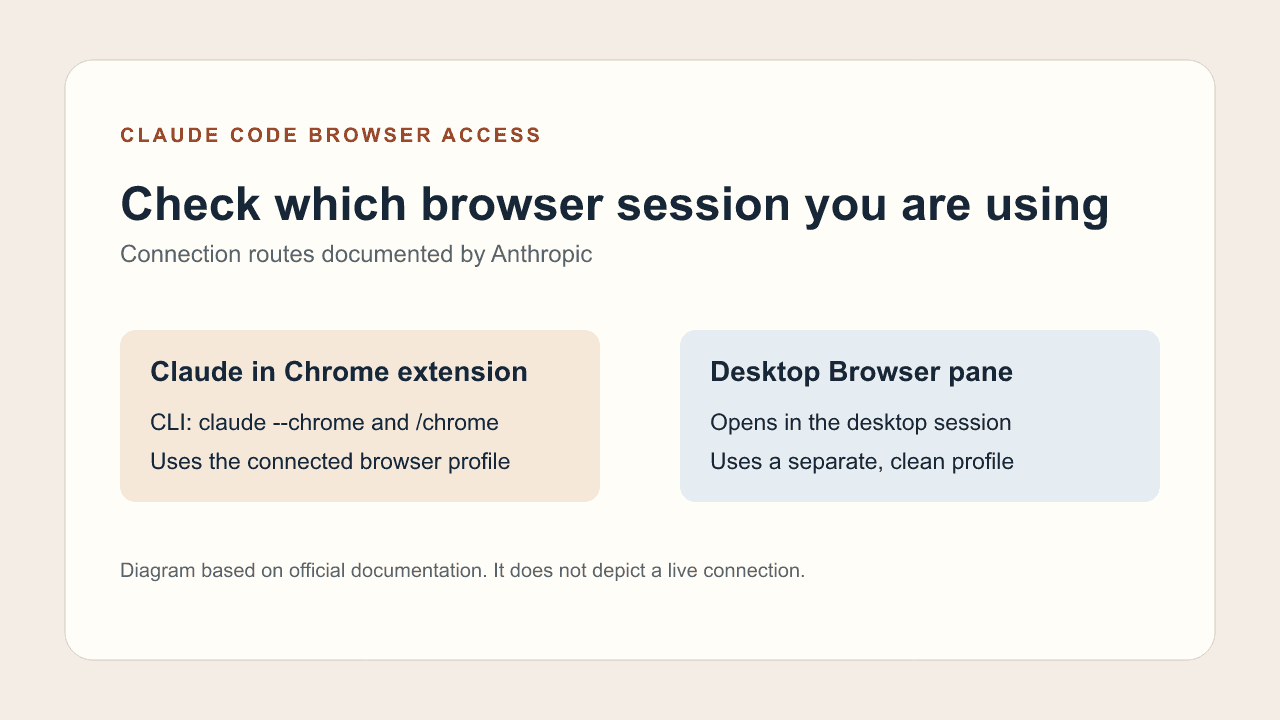
Both routes let Claude interact with a page. The profile determines whether the page opens with your existing sign-in. For a broader look at how agents connect, see the guide to attaching to an existing browser.
Check the extension and account
Install the official extension in the browser profile you intend to use. Anthropic documents Chrome and Edge and also lists detection and setup for Brave, Arc, Vivaldi and Opera. The Chrome integration is unavailable in Windows Subsystem for Linux. The presence of WSL support elsewhere in Claude Code Desktop does not change the CLI integration's requirements. Chrome prerequisites · Official extension
In Claude Code, run /login and use a direct Anthropic subscription on the Pro, Max, Ultra, Team, or Enterprise plan. An API key or a long-lived token generated by claude setup-token leaves the integration off even when you pass --chrome. If you belong to more than one organization, select the same Claude account and organization in the extension and in Claude Code. An administrator can control Claude in Chrome access at the organization level and, where custom Enterprise roles apply, at the role level. CLI troubleshooting · Admin controls
The Claude browser automation overview covers the broader workflow. If the browser you want to operate is Tabbit Browser, see the separate Tabbit with Claude Code setup.
Connect from the terminal
Open the intended browser profile and make sure Claude in Chrome is enabled there.
In your terminal, start Claude Code with the command below. If you already have a session, run
/chromethere to manage the integration.At the one-time startup explanation, review how site access works and press Enter to continue. Run
/chromeinside Claude Code. Anthropic listsStatus: EnabledandExtension: Installedas the working state.If the menu lists several browsers, choose the intended one. When Claude opens the page, verify the address and browser window before approving actions.
claude --chromeIf you use the Claude Code extension for VS Code, the docs give another entry point. Type @browser in the prompt. With Enabled by default selected in /chrome and Claude Code 2.1.287 or later, VS Code sessions connect at startup. Earlier versions and sessions with that setting off connect when you type @browser. CLI and VS Code setup
A developer using several Chrome profiles and Edge reported that Claude sometimes picked Edge. Check the browser name and the actual page before approving anything in a signed-in session. Reddit browser selection report
Use the Desktop Browser pane for local previews
In the Code tab of Claude Code Desktop, use the Browser pane to preview a local app or inspect a public page. Its clean profile starts without your personal saved logins or history. When a task depends on a session where you are already signed in, Anthropic directs you to Claude in Chrome. On external pages, the pane can ask you to allow a specific action or save permission for that site. Subdomains are handled individually. Desktop browser documentation
The CLI extension inherits site permissions from Claude in Chrome. The official guide also describes how Auto mode can skip an extension check for an approved call, subject to deny rules. For a first task, keep the scope to one page and review any site-wide approval before granting it. See the guide to browser agent permissions.
Run a first task with a result you can check
Open the public practice page, copy its URL into the prompt below, and send it from the connected Claude Code session. The button reveals text on the page. You can check the result without a login, form submission, or file upload.
Open [paste the practice page URL] in the connected browser.
Read the visible page heading. Click “Show source details” once.
Report the tab URL, the heading, and the visible Source ID.
Stop if the address changes unexpectedly, the button is missing,
or the page asks you to sign in. Do not submit forms or upload files.
Check two things yourself. First, verify that Claude opened the practice URL in the intended browser. Then read the page after the click. The fixture reveals Source ID: DEMO-A01. If Claude reports an ID and the page does not show it, retry only the read step and compare the response with the screen.
Use the first-task checklist to keep the same checks on a real task, or see the browser control walkthrough for more examples.
Troubleshoot by symptom
| What you see | What to check next |
|---|---|
Extension: Installed but the session cannot use the browser | Check the Status line in /chrome, confirm the account and organization match, and choose Reconnect extension. |
| The extension is missing on the first launch | Confirm it is enabled in the intended profile. Restart the browser so it can load the native messaging host configuration installed by Claude Code. |
| Reconnect opens a page but tools stay unavailable | Update Claude Code if it predates 2.1.290. Earlier versions opened the reconnect page without restarting a failed connection. |
| The wrong browser opens | Use the browser selector in /chrome and check the actual tab URL and window. |
| Public pages work but a work site fails | Check the extension's site permissions and the organization's connector or IP allowlist policy. |
| The correct page opens but the result is missing | Ask Claude to read the visible state. Verify it before repeating an action that could change data. |
For an idle session that suddenly stops responding, Anthropic says the extension's service worker can go idle. Try reconnecting before changing the setup. If your organization uses an IP allowlist, check its guidance on the bridge endpoint with the administrator. Anthropic's troubleshooting guide
Use claude --chrome for work that needs your existing Chrome session and choose the Desktop Browser pane for an isolated preview. Start with the public exercise and require an observable result before moving to signed-in work. If you're comparing connection models, see browsers for agents, browser agents, and browser automation.

FAQ
Can Claude Code click Chrome pages?
The documented extension integration provides browser actions on an authorized session.
Which command enables it in the terminal?
Start with claude --chrome and use /chrome to check or reconnect.
Does an API key enable Chrome access?
The official guide requires direct plan sign-in through /login for this integration.
Is the Desktop Browser pane my personal profile?
The Desktop Browser pane uses a separate clean profile.
Does the extension share login state?
It uses the connected browser profile and works within applicable site and organization permissions.
What should I do if the connection is not detected?
Check the browser profile, extension state and Claude Code version, then use Reconnect extension.