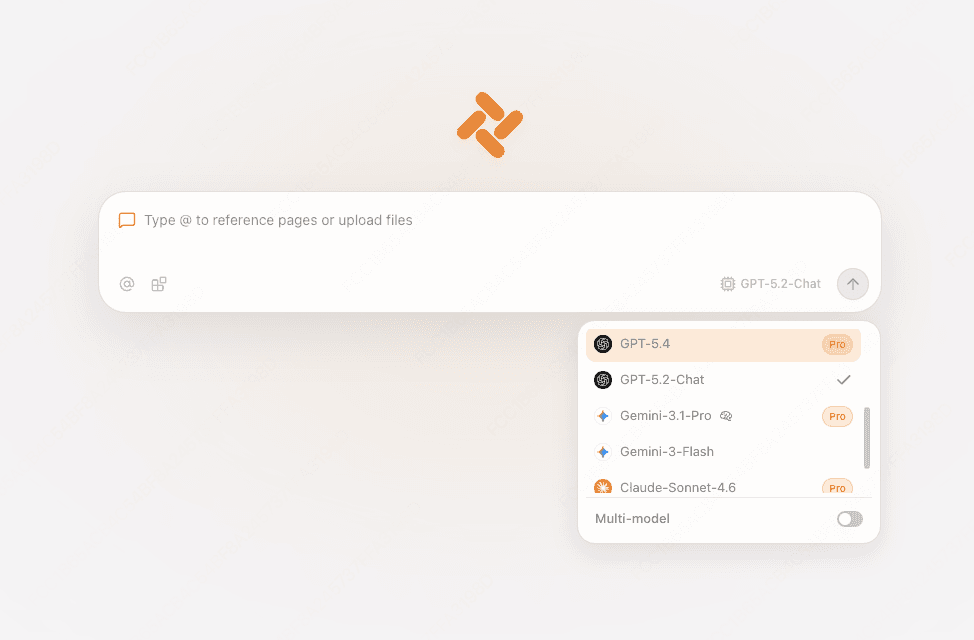
Bring open pages into the same conversation
Open the pages you want to compare, reference them with @ and ask Tabbit to pull out the details you need.
See AI tab management Tabbit
A virtual browser runs on a remote server or inside a virtual machine. Online services let you control that browser in a tab you already have open, without installing a second browser.
Pick a service based on what you need to do. A free session, an ad-supported plan and a free trial come with different limits.
For temporary browsing. Open a fresh cloud session through the ad-supported free plan. Check the plan before relying on a specific location or file transfer.
Visit Browser.lolFor a quick check in another browser version. Enter a URL and choose the browser you want to test. Browserling lists three minutes for its free test.
Visit BrowserlingFor compatibility testing. Use the free trial to evaluate a site across browsers and real devices. Check the trial limits before planning a longer QA session.
Visit BrowserStack| Option | Where the site runs | When to use it |
|---|---|---|
| Cloud browser | On the provider’s infrastructure. You control it from your browser. | A quick remote session or a browser and device you don’t have. |
| Browser in a local VM | Inside a guest operating system on your computer. | A controlled test environment you can configure and reset. Review shared folders and clipboard settings. |
| Browser profile | In your local browser, with separate profile data. | Keep work and personal cookies, bookmarks and sign-ins separate. |
| Incognito window | On your device, in a temporary browsing session. | Avoid saving that session’s site data and history in the browser after closing its private windows. |
Tabbit is an installable AI browser for macOS and Windows. Use it for regular work on sites you trust, such as summarizing a page beside the original.
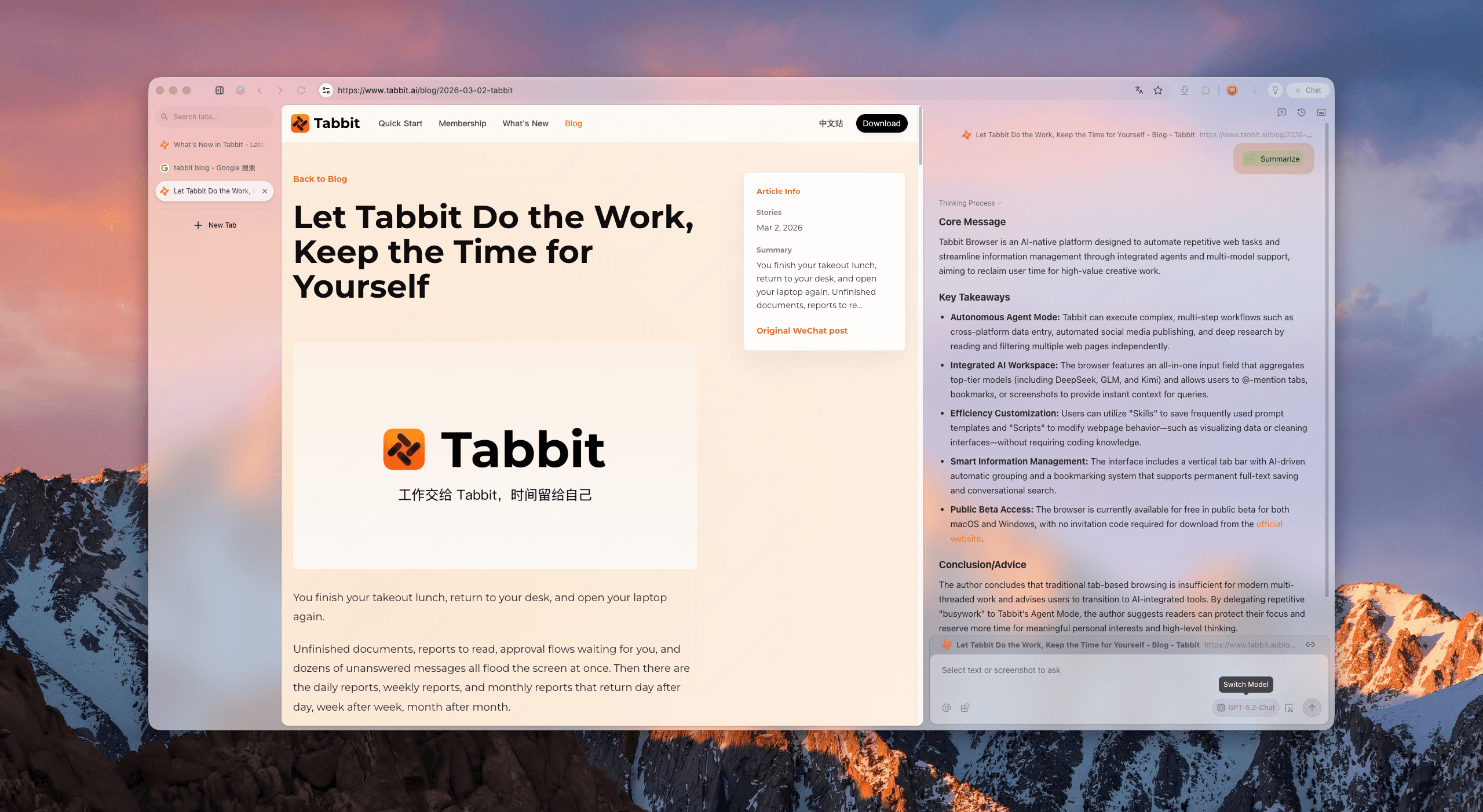
Open the pages you want to compare, reference them with @ and ask Tabbit to pull out the details you need.
See AI tab management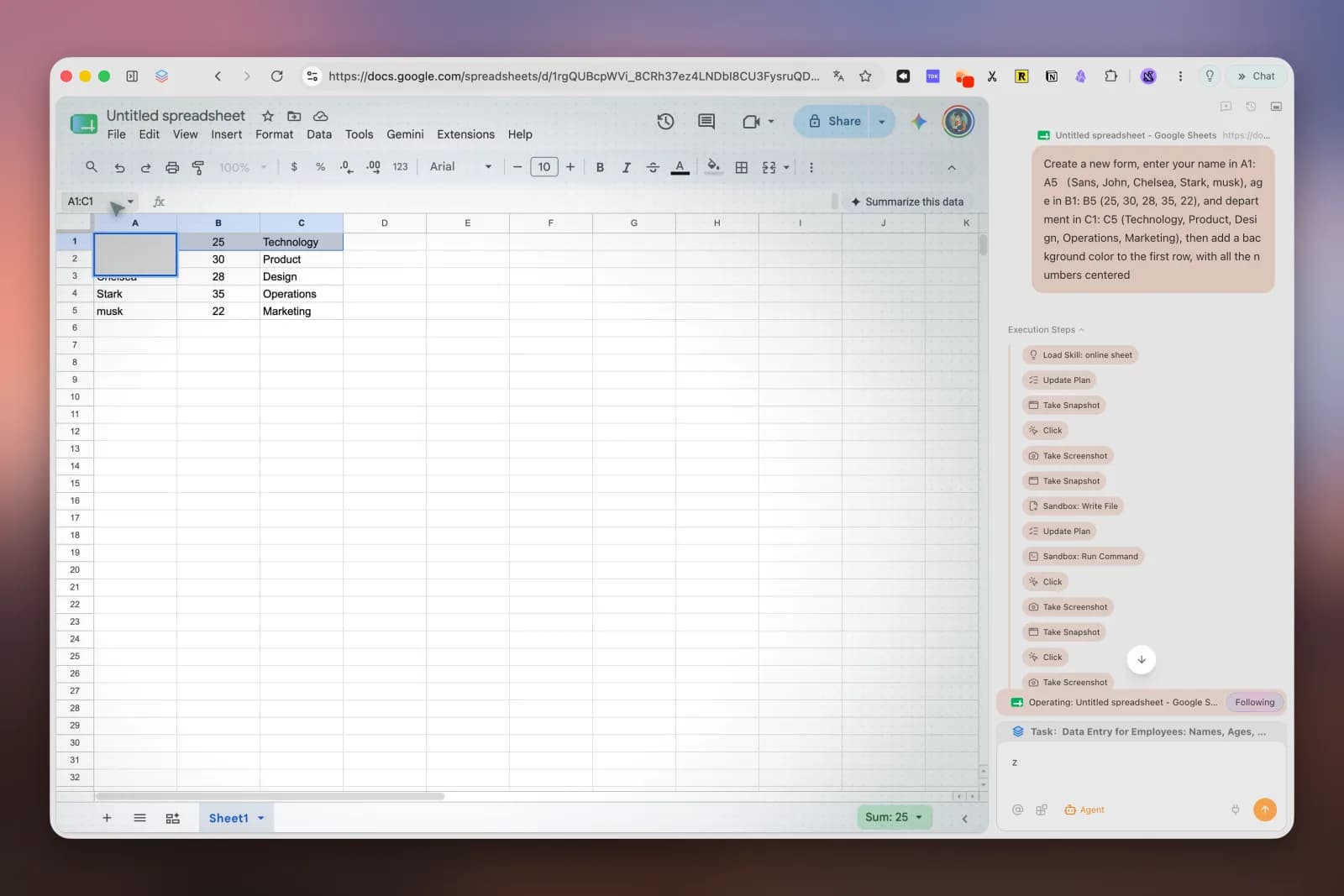
Ask Agent mode to organize information in a spreadsheet. Review the steps and check the result before using it.
Read the browser automation guideFree plans vary by provider. Check the maximum session length, daily allowance, ads, queue and available browsers. If you need a session that lasts for hours, verify that before starting.
Yes, if the service supports your current browser and device. Your Chrome or mobile browser controls the session. For mobile QA, choose a remote device and operating system that match what you want to test.
A VPN routes traffic through another network endpoint while your browser still runs on your device. An online virtual browser also moves page execution to a remote machine.
It depends on the provider. Check who can access session data, what is retained and whether file transfers are enabled. Avoid entering sensitive credentials in an untrusted service. Files you transfer back to your device leave the remote environment.