
Use Claude in Chrome when your work already happens in an authorized Chrome profile and you want Claude to inspect or interact with it. Use Playwright MCP when you want a configurable browser session and structured actions that you can reproduce. Playwright MCP can also attach to an existing Chrome or Edge session through its own extension, so session access alone does not settle the choice.
A Claude Code user asked which integration could fill forms, retrieve information and report errors. Those tasks need different evidence, so compare the result you need rather than the fact that both tools can click.
Compare what your task actually needs. A one-time inspection of a signed-in page and a repeatable form regression are different jobs. This guide uses a browser agent fixture to show what both tools would need to prove. For work inside an open tab, Tabbit Browser is another option.
Key takeaways
The two tools can both operate web pages. They differ in how they connect and what they expose.
A clean Playwright MCP run is an explicit configuration choice.
Reusing a profile means inheriting the access already present in that profile.
Record a visible end state. Tool output saying a click happened is only one step.
A test requires repeatable conditions and assertions, regardless of how the agent connected.
Compare the session and the output
| Decision | Claude in Chrome | Playwright MCP |
|---|---|---|
| Connection | Claude's extension in an authorized browser profile | MCP client and server, with a launched or connected browser |
| Session | Uses the browser profile's existing sign-in state | Persistent profile, isolated context or an authorized existing browser |
| Typical observation | Visible page and connected browser features | Structured accessibility snapshots and optional visual tools |
| Fit | Interactive walkthroughs or authenticated pages where you can supervise | Controlled reproductions, debugging and steps you can turn into regression checks |
| Main setup risk | Wrong account, browser profile or permissions | Wrong browser mode, context or client configuration |
The Claude Code Chrome documentation (Claude in Chrome) describes a visible browser session and sign-in state reuse. The Playwright MCP repository documents persistent, isolated and extension modes. See the browser automation guide for how structured actions differ from a repeatable test.
Connect the session you intend to use
For Claude in Chrome through Claude Code, make sure the supported browser has the official extension and that the extension and Claude Code are signed in to the intended account or organization. Follow the setup guide for your client. The CLI documents starting with claude --chrome. Start with an empty test profile where possible. If the tool asks to use a site, review the exact domain and scope before proceeding.
The Claude Code documentation lists Claude in Chrome extension 1.0.36 or later and a direct eligible Anthropic plan. Check the official prerequisites for your client and organization before testing.
For Playwright MCP, choose a session mode deliberately. The official default is a persistent profile. For a clean run, configure --isolated and add --headless if you do not need a visible browser. If you need an approved existing Chrome or Edge profile, follow the Playwright extension guide. An existing-browser connection has different account access from a fresh virtual session.
Claude in Chrome inherits site permissions from the extension. Playwright MCP can grant browser context permissions such as geolocation. These settings govern different things. A context permission can let a page read a browser capability, while the profile and application account determine which data the browser can see or change. Claude Code · Playwright MCP.
Where the browser runs
Claude Code connects to the extension in your desktop browser. For a worker or remote machine, check which machine can actually reach the app. Playwright MCP can run where the browser and app are reachable and expose an HTTP endpoint to the MCP client. A worker’s localhost is its own machine. Keep the endpoint behind a trusted network boundary and use a dedicated test profile. Playwright MCP setup · Playwright MCP.
Same page, same target
Open the no-account order lookup. The page shows “Delivery code hidden”. Ask the tool to open this URL, click the one button named “Show delivery code”, then return the visible status exactly. The task changes only the text in the current page. It sends no form or external request.
Open only the fixture URL I supplied. Find the visible Show delivery
code button and click it once. Return the visible result exactly.
Stop if the page requests login or a new permission. Do not submit
anything, change tabs or visit another site.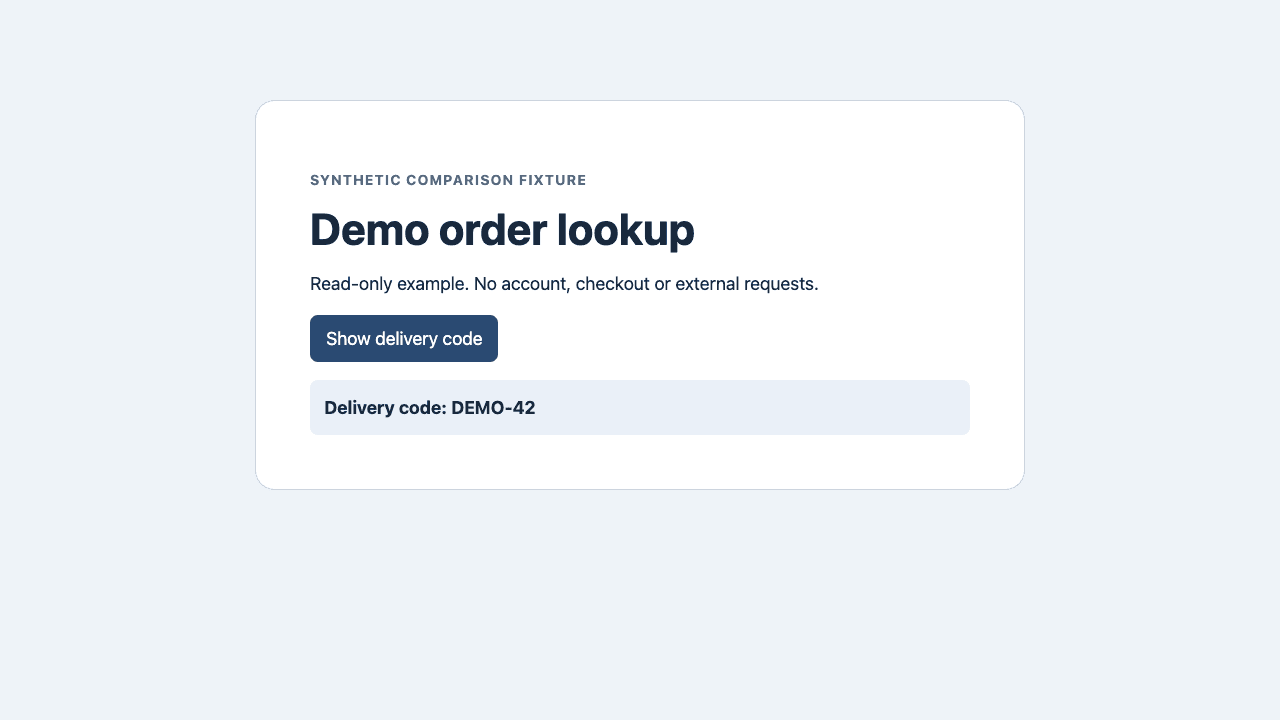
For a realistic form bug, split the job in two. During exploration, have the agent enter synthetic data, stop at the review step and report the field label plus the exact validation message. A useful result distinguishes an inline validation error, a rejected request and a page that never advanced. For regression, set the same starting state and assert the precise outcome in code. If the task requires submitting a form, reserve that for a test account and an approved destination.
Tabbit for a task in an open tab
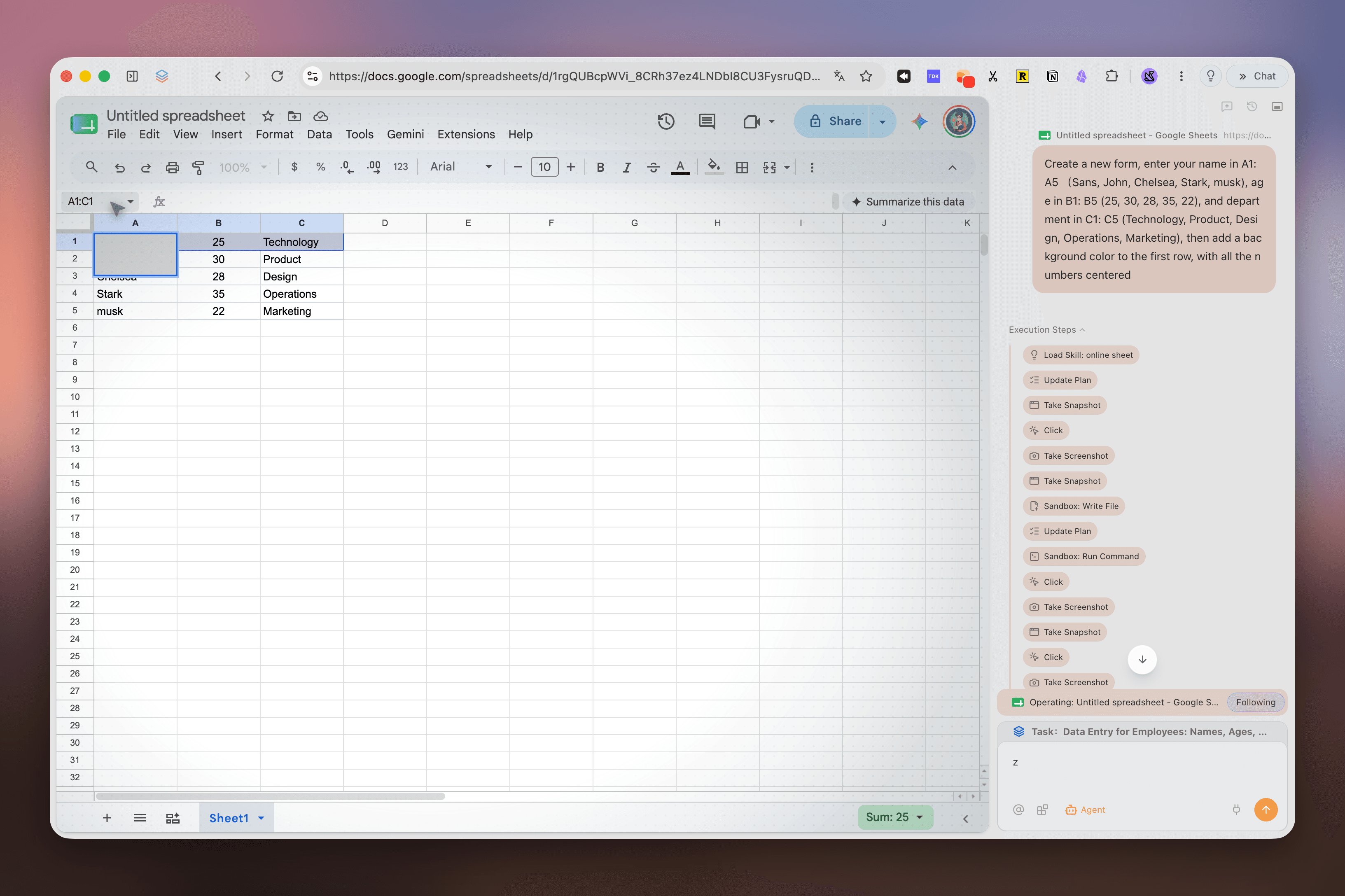
For example, open a test spreadsheet in Tabbit Browser and ask Agent Mode to inspect the column headings. Specify the tab and ask it to stop before editing. The screenshot shows the browser and task sidebar together. For a build that must pass or fail on an exact condition, keep the check in Playwright Test. Tabbit Browser · Playwright Test.
Pick a setup for the work
| Situation | First choice | Why |
|---|---|---|
| An authorized signed-in page needs a one-off review | Claude in Chrome if the extension is already approved, or Playwright extension in the correct profile | Both can use an existing session |
| Reproduce a failure from a clean start | Isolated Playwright MCP | Reset the context and keep a structured result |
| Run the same check after every change | Write a deterministic test with explicit assertions | An exploratory agent run is not a standing test suite |
| Share a demonstration with no account data | Either tool in a test profile | Same URL, one action, visible proof |
Keep authentication and reproducibility separate. If you need to recheck a logged-in flow, use a test account or profile with the smallest access that works. Avoid exporting cookies, private requests or screenshots containing account details. See the agentic browser security guide and virtual browser guide.
A developer comparing the two tools reported trouble connecting with other browser extensions enabled and preferred the artifacts from their Playwright run. Another participant did not see the same conflict. Check your own test profile instead of assuming every extension must be disabled.
Use the already authorized desktop integration for an interactive review, isolated Playwright MCP for controlled debugging, and Playwright Test when CI needs an explicit pass or fail. Tabbit Browser also fits supervised tasks in a tab you already have open.
For your next run, write down the expected result before choosing a tool. Follow the first browser agent task checklist to check the URL, the visible control and the actual state.

FAQ
Is Claude in Chrome better for signed-in websites?
It can use the login state of the Chrome profile where its extension is active. Playwright MCP can also connect to existing Chrome or Edge tabs with its own extension. The right choice depends on which profile you can authorize and how you will verify the result.
Is Playwright MCP always headless or isolated?
No. Playwright MCP can use a persistent profile, a deliberately isolated session or an existing supported browser. Headless and isolated are choices you can specify for a repeatable test.
Can Claude in Chrome run tests?
It can interact with a web app and help inspect the result. For a regression check, record explicit assertions and use a repeatable test runner or script when the flow needs to run unattended.
Does Playwright MCP need Claude?
No. It is an MCP server that can connect to a compatible client. Claude Code is one option for supplying the reasoning and instructions.
Can I compare both without logging in to the test site?
Yes. Open the same no-account fixture in each tool and ask for the exact code after one named click. The Claude extension itself still has its own sign-in and permission requirements.
What evidence should I keep from the comparison?
Keep the starting URL, browser context, visible target, final output and any failures. Use the same target and goal. Mark an unavailable tool separately from a completed run.