
To restore only the browser tabs you need, search History and open the matching pages individually. If you just closed one tab, try Command+Shift+T on Mac or Ctrl+Shift+T in Chrome on Windows. A shortcut that restores the latest closed item is useful for an accident, but it does not let you choose a subset of a closed session.
That distinction matters. A Chrome user on Reddit wanted “only 70 of 400” tabs back, with a way to choose them before reopening. Restoring a whole window and then closing hundreds of pages does not meet that need. Searching visited pages is a practical alternative when recovering the URLs is enough.
This guide uses Tabbit Browser as a desktop example. Its startup settings, one-tab shortcut, and history search were checked on macOS on October 29, 2026. Whole-window recovery, closed-group recovery, restart behavior, and Windows Tabbit shortcuts were not tested. Chrome instructions below are identified separately and linked to Google's documentation.
Key takeaways
For a single accidental close, use the reopen shortcut once and inspect what returned.
For a few known pages, search History and open only those results.
Recently closed items and visited-page history are different records. History is not a list of everything that was open when you quit.
Startup recovery chooses what happens when the browser launches. It is not a checkbox list of old tabs.
Reopening an address does not guarantee restoration of unsaved page state.
Recovery methods at a glance
| What you need | First action | What to expect | Main limit |
|---|---|---|---|
| The tab you just closed | Reopen shortcut once | A recent closed item returns | A closed window may be the item in Chrome |
| Two or three pages you recognize | Search History | Open selected addresses individually | Original tab state may be lost |
| An entire closed window | Browser's recent-window recovery | Several tabs can return together | This is broader than selective recovery |
| Everything from the last session | Browser startup or session recovery | The browser attempts to resume saved state | No archive of every earlier session |
| A chosen subset of a saved session | A tool with verified selective restore | Selection before reopening, if supported | Requires a saved record and tested behavior |
If your goal is recovering everything after a crash, start with the general session recovery guide. Here, the aim is a smaller working set.
Reopen one accidentally closed tab
In the Tabbit macOS check, a disposable Example Domain tab was opened, closed with Command+W, and recovered with Command+Shift+T. The same address returned as one tab. No browser restart or recovery of a closed window was involved.
For a similar mistake:
Stay in the browser and profile where you closed the page.
Press Command+Shift+T once on Mac. In Chrome on Windows, press Ctrl+Shift+T.
Check the returned title and address before pressing the shortcut again.
If it brings back unrelated pages, use History to choose the page directly.
Google's keyboard shortcut reference documents reopening closed tabs, and its window recovery guide explains that the shortcut can bring back a closed window. Do not assume one keypress always equals one page.
Repeating the shortcut walks backward through recent closes. That can be useful for the last few accidents. It becomes a poor search method when the page you need sits behind many unrelated closes. It can also reopen more pages than you wanted if the next recoverable item is a window.
Choose individual pages from History
History is the better starting point when you remember the website, a title word, or part of the address. You can choose a result without recovering every tab that was next to it.
Find the page in Tabbit
Enter
tabbit://historyin the address bar. Command+Y also opened it in the checked macOS interface.Use Search history, rather than the browser's ordinary web search.
Start with a distinctive word from the title, a domain, or a URL fragment.
Inspect the result's title and domain.
Click the matching link to reopen that page. Search again for the next page you need.
The check used a unique fragment in the address of a disposable page. Search history returned one result; clicking its link navigated to that address. This verifies a selection workflow, not a native “restore selected session tabs” feature. The check did not establish a bulk-open action for history checkboxes, so do not treat those checkboxes as a restore control.
For Chrome, Google's History help documents finding visited pages. Microsoft's Edge recovery guide also recommends History for older pages. Menu labels and shortcuts differ between browsers; use their own History entry when a shortcut is uncertain.
Search by when you visited, not when you closed
A tab left open for several days might have an older history entry. Closing it today does not make it a newly visited page. Search across an earlier date or use a site name instead of looking only at today's records.
In an Opera recovery discussion, a user described closing “like 20 tabs since” losing a needed window. That is the problem with relying on close order as a search tool. The discussion also raises the difficulty of finding long-inactive pages in recent history. These are personal experiences, not a guarantee about another browser's retention limits.
If recognition is the problem, the guide to searching history and bookmarks explains how to narrow the search. A bookmark export can preserve links you already saved, but cannot recover a page that was never bookmarked.
Keep a restored group separate from a restored page
A tab group is a collection of tabs. A window contains tabs and may contain groups. A session records some browser state across windows. These are different recovery targets.
If a recovery menu presents a window or group as one item, check what that item represents before selecting it. Do not interpret its title as a promise that only the named page will return. When your goal is just a few addresses, searching History avoids depending on whether a browser exposes the contents of a closed collection.
The trade-off is that the reopened pages may no longer have their old group membership, tab order, pinned state, or Back and Forward trails. Recreate only the organization you still need. The tab grouping guide and pinned-tab guide explain those separate controls.
If preserving collection structure is essential, test a browser session manager with disposable pages before relying on it. Check whether it actually lets you choose individual saved tabs, whether it merges them into the current window, and whether it restores only URLs or more state. A product named “session manager” does not establish those details.
Putting selective recovery into practice with Tabbit
Suppose you need a reference article and a project dashboard from yesterday, but the rest of the old window can stay closed. In Tabbit, begin with History. Search for the article's site, inspect its title, and open the matching result. Repeat for the dashboard. Confirm the right project and account after the dashboard loads.
The tested path recovered a page address without restoring an entire window. It did not recreate the old session. That is a useful compromise for reading pages and saved documents; it is weaker for an unsaved editor or a multi-step form. If you need temporary page state, use the original application's own save or recovery mechanism first.
The existing Tabbit interface below shows where open tabs appear. It illustrates the vertical list, not a selective restore dialog.
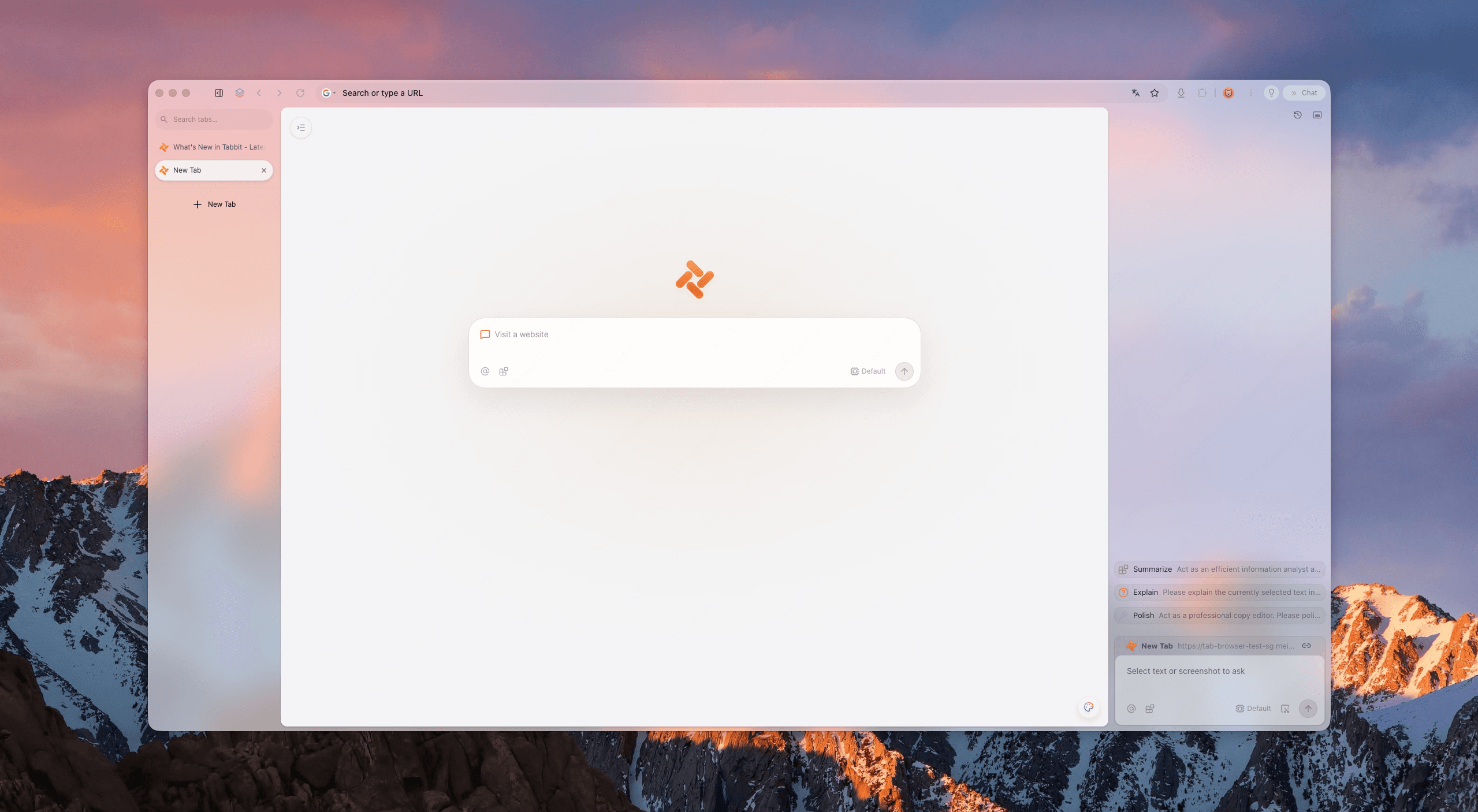
Once useful pages are open, a readable vertical tab list can help you check what remains. For a broader cleanup routine, see too many browser tabs. This article does not claim Tabbit can reconstruct another browser's deleted session or supply a partial-session picker that was not observed.
Choose a startup setting for future launches
Tabbit's checked Settings → On startup screen had these options. You can reach it by entering tabbit://settings/onStartup. The inspection left the existing setting unchanged and did not restart the user's browser.
| Option shown in the checked interface | Choose it when | What it does not establish |
|---|---|---|
| Open the New Tab page | You want to begin with a new page | Recovery of a chosen old tab |
| Continue where you left off | You want the browser to attempt to resume its last session | A dated session archive or partial selection |
| Open a specific page or set of pages | You want a recurring startup list | Automatic capture of whatever you closed yesterday |
Google documents equivalent Chrome choices in its startup settings help. Seeing an option confirms that it exists; it does not prove every crash or multi-window restart will restore successfully.
Changing a startup preference is a future browsing decision. It is not the first recovery step for a page that is already missing. Recover what you can first, save important addresses, then choose how you want the next launch to behave. Also distinguish a homepage from a startup page.
When selected pages cannot be found
Check the browser profile where the pages were originally visited. A different profile can have a different history. If another device still has the page, preserve the address there before changing sync settings. The browser sync troubleshooting guide covers that separate problem.
Deleted history and private browsing can remove the records this method depends on. Reopening a history result cannot invent a missing URL. If you recently cleared records, review what deleting browsing history affects before clearing anything else. Do not reset the browser as a routine recovery step.
Finally, opening a link is not restoring an application checkpoint. An expired login may ask you to sign in again. A document may show its last saved version. A form may be empty. Keep important drafts in the application, and back up browser data before switching when moving your work.
For one recent accidental close, use the shortcut once. For a few known pages, search History and reopen the matching addresses. For an entire window or session, use a recovery path that explicitly targets that collection. Tabbit users can start with the verified History workflow, then use the shared download button below if they want to try the desktop browser.

FAQ
How do I restore only a few tabs from a closed window?
Search browsing history for the pages you need and open those results individually. This recovers their addresses, but does not recreate the window structure or each tab's full navigation history.
Does Command+Shift+T always reopen just one tab?
No. It reopened one individually closed tab in the Tabbit macOS check for this guide. In Chrome, the same shortcut can also restore a closed window, so it is not a selective session picker.
Where are Tabbit's startup recovery settings?
Open Settings, then On startup, or enter tabbit://settings/onStartup in the address bar. The checked desktop interface offers Open the New Tab page, Continue where you left off, and Open a specific page or set of pages.
How do I search Tabbit history for a missing tab?
Open tabbit://history and type part of the title, site name, or URL into Search history. In the macOS check, Command+Y opened History and a distinctive URL fragment returned the test page.
Will reopening a history result restore my unsaved form?
Do not rely on it. A history result opens a page address; unsaved input, scroll position, sign-in state, and the original Back and Forward trail may differ or be missing.
Can Tabbit choose part of another browser's lost session?
This guide did not verify such a feature. Use the original browser's recovery tools or surviving history first, and preserve important links separately before switching browsers.