
You may want to remove a page from the history on this device. Or you may be trying to clear traces from a shared computer and are unsure whether the button also touches cookies, passwords, downloads, or another device. Those are different decisions.
A Chrome user described deleting history on a work computer and then losing access to history on other devices. Another user reinstalled Chrome and found 1,500 old tabs waiting during sync. These are personal reports, not product documentation, but they explain why “delete everything” deserves a pause. This guide gives the narrow action first, then the limits. Tabbit appears later as a way to keep the instructions and the page you are investigating together.
Key takeaways
Open your browser's history or Delete browsing data screen and start with the smallest time range.
Select Browsing history only when you want the local list of visits gone.
Cookies, cache, download history, autofill, passwords, and site settings are separate categories.
If sync is on, a deletion can reach your account or other signed-in devices.
Deleting local history does not erase website, ISP, employer, school, or account activity records.
What deleting history does, and what it does not do
| Data category | What the browser removes | What remains outside that action | Check before confirming |
|---|---|---|---|
| Browsing history | Local URLs, visit dates, and some address-bar suggestions | Website and network records | Pick a time range, not All time by habit |
| Cookies and site data | Login state, preferences, and local site storage | Your online account and cloud files | You may be signed out |
| Cached images and files | Local copies of page assets | Cookies and passwords | The next load may be slower |
| Download history | The browser's download list | The downloaded files on disk | Delete files separately |
| Autofill | Saved form entries | Data held by a service | Forms may need to be filled again |
| Passwords and passkeys | Credentials only when selected | No guaranteed recovery without backup | Treat as a destructive reset |
Google's Chrome data guide separates these choices. The broader explanation in what clearing cache actually does is useful when a broken page, rather than privacy, is the reason you opened this menu.
Chrome: use Delete browsing data
On desktop, open Chrome's menu and choose Delete browsing data. Ctrl+Shift+Delete opens the dialog on Windows and Linux; Command+Shift+Delete does the same on macOS.
Choose a time range. Last hour or Last 24 hours is safer when you are removing one recent visit.
Check Browsing history.
Leave cookies, cached files, autofill, passwords, and site settings unchecked unless you want those too.
Select Delete data, then search the history page to confirm the intended entries are gone.
When you are signed in to Chrome, Google says deletion can remove synced data from other devices and your Google Account. Check the profile and sync settings before choosing All time. For a wider migration, use the browser backup checklist first.
Edge: clear the selected time range
In Microsoft Edge, open Settings and more > Settings > Privacy, search, and services. Under Clear browsing data, choose Choose what to clear, select a time range, check Browsing history, and confirm Clear now. Microsoft may change the exact labels, so use the current Edge support entry if a menu has moved.
Edge lists cookies, cache, download history, passwords, autofill, and site permissions separately. Do not select them to solve a history-only task. If the device belongs to an employer or school, a policy may hide or lock the control.
Firefox: open History or Clear browsing history
In Firefox on desktop, open the application menu, choose History, then Clear recent history. Select a time range and keep only Browsing & Download History selected if that is all you intend to remove. Mozilla's deletion guide is the source to check when labels differ by platform.
Firefox treats browsing history and download history as one selectable group in this dialog. That still does not delete downloaded files. Cookies, active logins, cache, form data, and saved passwords have their own controls. On mobile, use the Firefox settings screen and inspect each category before confirming.
Safari: choose the device-specific control
On a Mac, open Safari and choose History > Clear History, then select the period. This removes Safari's local history for the selected interval. Website data and AutoFill are separate choices in Safari settings.
On iPhone or iPad, Apple says to open Settings > Apps > Safari > Clear History and Website Data, confirm the timeframe, and tap Clear History. Apple notes that this does not change AutoFill information. To remove cookies and site data while keeping history, use Advanced > Website Data > Remove All Website Data instead. See Apple's Safari instructions.
| Your goal | First choice | Avoid selecting first | Why |
|---|---|---|---|
| Remove one recent visit | History search and one entry | All time and passwords | Smallest change is easiest to verify |
| Remove all local visits | Browsing history for the chosen period | Cookies and site data | Login state can survive a history-only clear |
| Sign out of a shared browser | Cookies and site data, after checking accounts | Saved passwords by default | You may need to sign in again |
| Free space or fix stale assets | Cache controls | History and passwords | History deletion does not repair cached files |
| Remove an address-bar suggestion | Delete the individual suggestion or visit | Full profile reset | A reset is much broader than the symptom |
The second table is the practical decision rule: name the goal before you touch the checkbox. For cache symptoms, read how to clear Chrome cache. For a device that feels overloaded, browser bloat and too many browser tabs address different causes.
History is not the same as privacy everywhere
Clearing the local history list does not delete a website's server logs, search-account activity, DNS records, router logs, employer or school monitoring, or an ISP's records. It also does not erase a message, file upload, purchase, or account event stored by the service itself. Private browsing changes what the browser saves locally; it is not a promise that no one else can see the traffic.
If sync is enabled, first determine whether you want to remove the record on one device or across the signed-in profile. The browser sync guide covers reappearing and duplicated tabs; why sync fails across devices explains why local and cloud state can diverge. If a work policy controls the browser, ask the administrator rather than repeatedly trying a locked setting.
Keeping the cleanup session understandable with Tabbit
The deletion still belongs to Chrome, Edge, Firefox, or Safari. The surrounding task often includes a help page, an account-activity page, the site you are checking, and a short note about the category you selected.
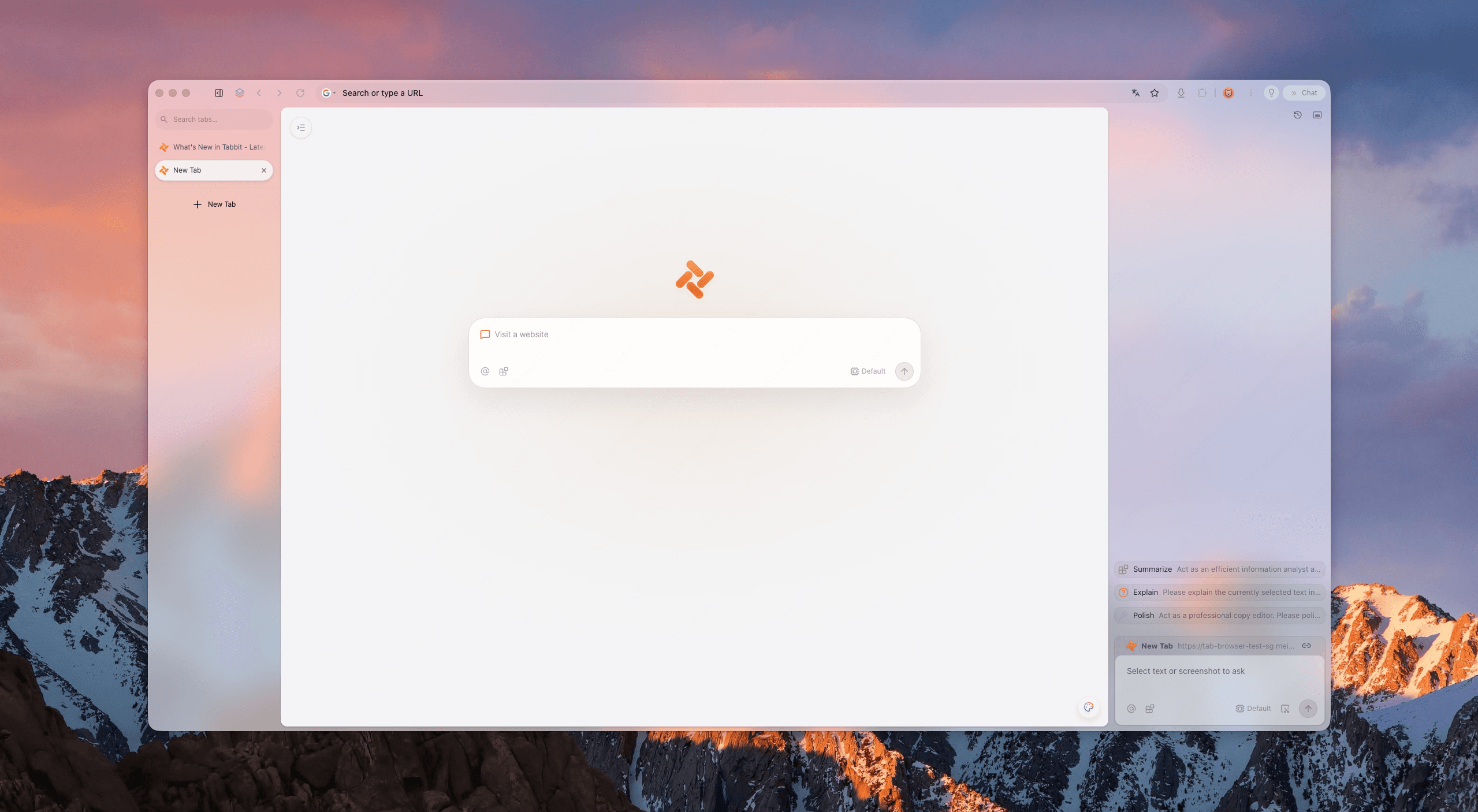
Tabbit Browser can group those pages with Smart Tab Organization. With Chat with Page, you can ask for a short explanation of an official help page while keeping the source visible for checking. The Tabbit AI browser workflow describes that context-first use.
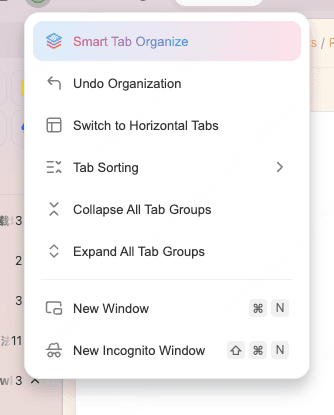
There is a clear limit. Tabbit does not clean Chrome, Edge, Firefox, or Safari data for you, and it cannot restore a deleted synced history. It is helpful when the risk comes from losing track of which source, account, or setting you were looking at. If your work is already spread across profiles, browser profiles and workspaces may be a better organizing step.
What to do after the deletion
Search the browser history again and check only the entries you meant to remove. If a login disappeared, that is usually a cookie or site-data effect, not evidence that your saved password was deleted. If a file vanished from the download list, look in the device's Downloads folder before deleting anything else.
For future cleanup, use a shorter time range and review the categories each time. Keep credentials in an approved password manager or backup process. A browser history menu is not a secure archive and its delete button is not an undo button.
Final answer
To delete browsing history, open the browser's history or Delete browsing data screen, choose the smallest useful time range, select Browsing history, and confirm. Leave cookies, cache, download history, autofill, passwords, and site settings alone unless your goal includes them.
That action removes selected local browser records. It does not promise to remove records held by websites, networks, organizations, or account services, and sync can widen the effect. If you want a place to keep official instructions beside the page you are investigating, install Tabbit Browser.
FAQ
Does deleting browser history delete what websites know about me?
No. It removes the selected local browser records and, when sync is enabled, may affect synced browser history. Websites, internet providers, employers, schools, and account activity systems may keep separate records.
Will deleting history remove cookies or saved passwords?
Not unless you select those categories. Cookies and site data can sign you out, while saved passwords and passkeys are separate options in most browsers.
Does deleting download history delete downloaded files?
No. It removes the browser's list of downloads, not files already saved on your device. Delete the files separately if that is your goal.
Can I delete one website from my browser history?
Usually, yes. Search the history page for the domain or entry and select only those visits. The exact control differs by browser and device.
Can Tabbit delete history from Chrome, Edge, Firefox, or Safari?
Tabbit can help you keep instructions and investigation pages together, but it does not erase another browser's history or recover deleted data. Use the browser's own privacy controls for deletion.
Does private browsing leave no record?
Private windows generally avoid saving a normal local history list, but they do not make activity invisible to websites, networks, employers, schools, or services you sign into.

FAQ
Does deleting browser history delete what websites know about me?
No. It removes the selected local browser records and, when sync is enabled, may affect synced browser history. Websites, internet providers, employers, schools, and account activity systems may keep separate records.
Will deleting history remove cookies or saved passwords?
Not unless you select those categories. Cookies and site data can sign you out, while saved passwords and passkeys are separate options in most browsers.
Does deleting download history delete downloaded files?
No. It removes the browser's list of downloads, not files already saved on your device. Delete the files separately if that is your goal.
Can I delete one website from my browser history?
Usually, yes. Search the history page for the domain or entry and select only those visits. The exact control differs by browser and device.
Can Tabbit delete history from Chrome, Edge, Firefox, or Safari?
Tabbit can help you keep instructions and investigation pages together, but it does not erase another browser's history or recover deleted data. Use the browser's own privacy controls for deletion.
Does private browsing leave no record?
Private windows generally avoid saving a normal local history list, but they do not make activity invisible to websites, networks, employers, schools, or services you sign into.