
OpenCode can use Playwright MCP through a local server in the project configuration. Start with a single read-only navigation and inspect the returned heading. A connected server confirms the MCP handshake. The model still needs to call the correct tool with valid arguments, and Playwright still has to launch a browser and reach the page.
We tested OpenCode 1.18.16 with Playwright MCP 0.0.84. This guide uses the 1.x config format. The official OpenCode V2 documentation places server names inside mcp.servers. Check opencode --version before copying a block from either documentation site.
Add a local Playwright MCP server
Create or update opencode.json in your project root. If the file already has an mcp object, add the playwright entry inside it. Keep your other servers and settings. The OpenCode 1.x MCP guide describes the local command array, enabled flag and timeout.
{
  "$schema": "https://opencode.ai/config.json",
  "mcp": {
    "playwright": {
      "type": "local",
      "command": [
        "npx", "-y", "@playwright/mcp@0.0.84",
        "--browser", "firefox", "--headless", "--isolated"
      ],
      "enabled": true,
      "timeout": 45000
    }
  }
}
Use a Firefox binary compatible with the Playwright version packaged by your MCP server. For the tested package, npm metadata identifies the Playwright build 1.65.0-alpha-2026-10-30. Install its Firefox with:
npx -y --package playwright@1.65.0-alpha-2026-10-30 playwright install firefox
opencode mcp list
If you use a separate browser cache, make it available to the server via the process environment. We passed the matched executable explicitly in the isolated fixture. Keep the package and installed browser revision aligned when you upgrade. A browser cache populated by an older tool may contain a binary with a similar name and an incompatible protocol.
Run opencode mcp list from the project, then open a fresh OpenCode session and check that the browser tools are visible. OpenCode merges configuration from multiple locations. An empty test project with a separate config and data directory is easier to reason about than a workspace with several conflicting defaults. The OpenCode configuration reference documents precedence.
Send one read-only request
Use a public page with a visible answer. The Selenium Web form works without an account.
Call playwright_browser_navigate for this URL only:
{"url":"https://www.selenium.dev/selenium/web/web-form.html"}
Use one argument named url, with the address as a string.
Read the result and return the visible heading.
Do not click, type, submit, or use another tool.
Look for three things in the trace: the tool name, the argument object, and the returned page heading. In our 1.x OpenCode session the playwright server's navigation tool appeared as playwright_browser_navigate. An independent MCP client sees the underlying tool as browser_navigate. The Microsoft Playwright MCP project describes accessibility snapshots and the browser options.
For a model comparison, keep the URL, prompt, MCP server and browser constant. Choose models that support structured tool calls with your provider adapter. In our fixture, OpenCode used the OpenAI-compatible provider setup against a local Ollama endpoint. No external model account was used. Use the event stream to see the attempted tool call, even if the answer text is empty or a command reports exit code zero.
What the two model runs showed
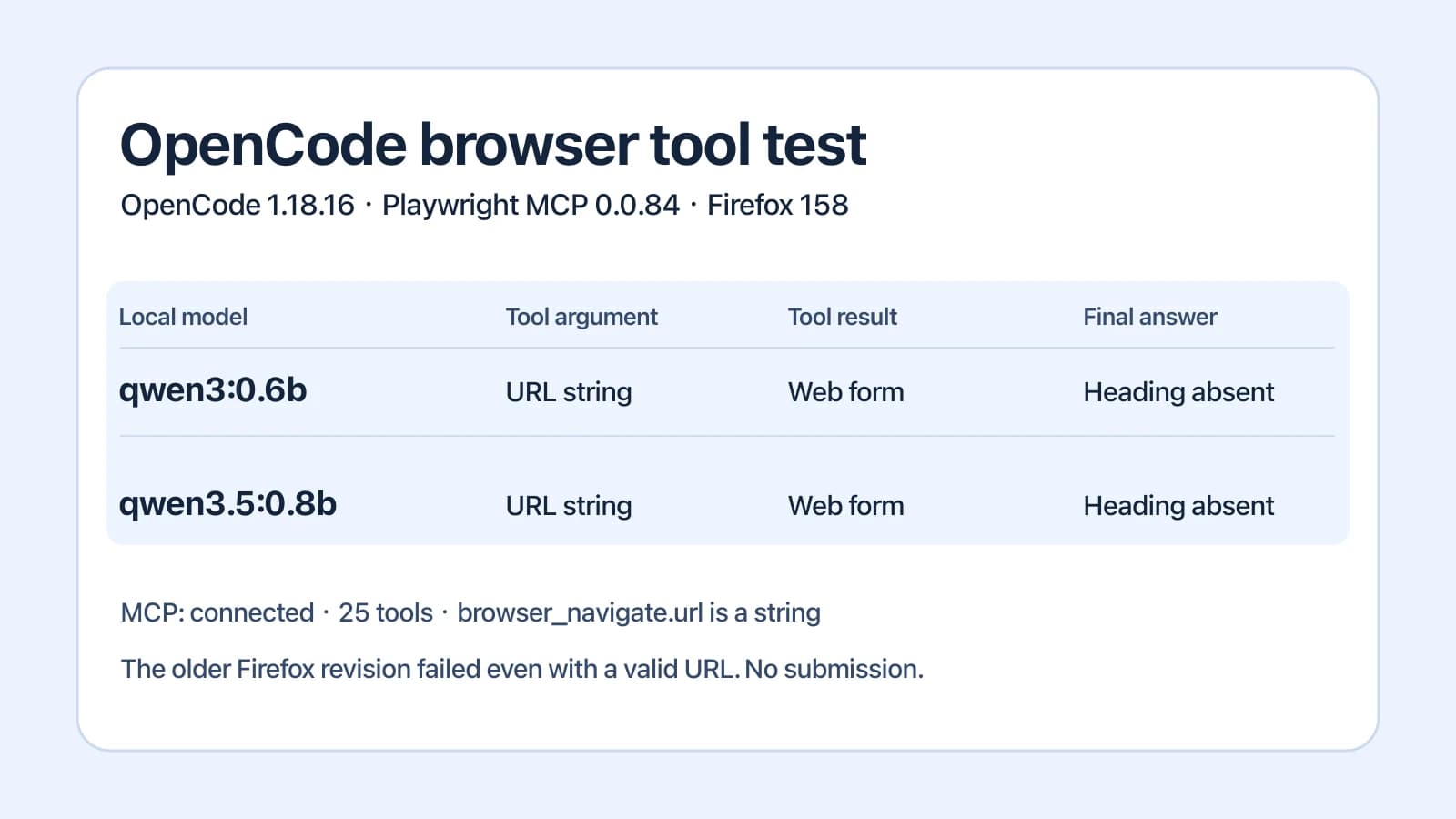
The first run used an older Firefox binary from a previous browser cache. Both models sent the intended URL, but navigation failed. An independent MCP client returned a Firefox protocol error with the same valid input. We then installed the matching Firefox 158, revision 1569, and independently verified that the page returned Web form. With that runtime, passing a number instead of a string as url produced an input validation error.
We gave both models the same explicit JSON object in a new session on the matching runtime. The table distinguishes the tool result from the assistant's final output.
| Local model | Navigation call | Tool result | Final output |
|---|---|---|---|
qwen3:0.6b | Exact string URL | Web form | Heading omitted |
qwen3.5:0.8b | Exact string URL | Web form | No text event with the heading |
The second model also made two snapshot calls despite the request for one tool. In an earlier attempt on the matching runtime, neither model reproduced the exact URL from a prose prompt. The explicit JSON gave both models a successful navigation in the reported run. This is a small local comparison. The independent client found 25 tools, verified that browser_navigate.url is a string, and closed the browser. The test made no form submission.
Locate the first failing layer
| What you observe | Layer to check first | Next test |
|---|---|---|
The server is absent or failed in opencode mcp list | Project config and MCP process | Verify the loaded version, working directory, array command, executable and timeout |
| Connected, but the model returns prose with no tool event | Model, provider or tool availability | Inspect which tools the current agent can use, then try a single tool call with another supported model |
| An event has the wrong key or value type | Tool input schema | Read tools/list and compare with the argument object |
| A correctly shaped call reaches the server and both model and independent calls fail | Browser startup, protocol or network | Check the browser revision, then retry the same public URL with matching binaries |
| A tool returns the expected heading, but the final response omits it | Model readback | Use the tool result as evidence and ask for the answer alone |
A user report about an MCP argument mismatch illustrates the schema step: a filesystem server expected path and received filePath. A separate OpenCode browser discussion describes unreliable results without isolating the setup. These reports suggest different checks. Compare the actual tool name, request and response in your session before deciding which component failed.
This example uses a clean browser context. See connecting to an existing browser if the task genuinely needs an existing sign-in. For adjacent setup guides, see Playwright browser automation, Playwright MCP in Claude Code, Playwright MCP in Codex and open-source coding agents. To decide whether a tool even needs to open a tab, compare web search and browser control and how browser agents work. You can download Tabbit and use the same public heading check to compare a separate browser connection.

FAQ
Can OpenCode use Playwright MCP?
Yes. In the 1.x configuration, add a local server under mcp in opencode.json, then run opencode mcp list from that project. Follow the separate V2 schema if you use V2.
Do browser tools still work when I switch models?
The MCP configuration can stay the same. Run the same small request with each model to check whether it emits a valid tool call and reads the tool result.
Why does OpenCode report a connected server even when navigation fails?
The server can complete its MCP handshake before it starts a browser. Check the tool result for browser startup, executable, protocol or network errors.
What arguments does browser_navigate expect?
The installed Playwright MCP version in our test declares url as a string. Confirm that with tools/list and use the exact tool name exposed by your client.
Will this connect to my existing browser tabs?
The example starts an isolated browser context. Use a separately configured browser connection when an existing tab or login is required.