
Chrome can suddenly feel wrong. The homepage changes, searches go through an unfamiliar engine, pop-ups appear, or an extension keeps returning after you remove it. The obvious fix is the button labeled “Reset settings.” The worry comes next: will it delete the bookmarks, passwords, and history built up over years?
Google's Chrome Help reset guide gives a reassuring answer for the desktop reset: saved bookmarks and passwords are not deleted or changed. A recent YouTube tutorial search shows why people search for this exact distinction. They want a settings repair, not a new identity for their browser. This guide starts with the smallest safe action and keeps profile deletion, sync cleanup, and reinstalling Chrome separate. Tabbit Browser appears later as a workspace for the investigation, not as a replacement for Chrome's reset control.
Key takeaways
On a computer, open Chrome Settings, choose Reset settings, then Restore settings to their original defaults and confirm Reset settings.
The reset restores search, homepage, startup tabs, new tab, pinned tabs, content permissions, cookies and site data, extensions, and themes.
Google says saved bookmarks and passwords are not deleted or changed. A settings reset is not a full profile reset or a Delete browsing data action.
Export bookmarks and check Chrome sync before changing anything, especially if the browser will be reinstalled or moved to another computer.
A homepage or search engine that changes back can indicate unwanted software. Resetting alone may not remove the cause.
What the desktop reset changes
The reset applies to the current Chrome profile. Google says the changed settings also return to defaults on devices where you are signed in. The exact wording may vary by Chrome release, but the categories are stable enough to plan around.
| Chrome area | After Restore settings to their original defaults | What this action does not do |
|---|---|---|
| Search and startup | Restores the default search engine, homepage, startup tabs, and new tab page | Does not delete your Google Account |
| Tabs | Resets pinned tabs | Does not erase bookmark folders |
| Permissions and site data | Resets content settings, cookies, and site data | Does not delete saved passwords according to Google |
| Extensions and themes | Disables or resets extension and theme settings | Does not uninstall every extension or remove your Chrome profile |
| Other preferences | Returns supported settings to their defaults | Does not provide a full reset; fonts and accessibility settings may remain |
That last row is important. If you are trying to start with an empty profile, use Chrome's profile controls, not this button. If you are trying to remove browsing data, use Chrome's Delete browsing data flow and select categories deliberately. These actions have different scopes.
How to reset Chrome settings on a computer
Open Chrome and select the three-dot menu in the top-right corner.
Choose Settings.
Select Reset settings in the left menu.
Choose Restore settings to their original defaults.
Read the confirmation dialog, then select Reset settings.
Chrome may turn off extensions after the reset. Google's malware and unwanted software guidance says to turn extensions on again only if you trust them. Open More > Extensions > Manage extensions, inspect the publisher and permissions, and enable one extension at a time. If the symptom returns after one extension comes back, you have useful evidence.
If the Settings menu will not open, do not jump straight to deleting the User Data folder. That is a profile-level action and can remove local data. Try updating Chrome, scanning for unwanted software, or creating a separate test profile. Browser profiles and workspaces explains why a new profile is a diagnostic boundary rather than a magic repair.
Back up before you click Reset
Google says the desktop settings reset keeps saved bookmarks and passwords, but a backup is still sensible when the browser is unstable or a migration is involved.
First, confirm whether Chrome sync is on for the account you expect. Google's Sign in to Chrome documentation says signed-in users can get bookmarks, passwords, and more on other devices. That is useful, but it is not the same as a local export. A sync problem can make a cloud copy incomplete or stale. Our browser sync troubleshooting guide and why browser sync fails across devices cover that separate problem.
For an independent bookmark copy, open the Bookmarks Manager, select its three-dot menu, and choose the export option if it is present. A Reddit reply to a user worried about reinstalling Chrome gave the same practical advice: export bookmarks to a file so they can be imported if sync does not behave as expected (the discussion). The community suggestion is not a guarantee about every Chrome build, so check the current labels before saving the file.
Use the browser backup checklist if you also need passwords, open tabs, extensions, or other browser data. Never paste passwords into a notes file just to make a backup. Use the browser's export or password-manager controls and protect any exported file.
Reset settings is not the same as clearing data
These four actions are often mixed together in search results:
| Action | Best fit | Main risk or boundary |
|---|---|---|
| Restore Chrome settings | A changed homepage, search engine, permissions, or extension configuration | Some preferences and the cause of malware may remain |
| Delete browsing data | Removing selected history, cookies, cache, or autofill data | Cookies can sign you out; synced deletions can affect other devices |
| Remove a Chrome profile | Starting with a separate local profile or removing one you no longer need | Local profile data can be lost; this is broader than a settings reset |
| Turn off or clear sync | Managing what is stored in the Google Account and other devices | It can make cross-device recovery harder and is not a local repair |
| Reinstall Chrome | Repairing an installation problem after backup and malware checks | It is an installation change, not proof that sync or a bad extension is fixed |
For cookies, use the narrower Chrome cookie guide. For a slow first load after cleanup, read what clearing cache does and how to clear Chrome cache. Deleting all browser data because one site is broken is usually wider than necessary.
When a reset is not enough
Chrome's own malware page lists warning signs: pop-up ads and new tabs that do not go away, an unauthorized homepage or search-engine change, extensions or toolbars that return, redirects to unfamiliar pages, or virus alerts. In that situation, check installed programs on your computer and remove software you do not recognize. Then reset Chrome settings and review extensions again.
Enterprise and school-managed Chrome can behave differently. An administrator may enforce a homepage, search engine, extension, or permission policy. A local reset cannot override a policy. Ask the administrator before treating a managed setting as malware.
If the problem is only one website, test an Incognito window and a clean profile first. Do not sign into sensitive services in a profile you are using only for diagnosis. If Chrome's settings reset works but the same issue returns after you restore a profile or extension, the restoration step is the next place to inspect.
A practical investigation workspace with Tabbit Browser
The reset itself belongs to Chrome. The messy part is collecting evidence: the official help page, the affected search page, the extension's permissions, a malware-cleanup checklist, and a note about what changed before and after the reset.
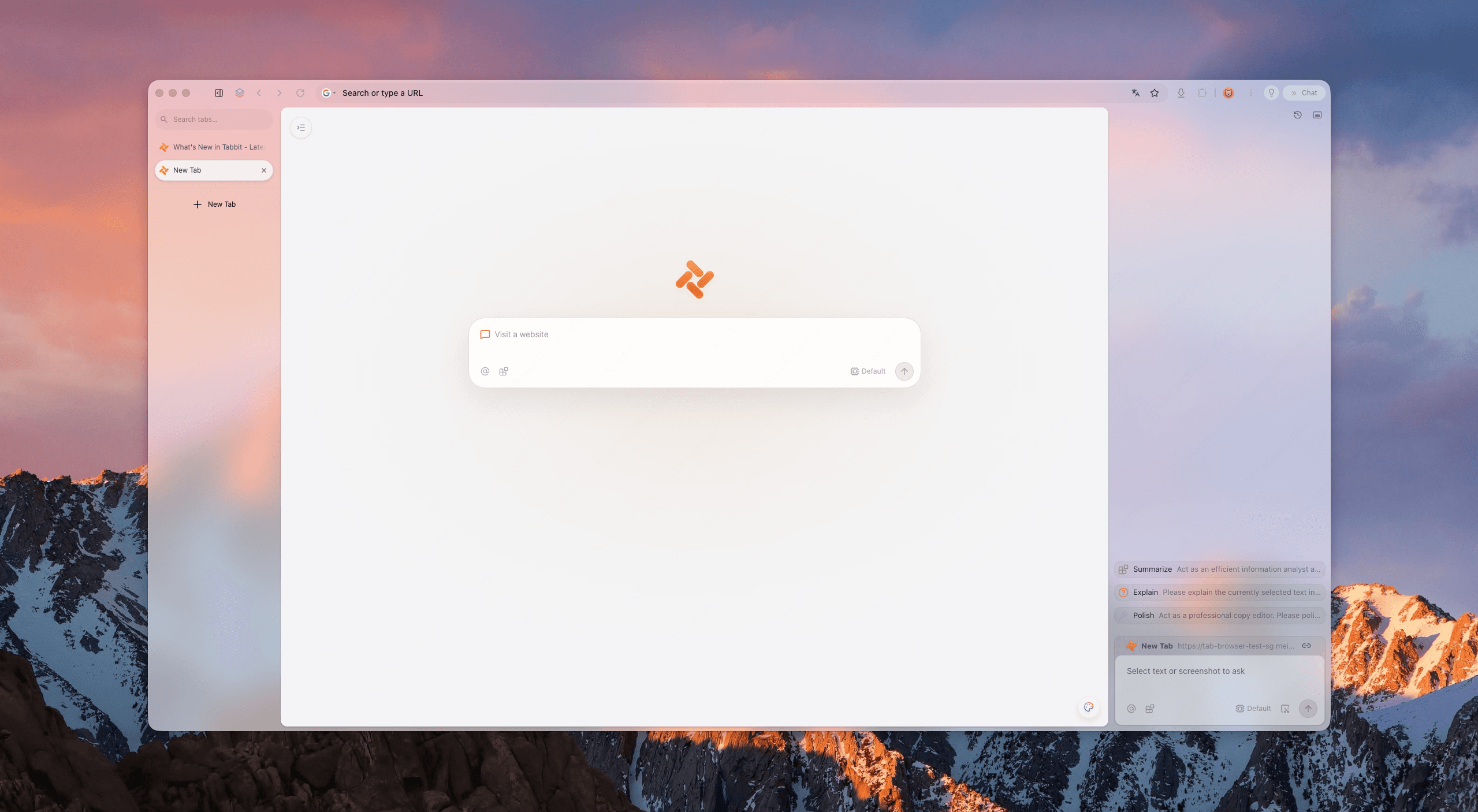
In Tabbit Browser, use Smart Tab Organization to group the Google help page, the suspicious extension page, and the website showing the wrong search behavior. Chat with Page can summarize a visible help page while you keep the source open. If you have several reports or settings pages, organizing too many browser tabs can make the before-and-after comparison easier to follow.
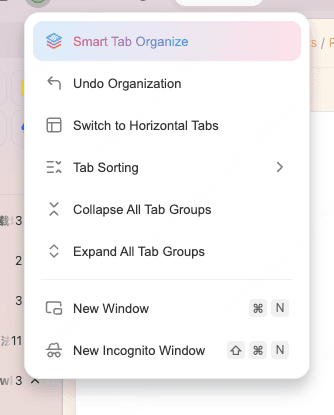
There is a hard boundary. Tabbit cannot press Chrome's reset button in another browser, clear Chrome sync, inspect an enterprise policy you cannot access, or restore a deleted password. It is useful when the task includes research and comparison, not when you need a second reset mechanism.
Verify Chrome after the reset
Work through the symptom that led you here:
Open Settings and confirm the expected search engine, homepage, and startup behavior.
Visit a known safe page and check whether redirects or unwanted pop-ups remain.
Open Extensions and review disabled items, publishers, permissions, and themes.
Test the original website without re-enabling every extension at once.
Check pinned tabs and other preferences that matter to your daily workflow.
If bookmarks or passwords appear missing, stop and check the profile and sync account before deleting anything else.
Do not confuse a successful reset with a successful sync repair. A Reddit user who removed a local profile still reported that bookmarks would not sync, while extensions did sync (the r/chrome thread). That is a useful warning: a new profile can reproduce a server-side or account-level issue.
Which action fits your symptom?
| Symptom | Start with | Avoid first |
|---|---|---|
| Homepage or search engine changed | Check unwanted software, then reset settings | Deleting the whole profile |
| One site forgets its login | Delete that site's cookies and data | All-time deletion of every site |
| Chrome is slow after an update | Update, inspect extensions, then test a clean profile | Assuming reset repairs hardware or network issues |
| Bookmarks do not appear on another device | Check account and sync status | Clearing sync data or creating many profiles |
| Extension returns after removal | Inspect installed programs and policies | Re-enabling every extension together |
| You need a fresh workspace | Create a separate profile or use another browser | Calling it a settings reset |
Final answer
On desktop Chrome, Settings > Reset settings > Restore settings to their original defaults > Reset settings restores supported browser settings. It does not delete or change saved bookmarks and passwords according to Google, but it can reset search, startup, permissions, site data, extensions, and themes. Export bookmarks and check sync first when the browser is unstable.
If the problem points to malware, enterprise policy, a broken sync account, or a damaged profile, use the matching repair path. Tabbit Browser can keep the sources, affected pages, and notes in one workspace while you work through that diagnosis. Install Tabbit Browser when you want that context available beside the browser tasks.

FAQ
Will resetting Chrome settings delete my bookmarks?
No. Google's desktop reset procedure says saved bookmarks and passwords are not deleted or changed. Export your bookmarks first if you need a separate copy for a migration or a reinstall.
What does Chrome reset change?
It restores the default search engine, homepage and startup tabs, new tab page, pinned tabs, content settings, cookies and site data, extensions, and themes. It is not a full profile reset.
Will a Chrome reset delete my history or saved passwords?
The settings reset is not the Delete browsing data command, and Google says saved passwords are not deleted or changed. Do not select a separate history or password deletion action unless that is your goal.
Can resetting Chrome fix a search engine that keeps changing?
It can restore the search engine setting, but recurring changes may point to unwanted software or malware. Follow Google's cleanup guidance and remove programs or extensions you do not trust.
Is Chrome reset available on Android and iPhone?
The desktop help page's Restore settings to their original defaults flow is for computer Chrome. On mobile, use the Chrome app's own site-data controls or reinstall only after backing up what you need; do not treat system-level app-data deletion as the same action.
Does resetting Chrome clear Google sync?
No. Resetting local settings is different from turning sync off, deleting synced data, or removing a Chrome profile. If bookmarks are not syncing, diagnose sync separately before changing profiles.