
If one website keeps looping at sign-in, shows an old account, or forgets a setting, deleting its cookies may help. The risky part is choosing the broad “all sites” option when you only meant to reset one domain. You can be signed out of services, lose preferences, and widen the effect across synced Chrome data.
That is the problem behind a r/chrome question about removing one site's history and cookies. The accepted direction was to search Chrome's site-data settings by domain. Another user looking for individual cookie controls was told that Chrome had moved the per-cookie control, while per-site deletion still worked (the discussion). This guide starts with the smallest change. Tabbit Browser appears later as a way to keep the source, the affected site, and your notes together while you decide.
Key takeaways
Delete data for one site first when the problem is limited to one site.
Use Delete browsing data only when you really want a time range across sites.
Cookies hold session and preference information. They are separate from saved passwords and cached files.
A full deletion can sign you out and, with Chrome sync, affect other devices or your Google Account.
Chrome's controls do the deletion. Tabbit can organize the investigation but cannot erase or restore Chrome cookies.
What Chrome cookies store
Google describes cookies as files created by websites to make visits easier. They can keep you signed in, remember preferences, and support locally relevant content. First-party cookies come from the site in the address bar. Third-party cookies come from another site embedded in the page, such as an ad or content provider. The Chrome cookie guide is the authority for the labels and controls.
| Data | Typical job | What deleting it can change | What it does not delete |
|---|---|---|---|
| First-party cookies | Session, login state, preferences | Sign-in and site settings | Saved passwords or website server records |
| Third-party cookies | Embedded content and cross-site advertising use | Some embedded content or ad preferences | Every form of online tracking |
| Cached images and files | Local copies that speed up loading | The next load may take longer | Cookies and saved passwords |
| Browsing history | Local visit list | History entries and some suggestions | Account activity held by a service |
The distinction matters because a broken page does not always need a cookie reset. If the page is stale, read what clearing cache does or how to clear Chrome cache. If you are removing a visit record, use the browser history guide instead.
Delete cookies for one site on a computer
This is the safest starting point when one domain is misbehaving.
Open Chrome and select the three-dot menu.
Choose Settings, then Privacy and security.
Open Third-party cookies and select See all site data and permissions.
Search for the website name or domain.
Select the delete control beside the site, then confirm.
Chrome may show more than one entry for a site because a page can use related domains or embedded services. Read the names before deleting. If your goal is to reset an account on example.com, do not casually remove unrelated entries that happen to contain the same word.
The site may sign you out, forget language or display preferences, and ask for consent again. That is expected. It does not mean that your saved password was deleted. If the site still fails, compare the result with browser update compatibility problems and check whether an extension is changing site data.
Delete all cookies on a computer
Use this when you want a broad reset, are preparing a shared profile for another person, or have a specific privacy reason. It is a bigger action than clearing one site.
Open Chrome's three-dot menu and choose Delete browsing data.
Choose a time range. All time removes the widest range; a shorter range is easier to undo in your planning, although the deletion itself is not reversible.
Select Cookies and other site data.
Leave browsing history, cached files, autofill, and passwords unchecked unless those are also part of your goal.
Select Delete data and wait for the dialog to close.
Google's Delete browsing data instructions separate the categories. The checkbox labels can change slightly across Chrome versions, but the decision is the same: name the data you want to remove before confirming.
If you are signed in to Chrome, check sync first. Google says deleting synced history or autofill can remove it from other devices and your Google Account. Cookies and site data also determine whether sites remember your session, so plan for sign-ins. This is why the browser backup checklist is useful before a profile migration, and why browser sync problems deserve their own diagnosis.
Delete cookies in Chrome on Android
The Chrome Help page uses the Android tab for the mobile flow. The exact icon position can differ by phone size, but the controls are under Settings.
Open the Chrome app and tap the three-dot menu.
Tap Settings, then Privacy and security.
Tap Delete browsing data.
Choose a time range and select Cookies and site data.
Review the other categories and tap Delete data.
If one site is the problem, look for its site-data entry in Chrome settings rather than deleting every site's cookies. Android may show a different layout from desktop, so follow the current labels in Google's Chrome cookie help. Do not confuse Chrome's app storage controls in Android system settings with Chrome's website data menu; the former can be much broader.
Delete cookies in Chrome on iPhone or iPad
Open Chrome and tap the menu button.
Open Settings, then Privacy and security.
Tap Delete browsing data.
Select Cookies, site data and choose the time range.
Check the remaining categories carefully, then confirm Delete browsing data.
Google's iPhone and iPad help is the source to use if the menu wording changes. Deleting cookies can sign you out of websites in the mobile app too. It does not delete passwords stored separately in your password manager or Chrome's password area.
Choose the smallest action that fits
| Your goal | Start here | Leave unchecked at first | Expected trade-off |
|---|---|---|---|
| Reset one site's login | Site data search by domain | Every other site | That site may ask you to sign in again |
| Test whether stale site data is broken | One site's data, then cache | Passwords and history | You may need to reload assets |
| Sign out of most sites | Delete browsing data with cookies selected | Passwords unless intended | Many sessions will end |
| Prepare a profile for handoff | Backup first, then all-time site data | Nothing you still need | Sync and local data need separate checks |
| Remove a history record | History controls | Cookies | Cookie deletion is wider than the problem |
The practical rule is simple: if you can name the site, delete that site's data. If you cannot name the site and want a clean profile, read the categories and sync warning before using All time. For a profile-heavy workflow, browser profiles and workspaces can separate accounts before cleanup.
A clearer way to investigate the problem with Tabbit Browser
Cookie deletion is still a Chrome task. The surrounding investigation is where a browser workspace helps: you may need the official Chrome instructions, the website that is failing, an account recovery page, and a note about whether you deleted one domain or all domains.
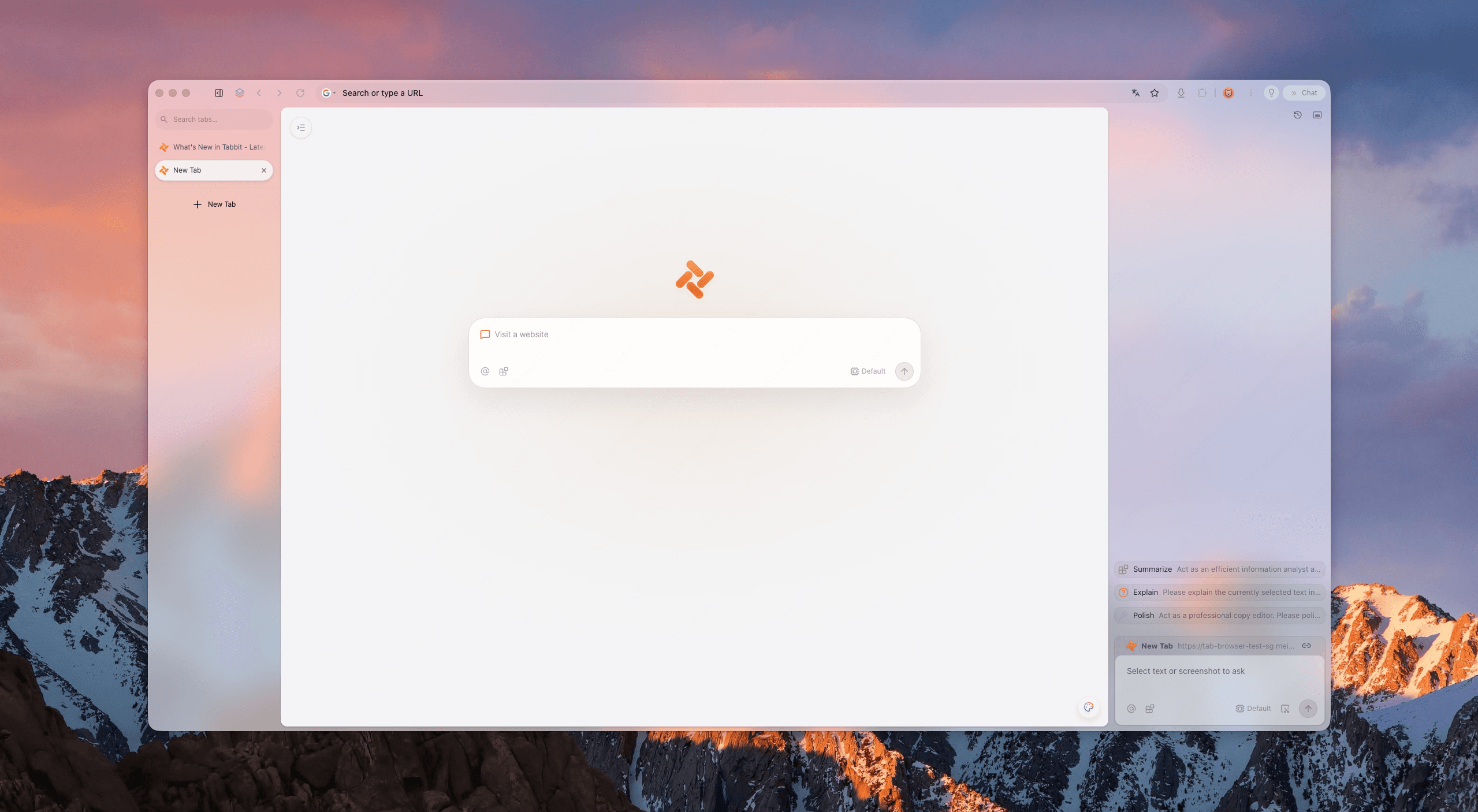
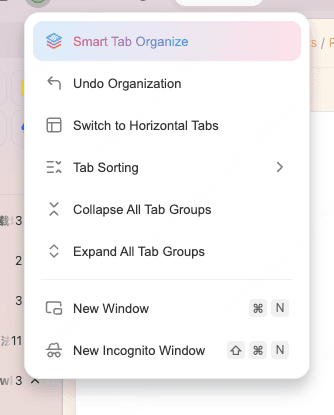
Tabbit Browser's Smart Tab Organization can group the reference and affected site. Chat with Page can summarize the visible Chrome help page while you keep the source open. The Tabbit AI browser workflow explains this context-first use.
There is a hard limit. Tabbit does not reach into another browser profile to delete cookies, bypass a company policy, or restore a session after a full wipe. It also cannot tell you that a website has deleted its own server-side account history. Use Chrome's controls for the destructive step, then keep the source and result together in Tabbit. If too many pages make the investigation hard to follow, organize too many browser tabs before you start.
What changes after deletion
Expect the affected site to ask for a login or cookie consent again. A shopping cart, language choice, dark-mode preference, or remembered workspace may reset if the site stored it in cookies or related site data. The account itself, cloud files, and saved password are separate systems.
If you are still signed in after deleting cookies, the site may use another storage mechanism, or you may have deleted a different domain from the one serving the session. That is a reason to inspect the site-data list, not to repeat an all-time deletion. If the session returns after a restart, check Chrome sync, browser profiles, and any cleanup extension.
Deleting local cookies also does not remove server logs, search-account activity, network records, employer or school monitoring, or data already stored by a website. Third-party cookie controls can reduce one tracking mechanism, but they are not a complete privacy switch. Google's third-party cookie explanation provides the broader context.
Final answer
For a single problem site, open Chrome Settings, search See all site data and permissions, find the domain, and delete its data. For every site, open Delete browsing data, select Cookies and other site data, choose the time range, and confirm. Expect sign-outs and check sync before an all-time deletion.
Tabbit Browser is useful when the task includes several sources, accounts, and notes. It does not perform or undo the Chrome deletion. Install Tabbit Browser if you want that investigation context in one browser workspace.

FAQ
How do I delete cookies for just one website in Chrome?
On desktop, open Chrome Settings, choose Privacy and security, Third-party cookies, then See all site data and permissions. Search for the site and delete its stored data. Chrome may sign you out of that site.
Will deleting Chrome cookies delete my saved passwords?
No. Saved passwords are a separate data category. Deleting cookies can remove sign-in sessions and site preferences, so you may still need the saved password to sign in again.
Does deleting cookies in Chrome delete cookies on my other devices?
If you are signed in and sync is saving the relevant data, Chrome says deletion can affect other devices and your Google Account. Check sync before choosing an all-time deletion.
What is the difference between first-party and third-party cookies?
First-party cookies come from the site shown in the address bar. Third-party cookies come from other sites embedded in the page, such as an advertising or content provider.
Can I delete Chrome cookies on Android or iPhone?
Yes. In the Chrome app, open Settings, choose Privacy and security, then Delete browsing data. Select Cookies and site data and the time range before confirming.
Will deleting cookies fix a broken website?
It can help when stale site data or a damaged session is causing the problem, but it is not the same as clearing cached files. Try deleting data for that site first, then check the cache guide if the issue remains.