
“Clear the cache” sounds like one harmless button. It is not. In a browser's Delete browsing data dialog, cache, cookies, history, autofill, site permissions, downloads, and saved passwords are separate choices.
That distinction matters when you are trying to fix one broken website. A Reddit user asking how to clear Chrome's cache described having to type every password again as “a royal pain.” Replies in the same thread correctly separated cookies, which can end a session, from passwords saved in a password manager. Later we will use Tabbit as a way to keep the troubleshooting pages and notes together. It cannot restore data you chose to delete.
Key takeaways
Clearing cached images and files removes local copies used to load pages faster. It normally does not delete saved passwords.
Clearing cookies and other site data can sign you out, empty site-local storage, and reset permissions or preferences.
Clearing browsing history removes the local list of visited URLs. It does not erase a website's server logs or your Google activity.
The password, autofill, and download-history boxes are separate. Read the time range and each selected category before confirming.
If the goal is to find an old page, use history and bookmark search instead of deleting anything.
What gets removed at a glance
| Data category | What clearing it does | What it does not do | Main risk |
|---|---|---|---|
| Cached images and files | Removes locally stored page assets | Does not remove the live website or saved password vault | The next load may be slower while files return |
| Cookies and other site data | Removes login state, preferences, Web Storage, IndexedDB, and similar site data | Does not delete your account on the website | You may be signed out or lose an in-progress site-local draft |
| Browsing history | Removes visited URLs, timestamps, and address-bar suggestions in the chosen range | Does not remove the site's records or Google Account activity | You lose a local way to find a page again |
| Download history | Removes the list of downloaded items | Does not remove the actual downloaded files | You may no longer know where a file came from |
| Autofill form data | Removes locally stored addresses, cards, and form entries | Google says cards and addresses saved in your account are not deleted by this local option | Re-entering shipping or contact details |
| Saved passwords and passkeys | Deletes credentials only when this category is selected | It is separate from cached files | Lost credentials if there is no backup |
| Site settings | Resets permissions such as camera, location, and notifications | Does not uninstall the site | A site may ask for permissions again |
This table follows Google's Chrome data guide, with the same broad categories documented by Microsoft Edge and Firefox. Names vary by browser, but “cache” is not a synonym for every item in the dialog.
Cache, cookies, history, and passwords are different
Cache is a local speed layer
The cache stores copies of images, scripts, stylesheets, and other response data. When a page can reuse those copies, it may open with fewer downloads. If one copy is stale or corrupt, removing cached files can force a clean fetch.
You pay for that clean fetch with a slower first reload and some bandwidth. That is usually a reasonable trade when a page is showing an old layout, missing styles, or a broken asset. It is not a privacy eraser by itself: cached files are only one part of a browser profile.
Cookies carry state, not your password vault
Cookies are small pieces of site data. They can hold a session identifier, preferences, experiment assignments, or a “remember this device” state. The Firefox documentation describes cookies as containing site preferences and login status.
Remove them and a site may ask you to sign in again. A saved password can still fill that form, but the old session cookie is gone. Clearing cookies also removes other site data in Chrome, including Web Storage and IndexedDB, so offline documents or a site-local draft may not survive. A server-side account, email, cloud file, or subscription does not disappear just because its local cookie did.
History is your local trail
History is the browser's record of pages you visited. Removing it affects the History page, shortcuts, and address-bar suggestions for the selected range. It does not delete the page from the internet, and it does not necessarily remove search activity saved to a service account.
If you want less local history in the future, use a private window for a clearly separate session. Private browsing is not a way to hide activity from a network administrator, employer, school, internet provider, or the websites you visit.
Saved passwords are a separate destructive choice
Chrome lists passwords and passkeys under data that can be managed separately in Google Password Manager. Edge also lists passwords as a separate category. That is why “clear cache” and “delete passwords” should never be treated as the same action.
There are exceptions to the comforting version of this rule. Browser menus differ. A phone's operating-system Clear storage or Clear data action is broader than clearing only cached files. Sync can also make a deletion travel to other signed-in devices. If the credentials matter, confirm they exist in a password manager or export them using the browser's supported method before a full profile reset. Do not paste an export into a chat or a web form.
Choose the smallest clear for the symptom
| Symptom | First choice | Leave unchecked | Escalate only if |
|---|---|---|---|
| A page looks old or its CSS is missing | That site's cached files | Passwords, autofill, history | A clean reload and site update do not help |
| One site keeps showing a 400 or sign-in loop | That site's cookies and site data | Passwords and unrelated sites | The site still fails in a fresh session |
| You want to remove a visit from the local history | History for the narrowest time range | Cookies, passwords, autofill | You also need to manage account-side activity |
| Browser storage is growing | Cache, then inspect large site data | Passwords unless backed up | The large item is offline content or an extension |
| You are selling or handing over the device | Sign out, back up what you need, then remove the profile | Nothing you still need | Follow the device's secure erase guidance |
| You cannot remember where a page was | History search or bookmarks | Everything | The page was never recorded or has been deleted |
The safe default is not “select everything.” It is “name the symptom, select the matching category, and choose the narrowest range.” For a large profile cleanup, first read the browser backup guide. For a window that is simply overloaded, browser bloat and tab organization address a different problem than stale site data.
How to clear data without guessing
Chrome on desktop
Open Delete browsing data from Chrome's menu, or use
Ctrl+Shift+Deleteon Windows/Linux andCommand+Shift+Deleteon macOS.Pick a time range. Use a narrow range unless the problem clearly spans the whole profile.
In the basic view, start with Cached images and files. Add Cookies and other site data only when the site session or site data is the suspected cause.
In the advanced view, inspect passwords, autofill, download history, hosted app data, and site settings. Leave categories unrelated to the symptom unchecked.
Select Delete data, reopen the page, and note whether the browser asks you to sign in.
Google's current instructions say that deleting synced data while signed in can remove it from other devices and the Google Account. That warning is a reason to check the profile and sync scope, not a reason to avoid clearing one stale site's cache.
Edge and Firefox
Edge uses Settings and more > Settings > Privacy, search, and services > Clear browsing data. Its guide explicitly gives the example of clearing history and cookies while keeping passwords and form-fill data.
Firefox separates Cookies and site data from cached web content and offers site-specific controls. Read the browser's labels rather than copying a Chrome instruction word for word. If a support page is part of a longer investigation, browser profiles, workspaces, and tab groups can keep that investigation separate from your everyday session.
A practical option: Tabbit Browser for the cleanup session
Tabbit Browser is useful here for the work around the clearing action, not for the clearing action itself. The problem is often a messy investigation: one official help page, a login page, an error report, a password-manager tab, and a note about what you changed. Closing half of those tabs makes it harder to tell which step fixed the issue.
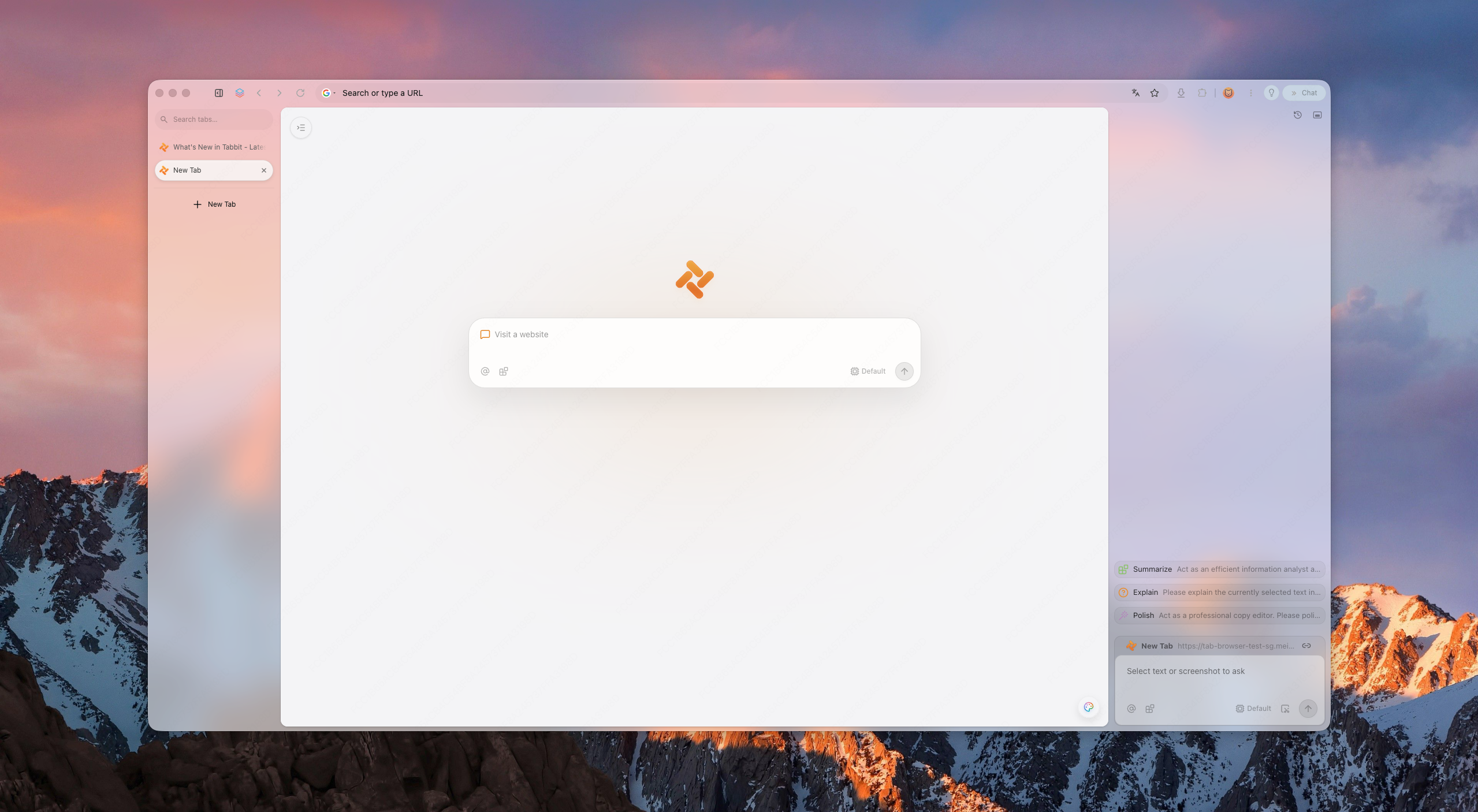
With Tabbit Browser, you can keep the official Chrome, Edge, or Firefox instructions beside the affected page. Use the Omnibox to open the exact help URL, then use Chat with Page to summarize the categories shown on that page. Verify the summary against the source before selecting a destructive option. Tabbit's browser-level AI does not get permission to change your password vault merely because it can read a page.
If the session grows, Smart Tab Organization can help group the help pages, account pages, and notes. The trade-off is simple: grouping improves orientation, but it does not change cookies, cache files, or sync behavior. If you need an isolated account context, consider a second browser or a separate profile. Neither option is a backup by itself.
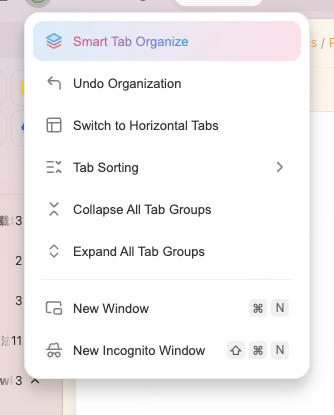
The boundary is worth stating plainly. Tabbit cannot promise to preserve a cookie that you clear, recover a password you delete, or undo a synced deletion. It can help you understand the checkbox decision and keep the evidence in view. The final click remains yours.
What clearing data cannot fix
Clearing the cache cannot repair a server outage, an expired account, a DNS problem, malware, or a website that has changed its code. It can also hide the real cause for a moment by making a new session look clean.
If privacy is the goal, clearing local history is only one layer. Review account activity, signed-in devices, extensions, and the device itself. Privacy protection that breaks websites explains why blocking cookies or scripts can create a different failure mode.
If sync is the concern, do not use a clear-data dialog as a backup plan. Check why browser sync fails and make a real export or copy first. If the browser is about to be replaced, follow the switching-browser checklist.
Final decision
Clear cached files when stale local assets are the likely cause. Clear one site's cookies when that site's session or local data is broken and you accept signing in again. Clear history when you want to remove the local trail, not when you are trying to repair a page. Treat passwords, autofill, and full device storage as separate decisions.
Tabbit is a reasonable fit if the hard part is keeping the investigation readable across several pages. It is not a credential vault and it does not reverse deletion. If that division of labor fits your workflow, install Tabbit Browser and keep the browser instructions open while you make the smallest change that can answer the problem.

FAQ
Will clearing my cache delete saved passwords?
Usually no. In Chrome, saved passwords and passkeys are a separate category in Google Password Manager, so clearing only cached images and files does not delete them. Read the selected boxes before confirming, especially in a managed or synced profile.
Will clearing cookies log me out?
Often, yes. Cookies can hold login status and site preferences, so removing them may sign you out or reset a site's settings. You may be able to clear cookies for one site instead of every site.
Does clearing browsing history delete downloaded files?
No. It removes the browser's download history list, not the files already saved on your device. Check the selected time range and the separate download-history option.
What should I clear when one website is broken?
Start with that site's cookies and cached files, then reload and sign in again if needed. Keep saved passwords unchecked. If the problem is only that you cannot find an old page, clear nothing and use browser history or bookmarks instead.
Does clearing synced Chrome data affect my other devices?
It can. Google says that when you are signed in to Chrome, deleting synced browsing data can remove it from other devices and your Google Account. Check sync status and the scope of the deletion before choosing All time.
Can Tabbit recover passwords or cookies after I clear them?
No. Tabbit can help organize a troubleshooting session and summarize a help page, but it is not a backup or recovery service for deleted browser profile data. Use a password manager or export supported data before a destructive reset.