
If a Chrome page is stale, missing styles, or stuck in a sign-in loop, "clear the cache" sounds like the obvious fix. The risky part is the dialog: cached files, cookies, history, downloads, autofill, site settings, and passwords are separate choices.
One Reddit user described having to type every password again as "a royal pain" while trying to clear Chrome data. That fear is exactly why the checkbox matters. This guide starts with the smallest desktop change, then covers Android, iPhone, sync, and managed Chrome. Tabbit can keep the evidence and instructions in view while you investigate, but it cannot undo a deletion.
Key takeaways
For an old-looking page, select Cached images and files first.
Cookies and other site data can sign you out and remove local site storage.
Clearing history removes the local list of visits, not files already downloaded or records held by a website.
Passwords and passkeys are a separate destructive category in Chrome.
Android Clear storage and deleting an iPhone app are broader than Chrome's cache control.
Sync and workplace policies can change where a deletion applies.
What each Chrome choice removes
| Chrome category | Removed | Usually kept | Risk to check |
|---|---|---|---|
| Cached images and files | Local copies of web assets | Passwords, bookmarks, downloaded files | First reload can be slower |
| Cookies and other site data | Login state, preferences, Web Storage, IndexedDB | Your online account and cloud files | Sign-in or local drafts may disappear |
| Browsing history | Visited URLs and local suggestions in the range | The pages and server-side records | You lose a local way to find a page |
| Download history | The browser's list of downloads | The actual files on disk | File location becomes harder to trace |
| Autofill form data | Local addresses, cards, and entries | Data held by a service account | Forms need to be filled again |
| Passwords and passkeys | Credentials only if this box is selected | Nothing guaranteed without a backup | Recovery may be difficult |
| Site settings | Permissions such as camera or notifications | The site itself | Permissions are requested again |
Google's Chrome data guide documents these categories. For the broader difference between cache, cookies, history, and passwords, see what clearing cache actually does. “Clear cache” is not shorthand for every row in this table.
Clear Chrome cache on a desktop
Google's current desktop path is Chrome menu > Delete browsing data. You can also press Ctrl+Shift+Delete on Windows and Linux or Command+Shift+Delete on macOS.
Open Chrome and open Delete browsing data.
Choose a narrow Time range, such as Last hour, unless the problem clearly spans the whole profile.
In the basic view, select Cached images and files.
Leave cookies, history, autofill, passwords, and site settings unchecked unless the symptom points to one of them.
Select Delete data, reload the affected page, and check whether the old asset or error is gone.
The first reload may use more bandwidth and take longer because Chrome has to fetch assets again. That is the expected cost of removing the local copies. If the page is still broken, clearing more categories is not automatically the next move. A server outage, DNS issue, extension, or account problem will survive a cache clear.
When to clear cookies for one site
Use cookies and site data when one site loops during sign-in, shows a bad local preference, or has a broken offline state. Chrome lets you manage data for individual sites from its privacy settings. Clear that site first, then reopen it and sign in again if needed.
Do not add passwords just because the login screen appears after clearing cookies. A saved password can still fill the new sign-in form. If you want the full explanation of why cookies sign you out while passwords survive, use the browser data safety guide.
Clear Chrome data on Android
In Chrome for Android, open More > Delete browsing data. Choose the time range, select the categories, and confirm Delete data. The labels follow the same basic distinction as desktop Chrome: cached files are narrower than cookies, history, or passwords. Google's Android Chrome help is the source to use when menu wording changes.
Do not confuse this flow with Android Settings > Apps > Chrome > Clear storage or Clear data. The system control can remove much more of Chrome's local app state. A Chrome user on Reddit asked how to reduce a large phone-storage figure “without losing saved passwords.” That is a storage-management question, not permission to erase the whole app profile. Back up what matters with the browser migration checklist before using a system reset.
Clear Chrome data on iPhone and iPad
Open Chrome, tap More > Delete Browsing Data, select a time range and categories, then confirm. Google's iPhone and iPad instructions describe the in-app flow.
iOS Settings has a different boundary. Offloading or deleting the Chrome app is an operating-system action, not a cache-only selection. It may remove local app data depending on the action and how the app is restored. Use Chrome's own data screen for a targeted cleanup. If you are moving devices, preserve bookmarks and credentials first; the browser backup guide explains why a clean-looking reset is not a backup.
Sync and managed Chrome change the boundary
If you are signed in, check Chrome's sync settings before selecting All time. Google's Chrome sync help explains that browsing data can be available on multiple devices. A local-looking delete can therefore have a wider effect when the same category is synced.
Work and school browsers can also be managed. Chrome Enterprise policies let an organization control settings. If a setting is locked, missing, or restored after restart, ask the administrator rather than repeatedly clearing data. Keep an export or approved backup outside the browser profile when policy allows it.
For a larger migration, read about browser sync problems and why sync fails across devices. Clearing a profile is not a way to repair sync.
A practical way to keep the troubleshooting session readable
The cleanup itself belongs to Chrome. The surrounding investigation often does not fit in one tidy tab: you may need the official help page, the affected site, an extension page, a sync settings page, and notes about which checkbox you changed.
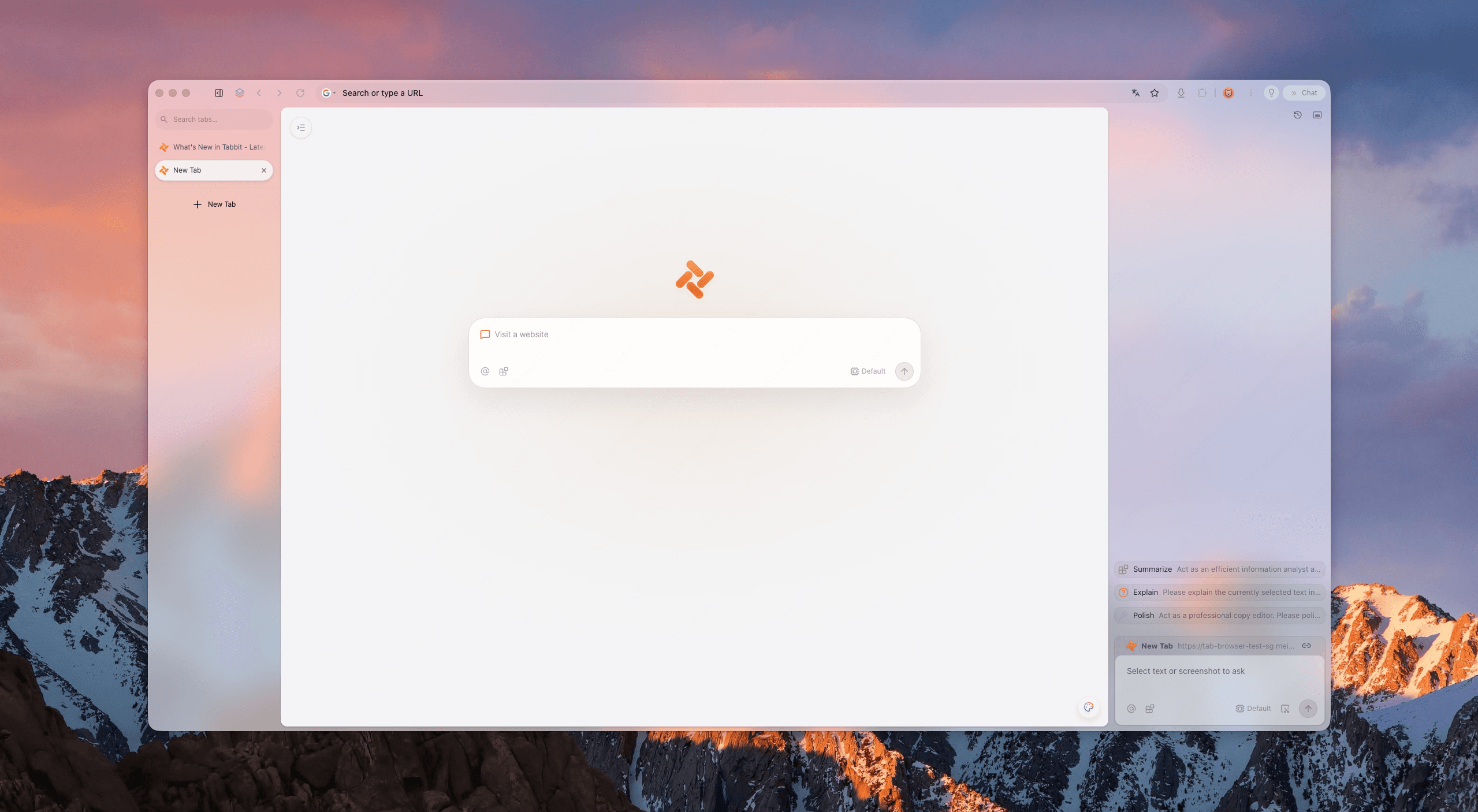
In Tabbit Browser, you can group those pages with Smart Tab Organization, then use Chat with Page to summarize the official instructions you are reading. Compare the summary with the source before you select a destructive option. Tabbit Browser's AI workflow is useful for context, not for modifying Chrome's password vault.
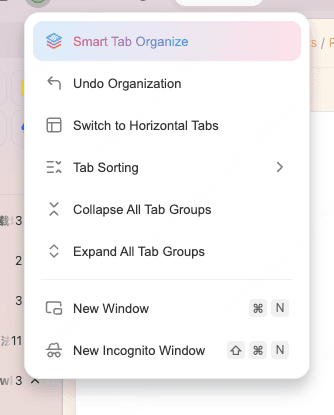
The trade-off is straightforward. Organization reduces the chance that you lose the help page or forget what you changed. It does not preserve cookies, lower Chrome's storage by itself, or recover a deleted password. If the session has become a pile of old tabs, start with browser bloat, tab cleanup, or a separate browser profile and workspace.
Pick the smallest action for the symptom
| Symptom | First action | Leave unchecked | If it fails |
|---|---|---|---|
| Old CSS, images, or layout | Cached images and files | Passwords and cookies | Test the site or extension in a clean session |
| One site loops at sign-in | That site's cookies and site data | Passwords and unrelated sites | Check the account and service status |
| Remove a local visit | History for the smallest range | Cookies and passwords | Manage account activity separately |
| Chrome storage is large on a phone | Inspect Chrome's own data categories | System Clear storage at first | Back up, then review large site data |
| Setting is locked on a work device | Ask the administrator | Repeated destructive clears | Check managed policy |
If privacy is the goal, deleting local history covers only the browser's local list. It does not remove a website's records or every account activity log. Privacy settings that break websites covers a different failure mode.
Final answer
For a stale Chrome page, clear Cached images and files first. Clear one site's cookies only when you accept signing in again. Treat history, autofill, passwords, Android app storage, and a deleted iPhone app as separate decisions.
Tabbit is a useful companion when the difficult part is tracking the investigation across pages. It is not a cache cleaner or recovery tool. If that workflow suits you, install Tabbit Browser and keep Chrome's official instructions beside the page you are fixing.
FAQ
Will clearing Chrome cache delete saved passwords?
No, not when you select only Cached images and files. Chrome treats passwords and passkeys as a separate category. Read every selected checkbox before confirming.
Will clearing Chrome cookies sign me out?
Often, yes. Cookies can hold login state and preferences, so deleting them may require you to sign in again. You can clear data for one site when the problem is local to that site.
Does clearing Chrome history delete downloaded files?
No. It removes the browser's download history list, not files already saved on the device. The download-history checkbox is separate from the files themselves.
Is Android Chrome Clear storage the same as clearing cache?
No. Android's system Clear storage or Clear data control can remove the app's local profile and signed-in state. Use Chrome's own Delete browsing data screen when you need a narrower change.
Can clearing synced Chrome data affect another device?
It can. If Chrome sync is enabled, deletion may propagate to other signed-in devices or your Google Account. Check the profile and sync scope before choosing All time.
Can Tabbit restore Chrome data after I delete it?
No. Tabbit can keep help pages and notes together, but it is not a password backup or browser-data recovery service. Back up important data before a broad reset.

FAQ
Will clearing Chrome cache delete saved passwords?
No, not when you select only Cached images and files. Chrome treats passwords and passkeys as a separate category. Read every selected checkbox before confirming.
Will clearing Chrome cookies sign me out?
Often, yes. Cookies can hold login state and preferences, so deleting them may require you to sign in again. You can clear data for one site when the problem is local to that site.
Does clearing Chrome history delete downloaded files?
No. It removes the browser's download history list, not files already saved on the device. The download-history checkbox is separate from the files themselves.
Is Android Chrome Clear storage the same as clearing cache?
No. Android's system Clear storage or Clear data control can remove the app's local profile and signed-in state. Use Chrome's own Delete browsing data screen when you need a narrower change.
Can clearing synced Chrome data affect another device?
It can. If Chrome sync is enabled, deletion may propagate to other signed-in devices or your Google Account. Check the profile and sync scope before choosing All time.
Can Tabbit restore Chrome data after I delete it?
No. Tabbit can keep help pages and notes together, but it is not a password backup or browser-data recovery service. Back up important data before a broad reset.