ANDROID BROWSER GUIDE · 2026

Samsung Internet vs Chrome

Choose Chrome if your browsing depends on a Google Account across different devices. Choose Samsung Browser if compatible ad blockers and a more adjustable Galaxy browsing layout matter more. Start with the features your phone actually supports.

Official sources checked October 28, 2026. This is a feature comparison, not a speed or battery test.

Which one fits your day?

Choose Samsung Browser

You want compatible content blockers, a customizable toolbar and Galaxy features. Check add-on and AI availability on your exact device.

Choose Chrome

You already keep bookmarks and passwords in your Google Account and use Chrome on Windows, Mac, Linux or iPhone as well as Android.

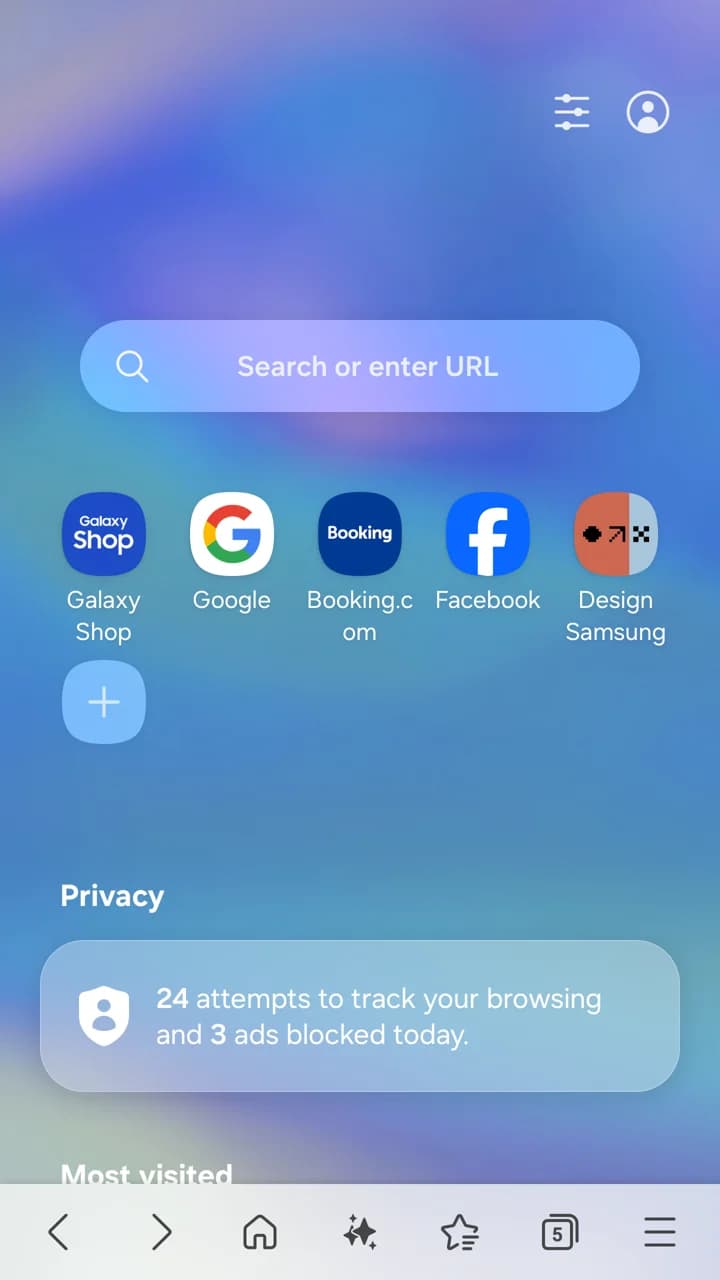
Samsung official Android screenshot showing Quick access, a privacy status panel and the bottom toolbar.
Samsung’s Google Play example: Android home and toolbar. The displayed counters are demonstration data. Official screenshots retain their original English interface.

Samsung Internet is now called Samsung Browser on the current official product and Google Play pages. Older guides still use Samsung Internet. The Android package remains com.sec.android.app.sbrowser; this page covers the Android app, with desktop differences called out separately.

Compare what changes on Android

Samsung below means Samsung Browser, formerly Samsung Internet. Desktop extension support does not describe the Android app.

Your prioritySamsung BrowserGoogle Chrome
SyncSamsung Account for supported browsing data across Samsung Browser on mobile and Windows.Google Account for saved bookmarks, passwords and more; history and tabs have their own setting.
Bookmarks from ChromeA Samsung desktop Chrome extension offers a bookmark bridge. It is not full Chrome profile migration.Save bookmarks to your Google Account to see them in Chrome on other signed-in devices.
Ad blockingInstall and enable a compatible third-party content blocker. Results depend on its rules and the website.Site controls and intrusive-ad protections are not a general-purpose ad-blocking extension.
ExtensionsSamsung mobile add-ons; the documented catalog uses Galaxy Store. Availability varies by device and store access.The ordinary Android phone app does not install desktop Chrome Web Store extensions.
PrivacySmart anti-tracking, Privacy Dashboard and Secret mode. Review permissions and sync choices too.Safe Browsing, site permissions, cookie controls and Incognito. Protection levels and account choices matter.
AIBrowsing Assist on supported Galaxy devices; newer features also depend on model, region and software.Gemini in Chrome on eligible Android devices, with region, age, language and account requirements.
Layout and mediaAdjustable menus and toolbar, dark appearance and Video assistant on supported webpages.A familiar Chrome layout and Google services; try the controls on your own screen size.
Other devicesOfficial product page lists Android phones/tablets and Windows PCs. Do not assume a Mac or iOS browser.Android, iOS, Windows, macOS and Linux. Features can differ across these platforms.

Start with the account holding your data

Google sync and Samsung sync are separate systems. Having both apps on one phone does not merge their bookmarks, history, passwords or signed-in websites.

  1. In Chrome: Settings → your account. Choose what is saved, and enable History and tabs if you want them on other devices. Existing local items may need Save in account.
  2. In Samsung Browser: sign in with the same Samsung Account on the devices you use and review the available sync categories.
  3. If keeping desktop Chrome, check Samsung’s official Chrome extension for bookmarks. Verify a small folder first; do not assume passwords, tabs and cookies come with it.

Ad blockers and extensions are different choices

Samsung’s Android browser accepts compatible content-blocker apps. Its mobile add-on catalog is a separate system from the desktop Chrome Web Store. A Windows browser feature is not proof of Android compatibility.

  1. For mobile add-ons, Samsung documents Tools → Add-ons → Get more Add-ons → Galaxy Store. Store access and supported add-ons can differ on non-Galaxy phones.
  2. For ads, open Ad blockers, install a compatible provider and enable it. If a site breaks, pause that blocker for the site and retry.
  3. Chrome on a normal Android phone does not install desktop extensions. Requesting a desktop website does not enable extensions.
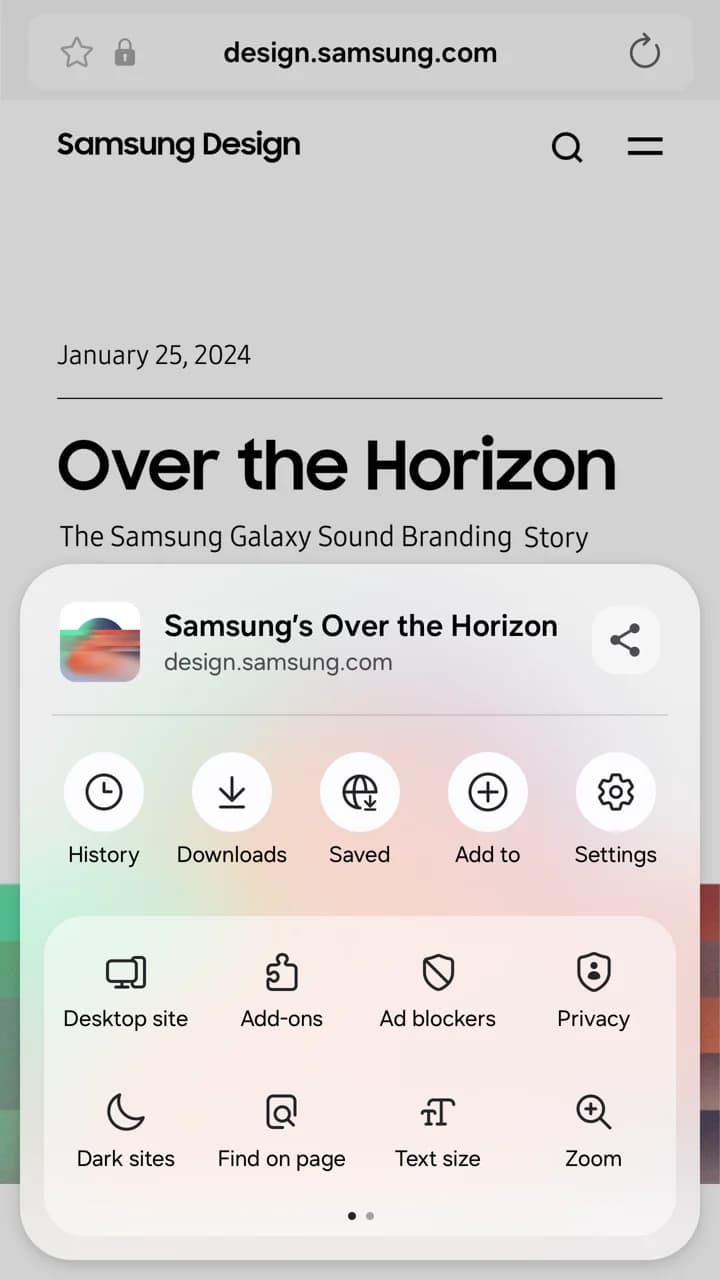
Samsung official Android screenshot showing separate Add-ons, Ad blockers and Privacy entries in the Tools menu.
Samsung’s Google Play example: add-ons and ad blockers have separate menu entries. Official screenshots retain their original English interface.

Pick settings, not a blanket privacy winner

Samsung: tracking controls

Review Smart anti-tracking, blocked-tracker information, website permissions and Samsung Account sync. Secret mode clears its browsing history and cookies when all Secret tabs close; it does not make you anonymous to websites or networks.
Chrome: browsing protection

Review Settings → Privacy and security, including Safe Browsing and cookie controls. Incognito limits what is kept locally; websites, employers and internet providers may still see activity. Ad blocking and malicious-site protection solve different problems.

AI depends on the phone and the market

Samsung Browser

Samsung’s Browsing Assist can summarize and translate pages on supported Galaxy devices. It needs a Samsung Account, connectivity and compatible software; supported languages and pages vary. Installing the browser on another Android brand does not grant Galaxy AI.

Google Chrome

Google’s Android help currently lists the US and India, English, age 18+, Android 12+, at least 4 GB RAM, the latest Chrome and a signed-in account. Rollout is gradual; work or school accounts need administrator access. Do not infer local availability from a desktop Gemini screenshot.

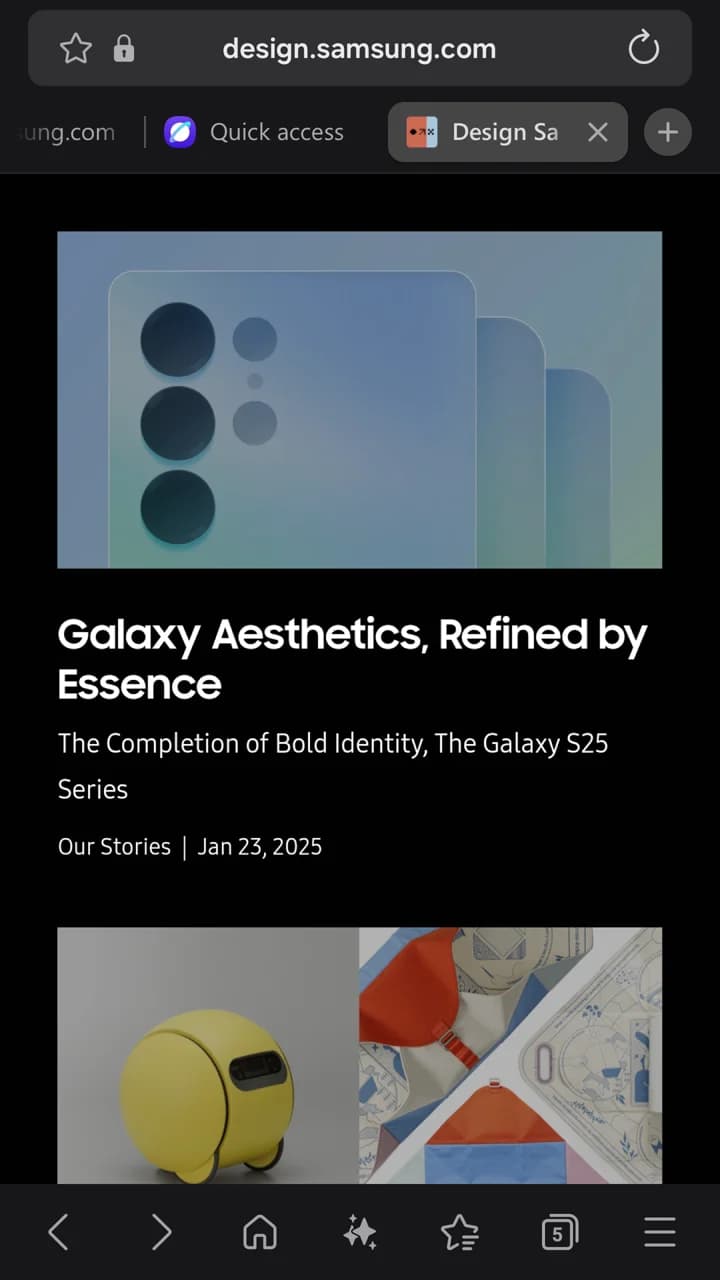
Samsung official Android screenshot showing a dark webpage, the tab bar and bottom navigation.
Samsung’s Google Play example: dark browsing with a visible tab bar. Official screenshots retain their original English interface.

Try the layout you will use every day

Samsung offers menu and toolbar customization, dark appearance and Video assistant controls on supported videos. These are useful reasons to try it. They do not prove lower RAM use, longer battery life or faster page loading than Chrome.

Before changing your default browser

  1. Keep the old browser until you can find a few important bookmarks and sign in to your usual websites in the new one.
  2. Test downloads, payments, your password manager and one website you use for work or study. Check the actual add-on you need.
  3. Then choose your default in Android Settings → Apps → Default apps → Browser app. Labels vary by phone. You can keep both browsers installed.

Common questions

Is Samsung Internet better than Chrome?

For compatible content blockers and a configurable Galaxy interface, Samsung is a good fit. For Google Account data across many operating systems, Chrome is usually the more direct choice. Neither wins every setup.

Can Samsung Browser use all Chrome extensions?

No. Samsung’s Android add-ons and content blockers have their own distribution and compatibility rules. Desktop Chrome Web Store support must not be assumed on Android.

Can I use Samsung Browser on a non-Samsung phone?

Check the official Google Play listing on that device. Basic browser availability does not guarantee Galaxy Store add-ons, Samsung Pass or Galaxy AI features.

Can I move all Chrome data to Samsung automatically?

Do not assume a complete transfer. Samsung’s desktop Chrome extension documents bookmarks. Confirm other data types separately, and check the result before removing the old browser.

Compare other Android browsers →

Also comparing AI browsers?

Visit Tabbit’s official site to check current platforms, features and access conditions for your region.

Official references

  1. Samsung Browser: name, platforms and features ↗
  2. Samsung Android app and original screenshots ↗
  3. Samsung mobile extensions guide ↗
  4. Samsung content blockers guide ↗
  5. Chrome: bookmarks and account data ↗
  6. Samsung bookmark extension for desktop Chrome ↗
  7. Chrome Extensions team: mobile support ↗
  8. Samsung: Browsing Assist setup ↗
  9. Google: Gemini in Chrome on Android ↗
  10. Chrome: Safe Browsing settings ↗
  11. Chrome: supported release platforms ↗
  12. Chrome: Incognito limits ↗

© 2026 Tabbit Browser. The AI-native browser that understands your context.