
ページ、ネットワーク、端末、Chrome本体のどこに原因があるかを分けて、一度に一つずつ確認します。
Linus Tech Tips の動画 はタイトルで “Here's why Chrome is SLOW (It's NOT your RAM)” と問いかけ、説明文は “Google Chrome isn't as good as it used to be.” で始まります。これは制御されたベンチマークではなく、原因を確認せず RAM だけを疑わないための一例です。
Google Chrome Help recommends updating Chrome, closing unused tabs, stopping unwanted processes, managing extensions, and checking Performance settings. Start with the smallest reversible test. A slow page may be a site or network problem.
Key takeaways
Compare one slow page with another page or a private window.
Check Chrome Task Manager while the symptom is visible.
Test one tab, extension, setting, or data change at a time.
Memory Saver and hardware acceleration address different symptoms.
Tabbit Browser can help with research context, but it cannot repair Chrome or a slow device.
Diagnose before changing settings
Write down the exact task: opening a window, loading one page, scrolling, playing video, or downloading a file. Check another site and another browser only as comparison. Watch CPU, memory, disk, and network in the operating system.
Check Chrome in order
Update Chrome, close unused tabs, and open More tools > Task manager. Sort by CPU or memory while the issue occurs. Disable one nonessential extension at chrome://extensions, then repeat the same task. Review Performance settings. Memory Saver can deactivate inactive tabs, while hardware acceleration addresses graphics workloads. Change one setting, restart Chrome, and compare.
Simpletivity のトラブルシューティング動画 は、ウェブサイトや新しいページの読み込みに時間がかかる症状を扱っています。画面で確認できる章立ては “Check for Chrome updates” から始まります。これは一人の制作者によるチェックリストで、すべての端末に効くとは限りません。
Clear only the data that matches the symptom. Site-specific data is narrower than deleting all history and cookies. Cookies may sign you out, and synced deletion can affect other devices. If settings return or pop-ups appear, follow Google's unwanted software guidance.
Useful links
Read Chrome RAM usage, Memory Saver, hardware acceleration, turning acceleration off, clearing Chrome cache, what clearing cache changes, extension malware, and browser bloat.
A separate workflow with Tabbit
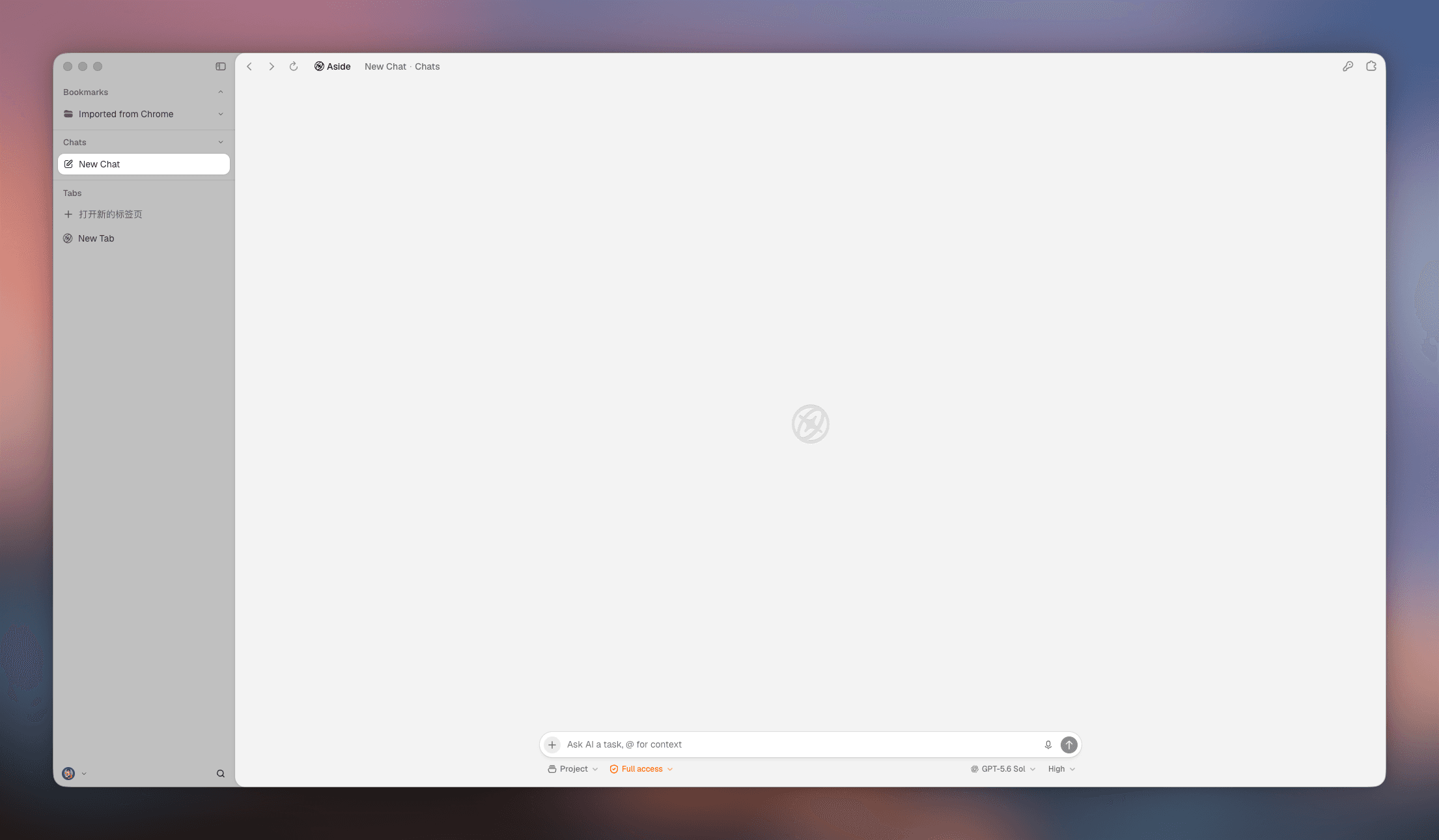
If the bottleneck is research spread across many tabs, Tabbit Browser keeps a task panel beside browser context. It does not make a slow website respond faster and does not replace Chrome Task Manager or device diagnostics.
Choose the next move
| Symptom | Next move | Boundary |
|---|---|---|
| Every app is slow | Check the device and network | Chrome may only be the visible symptom |
| One page is slow | Test private mode and another site | The site may be busy |
| Tabs reload | Inspect memory and Memory Saver | It may not fix high CPU |
| Video flickers | Test hardware acceleration once | Network can still be the cause |
| Research is scattered | Try Tabbit for that workflow | It is not a repair tool |
Final answer
Measure first. Update Chrome, inspect tabs and extensions, review Performance settings, clear targeted data, and check unwanted software and the device. If the problem is information handling rather than raw browser speed, try Tabbit Browser for one research task.
Frequently asked questions
The questions above cover the main diagnostic branches.

よくある質問
Why does Chrome become slow?
The cause may be a tab, extension, page, network, or device load.
How can I find the slow tab?
Open More tools > Task manager and watch CPU and memory while the symptom occurs.
Does clearing cache speed Chrome up?
It can help with damaged site data, but it is not a general speed fix.
Should hardware acceleration be off?
Keep it on unless you see graphics glitches, video stutter, or crashes.
When should I use another browser?
Test a clean profile first. If only Chrome remains slow, move the affected workflow.