
Chrome is often blamed for a slow page, a video that drops frames, or a window that takes too long to open. The fix is not always to delete the cache or switch off hardware acceleration. Those changes can be irrelevant, and sometimes they make a different problem harder to see.
The fastest way to answer “why is Chrome so slow?” is to measure the symptom, then remove one possible cause at a time. Google’s own checklist starts with updating Chrome, closing unused tabs, stopping unwanted processes, managing extensions, and checking page preload settings (Google Chrome Help). In Linus Tech Tips' video, the title asks why Chrome is slow when “It's NOT your RAM,” while the description opens with “Google Chrome isn't as good as it used to be.” That is a creator's framing, not a benchmark, but it is a useful reminder to test the cause instead of guessing.
Tabbit Browser is useful later in this guide as a separate workspace for research-heavy web work. It cannot repair Chrome, a slow website, or an overloaded computer.
Key takeaways
First separate a slow browser from a slow website, network, or computer.
Reproduce the problem with the same page and task, then note startup time, loading behavior, video playback, and CPU or memory symptoms without inventing a target number.
Update Chrome and inspect Chrome Task Manager before deleting data.
Test tabs, extensions, hardware acceleration, Memory Saver, cache, and unwanted software in that order. Change one thing, retest, and revert a change that did not help.
If Chrome is the problem only for one workflow, a separate browser workspace such as Tabbit can reduce context switching, but it is not a performance promise.
Chrome slowdown at a glance
| What you notice | Evidence to collect | First action | Stop condition |
|---|---|---|---|
| Chrome takes a long time to open | Compare a new window with a clean test profile; note startup apps | Update Chrome and close background apps | If every app opens slowly, check the device first |
| One page is slow | Try a second site and a private window | Check the site, connection, and extensions that can read the page | If only one site is slow, do not reset all Chrome data |
| The whole window freezes | Chrome Task Manager, OS CPU and memory view | Find the process that changes during the freeze | If the OS is also unresponsive, investigate device load |
| Video stutters or the screen flickers | Test another video and graphics-heavy page | Toggle hardware acceleration once and restart | If the same video fails everywhere, check the network or device |
| Downloads are slow but pages load normally | Compare another download source and another network | Test the connection and server path | DNS tweaks cannot fix a busy download server |
| Tabs reload after switching away | Performance settings and Memory Saver state | Review Memory Saver and open-tab load | More memory will not fix a CPU-heavy page |
Establish a baseline before changing settings
Write down the smallest reproduction you can. For example: “Open the same video, seek to the same point, and scroll for one minute.” Record whether the delay affects one site or several. Try the same task in a private window without signing in, and try another browser only as a comparison. Do not treat the second browser as a benchmark unless you control the page, account state, extensions, and network.
Then check the computer while the problem is visible. On Windows, use Task Manager. On macOS, use Activity Monitor. Look for whether CPU, memory pressure, disk, or network changes with the symptom. Chrome has its own Task Manager, which can show tabs, extensions, and browser processes. A process that rises when the page freezes is a lead, not proof by itself.
1. Decide whether the network or site is slow
Open a few unrelated sites. If only one page is delayed, the page, its server, a login state, or an extension may be responsible. A private window can reveal whether an extension or stored site state is involved. If every browser is slow on the same network, Chrome is not the first place to change.
Downloads are a separate case. A fast page does not guarantee a fast file transfer. The remote server, route, Wi-Fi, VPN, or security software can limit the download. Do not use a browser speed extension to “fix” a server-side limit.
2. Update Chrome and close what you do not need
Google says Chrome works best on the latest version. Open the three-dot menu, choose Help, then About Google Chrome, and let Chrome check for an update. Restart when Chrome asks.
Next close tabs and windows that are not part of the current task. This is a reversible test, not a rule that every tab is bad. If a tab contains a form, music session, or long-running job, save its state first. If tab overload is your normal problem, our guide to too many browser tabs covers the organization side.
3. Find the process, tab, or extension doing the work
Open Chrome’s menu and choose More tools > Task manager. Sort by CPU, memory footprint, or network as the symptom happens. Look for a page that keeps consuming CPU, an extension that rises with every page, or a browser process that remains busy after its tab closes.
Close one suspect and repeat the same task. If the issue disappears, reopen it once to confirm. If a site is useful but heavy, reduce its live panels or move the task to a lighter page. For a memory-specific investigation, read why Chrome uses so much RAM and Chrome Memory Saver troubleshooting. Those articles explain memory behavior in more detail than this triage guide.
Extensions deserve their own test. Visit chrome://extensions, switch off one nonessential extension, and retest. Do not disable security or password tools blindly. If the slowdown follows one extension, remove it or check its publisher and permissions. If Chrome reports malware in an extension, use our guide to what to do after Chrome finds extension malware and Google’s unwanted software guidance.
4. Check Performance settings and graphics acceleration
Chrome’s desktop Performance page includes Memory Saver, tab memory usage, site exceptions, Energy Saver, and Preload Pages (Google’s performance settings documentation). Memory Saver can deactivate eligible inactive tabs. It will not make an active page’s JavaScript cheaper, and it may reload a tab when you return to it.
Simpletivity's troubleshooting video describes the symptom as Chrome taking longer than usual to load a website or launch a new page. Its visible chapter list starts with “Check for Chrome updates.” Treat that as a checklist from one creator, not evidence that every step will help every device.
Hardware acceleration is a different switch. It lets compatible graphics work use the GPU. It can help some video or rendering workloads and cause flicker or crashes on some driver combinations. Read what hardware acceleration does before changing it. If the evidence points to a graphics issue, follow how to turn it off in Chrome, restart, and compare the same page. Keep the original setting if there is no clear improvement.
Do not turn off every performance setting at once. You will lose the ability to tell which change mattered.
5. Clear only the data that matches the symptom
Cache is a local copy of site resources. If one site displays old or broken assets, clearing that site’s data may help. Google’s Delete browsing data guide separates history, cookies, cached files, autofill, and other categories. Cookies can sign you out, and deletion while signed in can affect synced data on other devices.
Start with the site-specific control when possible. Clear all cached files only after recording which accounts and sessions you may need to restore. Our Chrome cache guide gives the clicks, while what clearing cache does explains the trade-off. Clearing data is a repair attempt, not a baseline measurement.
6. Check unwanted software and the device
If settings change back, pop-ups appear, or an unfamiliar search engine returns, a reset alone may not solve the cause. Follow Google’s remove unwanted ads, pop-ups, and malware steps. Review recently installed applications and extensions, and use the operating system’s security tools.
Finally, check disk space, OS updates, background apps, thermal throttling, and power mode. Chrome can be the visible window while another program consumes the available CPU or memory. A clean Chrome profile is a useful boundary test. It is not a reason to delete your existing profile.
A practical option: Tabbit Browser for research-heavy work
Sometimes Chrome is not broken. The problem is the workflow: many reference tabs, repeated copy and paste, and a second app for every summary. That is where Tabbit Browser can be a reasonable alternative workspace.
Tabbit can keep an AI conversation beside the page and use selected web content as context. The existing screenshot below shows its task panel and imported Chrome bookmarks. In a research task, you can keep the source page visible, ask for a short extraction, and save the result without moving every paragraph into a separate chat.
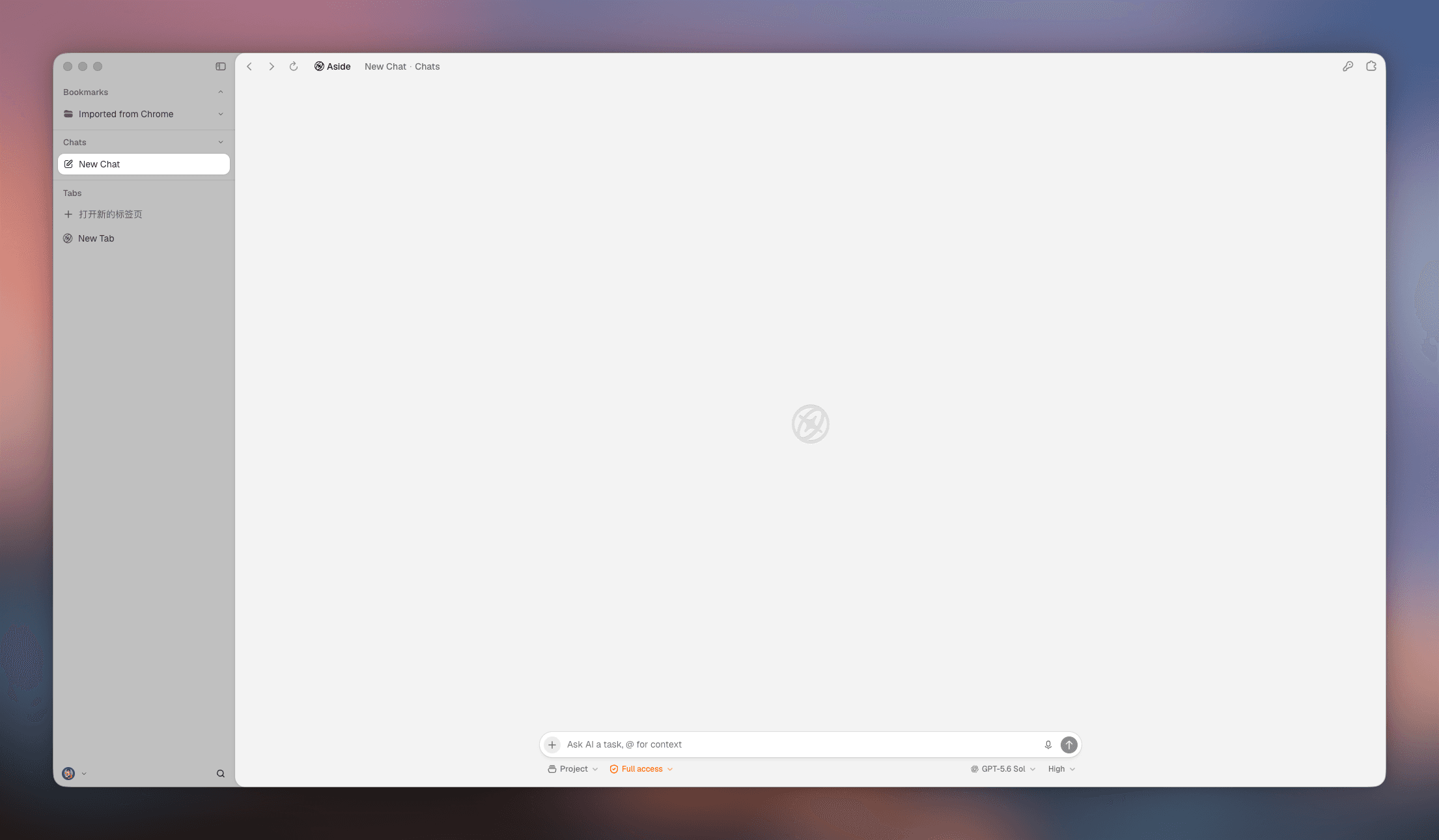
The boundary matters. Tabbit does not make a slow server respond faster. It does not replace Chrome Task Manager, OS diagnostics, or a malware scan. If your bottleneck is a single video decoder or a full disk, switching browsers may change nothing. If the work is gathering and comparing information across pages, a context-aware workspace may remove some of the manual overhead.
Choose the next move by symptom
| Your situation | Best next move | Why | Boundary |
|---|---|---|---|
| Every browser and app feels slow | Check OS CPU, memory, disk, power, and network | Chrome may only be the visible symptom | A browser setting cannot repair device load |
| One Chrome page is slow | Test private mode, another site, and the page's extensions | This isolates site state and add-ons | The site may simply be busy |
| Tabs reload and memory pressure is high | Inspect Task Manager, then review Memory Saver and tab count | You can connect the symptom to a process | Memory Saver can reload inactive tabs |
| Video flickers or stutters in Chrome | Compare another video and test hardware acceleration once | Graphics and network symptoms need different checks | Do not claim a universal GPU fix |
| Research work is scattered across many tabs | Try Tabbit as a separate AI workspace | Page context and notes can stay together | It is not a Chrome repair utility |
Final verdict
Chrome feels slow for several different reasons. Start with the page and network, then measure Chrome itself, update it, inspect tabs and extensions, review Performance settings, clear targeted data, and check unwanted software and the device. Each change should answer a question. If it does not, undo it.
Use Tabbit when the pain is information handling rather than raw browser speed. Open Tabbit Browser and test one research task with the source page in view. Keep Chrome for workflows that depend on it, and judge the change by the work completed, not by an invented speed multiplier.
Frequently asked questions
The questions below cover the common branches in this diagnosis. For exact answers, see the matching sections and linked Google documentation above.

FAQ
Why is Chrome suddenly so slow?
A slow browser can come from a busy tab, an extension, a Chrome setting, a broken site, a network problem, or a device under load. Check one cause at a time instead of clearing every setting at once.
How do I find which Chrome tab is slowing my computer?
Open Chrome Task Manager from the three-dot menu under More tools. Compare the tabs, extensions, and browser processes while the symptom is happening, then close or disable one suspect and retest.
Does clearing Chrome cache make it faster?
Clearing selected cached files can help when site data is stale or damaged, but it is not a universal speed fix. It can also make the next visit fetch files again, so clear it after you have ruled out tabs and extensions.
Should I turn hardware acceleration on or off?
Leave hardware acceleration on unless it is linked to flicker, video stutter, crashes, or other graphics problems. Change it once, restart Chrome, and undo the change if the symptom does not improve.
Does Memory Saver fix a slow Chrome browser?
Memory Saver can deactivate eligible inactive tabs so active work has more memory available. It does not fix a slow website, a high-CPU extension, a weak network, or a device that is already overloaded.
When should I use another browser instead of fixing Chrome?
Try another browser when the same site and network work normally there but Chrome remains slow after a clean profile and extension test. Keep Chrome for sites or accounts that require it, and move only the workflow that benefits from a different setup.