
To give local Pi access to a site you’re signed into, install Tabbit Browser and use the Tabbit CLI skill with /skill:tabbit after confirming Pi discovers it. This local route depends on Pi being able to run the Tabbit CLI on the same machine and browser instance. Pi documents /skill:name; Tabbit’s quick start shows /tabbit for other agents and does not name Pi, so treat this as a workflow to verify, not an automatic Pi integration.
A Pi user on Reddit asked how to give Pi browser access, including whether a browser CLI and skill were needed. Replies pointed to CLI-based tools. In a separate Pi extension thread, the extension author described switching between browser and terminal and noted a DevTools conflict with the extension debugger. Those are community reports, not compatibility guarantees.
Key takeaways
Pi can load instructions from a skill, but a skill alone does not control a browser. It must tell Pi which local tool to call.
The official Pi skill command is
/skill:name, for example/skill:tabbit. Do not substitute Tabbit’s/tabbitexample unless Pi recognizes it.Tabbit’s official quick start lists Codex, Claude Code, and WorkBuddy examples. It does not list Pi or promise automatic Pi setup.
A browser task can use a signed-in profile only when the CLI and browser run where that profile is available.
Begin with a read-only task and verify the page title, URL, and returned content before asking for a summary.
Pi and Tabbit at a glance
| Question | What the docs say | What to verify on your machine |
|---|---|---|
| How Pi loads skills | /skill:name; skills can be discovered in ~/.agents/skills/ | Does Pi show tabbit at startup or accept /skill:tabbit? |
| How Tabbit is connected | Tabbit Browser plus the local tabbit-cli launcher | Can the CLI diagnose the browser and open a task-owned page? |
| Signed-in access | The Tabbit guide says tasks can use a login in Tabbit | Is the intended site signed in within the selected Tabbit profile? |
| Pi support status | No Pi-specific native integration is documented in the quick start | Does the skill exist, and can Pi run the local CLI on this host? |
1. Check Pi’s skill discovery first
Pi’s documentation says it scans skill folders at startup and advertises each skill by name and description. The full instructions load when a matching task needs them. The portable format is a directory containing SKILL.md. Pi accepts ~/.agents/skills/ as a user-level location, so a Tabbit-managed skill linked there may be discoverable without editing Pi’s private configuration.
Inspect the file before invoking it. A skill can contain shell instructions or scripts, so read unfamiliar content and check that its host requirements match your machine. Then restart Pi or reload skills. In an interactive Pi session, request /skill:tabbit explicitly. If Pi only knows /skill:tabbit and does not expose /tabbit, use the documented Pi command.
The tabbit skill describes a local launcher at ~/.local/bin/tabbit-cli on macOS and Linux. Its diagnose command reports whether the Tabbit controller is running and which tabs and tasks are available. The CLI can create a named task and run Playwright against its owned page. Those facts make the tool callable from a local Pi shell, but they do not mean Tabbit has tested or officially certified Pi as an integrated client.
2. Install and sign in through Tabbit
Install Tabbit Browser from the official Tabbit download page, open it, and sign in to the site you need in the intended browser profile. Keep that profile separate from unrelated work if the site contains sensitive material. A browser login is a capability: any tool connected to that profile may be able to read what the signed-in account can see.
The official Tabbit CLI quick start describes installing the browser, signing into the target site, checking that an agent can load its skill, and starting a first task. It says a task can run while the user continues work in other windows. Its client examples include Codex, Claude Code, and WorkBuddy. It does not say that Pi is auto-detected.
On macOS, the documented Pi user-skill path and Tabbit-managed source can both be checked without changing them:
ls -l ~/.agents/skills/tabbit/SKILL.md
ls -l "$HOME/Library/Application Support/Tabbit/LocalAgent/skills/tabbit/SKILL.md"
If the first path is absent, do not assume that Tabbit installed the Pi skill. Follow the Tabbit guide’s recovery steps or install the skill according to your organization’s policy, then restart Pi. Avoid copying an old skill snapshot over the managed one.
3. Ask Pi to verify a read-only task
Start by asking Pi to read one public or low-risk page and report its title and URL. In Pi, the prompt can be explicit about both the tool and the boundary:
/skill:tabbit
Use Tabbit CLI for a read-only check of the page I specify.
Return the page title, URL, and three factual notes with their source text.
Do not click buttons, submit forms, or change account data.
For setup diagnostics, a local shell call can begin with:
~/.local/bin/tabbit-cli diagnoseThe skill’s examples use a named task when invoking the CLI. In a task-owned page, ask Pi to navigate to a known URL, then check the observed title and URL before extracting anything. The exact Pi shell permission prompts depend on your Pi setup. Do not bypass them just to make the browser connection work.
A good first check has an observable result. The page title matches, the URL is expected, and the text returned belongs to that page. A successful command exit alone does not prove the browser read the intended content. If Pi cannot find the skill, the CLI cannot connect, or the page shows a login wall, stop and fix that boundary before moving to a private account.
What a signed-in browser adds, and what it does not
A signed-in browser can make an authenticated page visible to a local browser task without asking Pi to store a password. That does not make the login safe to share with every agent or process. Keep the task narrow, use a profile intended for the work, and avoid sending personal data in prompts or logs. For a general explanation of the boundary between a browser agent and a model, separate the model from the tool and its permissions.
A local command also has a location. If Pi runs over SSH, in a remote development container, or on a hosted agent, it may not be able to reach the desktop Tabbit process. The relevant question is not whether the model is Pi, but whether the process that runs the CLI can reach the same machine and browser controller. Test from that exact runtime.
4. Use a reviewable docs workflow
A useful starting task is to gather context from a document you can safely read, then co-write a draft in a separate review space. Ask Pi to read one signed-in project document, return its title and source URL, extract three dated decisions, and prepare a draft summary in a new Tabbit task or local draft document. Keep the source document open in Tabbit while Pi works. Then review the summary beside the source, correct names and dates, and only paste approved text into the shared document yourself. Do not let the first run publish edits to the source.
This gives the workflow a clean handoff: Pi can reason over the extracted context, Tabbit CLI handles the browser page, and you decide whether the draft is accurate before it becomes shared content. If you need a repeatable export task, see the example of browser data gathered into CSV. If you are deciding between a browser CLI and a browser MCP setup, compare the permission model and runtime location as well as convenience.
A simple request could be:
Open the project document named “Weekly review notes” in my current Tabbit profile.
Confirm its title and URL. Extract only decisions dated this month.
Draft a summary in a new local file. Do not edit the source document.
Flag any date or owner you cannot verify.
Replace the example title with the exact document you intend to read. Do not paste a broad instruction such as “review everything in my workspace.” The signed-in account may expose much more than the task requires.
Pi browser options compared
| Route | Good fit | Main check | Trade-off |
|---|---|---|---|
| Browser automation CLI | Repeatable local page reads | Confirm executable, host, and browser profile | Requires shell access |
| Pi extension | Interaction inside browser UI | Check visible tabs and DevTools conflicts | Capabilities vary by extension |
| Remote browser or MCP | Work outside the desktop | Confirm where cookies and credentials live | May not share local login |
| Manual handoff | One-off sensitive action | Copy only the needed excerpt and URL | Less automation |
A Reddit thread about Pi browser access shows why there is no universal setup. One user asked whether a browser extension was necessary; commenters recommended CLI options, while another described limitations in an extension workflow. In a separate thread, a Pi extension author described moving between terminal and Chrome, and a commenter asked for visual element selection. The author replied that developer tools could collide with the extension’s debugger. These are reports about specific community projects, not claims about Tabbit.
Pi's own browser packages are another route
Pi's package directory lists a browser skill built around Chrome DevTools Protocol and a separate extension that exposes an agent_browser tool. The skill package gives Pi CLI commands for navigation, page inspection, screenshots, and logs. The extension route installs agent-browser and a Pi extension, then exposes browser tools in Pi. These are more direct Pi-specific options than the Tabbit bridge.
Choose one based on your runtime and permission needs. A package that launches its own Chrome profile may not reuse the Tabbit session you signed into. A package that attaches to an existing browser needs you to verify which profile and tabs it can access. Pi packages can execute code, so read the source and installation requirements before adding one. I did not install or test these packages.
A practical option: Tabbit Browser with Pi
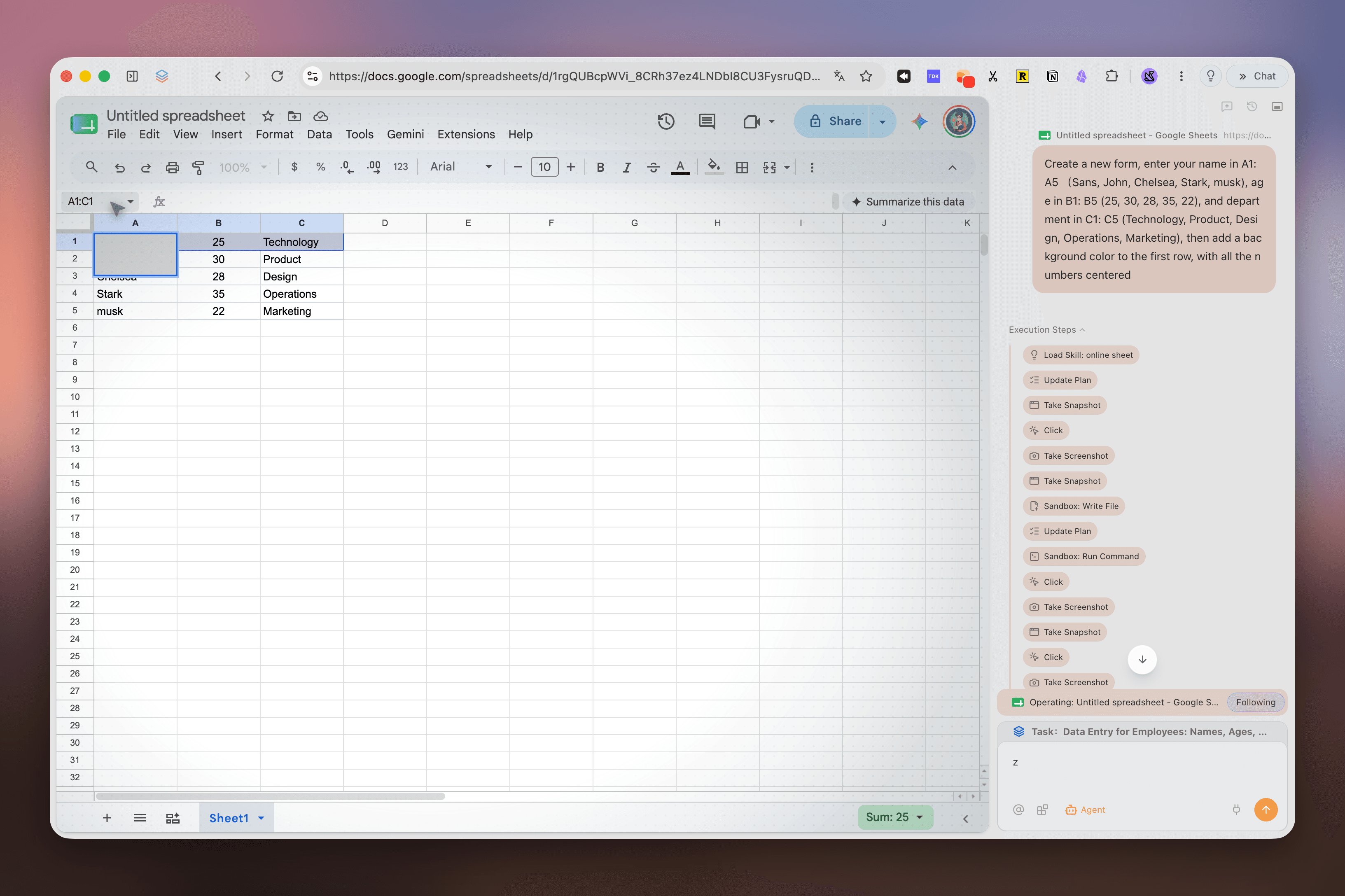
If your work happens in the browser and Pi runs locally, Tabbit Browser plus Tabbit CLI is one route to test. The Tabbit Browser overview and browser practices guide explain the browser-side workflow. This article’s example asset shows Tabbit’s Agent Mode interface; it illustrates the product UI, not a Pi integration test.
The concrete path is: install Tabbit Browser, sign into the intended site in a chosen profile, confirm the local Tabbit skill is visible to Pi, then call the installed CLI from the same machine. Keep the first run read-only. Check the returned page title and source URL. Only after that works should you ask Pi to prepare a draft from the page.
This setup fits a person who wants Pi’s coding-agent workflow and a local browser task in the same work session. It is a poor fit if Pi runs on a remote host that cannot reach the desktop, if your organization prohibits local browser automation, or if the task needs guaranteed unattended writes. For general browser automation, the tool’s permissions and the page’s account permissions still matter. Tabbit’s AI browser comparison can help decide whether a browser-centered workspace fits your work.
Choose the smallest useful permission
For routine reading, ask for page titles, source URLs, and a bounded set of facts. For drafting, write to a local file or a dedicated draft area. Before any external action, review the exact target and proposed content. Sending a message, changing a record, deleting a file, or purchasing something should require a separate human confirmation.
The AI browser guide introduces the browser workspace. The best practices for Tabbit Browser offer more examples of task framing. The deciding point is simple: if a mistake could affect another person or a shared account, keep the browser step in draft or read-only mode until you have checked it.

FAQ
Can Pi use my browser login automatically?
Not by itself. Pi needs a browser tool or local command, and the browser profile must already be signed in. Verify which profile the command controls before sharing page content.
Does Tabbit automatically install its skill for Pi?
Tabbit’s quick start documents automatic skill setup for detected agents and lists Codex, Claude Code, and WorkBuddy examples. It does not name Pi. Check the local skill path and Pi’s discovery output instead of assuming setup succeeded.
What command does Pi use to load a skill?
Pi documents `/skill:name`, such as `/skill:tabbit`. Tabbit’s quick start uses `/tabbit` as its example for other supported agents. Do not assume that alias works in Pi.
Where does Pi look for user skills?
Pi documents `~/.agents/skills/` as a supported location, as well as `~/.pi/agent/skills/`. A directory with a `SKILL.md` file is the portable format.
Can I use a remote Pi session with Tabbit CLI?
Only if that session can reach the same machine and browser instance running Tabbit. A hosted or containerized Pi process should not be assumed to share your desktop browser login.
How should I keep a browser task safe?
Start with read-only pages, name the task, and ask Pi to report the page title and URL before summarizing. Review drafts yourself. Require confirmation before sending, deleting, purchasing, or changing account settings.