
Chrome gets slow, ads start appearing in places they did not before, or an extension asks to read every site you visit. You find the Remove button, then hesitate. Will its settings disappear? Will sync install it again? Is the extension managed by work or school?
Those are sensible questions. A r/chrome discussion about a browser-hijacking extension shows the awkward version of this problem: the user could not remove the extension cleanly. Another thread describes an ad-blocking extension that “will reapear no matter what” (the Reddit thread). Personal reports do not prove the cause, but they explain why repeating the same click is not a plan.
The safe sequence is short: identify the extension, disable it when you need to observe the change, check sync and management, then remove it from Chrome's own Extensions page. Later, Tabbit Browser can help keep the instructions and investigation together; it cannot uninstall a Chrome extension.
Key takeaways
Disable first if you need to test the extension or preserve time to check its settings.
Use Chrome's Remove from Chrome control. Do not delete profile folders or registry entries from a random tutorial.
Extension settings and data are extension-specific. Look for an official export or account sync option; there is no universal Chrome backup for every extension.
A returning extension usually calls for a sync, policy, or installer check.
Removing an extension is separate from clearing cookies, notifications, site permissions, history, or passwords.
Decide whether to disable or remove
| What you see | First action | Why | Stop and check |
|---|---|---|---|
| Browser slows after an install | Disable, reopen the same pages | Tests the likely cause | Check Chrome memory causes if nothing changes |
| Pop-ups or redirecting search | Disable, then run Chrome's own safety checks | Limits the extension while you investigate | Do not call every suspicious extension malware without evidence |
| Permission is wider than needed | Set site access to “On specific sites” or disable | Reduces exposure while you decide | Read the extension developer's privacy and data notes |
| You no longer use it | Remove from Chrome | Ends the extension's Chrome installation | Check for a documented export first |
| It returns after removal | Check sync and management | Reinstallation has another source | Do not keep deleting it blindly |
Check the extension before touching Remove
Open Chrome's menu, choose Extensions, then Manage extensions. Google documents the same page in its Install and manage extensions guide. Read the name, publisher, version, and permissions. If the name or publisher is unfamiliar, open the Chrome Web Store listing from a trusted source rather than following a pop-up.
Click Details and look at Permissions. Chrome can limit site access to when you select the extension, the current site, or all sites. That setting applies to host permissions. Google notes that it does not change lower-level network access made through VPN or proxy settings, so a site-access toggle is not a complete security audit.
If the extension stores work inside a separate account, look for an export, backup, or sync control in the extension's own settings. Only use a method documented by its developer. Chrome does not offer one generic “backup all extension data” button. Bookmarks, passwords, and browser history are different data categories; the browser backup checklist covers those broader items.
Disable it and observe
Disabling is a reversible test. On Manage extensions, switch the extension off, then reload the page where the problem appeared. Try the same task again. If the ads, redirect, high CPU use, or broken page stops, the extension is a plausible cause. That is useful evidence, not proof of malicious intent.
Keep it disabled while you note any setting you may need later. If the browser does not change, turn the extension back on only if you trust it and continue investigating other causes, such as browser bloat, stale data, or too many active tabs. You can also narrow site access instead of granting the extension access everywhere.
Remove an extension from Chrome
There are two official paths:
Select the Extensions icon near the address bar.
Select the three-dot menu beside the extension and choose Remove from Chrome.
Confirm Remove.
If the icon is not visible, open More > Extensions > Manage extensions, find the card, select Remove, and confirm. Google describes both paths in its Chrome Web Store Help instructions.
After removal, close and reopen the affected page. Check whether the extension card has disappeared from chrome://extensions. Do not treat a missing toolbar icon as proof that the extension is gone; the management page is the better check.
Removing the extension does not automatically delete your bookmarks, saved passwords, or browsing history. It may remove extension-specific settings from that installation, and the developer may retain data in a separate account. If you need a particular setting, find the developer's current documentation before confirming.
If Chrome refuses, or the extension returns
Chrome may gray out an extension that was not published in the Chrome Web Store or that it determined unsafe. Google's disabled-extension guidance says to remove it or ask the developer to publish a supported version. Do not use an old “force install” guide to bypass that warning.
If the card says Installed by your administrator or the browser says Managed by your organization, the device may have an enterprise or school policy. Chrome Enterprise publishes policy documentation, but only the administrator can decide whether a required extension should be removed. On a personal computer, check whether a security product or another application installed it. Avoid deleting files from Chrome's profile directory: that can damage unrelated profile data and still fail to remove the source that reinstalls the extension.
Sync is another possibility. If you are signed in to Chrome, review the sync settings before you remove the extension again. A personal Reddit report about an extension that returned is a reason to check this path, not evidence that every reappearance comes from sync. The browser sync guide explains why local and account state can diverge.
Clean up permissions, notifications, and site data
Removing the extension ends its Chrome installation, but it does not reset every permission connected to the websites you visited. If unwanted notifications continue, open Chrome's site settings and remove notification permission for the relevant site. If a site still redirects or shows old preferences, review its cookies and site data. The Chrome cookie guide explains the narrower per-site reset.
Do not clear everything by reflex. History, cookies, cache, downloads, and passwords are separate choices in Chrome. If the symptom is a stale page, clearing Chrome cache may be relevant. If it is a page you no longer want recorded locally, use the browser history guide. None of these actions is a substitute for removing a managed or unwanted extension.
A practical way to keep the investigation together with Tabbit Browser
The Chrome action still belongs in Chrome. The surrounding work is messier: one tab has the official help page, another shows the extension's permissions, another is the site with the redirect, and a note records what changed when you disabled the extension.
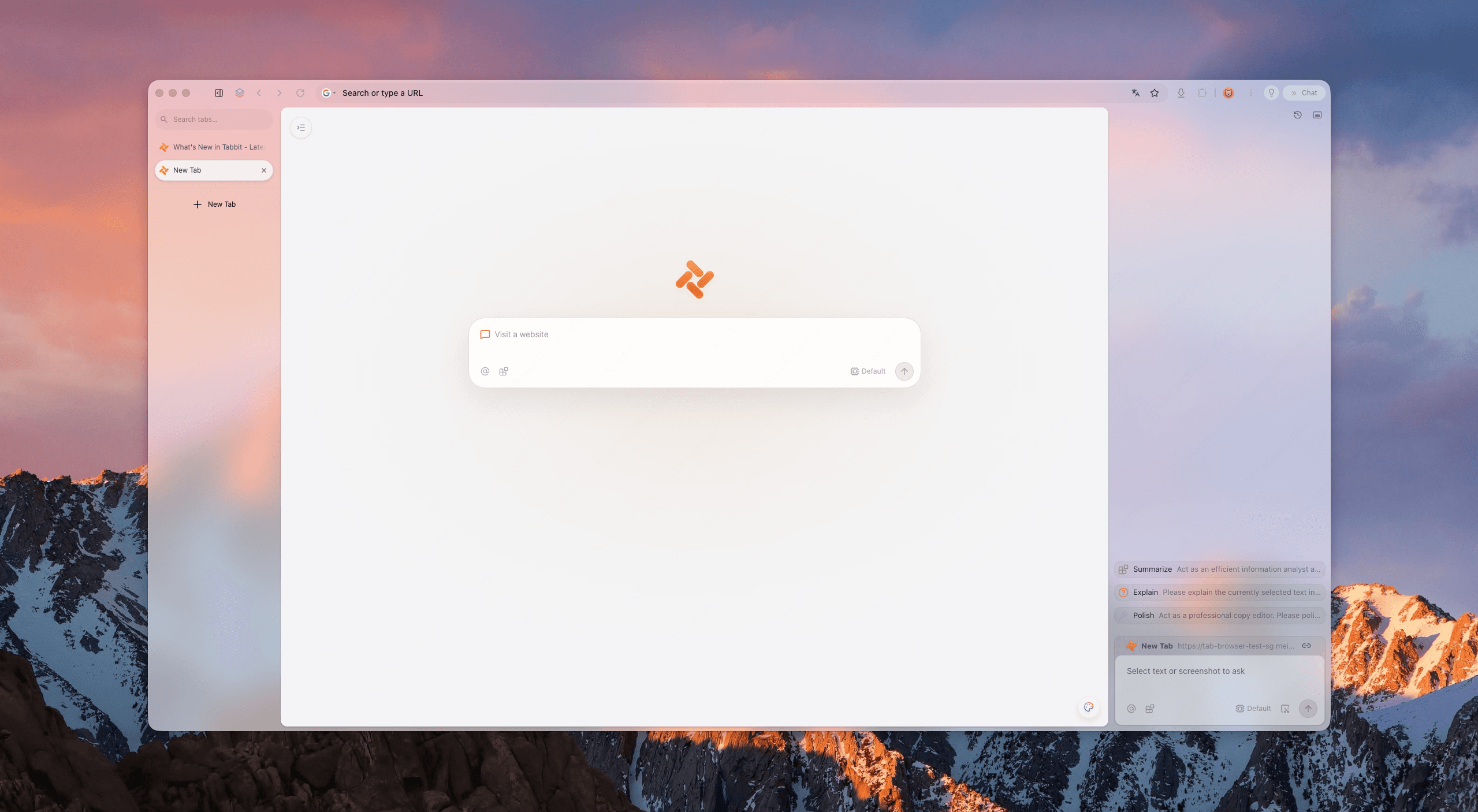
Tabbit Browser's Smart Tab Organization can group those pages. With Chat with Page, you can ask for a plain-language summary of the Chrome help page while leaving the source visible. Agent Mode can help you work through a multi-page research checklist, but it should not be treated as permission to change Chrome settings without your review. The Tabbit AI browser workflow shows the broader context-first pattern.
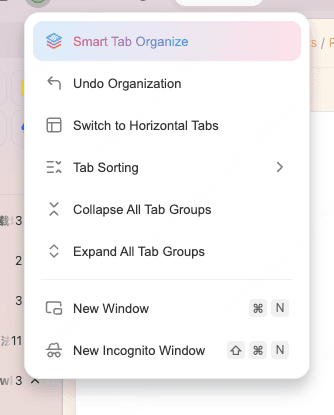
The trade-off is clear: Tabbit organizes the evidence and instructions, while Chrome owns the extension, site permissions, and profile state. If your work is spread across accounts, browser profiles and workspaces may make that separation easier.
What to do after removal
| Result after confirmation | What it suggests | Next step |
|---|---|---|
| The problem stops | The extension was involved | Leave it removed and check the site permissions it used |
| The problem remains | Another cause is likely | Check cache, tabs, or a site setting; do not keep removing unrelated extensions |
| The card returns | Sync, policy, or another installer may be involved | Check the profile and management status before another attempt |
| The browser loses an extension-specific setting | That data was local or not exported | Reinstall only from a trusted listing if you still need it |
| Notifications or redirects continue | The site has its own permission or data | Review site settings and cookies |
If the browser is still crowded, too many browser tabs and extension removal are separate cleanup jobs. Solve the symptom you can reproduce, then make the smallest change that tests it.
Final answer
Open More > Extensions > Manage extensions, read the extension's permissions, and disable it first if you need to observe the result or check its data. If you no longer need it, use Remove from Chrome and confirm. Check sync and management when it returns, and never delete Chrome profile folders from an untrusted tutorial.
Removing an extension does not erase bookmarks or saved passwords, but extension-specific settings may not have a universal backup. Review site notifications and permissions separately. For a workspace that keeps the official instructions, affected page, and notes together, install Tabbit Browser.
FAQ
Will removing a Chrome extension delete my bookmarks or passwords?
No. Chrome treats extensions separately from bookmarks and saved passwords. An extension can still have its own settings or cloud account, so check the developer's documentation before removing it.
Should I disable an extension before removing it?
Disable it first when you need to test whether it causes the problem or when its settings may matter. If the browser improves and you do not need the extension, remove it after checking sync and any available export option.
Why does a removed Chrome extension come back?
Sync, an organization policy, or another installer can put it back. Check the extension's details, Chrome's sync settings, and the Managed by your organization page before repeating the removal.
How do I remove an extension that Chrome will not let me remove?
Do not delete Chrome profile folders by hand. Check whether the extension is managed, installed by another application, or disabled by Chrome as unsupported or unsafe, then contact the administrator or developer as appropriate.
Can an extension keep website permissions after I remove it?
Removing the extension stops that extension from running in Chrome. A website can still have its own cookies, notifications, or permissions, so review Chrome's site settings if pop-ups or notifications continue.
Does Tabbit remove Chrome extensions?
No. Tabbit Browser can keep the Chrome help page, affected site, and notes together with Smart Tab Organization and Chat with Page. The actual disable or remove action remains in Chrome.

FAQ
Will removing a Chrome extension delete my bookmarks or passwords?
No. Chrome treats extensions separately from bookmarks and saved passwords. An extension can still have its own settings or cloud account, so check the developer's documentation before removing it.
Should I disable an extension before removing it?
Disable it first when you need to test whether it causes the problem or when its settings may matter. If the browser improves and you do not need the extension, remove it after checking sync and any available export option.
Why does a removed Chrome extension come back?
Sync, an organization policy, or another installer can put it back. Check the extension's details, Chrome's sync settings, and the Managed by your organization page before repeating the removal.
How do I remove an extension that Chrome will not let me remove?
Do not delete Chrome profile folders by hand. Check whether the extension is managed, installed by another application, or disabled by Chrome as unsupported or unsafe, then contact the administrator or developer as appropriate.
Can an extension keep website permissions after I remove it?
Removing the extension stops that extension from running in Chrome. A website can still have its own cookies, notifications, or permissions, so review Chrome's site settings if pop-ups or notifications continue.
Does Tabbit remove Chrome extensions?
No. Tabbit Browser can keep the Chrome help page, affected site, and notes together with Smart Tab Organization and Chat with Page. The actual disable or remove action remains in Chrome.