
You changed Chrome's search engine to Google, Bing, DuckDuckGo, or another provider. Then you restarted Chrome and the old choice came back. One Reddit user described the same loop: “Every time I open Google Chrome, I notice that Yahoo is set as my default search engine instead of Google.” Clearing cookies and browsing data did not fix it.
The normal change takes less than a minute. Open Settings, choose Search engine, and select the provider used in the address bar. If the choice keeps reverting, stop repeating that step. An extension, installed program, or administrator may be writing the setting back. This guide separates those cases and shows where Tabbit Browser can help with the research work around them, not with changing Chrome's configuration.
Key takeaways
On a computer, go to Settings > Search engine and choose the provider used in the address bar.
Android and iPhone/iPad have their own Search engine menu inside Chrome.
Site search shortcuts are different from the default provider. They let you search one site with a keyword.
A homepage, startup page, and default browser are separate settings. See the Chrome homepage guide or default browser guide when that is the problem.
If the setting returns to Yahoo or another provider, check extensions, installed software, and
chrome://policy.
What “default search engine” controls
Chrome's default search engine handles a query typed into the address bar. It does not decide which page opens when Chrome launches, what the Home button opens, or which app receives a link from another application.
| Chrome setting | What it controls | Where to change it |
|---|---|---|
| Default search engine | A query typed in the address bar | Settings > Search engine |
| Site search shortcut | A keyword that sends a query to one site | Manage search engines and site search |
| Home button | The page opened by the Home icon | Settings > Appearance |
| Startup pages | Pages shown when Chrome launches | Settings > On startup |
| Default browser | Which app receives ordinary operating-system links | Windows, macOS, Android, or iOS settings |
The distinction matters because changing the search engine will not fix a strange New Tab page. A homepage and startup setting can look similar while responding to a different action.
Change the default search engine on a computer
Google's Chrome Help instructions put this control in Chrome's Search engine settings.
Open Chrome on Windows, macOS, Linux, or ChromeOS.
Select the three-dot menu in the top-right corner.
Choose Settings.
Select Search engine in the left sidebar.
Open the menu beside Search engine used in the address bar.
Choose Google, Bing, Yahoo, DuckDuckGo, Ecosia, or another available provider.
Open a new tab and type a short test query in the address bar.
The test should open the provider you selected. If you typed the query into a page's own search box, you did not test Chrome's default. Try the address bar instead.
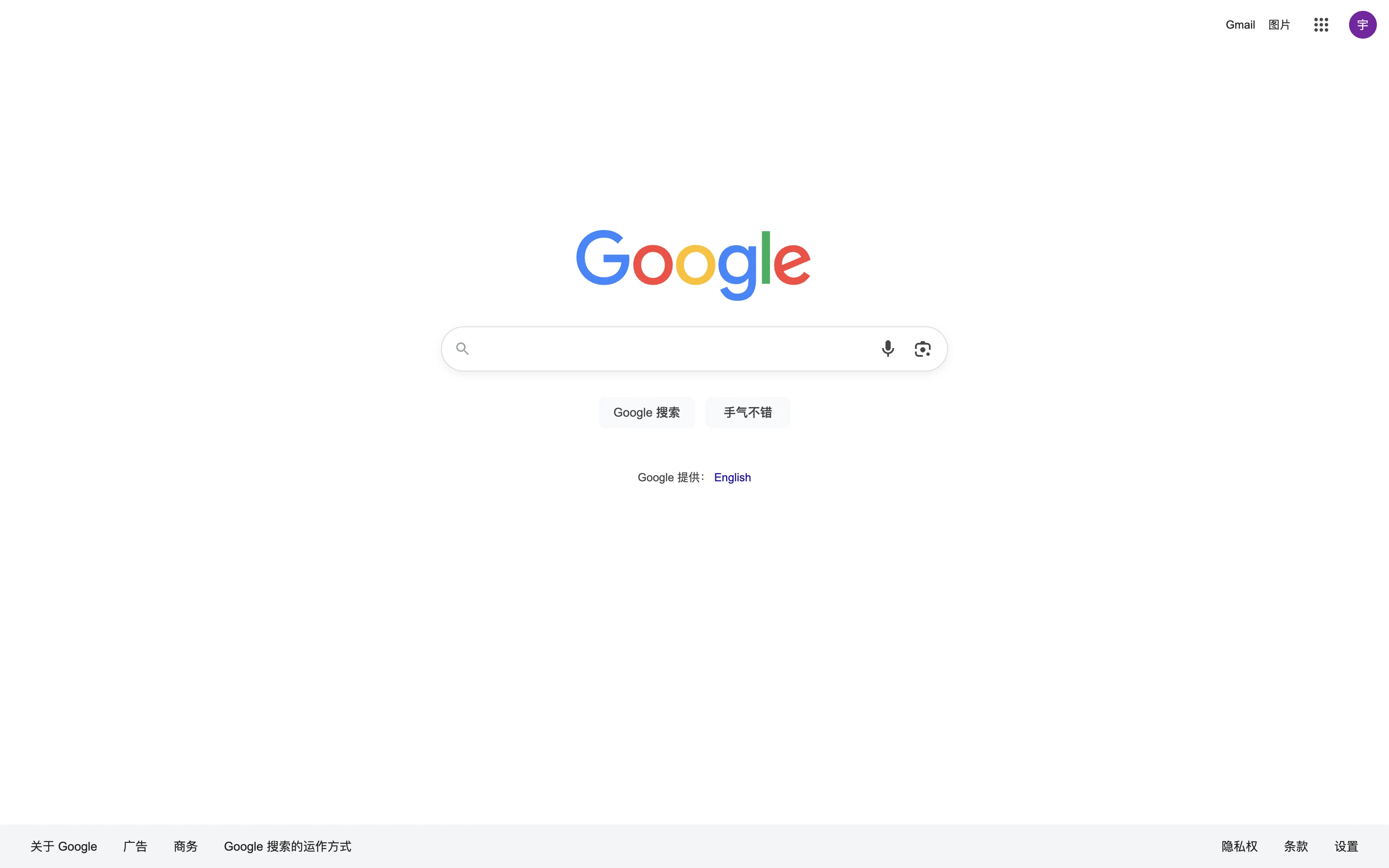
The list of providers can differ by region and Chrome build. If the provider you want is absent, use the site-search section below. If Google itself disappears from the list, inspect extensions before downloading a third-party “fix.”
Use Chrome's direct settings page
On a computer, type chrome://settings/searchEngines into the address bar. This opens the same management area without hunting through the Settings sidebar. Google also documents a Chrome Action: typing “customize site search” can take you to the relevant page.
Do not paste a search URL from an untrusted page into the default provider field. A search URL normally contains a placeholder such as {searchTerms}. Use the provider's own documentation when you need to add one manually.
Change it in Chrome on Android
In the Chrome app:
Tap More (the three-dot menu).
Tap Settings.
Tap Search engine.
Select the provider you want.
Open a new tab and run a test from the address bar. Android manufacturers can change menu placement, and the available provider list can depend on location. This setting controls searches made in Chrome; it does not change the system's default browser or a search box inside another app.
If Chrome is not the app opening links, see the guide to making Chrome the default browser. That is an operating-system routing decision, not a search-provider decision.
Change it in Chrome on iPhone or iPad
Chrome for iOS and iPadOS keeps the setting inside its own app:
Open Chrome and tap More.
Choose Settings.
Tap Search engine.
Choose the provider.
This does not make Chrome the default browser. iOS has a separate Default Browser App control, and Apple can vary the available choices by region. If the issue is which app opens a link, use Apple's default-app instructions, not Chrome's Search engine menu.
Add or edit a custom site-search shortcut
Chrome's site search feature is useful when you often search YouTube, Google Drive, Wikipedia, an internal knowledge base, or another site. It is not the same as changing the default search engine. Google describes the desktop flow in its Chrome address-bar shortcuts announcement.
On a computer:
Open
chrome://settings/searchEngines.Under Site search, select Add.
Enter the site's name.
Choose a short shortcut, such as
yt.Enter the site's search URL, replacing the query with
{searchTerms}.Save the entry.
To use it, type yt in the address bar, press Tab or Space, enter the query, and press Enter. Chrome sends that query to the site search URL. You can edit the name, shortcut, and URL later from the same page.
Chrome may also create site-search entries automatically when you search some sites. Review the URL before using it. Remove stale or unfamiliar entries from the three-dot menu beside the entry. Keep @tabs, @bookmarks, and @history separate in your mental model: Google says those shortcuts search Chrome's own context, not the web provider you selected. Our history and bookmark search guide explains the same boundary.
When Chrome changes the setting back
Changing the dropdown once is the right fix when the setting was simply wrong. A recurring change is a diagnosis problem.
| Symptom | First check | What it suggests |
|---|---|---|
| Provider changes immediately | Search engine page and unfamiliar entries | A setting or extension may be active |
| Yahoo returns after restart | chrome://extensions, installed programs | Software or an extension may be rewriting the setting |
| Google is missing from the list | Extensions and recent installs | A third party may have modified Chrome |
| Setting is greyed out | chrome://policy | Work, school, or family management |
| Search redirects even after cleanup | Malware guidance and a clean profile | The cause may be outside Chrome's setting |
Check extensions first
Open chrome://extensions. Look for an extension that mentions search, new tabs, coupons, security, or an unfamiliar publisher. Disable one suspicious extension, open a fresh tab, and test again. Remove it only if you know it is unwanted. If you have several candidates, change one thing at a time so you know which change mattered.
Google's unwanted software guidance includes unauthorized search-engine changes and extensions that return as warning signs. A Reddit thread about Yahoo returning contains a similar pattern: commenters connected the behavior to McAfee Secure Search or WebAdvisor, while another commenter said the setting was fixed after removing a suspicious site-search entry. Those are reports from individual users, not a universal diagnosis.
If an extension says it was installed by enterprise policy or a third party, do not force-remove it with a random registry command. Ask the device administrator or inspect the installed program that owns it. Our guide to Chrome extensions that contain malware covers the safer decision boundary.
Check software and policies
On Windows or macOS, review recently installed security tools, browser helpers, and bundled applications. If one explicitly manages search, turn off that feature or uninstall the program using the operating system's normal app controls. Keep a backup before a broader cleanup; the browser backup checklist covers bookmarks and other browser data.
On a managed computer, open chrome://policy and look for default-search-provider policies. Chrome Enterprise's policy list documents policies such as DefaultSearchProviderEnabled, DefaultSearchProviderName, and DefaultSearchProviderSearchURL. A policy can make your local choice appear to fail. The correct fix is an administrator change, not repeated edits to Chrome.
If the symptoms include pop-ups, redirects, or a New Tab page that keeps returning, use Google's cleanup steps. A Chrome settings reset can restore several local settings, but it cannot override an active policy and may not remove the software causing the change. Do not delete the whole profile before backing up data.
A practical desktop option: Tabbit Browser
Once the search-routing problem is fixed, a different problem often remains: finding and comparing the pages you opened while investigating it. This is where Tabbit Browser can be useful, as a separate desktop workspace.
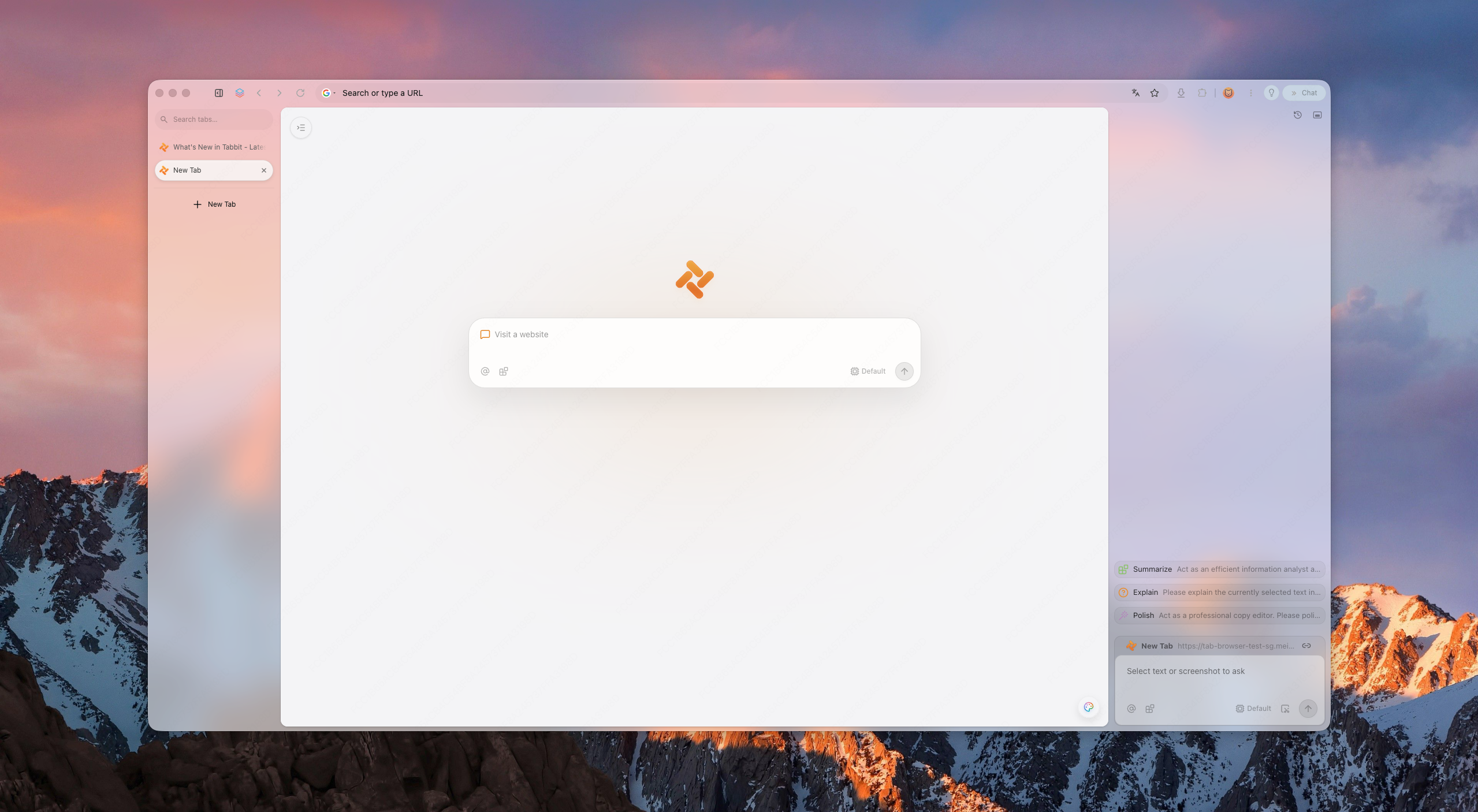
Tabbit's current home page and download page describe a macOS and Windows browser with page chat, Agent, Skills, multiple models, and import for browser data. In practice, you could keep the Chrome Help page, Chrome Enterprise policy page, extension listing, and a suspicious search result in one workspace. Smart Tab Organization can group the sources; Chat with Page can summarize the visible document; the Omnibox can reference a tab, screenshot, highlight, or local file as context.
That is a workflow improvement, not a Chrome repair. Tabbit does not change Chrome's default search engine, bypass chrome://policy, or provide the same Chrome setting on Android or iOS. Agent Mode is also not a reason to hand over a sensitive account without supervision. For repeated browser actions, read the browser automation guide and keep the task narrow.
The short decision
If you only want Google, Bing, DuckDuckGo, or another provider for address-bar searches, use Chrome Settings > Search engine. If you want a one-key route into YouTube or an internal site, add a site-search shortcut instead. If the choice returns, inspect extensions, installed software, and chrome://policy before resetting or reinstalling anything.
Chrome is still the right answer for a managed work setup or a mobile workflow that depends on Chrome sync. If your bigger complaint is the work after search, try a desktop workspace such as Tabbit. Too many tabs and browser profiles are useful next reads before moving work into a second browser.
If you want to keep the sources together while you investigate, download Tabbit Browser for macOS or Windows and import only the browser data you need. The search engine choice remains yours.

FAQ
How do I change Chrome's default search engine on a computer?
Open Chrome Settings, choose Search engine, then select the provider beside Search engine used in the address bar. Test by typing a new query in the address bar. This setting changes address-bar searches, not the page that opens at startup.
Can I change the search engine in Chrome on Android?
Open Chrome, tap More, choose Settings, then Search engine and select a provider. The available choices can vary by country, device, and Chrome version.
Can I change Chrome's search engine on iPhone or iPad?
Yes. In Chrome for iPhone or iPad, open More > Settings > Search engine and choose a provider. This is separate from choosing Chrome as the default browser in iOS.
How do I add a custom site search shortcut in Chrome?
On a computer, open Settings > Search engine > Manage search engines and site search, then add a site with its search URL and a shortcut. Type the shortcut in the address bar and press Tab or Space to search that site directly.
Why does Chrome keep changing my search engine to Yahoo?
A setting change that returns after a restart can come from an extension, installed software, or a managed policy. Check chrome://extensions and chrome://policy, remove only software you recognize as unwanted, and follow Google's malware guidance if redirects continue.
Why is the search engine option locked in Chrome?
A work, school, or family administrator may enforce the default search provider. Open chrome://policy to see whether a policy is active, and ask the administrator before editing files or installing a cleanup program.