
You open Microsoft Edge to pull up your project research, client link boards, or reading lists, only to find that the Collections icon has completely vanished from the top toolbar. In its place, you find generic Favorites prompts and persistent Microsoft Copilot reminders.
For students, researchers, and knowledge workers who spent months organizing web cards, price comparisons, and inline sticky notes, the sudden deprecation in Edge 149 feels like a serious breach of trust. When Microsoft announced the phase-out of native Collections, community members immediately shared their frustration. As Reddit user u/lowkey_fuck2020 posted on r/MicrosoftEdge:
If you have critical research trapped inside Edge Collections, you need a clear extraction plan before Microsoft discontinues backend sync endpoints. In this guide, we cover why Collections was retired, how to export your links and notes across multiple formats, and how moving to an AI-native browser like Tabbit Browser gives you a far more resilient research environment.
Key takeaways
Collections was retired in Edge 149+: Microsoft phased out the native sidebar Collections board to declutter the interface and prioritize Copilot and standard Favorites.
Personal account data lives on Bing Saves: If you used a personal Microsoft account, your collections remain viewable and exportable at
bing.com/saves.Converting to Favorites strips notes: Standard browser bookmarks only keep page titles and URLs; inline text notes and card images will be lost unless saved to OneNote or Word first.
Exporting HTML enables cross-browser migration: Once converted to Favorites, you can generate a portable
bookmarks.htmlfile to import your links into any modern browser.Modern research needs active intelligence: Moving from passive bookmark boards to an AI productivity browser with native multi-model analysis eliminates the need for manual copy-pasting.
Edge Collections recovery and migration methods at a glance
Depending on your Microsoft account type and what kind of content you saved (links vs. rich notes), here is how the primary recovery paths compare:
| Export Method | Data Preserved | Ease of Recovery | Required Tool / Account | Best For |
|---|---|---|---|---|
Bing Saves (bing.com/saves) | URLs, card previews, text notes | High (Web portal) | Personal Microsoft Account (MSA) | Quick recovery without touching browser files |
| Convert to Favorites + HTML | Page titles & URLs only | Medium (In-browser) | Edge edge://favorites | Bulk migration into Chrome, Firefox, or Tabbit |
| Export to Word / Excel / OneNote | Full notes, tables, formatted links | High (If menu visible) | Microsoft 365 / Office web apps | Academic research, structured spreadsheets, and dossiers |
| Local Profile SQLite Rescue | Raw database records | Advanced (File system) | Local file manager (User Data\Default) | Emergency offline rescue when browser UI fails |
Why did Microsoft deprecate Edge Collections?
The shift toward Copilot and UI simplification
When Microsoft introduced Collections during the launch of Chromium Edge, it stood out as one of the browser's best original features. Unlike flat bookmark folders, Collections allowed you to drag and drop page snippets, save visual product cards with prices, and write standalone Markdown notes in a dockable side rail.
However, maintaining a specialized synchronization engine alongside standard Chromium Favorites proved expensive. As Microsoft consolidated its browser strategy around Copilot, the team began trimming non-core modules to combat browser bloat. Following earlier moves like retiring the sidebar web-app pinning dock, Microsoft replaced Collections with a simplified Favorites interface and Copilot-driven web summaries.
Why relying on flags or delayed updates won't save your notes
When a feature disappears, many users try to keep it alive using temporary command-line parameters or edge://flags. As explained in our analysis of browser UI updates and legacy flags, this is only a temporary illusion:
Chromium flags have short lifespans: Flags exist for staged testing. Once Microsoft deletes the Collections UI code from the Chromium build tree, no flag or registry key can reconstruct it.
Delayed updates create security hazards: Refusing browser updates leaves your machine vulnerable to active zero-day vulnerabilities in the V8 engine and Chromium network stack.
Database schema migrations can lock data: When newer Edge builds update profile databases, rolling back to an older version can cause severe profile corruption.
The safe approach is extracting your research immediately and migrating to a reliable workflow.
The critical difference: Why Collections was more than plain bookmarks
The core reason the removal of Collections hurts is that it wasn't just a list of bookmarks—it was a project curation tool.
Visual cards, rich snippets, and standalone text notes
Traditional browser bookmarks are one-dimensional: they store an URL, a title, and a date. Collections offered three distinct elements that made it invaluable for deep research:
Visual preview cards: High-resolution page thumbnails and extracted meta descriptions made scanning dozens of sources effortless.
Embedded text notes: You could add custom annotations, reminders, and reference summaries directly between links without launching a separate note-taking application.
One-click Office exports: Curated items could be pushed straight into OneNote notebooks or Excel spreadsheets formatted as clean tables.
The data loss trap when converting to generic browser bookmarks
If you blindly select "Add all to Favorites" in Edge, you will lose significant context. Standard browser bookmark formats (NETSCAPE-Bookmark-file-1) have no native support for custom notes, image attachments, or card metadata.
Before converting your boards into bookmarks, make sure to back up your notes separately to avoid irreversible data loss. For general backup strategies, review our checklist on how to back up browser data before switching.
Step-by-step: How to export and convert your Edge Collections
Here are the four tested methods to extract your saved data from Microsoft Edge.
Method 1: Recover synced collections via Bing Saves (bing.com/saves)
If you used a personal Microsoft account (such as @outlook.com or @hotmail.com), your collections automatically synchronized with Microsoft's cloud backend.
Open any desktop browser and navigate to bing.com/saves.
Sign in with the same Microsoft account you used in Edge.
In the left-hand navigation, locate your collection boards (such as "Work Research", "Gift Ideas", or "Articles").
Click into any collection to view your saved links, thumbnails, and custom note cards.
Copy your custom notes into your external document editor, or use the share icon to generate an accessible web link.
Method 2: Convert Collections to Edge Favorites and export standard HTML
To transfer your saved links into another browser like Google Chrome, Firefox, or Tabbit, converting them into standard HTML bookmarks is the cleanest path:
In Microsoft Edge, navigate to
edge://favoritesin the address bar.If your Edge build shows an imported "Collections" or "Saved Items" section, right-click the group and choose Add to Favorites or organize them into a dedicated folder.
Click the three-dot menu icon (
...) at the top of the Favorites manager and select Export favorites.Save the resulting file as
favorites_backup.html.Open your target browser's settings and import the HTML file to restore your entire folder hierarchy.

Method 3: Export to Microsoft OneNote, Word, or Excel
If you still have partial access to the Collections panel or want structured tables:
For text-heavy research: Open the collection, click the
...menu, and select Send to OneNote. Edge creates a dedicated notebook page preserving your links, descriptions, and custom sticky notes.For pricing tables and tabular data: Choose Send to Excel. Edge formats the link titles, URLs, and pricing data into discrete spreadsheet columns.
For formal documents: Select Send to Word to create an editable summary draft.
Method 4: Offline database rescue from the Edge local profile folder
If your Edge installation updated and the UI won't render your collections, your raw records often still sit in your local user profile directory:
Windows:
%LOCALAPPDATA%\Microsoft\Edge\User Data\Default\CollectionsmacOS:
~/Library/Application Support/Microsoft Edge/Default/Collections
Inside this folder, Edge stores SQLite databases (collectionsSQLite) and LevelDB logs containing your item histories. You can open these databases using free tools like DB Browser for SQLite to extract raw URLs and note texts in bulk.
Alternative bookmarking and research tools compared
Once your data is safely exported, you have several choices for replacing Edge Collections:
| Tool / Browser | Visual Cards & Notes | Multi-Tab AI Synthesis | Workspace Isolation | Export & Portability | Ideal User |
|---|---|---|---|---|---|
| Microsoft Edge (Post-v149) | Removed (Standard Favorites only) | Copilot chat panel only | Basic Workspaces | HTML Bookmarks | Users locked into Microsoft 365 enterprise rules |
| Chrome + Raindrop.io | Yes (Tags, previews & highlights) | No (Requires external extensions) | Tab groups only | JSON, CSV, HTML | Users who want dedicated cross-platform bookmarking |
| Vivaldi Web Panels | Basic (Notes panel in sidebar) | External web clients | Advanced Tab Stacks | HTML Bookmarks | Power users who like granular manual layout control |
| Firefox + Sidebery | Tree-style visual hierarchy | Extension dependent | Multi-Account Containers | JSON / HTML | Privacy-focused users who prefer open-source engines |
| Tabbit Browser | Native Workspaces & AI Notes | Native (GPT, Claude, Gemini) | Smart Tab Organization & Agents | Standard HTML & Markdown | Researchers, analysts & productivity power users |
If you struggle with bookmark clutter, read our deep dive on why browser history and bookmarks are still hard to search to understand why traditional bookmarking models fail.
A modern alternative: Moving from static Collections to Tabbit Browser
When you examine why you used Edge Collections, the core objective was clear: you needed a clean way to gather information across dozens of tabs without cluttering your main window or losing research context.
Static bookmark collections solved this passively—they gave you a digital shoebox to store links in. But you still had to manually open every tab, copy snippets by hand, and organize everything yourself.
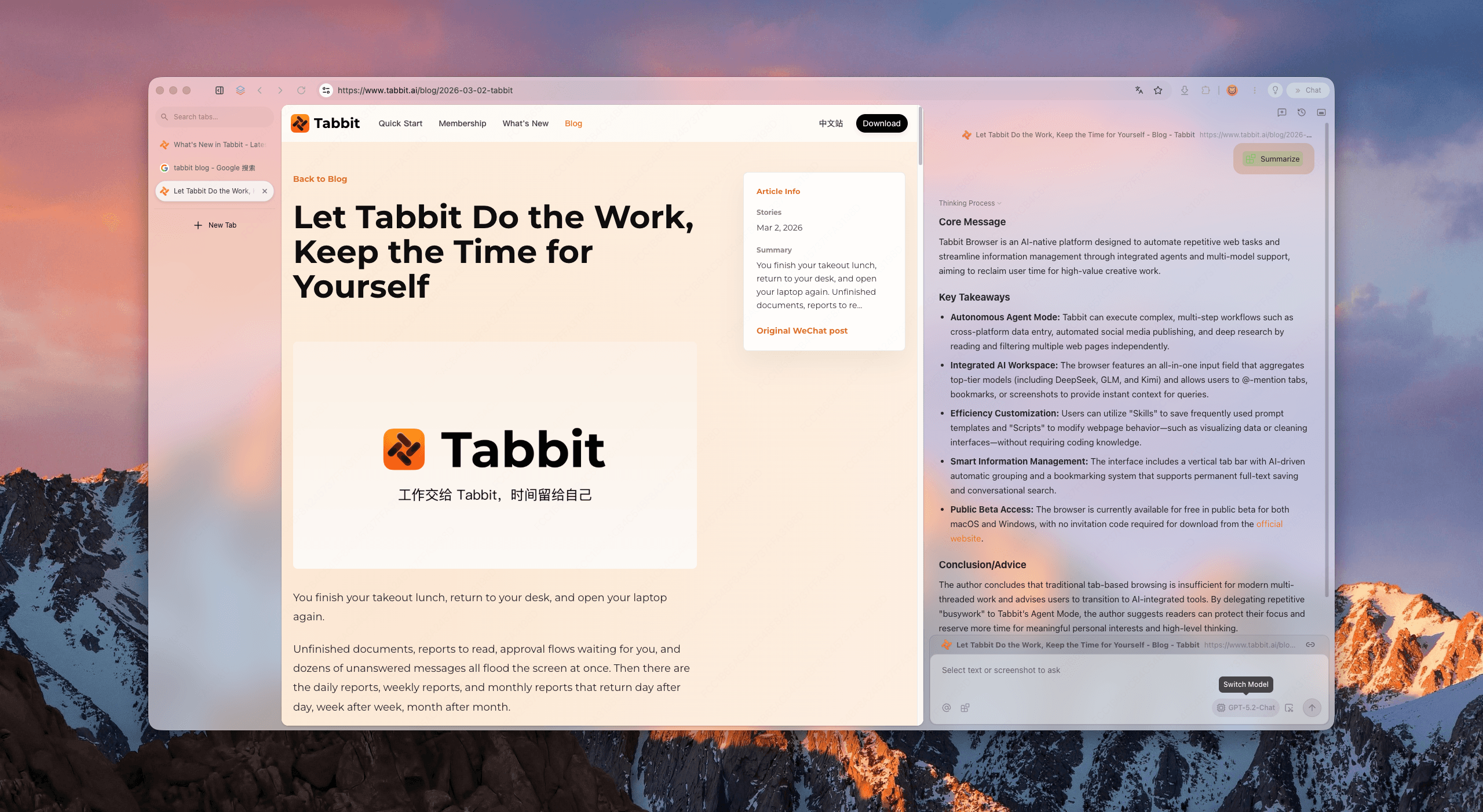
This is where Tabbit Browser provides an upgraded paradigm. Instead of treating research as static link collection, Tabbit transforms your browsing into an interactive, AI-assisted workspace.
From passive URL hoarding to active AI research
In traditional browsers, saving 20 links into a collection meant you now had 20 unread tabs waiting for you. In Tabbit Browser, information gathering becomes active:
Chat with Page & Multi-Tab Context: Instead of opening a link, copying a quote, and pasting it into a note card, you can trigger Tabbit's assistant to extract key arguments, summarize technical papers, or build comparison tables across multiple active tabs simultaneously.
Multi-Model Choice Without Lock-in: While Edge forces you into Microsoft Copilot, Tabbit provides direct, native access to leading LLMs—including Claude, ChatGPT, and Gemini—allowing you to choose the best model for coding, analysis, or creative writing.
Smart Tab Organization: Tabbit organizes your projects into clean vertical tabs and dedicated workspaces, avoiding the horizontal tab overload that forced users into Collections in the first place.
Agent Mode for Autonomous Web Tasks: Need to extract pricing plans from five competitors or gather documentation links? Tabbit's background Agent Mode can navigate pages, run queries, and deliver synthesized briefs directly to your workspace while you stay focused.
Real-world workflow: Curing information sprawl without manual clipping
Consider preparing a competitive market report:
The Old Edge Collections Way: You opened 15 browser tabs, clicked "Add page to collection" on each, added manual notes for pricing and features, manually exported the collection to Word, and then spent hours synthesizing the raw links.
The Tabbit Browser Way: You open your research group in a clean vertical workspace. You prompt Tabbit: "Summarize the core features, enterprise pricing, and API limitations across these 5 tabs into a Markdown comparison table." Tabbit analyzes the live pages in context and generates a structured research artifact in seconds.
Honest boundaries: When to use a dedicated bookmark manager instead
While Tabbit excels at focused research and task execution, it is helpful to recognize when other tools make sense:
If you need an archival link repository for 10,000+ personal bookmarks: A dedicated bookmark utility like Raindrop.io or Pinboard remains the top choice for permanent tag-based link indexing.
If your corporate environment mandates strict Microsoft Intune policies: You may need to stay within Edge for single-sign-on compliance.
For a broader breakdown of workspace boundaries, check our guide on browser profiles vs workspaces vs tab groups.
Which workflow fits your research needs after Edge Collections?
Depending on your day-to-day work, here is how to navigate your next step:
If you just want your links in another browser: Use
edge://favoritesto export your converted Collections to abookmarks.htmlfile, then import it into Chrome or Firefox.If you need permanent visual bookmark boards with tags: Pair Chrome or Firefox with the Raindrop.io extension.
If you want an intelligent workspace that replaces manual clipping with AI automation: Switch to Tabbit Browser for native vertical tabs, multi-model analysis, and autonomous web research.
Don't let deprecated features stall your productivity. Download Tabbit Browser today, import your bookmarks in one click, and experience an AI-native workspace designed for modern research.

FAQ
Why did Microsoft remove the Collections feature from Edge 149?
Microsoft phased out Collections to simplify the browser UI, reduce the maintenance overhead of custom card databases, and funnel users toward Microsoft Copilot and standardized Favorites.
Where can I find my old Edge Collections if the toolbar button disappeared?
If you signed in with a Personal Microsoft Account (MSA), visit bing.com/saves in any desktop browser. Your previously synchronized collection boards, links, and text notes remain accessible there.
Can I export my Edge Collections directly into Google Chrome or Firefox?
Not directly in the native Collections format. You must first convert your Collections into standard Edge Favorites, export them as a standard bookmarks.html file via edge://favorites, and then import that HTML file into Chrome or Firefox.
Do I lose my embedded notes when converting Collections to Favorites?
Yes. Converting Collections into standard browser Favorites only preserves the webpage URLs and titles. Embedded custom text cards and sticky notes are stripped because standard browser bookmarks do not support inline notes. Export those notes to OneNote or Word first.
How do I export Collections if I used a Work or School (Entra ID) account?
Enterprise accounts cannot always access bing.com/saves due to tenant policies. If your Edge build still allows it, open the Collections pane and choose Export to Excel or Send to Word. Alternatively, back up your local profile Collections folder before Edge updates.
How does Tabbit Browser replace the Edge Collections workflow?
Tabbit replaces static link saving with an AI-native workspace. You get persistent project workspaces, smart vertical tabs, multi-model Chat with Page across GPT, Claude, and Gemini, and background Agent Mode that performs research without manual clipping.