
You open your browser after an automatic morning update, and your muscle memory instantly hits a wall. The tab strip looks puffy, borders around web pages have thickened into rounded capsules, the extension puzzle icon shifted into a nested sub-menu, and an unwanted AI sidebar sits pinned to your right margin.
For millions of desktop users, browser redesigns rarely feel like upgrades. When Microsoft Edge pushed rounded window borders and removed the toggle switch in Settings, users on Reddit expressed immediate frustration. As community member u/youlikebaileys posted on r/MicrosoftEdge:
When an update breaks your workflow, the natural reaction is to search for a hidden flag, a terminal command, or a download link for an older version. But fighting upstream interface changes with temporary hacks usually creates more problems than it solves. In this guide, we will break down why internal flags and shortcut parameters inevitably fail, the real security risks of freezing updates, how to safely configure the browser you have, and why switching to a clean alternative like Tabbit Browser offers a permanent way off the redesign treadmill.
Key takeaways
Flags are temporary by design: Settings inside
chrome://flagsoredge://flagsare developer testing toggles. Upstream Chromium developers systematically delete them once a new UI reaches general rollout.Shortcut command-line switches break easily: Modifying desktop shortcuts with flags like
--disable-featuresonly works when launching from that specific shortcut. External links from Slack, Discord, or email will still launch the default layout.Downgrading is a major security hazard: Freezing browser updates leaves your operating system exposed to active zero-day exploits and can corrupt your local SQLite user profile.
Native settings offer the safest compromise: You can still declutter toolbars, turn off promotional sidebars, adjust interface scaling, and switch to vertical tabs without destabilizing your browser.
When the chrome gets in your way, consider a leaner environment: If your current browser insists on pushing unwanted widgets and puffy frames, moving to a modern productivity browser provides a distraction-free workspace with built-in AI assistant features.
Layout changes at a glance
Before trying random fixes found in forum threads, look at how different UI modifications actually hold up over time.
| UI Change Type | Common Workaround | Native Safe Setting | Long-Term Viability | Risk Level |
|---|---|---|---|---|
| Rounded Window Borders & Margins | --enable-features=msForceNoRoundedCornerAndMargin | None in current Edge builds; toggle removed | Fails on next major milestone | Low (launches default UI on update) |
| Puffy Floating Tabs & WebUI Refresh | #chrome-refresh-2023 in flags | Reset custom themes to Classic / Default | Zero (Flag deleted in Chromium v125+) | Low (temporary visual hack) |
| Forced Copilot / Search Side Panels | Registry hacks / Policy overrides | Settings > Sidebar > Copilot = Off | High (via official enterprise policies) | Medium (registry misconfiguration) |
| Extension Toolbar Consolidation | Third-party UI mod scripts | Pin essential extensions individually | High (native pinning supported) | Low |
| Title Bar Height & Padding Bloat | Modifying internal .pak resource files | Adjust page zoom (90%) or font size | Zero (causes checksum errors & crashes) | Critical (app integrity broken) |
| Version Rollback to Older Release | Disabling GoogleUpdate / EdgeUpdate service | None (official rollback requires Enterprise MSI) | Zero (blocks security patches) | Critical (vulnerable to RCE zero-days) |
Why flags and shortcut switches always stop working
When a major redesign ships, tech blogs and YouTube tutorials quickly fill with advice telling you to open chrome://flags, search for keywords like refresh, rounded, or side-panel, and toggle them to Disabled.
This works for about two to six weeks. Then the next point release arrives, the flag disappears from the menu, and the new interface returns permanently.
According to the official Chromium Flag Expiry Documentation, feature flags exist strictly to assist developers during feature rollout and A/B testing:
Development Phase: A flag is created so engineers can test new UI components without breaking the stable branch.
Rollout Phase: The flag is exposed to Canary, Beta, and a small percentage of Stable users to gather telemetry and crash reports.
M-Version Deprecation: Once the engineering team decides the feature is standard, the flag reaches its declared expiration milestone.
Codebase Cleanup: The
BaseFeaturetoggle code, conditional rendering paths, and legacy CSS layouts are deleted from the C++ repository.
[Flag Created in Codebase]
        │
        ▼
[A/B Testing in chrome://flags]
        │
        ▼
[Default Enabled for All Users]
        │
        ▼
[Flag Expired & Removed from Flags Menu]
        │
        ▼
[Legacy UI Code Physically Deleted in Next Milestone]
When you add --disable-features=msEdgeRoundedCorners or --disable-features=CustomizeChromeSidePanel to your Windows desktop shortcut properties, you are only passing an argument to that specific executable shortcut.
As soon as you click a link inside an email client, a PDF reader, or a messaging app, the operating system launches the browser without those shortcut parameters. Even worse, once the underlying layout code is removed from the browser binary in subsequent versions, the launch parameter is silently ignored.
The hidden dangers of downgrading or freezing updates
When flags disappear, some users take a more drastic step: uninstalling their current browser, downloading an older installer from a third-party mirror site, and killing background update services.
While this temporarily brings back the visual layout you like, it introduces two severe threats to your computer:
1. Active security exploits and zero-day vulnerabilities
Web browsers are the single most exposed piece of software on any operating system. According to the NIST National Vulnerability Database, Chromium and WebKit engines patch dozens of high-severity vulnerabilities every month, including V8 JavaScript engine type confusion flaws, WebRTC memory overflows, and sandbox escape exploits.
When you freeze your browser version:
Attackers actively scan for known CVEs that have been publicly documented in update changelogs.
Visiting a compromised website or encountering a malicious advertisement can trigger Remote Code Execution (RCE) without requiring you to download or run an executable file.
If you care about protecting personal accounts and browsing privacy, choosing a more secure browser that receives prompt upstream security patches is non-negotiable.
2. User profile database corruption
Modern browsers store your bookmarks, passwords, session state, history, and extension preferences in local SQLite databases within your user profile directory.
When a browser updates to a newer version, it automatically runs database migrations to update table schemas. If you install an older browser build and point it at that migrated profile directory, the older binary will fail to parse the newer schema. This frequently leads to:
"Your profile cannot be used because it is from a newer version of Google Chrome"error dialogs.Corrupted cookie stores that repeatedly log you out of essential accounts.
Irreversible loss of locally saved tabs and browsing history. Before attempting any major browser troubleshooting or reinstallation, always make sure to backup browser data.
What you can customize safely in native browser settings
If you want to reduce interface noise and reclaim screen space without hacking system files or compromising security, use these safe, built-in configuration steps.
Step 1: Declutter toolbars and hide promotional sidebars
Most browsers allow you to turn off supplementary icons that take up horizontal space:
Chrome: Right-click unwanted toolbar icons and choose Unpin. Navigate to
Settings > Appearanceto hide the Home button or toggle off reading list prompts.Edge: Go to
Settings > Sidebar(oredge://settings/appearance) and turn off Always show sidebar. You can also disable shopping assistance, cashback alerts, and Copilot buttons individually.Firefox: Right-click the toolbar, select Customize Toolbar..., and drag unused buttons directly into the overflow palette.
Step 2: Fine-tune page zoom and UI density
Modern browser refreshes often add 4 to 8 pixels of extra padding around URL bars and tab titles, making the UI feel bloated on smaller laptop displays. While you cannot change internal CSS margins directly, you can adjust default rendering:
Go to
Settings > Appearance > Page zoomand set the default zoom to 90%.This shrinks page elements slightly, effectively giving you back the vertical viewport height lost to the taller title bar.
If you notice that menus or system buttons look muddy, inspect your operating system display scaling settings rather than fighting the browser renderer.
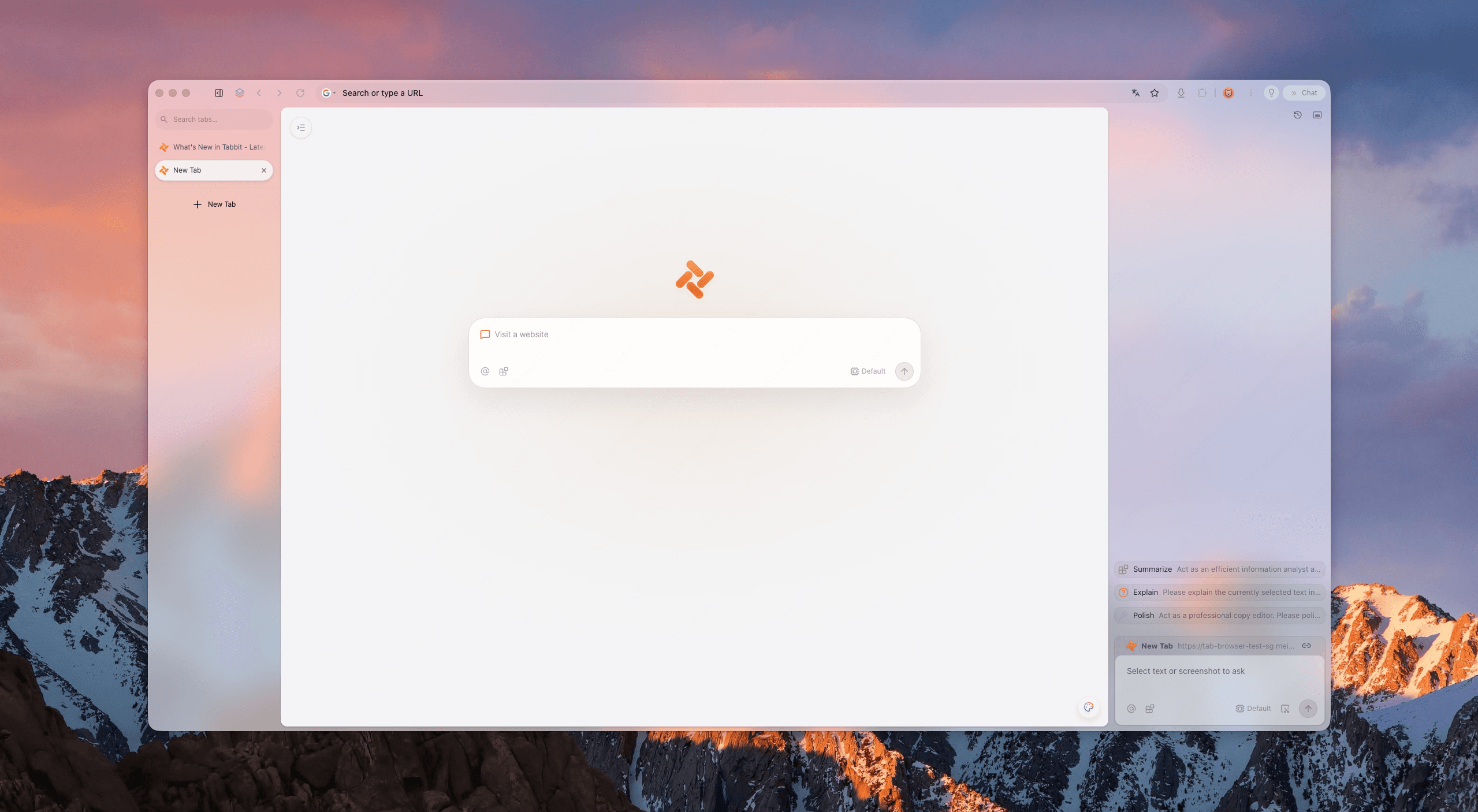
Step 3: Switch to vertical tabs
If your main complaint is that horizontal tabs have become rounded capsules that truncate webpage titles, switching to vertical tabs is the cleanest long-term adjustment.
Horizontal Tabs (Puffy & Truncated):
┌────────────────────────────────────────────────────────┐
│ [Wiki...] [Goo...] [Gith...] [Docs...] [Dash...] (+)   │
├────────────────────────────────────────────────────────┤
│ URL: https://example.com                               │
└────────────────────────────────────────────────────────┘

Vertical Tabs (Full Titles & Maximum Vertical Viewport):
┌──────────────┬─────────────────────────────────────────┐
│ Wikipedia:.. │ URL: https://example.com                │
│ Google Docs  ├─────────────────────────────────────────┤
│ GitHub PR #4 │                                         │
│ Cloud Console│                                         │
│ Analytics    │                                         │
└──────────────┴─────────────────────────────────────────┘
Edge provides native vertical tabs via the top-left toggle icon. Chrome added official vertical tabs in recent updates. Moving your tab strip to the side frees up vertical pixels for actual page content while keeping full page titles readable. For a detailed breakdown of how side navigation changes daily browsing, see our guide on are vertical tabs better.
Step 4: Use high-contrast or classic themes
If the new pastel color palette or automatic background tinting makes it hard to distinguish active tabs from background tabs:
Visit the Chrome Web Store or Edge Add-ons store and install the official Classic or High Contrast theme published by the browser vendor.
Themes modify colors and tab contrast legitimately through the browser's supported theming API, giving you visual clarity without breaking layout stability.
A practical option: Tabbit Browser for a clean, stable workspace
Spending hours tweaking shortcut parameters, hunting through hidden registry keys, and dreading every browser update is exhausting. When mainstream corporate browsers prioritize advertising real estate, promotional sidebars, and experimental UI trends over basic desktop productivity, fighting the interface becomes a daily distraction.
This is where Tabbit Browser offers a fundamentally different approach.
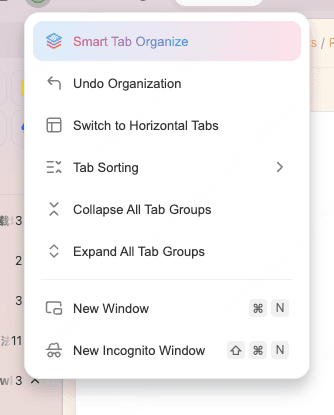
Instead of retrofitting bloated horizontal tab strips with floating round borders, Tabbit is built from the ground up as a streamlined, lightweight browser for focused research and deep work:
Native vertical workspaces without border bloat: Tabbit eliminates puffy title bars and unnecessary window framing. Your tabs sit organized on the side where titles remain completely readable, giving 100% of your screen height back to web content.
Context-aware AI that stays out of your way: Rather than tacking intrusive promotional buttons across your toolbar, Tabbit integrates AI assistance directly into the Omnibox and sidebar. You can summarize dense research papers, compare documents across multiple open tabs, or trigger automated Agent Mode workflows without opening separate popups.
Frictionless one-click import: Because Tabbit runs on the latest Chromium core, you get full compatibility with your existing Chrome extensions, bookmarks, and passwords. You can import your entire setup in seconds and start working in a clean layout immediately.
Always-current security: You never have to compromise your security by freezing updates or running obsolete binaries just to keep a sensible interface. Tabbit incorporates upstream security patches promptly while maintaining a disciplined, user-first UI philosophy.
If you are a developer, researcher, or knowledge worker who needs a fast, capable environment, Tabbit also functions as an exceptional developer browser that respects your workspace.
Tabbit's boundaries: When is it not the right choice?
Tabbit is designed for modern desktop productivity, vertical tab management, and AI-native automation. If you are looking for an exact 1:1 pixel clone of Chrome from 2016, or if your workflow requires extensive Mozilla userChrome.css stylesheet injection, a Firefox fork like Floorp might fit those specific niche needs better. But for users who simply want a fast, uncluttered Chromium environment that stays out of their way, Tabbit solves the problem natively.
How to choose your next move
Use this decision matrix to determine the safest course of action based on your specific situation.
| Your Situation | Immediate Safe Step | Workaround to Avoid | Recommended Long-Term Strategy |
|---|---|---|---|
| Toolbar feels crowded with new icons | Right-click and unpin extra buttons; turn off shopping widgets in Settings | Installing third-party "UI cleaner" extensions that request full page permissions | Maintain a minimal set of pinned extensions |
| Puffy tabs make page content feel cramped | Set default Page Zoom to 90% in Settings > Appearance | Adding --disable-features flags to shortcuts that break on updates | Switch to vertical tabs to reclaim full vertical screen height |
| Edge added rounded borders around web pages | Disable Startup Boost; adjust zoom to maximize viewport | Freezing Edge updates via group policies or stopping update services | Test a clean second browser with zero margin padding |
| Distracted by browser bloat & forced AI prompts | Turn off default sidebar prompts in settings | Downloading old, unpatched .exe installers from mirror sites | Migrate your workflow to Tabbit Browser for a distraction-free workspace |
| Need two distinct setups for work and research | Use separate browser profiles | Running conflicting browser extensions that modify DOM layout | Use Tabbit alongside your primary browser as a dedicated second browser |
How to report UI feedback effectively
Browser product managers rely heavily on aggregate telemetry and in-app feedback metrics. Ranting on social media rarely reaches the engineering teams, but structured bug reports and feedback submissions do.
If a recent update broke an accessibility feature or significantly degraded your workflow, submit feedback directly through the browser:
Chrome: Press
Alt + Shift + I(or clickMenu > Help > Report an issue).Edge: Press
Alt + Shift + I(or clickMenu > Help and feedback > Send feedback).Firefox: Visit
Menu > Help > Submit Feedback...(or post on Mozilla Connect).
Effective feedback template
To make your report actionable for UI designers, include specific technical details:
[Issue Summary]: Recent UI update reduced visible vertical viewport by ~40px on 1080p display.
[Device/Resolution]: Windows 11, 1920x1080 at 100% DPI scaling.
[Specific Problem]: The added padding around the tab strip and rounded webpage margins makes reading code and spreadsheet headers difficult without scrolling.
[Desired Behavior]: Provide a native toggle in Appearance Settings to enable Compact Density / Flat Margins without requiring experimental flags.
Conclusion
Browser updates will continue to push new visual paradigms, commercial features, and experimental design systems. Trying to freeze your browser in time with deprecated flags, brittle launch parameters, or dangerous version rollbacks is a losing battle that puts your digital security at risk.
The smart approach is straightforward: adjust what you can through safe, native settings to reclaim your vertical screen space. And when an upstream browser's design philosophy no longer aligns with your daily focus, make the switch to a purpose-built, clean productivity browser that respects your attention.
To learn more about keeping your system running fast and clutter-free, check out our analysis on why browsers feel slow and bloated.

FAQ
Can I permanently disable Chrome's rounded tabs and modern refresh?
No. Google phased out the experimental flags and legacy rendering code for the pre-2023 design. While temporary shortcut switches worked briefly, permanent reversion within current Chrome releases is no longer supported.
Why did my flag in chrome://flags or edge://flags disappear after an update?
Chromium flags exist only for developer testing and phased rollouts. Once a feature reaches standard production rollout, the upstream team deletes the flag and its toggle code from the codebase to eliminate maintenance overhead.
Is it safe to download an older version of Chrome or Edge to keep the old layout?
No. Running outdated browser builds leaves your system exposed to unpatched zero-day vulnerabilities and remote code execution exploits. Furthermore, SQLite databases like your history and cookies can become corrupted when opened by older versions.
What happens if I use --disable-features in my browser shortcut?
Adding launch arguments only affects instances launched from that specific shortcut. Links opened from Slack, email, or other apps ignore the shortcut flags. Over time, subsequent browser releases permanently strip out deprecated feature flags entirely.
How can I reclaim lost vertical screen space without modifying system files?
You can unpin unnecessary toolbar icons, hide promotional sidebars in settings, adjust page zoom to 90%, or switch to vertical tab orientation. These options give you more usable viewport height without breaking browser security.
How does Tabbit Browser prevent interface clutter while staying up-to-date?
Tabbit uses an AI-native interface with a built-in vertical workspace and uncluttered framing. Because features like AI summaries, Omnibox, and agents are native rather than tacked-on add-ons, you get maximum screen real estate without fighting forced corporate redesigns.