
You type two letters into Chrome's address bar and pause. Normally a dropdown appears with the sites you visited yesterday, the search you repeat every morning, maybe a calculation. Instead you get nothing. The bar sits there with your text and an empty space below it, or worse, one inline guess that completes the wrong URL.
This is not a rare complaint. A post on r/chrome describes the dropdown randomly refusing to appear, then coming back after opening a new tab, then vanishing again on the next one. The commenter behind another thread watched the box change size as if it were loading results that never rendered, and a restart bought him roughly a minute before it broke again. On Google's own support forum, a user who only receives a single inline completion instead of a full list found thirty-eight other people clicking "I have the same question" beneath the post.
The helpful part is that the causes are finite. Google documents that the address bar draws suggestions from exactly two places: your device's browsing history and your default search engine (Chrome Help). When the dropdown disappears, something has cut one of those feeds off, or the interface code displaying it has hit a bug. Four checks cover almost every case: settings, data, flags, and extensions.
There is also a second way to think about the problem. The steps below restore a conventional autocomplete dropdown. If what you actually want is an address bar that answers questions and runs tasks instead of guessing URLs, an AI-native browser such as Tabbit approaches the same input box differently, and we will compare the two near the end.
Key takeaways
Suggestions come from two feeds, your local browsing history and your default search engine. A blank dropdown means one feed or the display layer failed, not that your profile is broken.
Work through the checks in order: suggestion settings, then history data, then the Omnibox Grouping Framework flag, then extensions. Each step rules out a whole category.
Toggling the Omnibox Grouping Framework flag in chrome://flags fixed the problem for several Reddit users and did nothing for others, so expect a retry loop rather than a one-click cure.
Clearing browsing data starves the URL-suggestion side until you rebuild history through normal use.
If you use the address bar as a command line all day, moving that habit to an AI omnibox like Tabbit's reduces how much you depend on autocomplete ever appearing.
Symptoms and likely causes at a glance
| What you see | Likely cause | Start here |
|---|---|---|
| Dropdown randomly missing on every other new tab | Experimental flag caught mid-change | Step 3, the flags toggle |
| Box resizes like it is loading but stays blank | Omnibox display glitch after an update | Restart, then Step 3 |
| One inline autofill instead of a suggestion list | Suggestion settings turned off | Step 1, settings check |
| Works after relaunch, breaks again within minutes | Extension interference | Step 4, Incognito test |
| Thin suggestions ever since you cleared data | History needs rebuilding | Step 2, feed the bar |
| Nothing helps across two browser updates | Deeper profile damage | Step 4, then a fresh profile |
The last row is uncommon, but it happens. Before reinstalling anything, read our guide on why browsers feel slow and cluttered to rule out accumulated junk masquerading as corruption.
Where Chrome's address bar suggestions come from
Two independent feeds fill that dropdown. The first is your device's browsing history, which powers the URL completions for sites you have already visited. The second is your default search engine, which supplies query predictions as you type and powers features like inline calculations and unit conversions.
Each feed has its own failure modes. History-based suggestions disappear when the history itself is gone, either because you cleared it or because you browse in a mode that does not record it. Engine-based suggestions depend on a working connection to the search provider, so anything that blocks those requests, from privacy software to a stale default-engine entry, silences that half of the dropdown.
Both halves also pass through settings that moved around across Chrome versions. The toggle people usually want is labeled something like "Autocomplete searches and URLs", and product experts on the Google support forum direct users to check it under Sync and Google services before anything else. If you cannot find it by name, open chrome://settings and search the settings page for "autocomplete". Version differences make exact paths unreliable, so searching beats memorizing a menu trail that may no longer exist.
That version drift explains why so many threads end without a clean answer. The omnibox is one of the most actively experimented surfaces in Chromium, and the switches controlling it change name and location more often than most users update their mental map of the settings pages.
How to fix missing address bar suggestions, step by step
Run these checks in order. Each one takes a couple of minutes and eliminates one category of cause, so resist the urge to skip ahead unless a symptom above points you straight at a specific step.
Step 1: Confirm the suggestion settings are on
Open chrome://settings and type "autocomplete" in the settings search box.
Look for a toggle named like "Autocomplete searches and URLs" or "Use suggestion service" and make sure it is enabled.
While you are there, open the Search engine section and confirm a valid default engine is selected.
Close settings, open a new tab, and type a letter you have typed before.
If the dropdown returns, something or someone flipped the switch, possibly during a shared-computer session or an enterprise policy update. If it does not, the settings were never the problem and you have lost nothing but two minutes.
Step 2: Feed the bar something to suggest
Suggestions cannot appear if their raw material does not exist. After a "clear browsing data" session, especially one covering all time, the history feed is legitimately empty and the dropdown looks broken when it is merely starving.
Visit five or six sites you use daily, letting each page finish loading, then try the address bar again. Within a day of normal browsing the URL completions come back on their own. If you wiped data deliberately for privacy reasons and want a middle path going forward, our guide on why browser history is hard to search covers tools that make small, well-indexed histories more useful than big messy ones.
One related quirk: private windows leave no history behind by design, so URL completions inside Incognito stay sparse even when everything works. Do not mistake that thin list for the bug you are chasing; test in a regular window before drawing conclusions.
A broken default search engine produces the same symptom on the other feed. If predictions vanished but URL completions still work, re-select your preferred engine in the Search engine settings and test again.
Step 3: Reset the Omnibox Grouping Framework flag
When both settings and data check out yet the dropdown still misbehaves, the suspect becomes the experimental code path. Chromium is currently rolling out a framework that groups typed suggestions into sections, exposed in chrome://flags under the name "Omnibox Grouping Framework for Typed Suggestions". The rollout itself has been caught misbehaving, and flipping the flag appears to knock it loose.
A r/chrome commenter who fixed it described the sequence like this:
Go to chrome://flags/ search for Omnibox Grouping Framework for Typed Suggestions. It should say default, turn it to enable, and then relaunch Chrome via the bottom bar... After changing it and relaunching at least two to three times, it started to work.
The same thread records how uneven this fix is. One user replied "It fixed mine. Thanks." while the original poster tried it six times without any change and eventually suspected an extension instead. Treat the procedure as a lottery ticket with decent odds:
Navigate to chrome://flags.
Search for "Omnibox Grouping".
Switch the Typed Suggestions entry from its current value to the opposite one (Default to Enabled, or back).
Click Relaunch.
Test the dropdown. Repeat the flip and relaunch once or twice before giving up.
Once suggestions return, set the flag back to Default and relaunch again.
Two cautions apply. Flag names rotate between Chromium versions, so if the exact label is missing, search "omnibox" and read what is listed instead. And because this is an experiment, whatever state you leave it in may be overridden by a future update, which brings us to the maintenance-free alternative further down.
Step 4: Rule out extensions with an Incognito window
Extensions inject scripts into every page and some proxy or filter network traffic, which puts them squarely in the path of engine-provided suggestions. Security and privacy tools are the usual offenders, a suspicion the same Reddit thread raised for the case the flag could not fix.
Press Ctrl+Shift+N (Cmd+Shift+N on Mac) to open an Incognito window, where extensions stay disabled unless you allowed them explicitly, and type into the address bar. If suggestions appear there, you have your answer: go to chrome://extensions and re-enable your extensions one at a time, testing the omnibox after each, until the dropdown breaks again. The extension you land on deserves scrutiny, and if it was recently flagged or force-removed, our walkthrough on what to do when Chrome says an extension contains malware covers cleanup beyond simply deleting it.
No suggestions in Incognito either? Then the extension theory is dead, your profile carries deeper damage, and creating a fresh Chrome profile is the remaining conventional move. You can add one from the profile icon in the toolbar; it starts clean, without extensions and with its own history, which makes it a decent diagnostic before anything as final as reinstalling. If suggestions work in the new profile, migrate your bookmarks and passwords over and rebuild gradually rather than importing every extension back at once. Before you go that far, skim our piece on extension lifecycle changes under Manifest V2 and V3, because stale half-migrated extensions are a common source of exactly this kind of lingering weirdness.
A different route: give the omnibox a bigger job than autocomplete
Every fix above repairs a guessing game. The dropdown predicts where you meant to go, and when the prediction machinery fails, typing two letters earns you nothing. Some people are tired of repairing it. Another r/chrome user in the same discussion noted that his address bar had doubled as his calculator and mourned it: "my most handy calculator is useless now!" A third reported two Chrome updates arriving without fixing the dropdown at all.
That frustration points at a fair question: should getting to a site, running a quick calculation, or repeating yesterday's search really depend on a fragile suggestion pipeline?
Tabbit Browser takes a different position on what the input box is for. The Tabbit omnibox still accepts URLs, but it is equally happy receiving a plain-language question or a task. Ask for a summary of the report in your current tab, tell it to collect prices across five shopping sites, or type a calculation, and the request routes to an AI model rather than to autocomplete heuristics. Typing @ inside the box references context directly: an open tab, a whole tab group, a screenshot, a bookmark folder, or a local file such as a spreadsheet. The thing you were trying to reach through autocomplete memory becomes something you can point at.
The same pattern continues after you land on a page. Tabbit's Chat with Page answers questions about whatever is open in front of you, so finding a specific figure inside a long document does not depend on remembering the right keywords to search for in the first place.
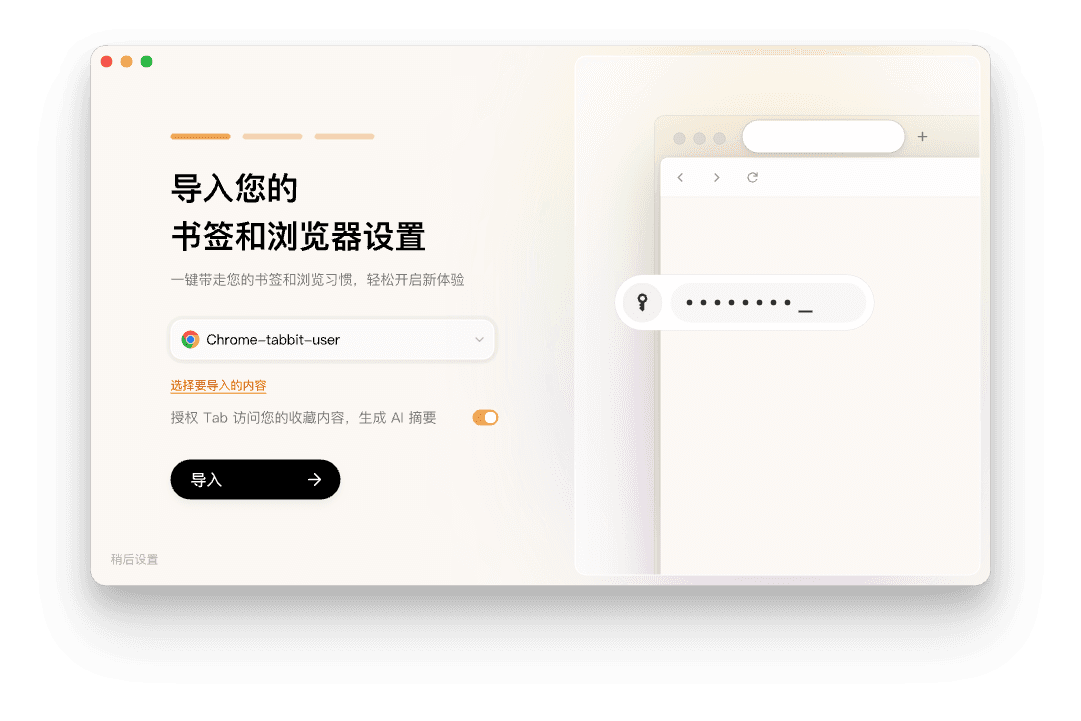
Switching costs are low. Tabbit imports bookmarks, browsing history, cookies, saved passwords, and extensions from Chrome, Edge, and Safari in one pass, so the URL completions you relied on travel with you:
For tab hoarders, Smart Tab Organization clusters open tabs into project groups automatically, which pairs well with referencing a group from the omnibox instead of hunting for the right tab. Our overview of the AI tab manager walks through that workflow, and if the volume itself is the problem, the practical system for too many browser tabs and our Chrome tab-grouping guide cover the classic side of the same problem. The Tabbit vs Chrome comparison lays out where the two browsers diverge on everyday speed and compatibility.
Honest boundaries: Tabbit is not a patch for a Chrome installation you need to keep. Corporate devices with locked-down policies, machines tied to Chrome-specific management tooling, and workflows built around Chrome-only extensions all belong on Chrome, flags and all. Tabbit is a free beta on macOS and Windows, which means rough edges of its own. And if all you want is the classic dropdown back, the four steps above remain the shortest path.
Which fix fits your situation?
| Your situation | Best move | Trade-off |
|---|---|---|
| Dropdown hiccuped once or twice today | Restart the browser and move on | Transient glitches often clear themselves |
| Suggestions gone for days | Steps 1 through 4, in order | Costs about fifteen careful minutes |
| Cleared history for privacy, dropdown feels empty | Rebuild history through normal browsing | Expect a thin list for a day or two |
| Live in the address bar for calculations and jumps | Try the Tabbit omnibox | New browser, however brief the adjustment |
| Locked-down work machine | Ask IT before touching flags or profiles | Policy may override everything anyway |
Final verdict
Start with Step 1 and walk forward; most readers find their culprit inside four short checks, and the flag toggle alone resolves a good share of cases according to the people who posted their results. Keep expectations calibrated for the rest: this part of Chrome is under active experimentation, the failure tends to return with updates, and the durable escape is reducing how much your daily flow leans on autocomplete in the first place. If you are weighing browsers more broadly, our browser comparison guide covers speed, privacy, and compatibility as separate axes.
If that last idea sounds right, install Tabbit Browser for free on macOS or Windows, import your Chrome data in one click, and put an omnibox in front of you that accepts questions and tasks instead of guessing where you meant to go.

FAQ
Why did my Chrome address bar stop showing suggestions?
Chrome builds the dropdown from two sources, your device browsing history and your default search engine. A suggestion-related setting, an emptied history, an experimental flag stuck mid-rollout, or a misbehaving extension can cut off one or both sources, leaving the dropdown blank or reduced to a single inline guess.
What is the Omnibox Grouping Framework flag fix?
It is an experimental Chromium feature that controls how typed suggestions are grouped in the dropdown. Some users on r/chrome reported that switching the flag away from its current value and relaunching, sometimes repeated two or three times, brought the missing suggestions back. Others saw no change, so treat it as worth trying rather than a guaranteed repair.
Will clearing browsing data erase my address bar suggestions permanently?
Clearing history removes the raw material Chrome uses for URL suggestions until you browse again. The suggestions are not gone forever, they rebuild from new activity. If you rely on typed shortcuts, expect a thin dropdown right after wiping data.
Can extensions block address bar suggestions?
They can. Community troubleshooting threads frequently point at security and privacy extensions as suspects because they intercept network requests, including the ones that fetch search suggestions. Open an Incognito window where extensions are disabled by default, and if suggestions return there, re-enable your extensions one by one to find the culprit.
Why does the suggestion dropdown appear blank or only every other time?
Several r/chrome users describe a pattern where the box alternates between working normally, showing only the typed text, and displaying a large blank panel that resizes as if loading. This alternating behavior points at a client-side rendering issue in the omnibox itself rather than missing data, which is why restarts and flag resets sometimes help temporarily.
How is Tabbit's omnibox different from Chrome's address bar?
Tabbit treats the input box as an AI entry point. You can still enter URLs, but you can also ask questions, reference open tabs or files with the @ key, and hand tasks to an agent that works in its own tab group. Because daily commands do not depend on autocomplete history alone, a broken suggestion feed matters less.