
A frustrated user in r/browsers summarized the modern browser dilemma in one honest question: why is it so hard to find a browser that is fast, blocks trackers by default, stays lightweight on memory, and does not break everyday websites every five minutes?
The frustration is everywhere. Default mainstream browsers pack their start pages with promotional widgets and shopping trackers. Hardened privacy setups frequently break bank portals and Google Docs. And users who try to solve both problems by installing seven different extensions often end up with a window that lags worse than the default configuration.
Every browser choice is a set of compromises across four competing variables: raw speed, tracking resistance, ad filtering strength, and website compatibility. Later in this guide, we examine Tabbit Browser as a modern desktop option that delivers full Chromium compatibility and built-in AI productivity without the promotional clutter or extension bloat.
Key takeaways
Browser selection is an engineering trade-off. No browser maximizes speed, extreme privacy, aggressive blocking, and universal compatibility simultaneously.
Chromium provides unmatched page rendering speed and universal web application compatibility, but default builds carry telemetry and interface clutter.
Gecko engines like Firefox offer superior control over network filtering and telemetry, but face occasional rendering quirks due to smaller web developer testing coverage.
Stacking multiple blocker, translation, and AI extensions causes worse memory bloat and latency than the default browser engine itself.
Tabbit provides a clean middle ground: modern Chromium compatibility, zero start-page ads or crypto extras, and native AI workspace tools that replace heavy extension stacks.
The browser decision matrix at a glance
| Browser category | Speed and responsiveness | Default privacy protection | Content and ad blocking | Web compatibility | Best suited for |
|---|---|---|---|---|---|
| Default Big Tech (Chrome, Edge) | High (fastest V8 engine) | Low (built-in telemetry and ad ecosystem ties) | Weak (limited by Manifest V3 rules) | Universal (100% web testing standard) | Users tied to Google or Microsoft cloud ecosystems |
| Built-in Privacy Chromium (Brave) | High (Chromium core) | Moderate to High (shields enabled by default) | Strong (native Rust network filter) | High (occasional breakage on strict script rules) | Users wanting instant ad blocking with zero initial setup |
| Independent Gecko (Firefox + uBlock) | Moderate | High (Enhanced Tracking Protection, non-Blink) | Very strong (full webRequest filter power) | Good (occasional corporate intranet or SPA quirks) | Privacy purists and users who value engine diversity |
| Hardened Specialty (LibreWolf, Mullvad) | Moderate to Low | Extreme (anti-fingerprinting, zero telemetry) | Maximum (strict blocking rules) | Fair to Poor (breaks logins, DRM media, and WebGL) | High-threat threat modeling and single-session privacy tasks |
| AI-Native Workspace (Tabbit Browser) | High (optimized Chromium runtime) | Clean (no promotional bloat or tracking feeds) | Standard Chromium extension ecosystem | Universal (full compatibility with web apps and media) | Professionals, researchers, and tab-heavy multitaskers |
The four core trade-offs explained
Understanding your browser starts with understanding why the "perfect browser" cannot exist in software engineering. Each core quality pulls against another.
1. Speed vs. process isolation
When people complain about Chrome RAM usage, they often assume it is sloppy programming. In reality, modern Chromium engines intentionally isolate every tab, extension, iframe, and GPU render pipeline into distinct operating system processes.
If an interactive web app crashes on tab four, tab one through three remain alive. If a malicious script attempts memory sniffing, process boundaries prevent it from reading session data in your adjacent bank tab. That security and stability guarantee costs memory overhead. Features like Memory Saver help suspend idle tabs, but an active web application with hundreds of DOM elements will always require substantial memory on a fast browser.
2. Privacy vs. tracking defaults
Privacy is not just a toggle; it is an architectural philosophy. Mainstream corporate browsers generate revenue through advertising ecosystems and telemetry. They collect search suggestions, browsing metrics, and device identifiers to refine ad targeting.
A truly private browser strips out telemetry, randomizes canvas fingerprinting, and isolates first-party cookies. However, strict anti-fingerprinting techniques can reset your site preferences on every restart and trigger security checkpoints on websites with fraud detection systems.
3. Content blocking vs. web compatibility
Ad blocking operates at two levels: network request filtering and cosmetic element hiding. Network filtering prevents ad servers from loading scripts, while cosmetic filters remove empty banner containers.
Problems arise when web developers bundle functional site code inside third-party script bundles or implement dynamic anti-adblock detection. A user on r/brave_browser described the real-world consequence: broken cookie consent dialogs and video stalls that forced constant site reloads. When a blocker is tuned too aggressively, standard web forms, checkout payment gateways, and streaming media fail without warning.
<Callout type="warning">
Aggressive cosmetic filtering and strict script blocking can prevent single-page applications from initializing necessary session states. If an essential site breaks, test it with standard blocking before switching browser engines.
</Callout>
4. The extension bloat trap
When users try to turn a bare browser into an all-in-one workstation, they install an ad blocker, a cookie pop-up dismisser, a grammar assistant, a price tracker, a translation tool, and three AI sidebars.
Every active extension injects content scripts into every web page you open. If you open twenty tabs, those six extensions run twenty separate script instances in the background. This creates severe browser bloat, degrades scrolling framerates, and causes memory spikes that no browser engine can optimize away.
Engine breakdown: Chromium vs Gecko
Under the surface, nearly all desktop browsers run on one of two major layout engines: Chromium (Blink) or Firefox (Gecko).
Chromium: The universal standard
Chromium powers Google Chrome, Microsoft Edge, Brave, Opera, Vivaldi, and Tabbit.
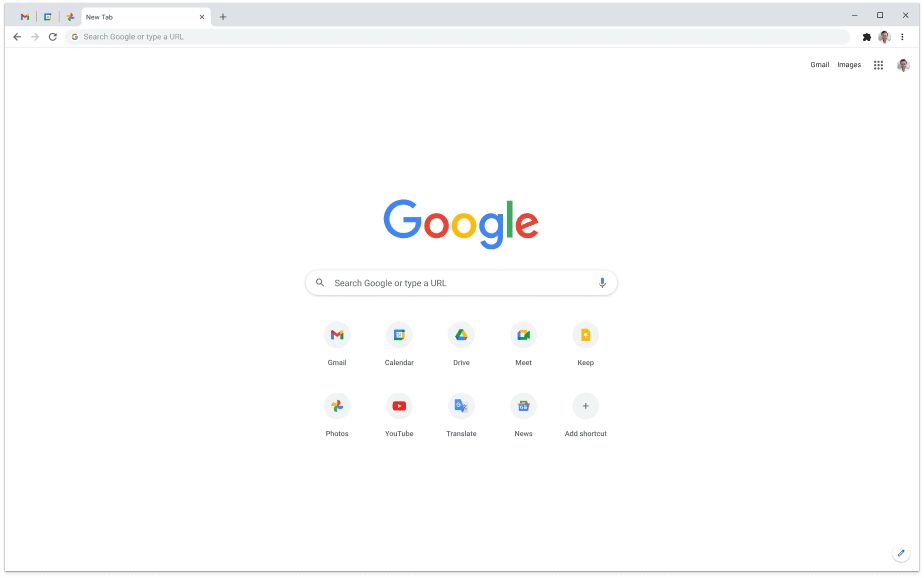
Why Chromium wins:
Raw JavaScript Execution: The V8 engine delivers unmatched execution speed for complex web applications like Google Docs, Figma, Notion, and Canva.
Universal Testing: Because Chromium holds over 75% of global desktop market share, web developers build and test their applications on Blink first.
Extension Ecosystem: The Chrome Web Store offers the largest library of productivity extensions in the world.
Where Chromium struggles:
Manifest V3 Constraints: Google changes to extension architecture limit the dynamic rule limits available to traditional content blockers.
Monoculture Risk: Relying on a single engine gives Google substantial influence over web standards.
Gecko: The independent alternative
Gecko powers Mozilla Firefox, Zen Browser, LibreWolf, and Floorp.
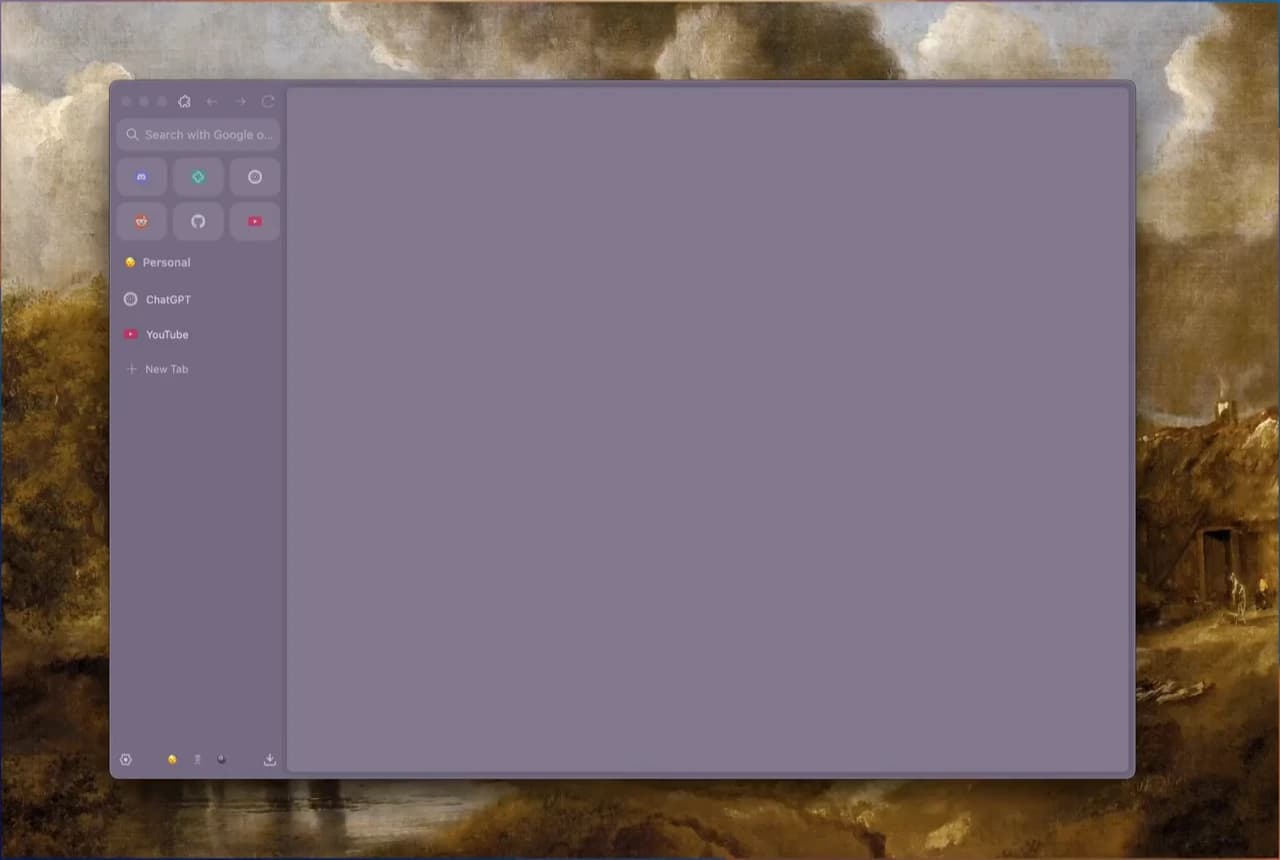
Why Gecko wins:
Full Blocking Capabilities: Firefox maintains full support for advanced webRequest APIs, allowing blockers like uBlock Origin to operate at maximum efficiency.
Multi-Account Containers: Firefox lets you isolate separate logins and cookie jars in color-coded tab containers within the same window.
Telemetry Transparency: Non-commercial forks provide thorough control over diagnostics and data reporting.
Where Gecko struggles:
Edge-Case Incompatibilities: Occasional modern enterprise portals and complex internal web tools glitch on Gecko because developers never tested them outside Chromium.
Heavy Tab Performance: While Gecko manages idle tab memory effectively, heavy JavaScript tasks can feel less snappy than on optimized V8 engines.
A practical alternative: Tabbit Browser
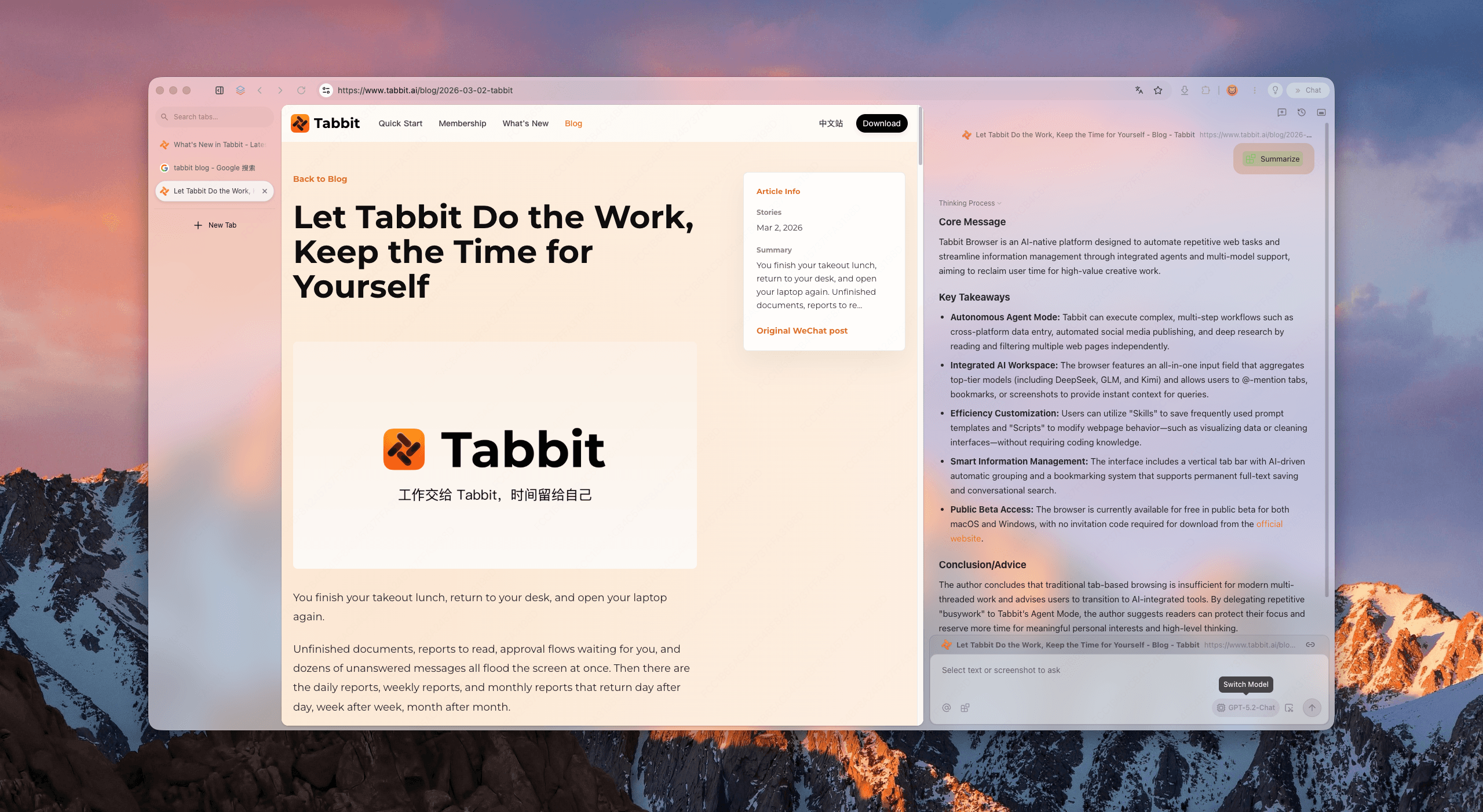
If you need full web compatibility for your daily work but are exhausted by start-page advertisements, crypto promotions, and extension clutter, Tabbit Browser offers a focused alternative.
Tabbit is built on a modern Chromium core, ensuring 100% compatibility with every web application, video streaming service, and Chrome Web Store extension. What makes it different is how it treats your desktop workspace.
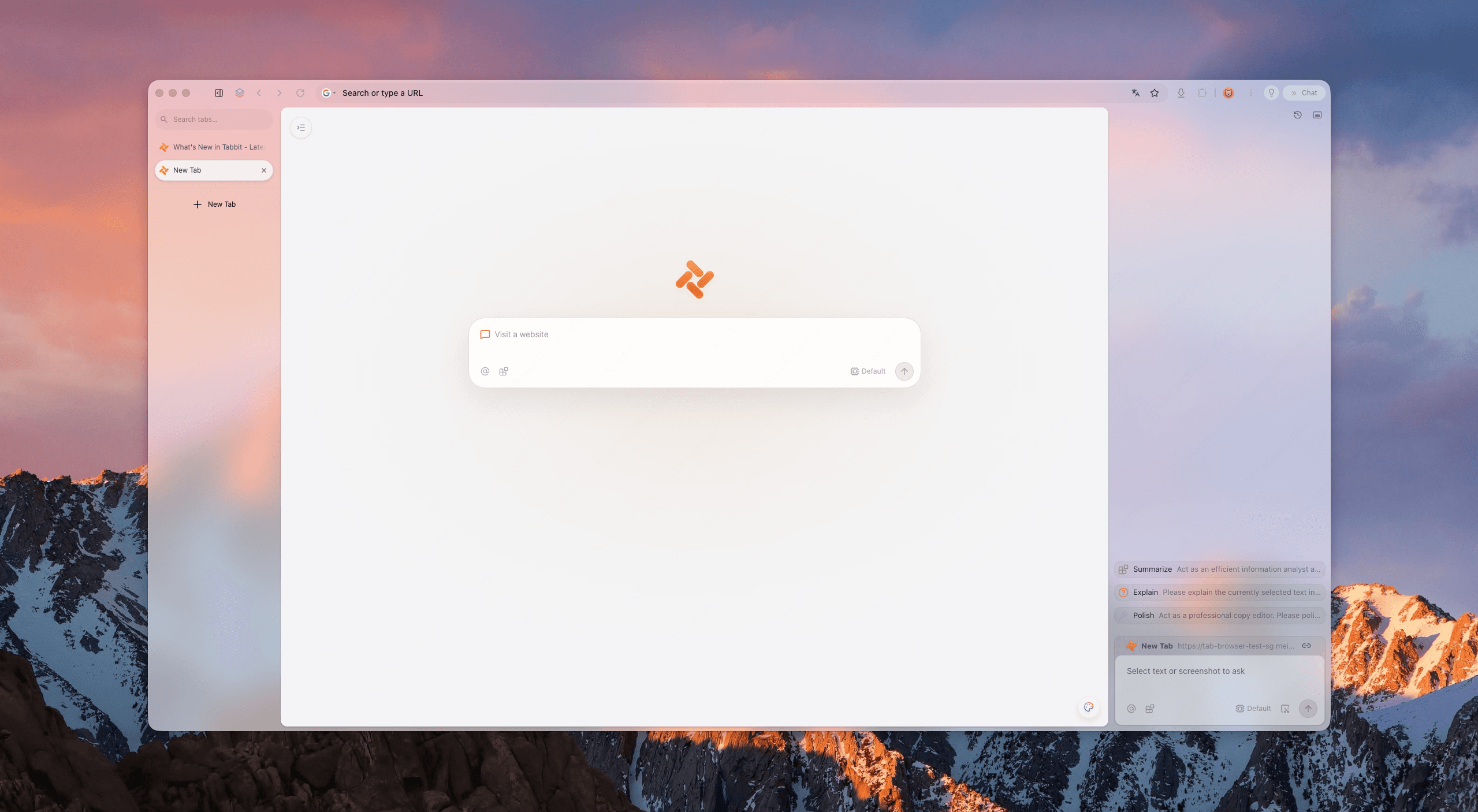
1. Zero promotional clutter out of the box
Unlike Edge with its news feeds or Brave with its cryptocurrency widgets, Tabbit opens to a clean, distraction-free new tab page. There are no sponsored shopping links, no mandatory partner notifications, and no background services trying to monetize your attention.
2. Native AI tools that eliminate extension bloat
Instead of installing multiple resource-heavy AI extensions that monitor every web page, Tabbit integrates AI capabilities directly into the browser runtime:
Agent Mode: Run multi-step web tasks, research extraction, and data compilation in dedicated, isolated tab groups without interrupting your main browsing window.
Omnibox Context Citations: Type
@in the address bar to reference active tabs, bookmarks, or documents directly into your AI query without copying and pasting.Page Chat and Summaries: Generate structured takeaways from long reports without injecting third-party content scripts into your DOM.
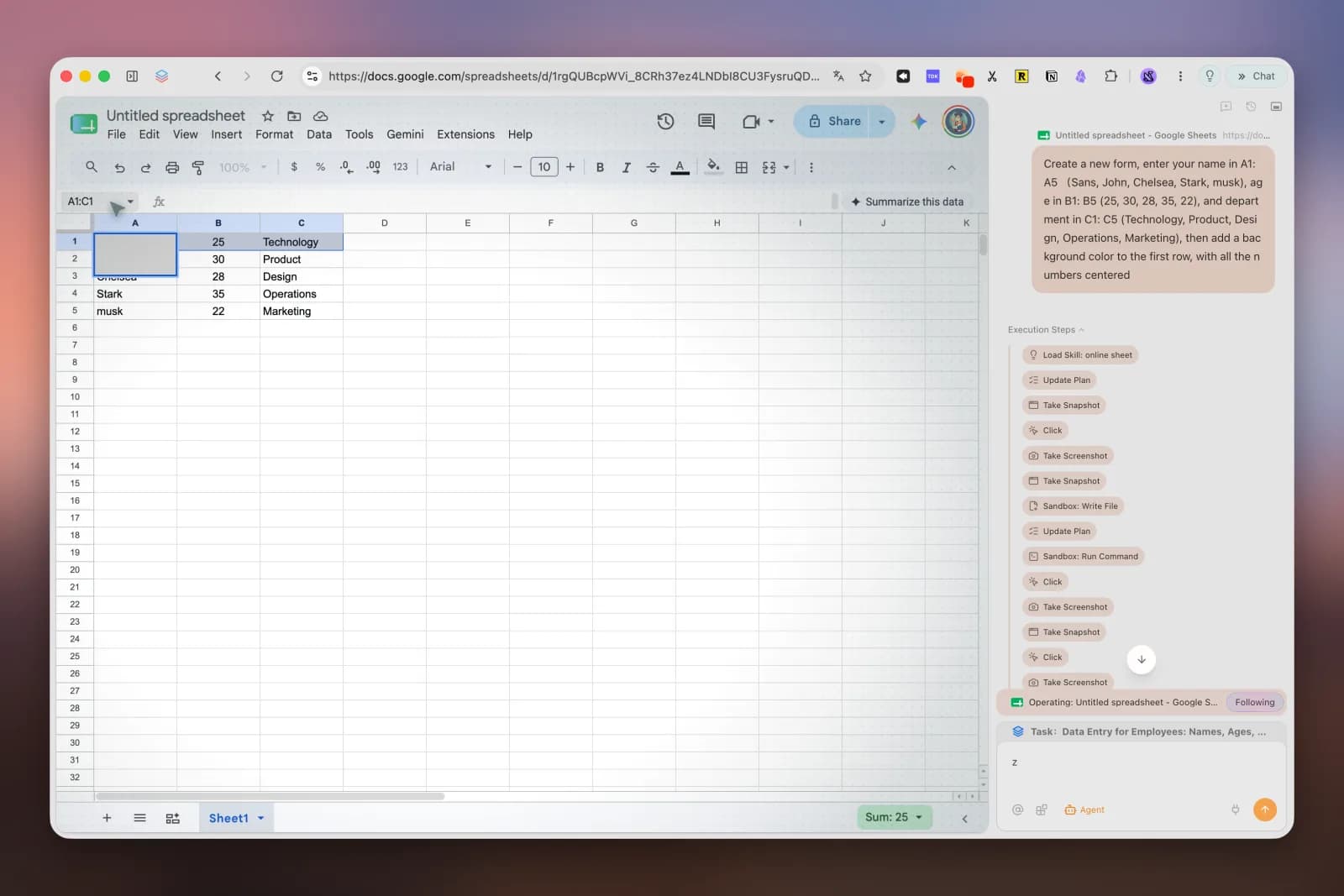
3. Clean tab architecture for heavy workflows
Tabbit replaces horizontal tab crowding with structured vertical sidebars and Smart Tab Organization. When you handle dozens of project tabs, you can organize them by topic without losing track of page titles. If you are comparing Tabbit vs Chrome for focused work, this native layout design eliminates the need for separate tab management extensions.
4. Clear boundaries and trade-offs
Tabbit is engineered as a productivity browser for desktop users on macOS and Windows. It does not attempt to be an anonymous dark-web browser like Tor, and it does not operate on mobile platforms. For knowledge workers who need a reliable, lightweight browser experience with modern AI execution, it strikes an honest balance.
Which browser fits your exact workflow?
Use this decision matrix to match your specific priorities to the right browser setup:
| Your primary workflow | Recommended setup | Primary benefit | Trade-off to accept |
|---|---|---|---|
| Heavy web apps and enterprise tools (Figma, Google Workspace, Jira) | Tabbit Browser or vanilla Chromium | 100% web compatibility, fast V8 engine, smooth video playback | Chromium engine foundation |
| Deep research and multi-tab synthesis | Tabbit Browser | Built-in Agent Mode, vertical tab groups, zero extension clutter | Desktop-only (macOS and Windows) |
| Maximum non-Chromium privacy control | Mozilla Firefox + uBlock Origin | Strong tracking isolation, independent Gecko engine | Occasional site rendering quirks on niche portals |
| Quick ad blocking with zero configuration | Brave Browser | Instant out-of-the-box tracker and ad shields | Built-in crypto and wallet features in settings |
| Single-session anonymity and threat defense | Tor Browser or LibreWolf | Zero persistent identity, strict anti-fingerprinting | Breaks logins, streaming DRM, and dynamic web apps |
How to migrate without losing your setup
Switching to a better browser does not require rebuilding your digital life from scratch. Follow this clean three-step migration:
Perform a one-click profile import: When launching a new browser like Tabbit, select your previous browser (Chrome, Edge, or Safari) to import bookmarks, passwords, and browsing history instantly.
Audit your extensions before reinstalling: Do not blindly copy twenty extensions over. Start with your password manager. Test whether built-in browser features cover your translation, tab grouping, and research needs before adding extra plugins.
Set up clean workspace separation: Learn how to use profiles vs workspaces and organize too many tabs so your work projects and personal browsing stay separated.

If you are ready to replace start-page noise and extension lag with a clean, AI-native desktop workspace, download Tabbit Browser for macOS or Windows. It is completely free to use with no invite code required.

FAQ
Why can no single browser maximize speed, privacy, and compatibility all at once?
Browser architecture requires trade-offs. Deep privacy isolation blocks scripts that modern web apps rely on, aggressive network filtering can break dynamic checkout modals, and multi-process security isolation uses system RAM by design.
Does ad blocking always break complex websites?
Basic network-level ad blocking rarely breaks web pages. Site breakage happens when cosmetic filters remove required user interface elements, or when strict privacy rules block essential session scripts and third-party authentication tokens.
Is Firefox more private than Chromium browsers?
Firefox offers strong native tracking protection, full support for powerful webRequest ad blocking APIs, and does not feed into Google advertising systems. However, its small market share means some enterprise web applications test primarily against Chromium engines.
Why does stacking privacy and AI extensions slow down browsing?
Every browser extension injects its own JavaScript bundles into every loaded tab and runs separate background processes. Stacking multiple blocker and AI extensions multiplies memory consumption and adds noticeable latency to page rendering.
How does Tabbit Browser balance compatibility with a clean workspace?
Tabbit uses a modern Chromium core for full website and extension compatibility while stripping away new-tab ads, sponsored tiles, and telemetry clutter. It integrates native AI research and agent workflows directly so you do not need heavy third-party extension stacks.
How do I switch browsers without losing my setup?
Modern desktop browsers offer one-click migration tools. You can import bookmarks, browsing history, saved passwords, and active session cookies in seconds without manually reconfiguring your web accounts.