
A Chrome user on Linux hit a wall that had nothing to do with an old browser. "I'm getting the message that my browser is unsupported for Twitch, even though I'm using the latest version of chrome," they wrote on r/Twitch. The platform token in their user agent was enough for the site to turn them away.
That string the site read, the user agent (sometimes called your browser agent), is the ID card your browser hands to every website you visit. And the annoying part is not finding it. That takes ten seconds. The annoying part is that the string looks like noise, yet websites quietly make decisions based on it.
Below: what the string says, the fastest ways to pull it up in any browser, and why you almost never need to change it. Along the way, we will use Tabbit Browser to look one up and have AI explain it piece by piece.
Key takeaways
Your user agent is a text string that identifies your browser, version, operating system, and device type to every site you visit.
Fastest lookup: open a detection site like whatmyuseragent.com or DNSChecker's user agent page. Built-in method: type
navigator.userAgentin your developer tools console.Chrome's string says "Safari" and "KHTML, like Gecko" for historical compatibility reasons, not because it is Safari.
Modern browsers freeze parts of the string (User-Agent reduction) to limit fingerprinting; sites that need more use Client Hints.
Sites can and do block or downgrade requests based on the user agent, so changing it with an extension often breaks pages instead of helping.
How to find your user agent at a glance
| Method | Steps | Best for | Limit |
|---|---|---|---|
| Detection site | Open a page like whatmyuseragent.com or DNSChecker's user agent tool; it reads your request header and shows the string | Anyone who wants the answer in one click | Needs an internet connection; the site sees your visit |
| Developer console | Press F12 on Windows/Linux or Cmd+Option+I on macOS, open the Console, type navigator.userAgent, press Enter | Offline use; copy-paste exact string | Requires a keyboard shortcut some people never use |
| Network panel | Open dev tools, switch to the Network tab, reload the page, click any request, and view its request headers | Developers checking what the browser really sends | Overkill for a simple lookup |
If you prefer a video walkthrough, there is a decent short one on YouTube titled "How to find User Agent Information in your Browser".
What your user agent tells websites
Open the console method on a desktop Chrome and you will see something like this, which MDN documents as the current Chrome desktop format:
Mozilla/5.0 (Macintosh; Intel Mac OS X 10_15_7) AppleWebKit/537.36 (KHTML, like Gecko) Chrome/143.0.0.0 Safari/537.36Read it left to right and it stops being noise:
Mozilla/5.0: a compatibility token. For historical reasons, almost every browser today starts its string with it, Firefox included.(Macintosh; Intel Mac OS X 10_15_7): the platform, Apple's desktop OS.AppleWebKit/537.36: the WebKit engine version the browser builds on.(KHTML, like Gecko): more compatibility tokens, explained below.Chrome/143.0.0.0: the browser and its version. This is the part sites actually key on most.Safari/537.36: yes, Chrome ends with a Safari token. Historical, not a bug.
Firefox's format is more honest about itself: Mozilla/5.0 (platform; rv:gecko-version) Gecko/gecko-trail Firefox/firefox-version, per MDN's Firefox section. Safari adds a Version/xx.x token before its engine build, and on iPhone every third-party browser (Chrome, Firefox, Edge) still sends a WebKit-style string because iOS requires browsers to use WebKit.
Why the string looks so weird
The strange tokens are scars from the browser wars. Early websites checked the user agent and served stripped-down pages, or refused to load at all, for anything they did not recognize. Newer engines responded by borrowing the old names. Chrome added KHTML, like Gecko and Safari tokens so that sites written for WebKit would treat it like family. Firefox, Opera, and Edge all carried their own historical baggage for the same reason.
A Firefox support contributor on Reddit summed up the modern reality: the user agent is "a relic of the past, at least in theory... some questionably made sites still do" depend on it. Well-built sites should use feature detection instead. The string still matters precisely because not every site is well built. If the whole idea of a browser mediating between you and a site is fuzzy, our plain-English guide to web browsers fills in the background first.
User-Agent reduction: why your string now says less
The string above is also a privacy problem. It is one more data point (browser version, exact OS build) that trackers can combine into a fingerprint. So Chromium-based browsers now freeze parts of it. MDN's reduction notes describe the Android change: the platform version is fixed at Android 10, the device model shows a frozen K, and Chrome's minor version is always 0.0.0, producing strings like Mozilla/5.0 (Linux; Android 10; K) AppleWebKit/537.36 (KHTML, like Gecko) Chrome/143.0.0.0 Mobile Safari/537.36.
You can spot this on desktop too. A current Chrome on a current Mac still reports Intel Mac OS X 10_15_7; the OS version simply stopped updating in the string. Websites that genuinely need richer detail can ask for it through User-Agent Client Hints: the server sends an Accept-CH header, and the browser answers with Sec-CH-UA-* headers carrying structured, per-request information.
Two practical takeaways. First, if a site tells you your browser is old because of a frozen version number, the site is reading the string wrong. Second, a smaller string means changing it buys you even less privacy than it used to.
When the user agent works against you
Because servers trust this string, three recurring problems show up in community threads.
Misidentification is the most common. The Twitch case above: latest Chrome, wrong platform token, blocked message. Similar detection logic is why some banking and government portals insist on specific browsers; we covered that pattern in the patient portals article.
Deliberate gating happens too. Ask whether a site can block you over the string and the answer is yes: servers can refuse any request for any reason, as the same r/firefox thread confirms.
Spoofing blowback is the self-inflicted version. Extensions that rotate or fake your user agent trade one problem for several. One Windscribe user reported on Reddit that rotating user agents left YouTube loading nothing and got Google Docs blocked as an "unsupported" browser. Even setting the string to empty is an experiment, not a fix. Developer Šime Vidas tried exactly that on X to see what would break.
None of this means your user agent is dangerous knowledge. It is not a password, and every site you visit already has it. The string is worth understanding for the same reason it is worth knowing what information a form asks of you: so you can tell when a site is making a bad call.
Finding and reading your user agent with Tabbit
Lookup takes ten seconds in any browser. The follow-up question, "okay, what does this string actually mean for me?", is where an AI-native browser earns its keep.
In Tabbit Browser, the AI browser we look at more closely in what is Tabbit Browser, the Omnibox on the new tab page doubles as an AI input, so the whole flow stays in one place:
Type a detector site such as
whatmyuseragent.cominto the Omnibox and open it. Your full string appears at the top of the page.In the side panel, reference the page with
@and ask Tabbit to walk through the string: which token is the browser version, which is the frozen platform, why the Safari token is there. The AI reads the page you are on, so you do not have to copy anything.If you hit an "unsupported browser" wall on some site, switch to Agent Mode and let Tabbit open the page, read the error, and report what the site claims to be rejecting. Our agentic browser explainer covers the pattern behind the name.
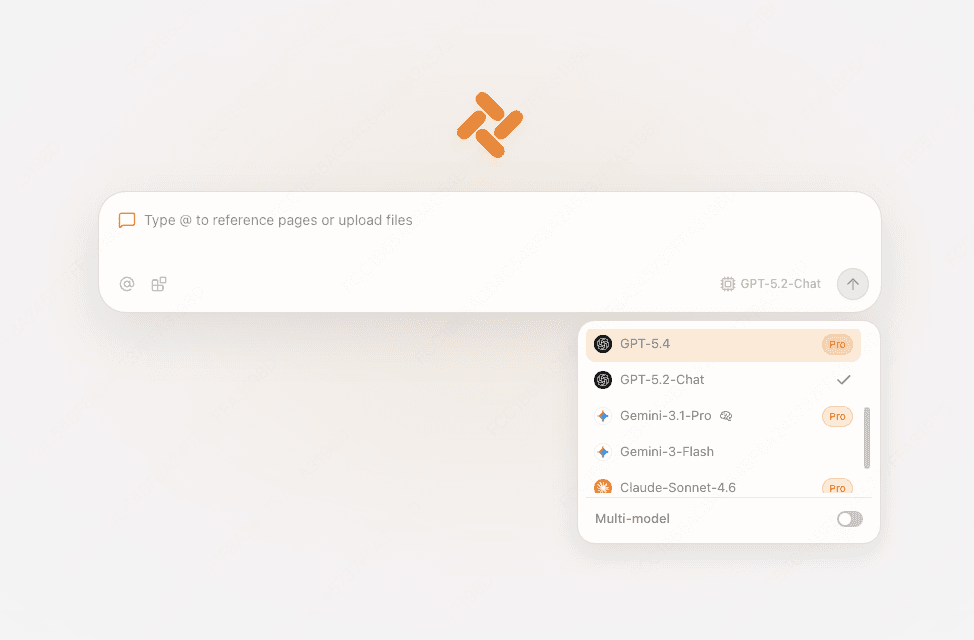
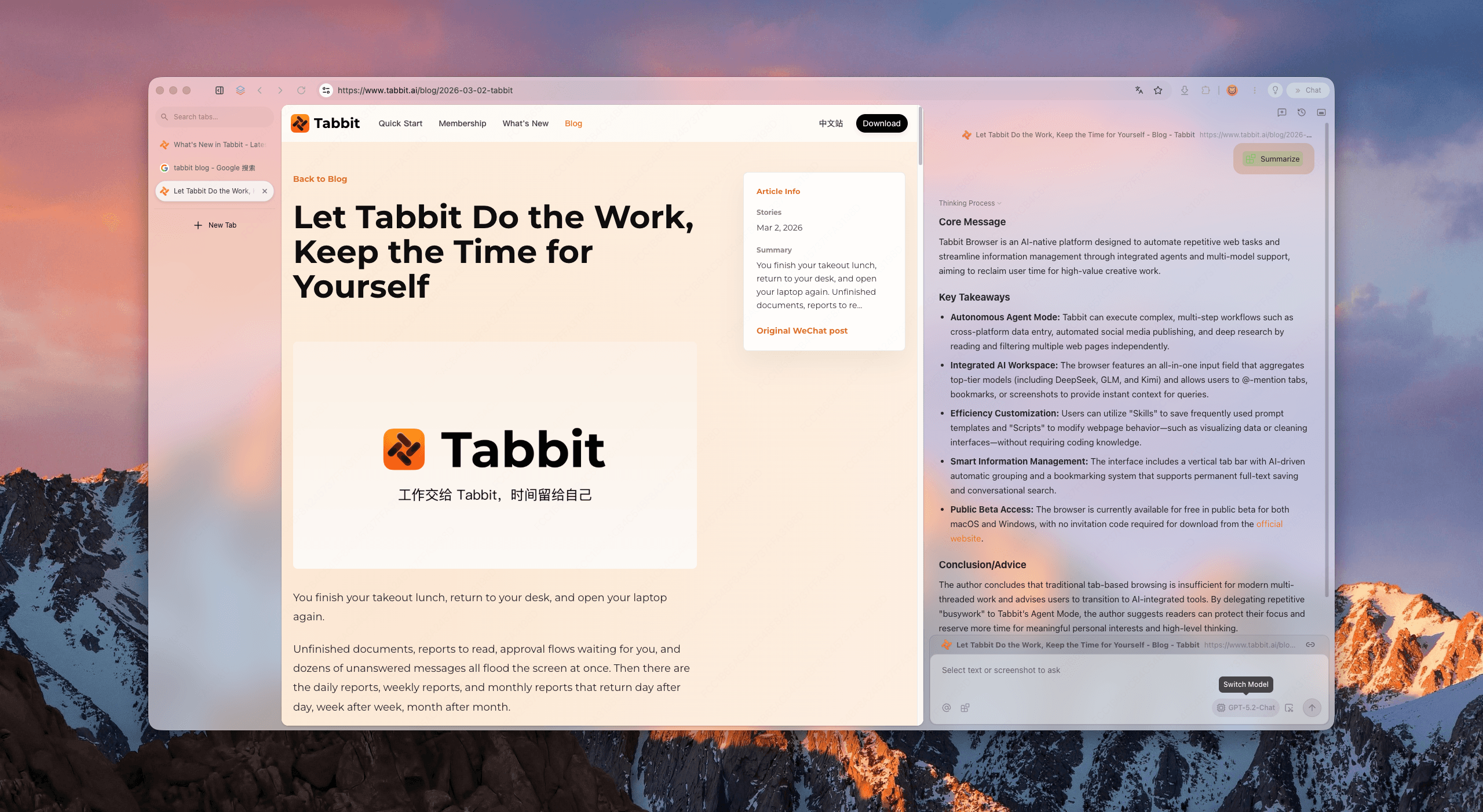
The honest trade-offs: the AI explanation is a reading aid, and the string's ground truth remains the spec and MDN's reference, not a chat answer. Tabbit does not modify your user agent and has no plans to. The string is a platform-level decision, and freezing plus Client Hints is the industry's agreed direction. Where Tabbit helps is the surrounding loop: check the string, understand it, and diagnose the page that misread it. If your real problem is sites breaking after an update rather than the string itself, start with the browser troubleshooting guide. For the privacy side of fingerprinting, see why privacy protection sometimes breaks websites. And if what actually bothers you is a browser that feels slow and overstuffed, that is a different fix; see browser bloat explained.
Which route should you take?
| Scenario | What to do | Why |
|---|---|---|
| A support form asks for your browser info | Copy your user agent from a detection site into the form | Support teams use it to reproduce your exact environment |
| A site says your browser is unsupported | Check the string first, then update the browser; if it persists, the site's detection is likely wrong | A current browser can still be misread, as the Linux Chrome case shows |
| You are debugging a layout or feature bug | Use the console or Network panel method, and test with Client Hints-aware tools | Developers need the raw string plus what the server negotiated |
| You want more privacy | Leave the user agent alone; use tracker blocking instead | Spoofing breaks sites, and reduction already shrank the exposed data |
| You are choosing a new browser anyway | Pick on speed, privacy, and workflow fit, not the UA string | Every modern browser sends a similar string; the differences that matter are elsewhere. See how to choose the right browser and our notes on a browser built for productivity |
The verdict: your user agent is a small, public string that sites use to identify your browser. Find it when you need it, understand enough to spot a bad detection, and leave it alone otherwise. If you also want the lookup-and-explain step to live inside the browser you already use, Tabbit Browser handles both in one place. It is free for macOS and Windows, and you can import your bookmarks, history, and extensions from Chrome, Edge, or Safari in one step, the same move our backup-before-switching checklist walks through.

FAQ
What is my browser agent, in plain English?
It is a short text string your browser sends to every website you visit, telling the site which browser, version, operating system, and device type you are using. Servers use it to decide which version of a page to serve. You can see yours instantly on a detection site or by typing navigator.userAgent into your browser's developer console.
How do I find my user agent in Chrome, Edge, Firefox, or Safari?
The fastest way is to open a detection site, which reads the User-Agent header from your request and displays it. For a built-in method, press F12 or Cmd+Option+I to open developer tools, switch to the Console, type navigator.userAgent, and press Enter. Every major desktop and mobile browser supports both methods.
Why does my Chrome user agent say Safari and KHTML, like Gecko?
Those tokens are historical leftovers from the browser wars. Early sites checked for specific engines and locked others out, so newer browsers added older engines' names to their strings to be allowed in. Chrome is Blink-based, but its string still carries KHTML, like Gecko and Safari tokens for compatibility. Almost every browser also starts with Mozilla/5.0 for the same reason.
Can websites block me because of my user agent?
Yes. A server can refuse or downgrade any request based on the User-Agent header, and some sites still gate features or show unsupported-browser messages for certain browsers or platforms, even when your browser is up to date. Community reports include latest-version Chrome on Linux being told a site is unsupported because the site's detection logic keys on the platform token.
Should I change or hide my user agent?
For almost everyone, no. Modern browsers already freeze much of the string to reduce fingerprinting, and extensions that rotate or empty your user agent tend to break more than they fix, including Google Docs and YouTube. Only developers testing compatibility should spoof a user agent, and only temporarily.
What is User-Agent reduction and Client Hints?
User-Agent reduction is a privacy change in Chromium-based browsers that freezes parts of the user agent string, such as fixing the Android version at 10, the device model at K, and zeroing minor version numbers. Websites that legitimately need more detail can request it through User-Agent Client Hints, where the server asks via an Accept-CH header and the browser answers with Sec-CH-UA headers.