
Chrome pages can become too large in a hurry. Text wraps into tall columns, a button slips below the fold, or one accidental shortcut makes every search result look wrong. A Reddit search for “Why are my search pages suddenly zoomed out and how to fix it?” shows how common the last problem is. You may also simply want to see more of a wide dashboard without changing the rest of your computer.
The quick answer is simple: press Ctrl and - on Windows, Linux, or ChromeOS, or Command and - on a Mac. Use the Chrome menu when you want to see the percentage. Press Ctrl+0 or Command+0 to return the page to 100%. The rest of this guide explains which zoom layer you are changing, including mobile Chrome and per-site settings.
Key takeaways
Page zoom changes the website, not Chrome's tabs, address bar, or the rest of the desktop.
The minus shortcut reduces the current site's page zoom. Chrome normally remembers that choice for the site.
Settings > Appearance > Page zoom changes the default used by webpages without a site-specific value.
Font size is a better fit when layout is fine but reading text is difficult.
Android and iPhone Chrome use text-size controls; desktop-site mode changes how a site lays itself out.
If the page says 100% but the whole screen is small, inspect browser UI or system display scaling instead.
Chrome zoom at a glance
| What you want to change | Where to change it | Reset or boundary |
|---|---|---|
| Current webpage | Chrome menu > Zoom, or Ctrl/Command plus minus | Ctrl+0 or Command+0 returns to 100% |
| Default webpage level | Settings > Appearance > Page zoom | A site-specific value may override it |
| Text while preserving more layout | Settings > Appearance > Font size, or mobile text-size control | This is not the same as page zoom |
| Tabs, address bar, and Chrome controls | Browser or operating-system display settings | Does not necessarily change webpage CSS |
| One hard-to-read screen | OS accessibility magnification | Affects more than the current page |
The fastest way to zoom out on a Chrome page
Open the page that is too large, then use the shortcut for your device:
| Device | Zoom out | Zoom in | Reset |
|---|---|---|---|
| Windows, Linux, ChromeOS | Ctrl + - | Ctrl + + | Ctrl + 0 |
| Mac | Command + - | Command + + | Command + 0 |
| Mouse or trackpad | Hold Ctrl, or Command on Mac, while scrolling down | Hold the same key while scrolling up | Use the reset shortcut |
The shortcut applies to webpage content. It does not make the address bar, tab labels, or Chrome menu smaller. That distinction matters when a page looks fine but Chrome itself feels oversized.
If the shortcut does nothing, click the page first and check that another application has not captured the key. A stuck Ctrl key can also make scrolling look like repeated zoom changes. The Chrome Help page on keyboard shortcuts is the reference when key labels differ on a non-US keyboard.
Use the Chrome menu when the shortcut is easy to misread
Open the page.
Select the three-dot Chrome menu in the top-right corner.
Find Zoom and select the minus button until the page fits.
Select the percentage or use the reset control when you need 100%.
The visible percentage is useful evidence. If Chrome shows 80% for one site and 100% for another, you are looking at per-site page zoom, not a global display problem. If the page still pushes controls off-screen at 100%, the site may have its own responsive layout or a browser extension may be changing it. For broader browser troubleshooting, see why Chrome gets slow and what clearing cache changes.
Change only one website or set a default
Chrome generally keeps a page-zoom choice with the site. This is useful for a dense admin console or a page with tiny text. It also explains why a single site can stay at 80% after you reset another tab.
To change the default for sites that have no saved override, open Chrome Settings > Appearance > Page zoom and choose a level. Google describes this control in its desktop zoom instructions. A default is a starting point, not a guarantee that every site will use identical spacing.
Use a site-specific level when one site is the problem. Use the default when most websites are too large. Reset the current site to 100% before troubleshooting its layout, so you are not debugging a local preference by accident.
Page zoom, font size, and browser UI are different
These settings are close together in everyday conversation, but they solve different problems.
Page zoom scales the webpage, including images and controls. It can make a wide table fit but may also change its responsive breakpoints.
Font size targets text. It can help reading without shrinking a page's full layout, although sites that define their own sizes may respond differently.
Browser or system scaling changes Chrome's surrounding controls or the whole display. It is the right place to look when tabs, menus, and every application are too small or too large.
Do not use full-screen mode as a substitute for zoom. Full screen hides surrounding windows; it does not reliably change the page's zoom percentage. If Chrome is using too much memory while you test several pages, browser bloat explained and tab cleanup ideas address that separate problem.
Zoom out on Android Chrome
Android Chrome does not mirror the desktop percentage control in every version. On a page, open More and look for Zoom text or the text-size controls. Use the minus control until the page is readable, then close the control. Google's Android instructions are the place to check when menu names move.
There are two common traps:
Desktop site asks the website to send a desktop layout. It may show more columns, but it is not the same as page zoom.
System display size changes Android's broader interface. It affects other apps too, so do not change it merely because one page is oversized.
If a page blocks pinch gestures, the site's layout or Chrome's accessibility behavior may be responsible. Try Chrome's own text-size control first, then inspect the device accessibility settings. Do not install an unknown “zoom” extension or app just to reach a smaller percentage.
Zoom out on iPhone and iPad Chrome
Open the page, tap More, and use Chrome's text-size control. On iPhone and iPad, the control is designed around text readability rather than the desktop keyboard percentage. Google documents the current iOS path in Chrome Help for iPhone and iPad.
If you choose Request Desktop Website, the site may render a different layout. That can solve a mobile page that hides a control, but it can also make text and buttons harder to use. iOS text size and Display Zoom are system-level choices, so they should be changed only when the issue appears across apps.
A small Tabbit workspace for the investigation
The setting itself belongs to Chrome. The frustrating part often involves several pages: the site that is too large, Chrome Help, an accessibility page, and a note about what percentage worked. A search result can also lead you into a video, an old answer, and a support page with different mobile instructions.
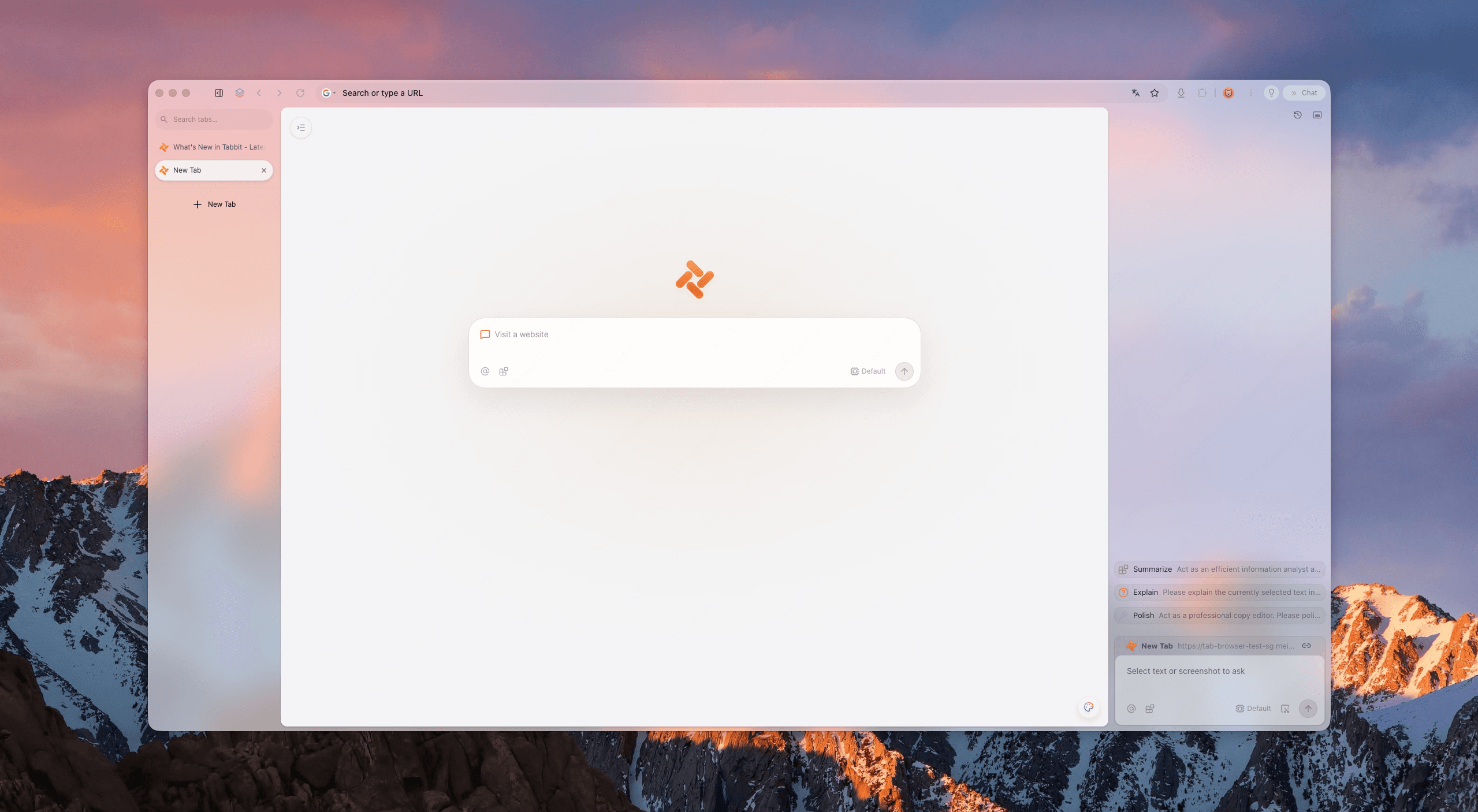
In Tabbit Browser, keep those sources together with Smart Tab Organization, then use page chat to extract the steps you want to compare. Read the original Chrome page before changing a setting. Tabbit does not control Chrome's zoom and cannot guarantee that a site will keep a custom layout.
This is also where a second browser can be useful. If the page is a work task, browser profiles and workspaces can separate research from a crowded personal session. If you only need to silence a noisy reference tab, mute a Chrome tab instead of closing it.
Choose the smallest change for the symptom
| Symptom | First action | Why |
|---|---|---|
| One page is too large | Menu Zoom minus | Keeps other sites unchanged |
| Most sites are too large | Settings > Appearance > Page zoom | Sets a default starting level |
| Text is hard to read but layout is fine | Font size or mobile text-size control | Targets reading rather than the full page |
| A wide table hides columns | Page zoom minus, then check the site layout | Smaller content may reveal more columns |
| Tabs and menus are too large | Browser or OS display scaling | Page zoom cannot resize Chrome's UI |
| Page says 100% but still looks wrong | Reset the site, then check extensions and responsive layout | Avoids treating a site bug as a zoom setting |
If the issue began after you changed privacy or accessibility controls, review the site's behavior rather than repeatedly lowering zoom. Privacy settings that break websites covers another reason a page can stop behaving normally. For a separate second-browser workflow, see your second browser.
Final answer
For a page that is too large, use the Chrome menu's minus button or Ctrl/Command plus -. Press Ctrl+0 or Command+0 when you need a clean 100% baseline. Use Appearance > Page zoom for a default, font size for reading, and system scaling only when Chrome's whole interface or every app is affected.
Tabbit fits around the task by keeping the page, official instructions, and notes together. It does not edit Chrome settings. Install Tabbit Browser if that research workflow is useful to you.
FAQ
What is the shortcut to zoom out in Chrome?
On Windows, Linux, and ChromeOS, press Ctrl and the minus key. On Mac, press Command and the minus key. Press Ctrl+0 or Command+0 to reset the page to 100%.
How do I zoom out on only one website in Chrome?
Open the site, use the Chrome menu's Zoom controls, and choose the minus button. Chrome normally remembers page zoom by site, so another site can keep its own level.
How do I set Chrome's default zoom?
Open Chrome Settings, choose Appearance, find Page zoom, and select a level. This becomes the starting zoom for webpages unless a site has its own saved setting.
How do I zoom out in Chrome on Android or iPhone?
On Android, open More and use Zoom text when the option is available. On iPhone and iPad, use Chrome's text-size control from More. Desktop-site mode can change the layout, so it is separate from shrinking text.
Why does Chrome look small even when page zoom says 100%?
Page zoom changes webpage content. Browser UI scaling, operating-system display scaling, and accessibility magnification change the surrounding interface or the whole screen. Check the correct layer before changing another setting.
Can Tabbit change Chrome's zoom level?
No. Tabbit can keep Chrome Help, the affected page, and your notes together while you compare settings. You still change zoom in Chrome itself.

FAQ
What is the shortcut to zoom out in Chrome?
On Windows, Linux, and ChromeOS, press Ctrl and the minus key. On Mac, press Command and the minus key. Press Ctrl+0 or Command+0 to reset the page to 100%.
How do I zoom out on only one website in Chrome?
Open the site, use the Chrome menu's Zoom controls, and choose the minus button. Chrome normally remembers page zoom by site, so another site can keep its own level.
How do I set Chrome's default zoom?
Open Chrome Settings, choose Appearance, find Page zoom, and select a level. This becomes the starting zoom for webpages unless a site has its own saved setting.
How do I zoom out in Chrome on Android or iPhone?
On Android, open More and use Zoom text when the option is available. On iPhone and iPad, use Chrome's text-size control from More. Desktop-site mode can change the layout, so it is separate from shrinking text.
Why does Chrome look small even when page zoom says 100%?
Page zoom changes webpage content. Browser UI scaling, operating-system display scaling, and accessibility magnification change the surrounding interface or the whole screen. Check the correct layer before changing another setting.
Can Tabbit change Chrome's zoom level?
No. Tabbit can keep Chrome Help, the affected page, and your notes together while you compare settings. You still change zoom in Chrome itself.