
Gemini Skills and Gems both save custom instructions. The practical difference is where you apply them. A Gem gives you a dedicated customized conversation; a Skill can be used inside an ordinary Gemini chat, combined with other Skills, or applied automatically when relevant. For new reusable writing and analysis rules, Skills are the more flexible option. For a Gem that depends on Canvas, Deep Research, or another default tool, check compatibility before switching. Google's transition guide currently lists those tools as unsupported by Skills.
The question is already confusing existing users. In an r/GeminiAI discussion, a user who also uses Claude and GPT Projects asks, "Could anyone articulate the pros and cons of Gems becoming Skills?" The answer involves conversation structure, file handling, and account-specific dates, not just a different name. This guide also uses Tabbit Browser as a practical example for work that starts with open webpages.
This article covers Skills in the Gemini app and the Gems transition, checked on October 13, 2026. Gemini CLI's Agent Skills are addressed separately below. If your question is about accessing Gemini while browsing, start with the Gemini browser access guide.
Key takeaways
Skills bring reusable instructions into the chat you already have. You can invoke several together instead of switching between separate Gems.
Google's consumer announcement is dated September 30. October 13 is the Gemini app rollout milestone in its Workspace announcement, with completion expected by mid-November.
Personal-account Gems start transitioning in November 2026. Workspace business and education accounts follow later retirement schedules.
Supported reference files can migrate, but tool compatibility, sharing, and cross-product synchronization need separate checks.
Start with one important Gem. Save its instructions and files, recreate it as a Skill, and compare the same input before relying on it.
Gemini Skills vs Gems at a glance
| Decision factor | Gems | Skills | What to check |
|---|---|---|---|
| Conversation entry | Open the chosen Gem | Invoke inside a normal chat | Where your work should continue |
| Reusable instructions | Saved in the Gem | Saved in a named Skill | Preserve the original instructions |
| Combining instructions | Dedicated Gem setup | Multiple Skills in one prompt or conversation | Remove contradictory rules |
| Automatic selection | Choose the Gem | Gemini can select relevant active Skills | Write a specific description |
| Reference material | Gem knowledge files | Supported files bundled with the Skill | File support and references |
| Default tools | A Gem may use a default tool | Several Gem tools are not yet supported | Canvas, Deep Research, video, music, learning |
| Workspace use | Existing Gems have a separate transition | Skills are coming to multiple Google environments | Recreate separately where needed |
| Conversation history | Gem-specific recent chats | Chats appear in the main side panel | Save links to important conversations |
| Portability | Gem-specific configuration | Open SKILL.md format | Format compatibility is only one requirement |
The official Workspace announcement describes inline use, stacking, and the Markdown format. The Gemini help page supplies the current tool and history limitations. There is no evidence here that converting instructions improves the underlying model's accuracy. The advantage is how you reuse and combine the instructions.
The rollout and retirement dates depend on your account
Two official announcements dated September 30 describe different audiences. The consumer Gemini announcement says Skills are starting to roll out directly into Gemini chat globally that day. The Workspace announcement lists October 13 for the Gemini app rollout and October 5 for Workspace Skills.
This means October 13 should not be described as the first day any personal account could use a Skill. It is a useful deployment milestone for Workspace readers. A rollout start also does not mean the feature is visible in every eligible account that morning.
| Audience or environment | Official milestone | Action |
|---|---|---|
| Personal Google Accounts | Consumer chat rollout announced September 30, 2026; Gems transition starts in November | Check your own Skills menu and preserve important Gems |
| Gemini app for Workspace users | Rollout starts October 13, expected to finish by mid-November | Allow for gradual availability |
| Skills in Workspace apps | Rapid Release starts October 5; Scheduled Release starts October 19 | Check your domain's release track |
| Workspace Gems | Move into Settings November 17, 2026; creation, editing, and use continue | Do not treat this as a universal shutdown |
| Business and enterprise Gems | Retirement no sooner than March 1, 2027 | Test replacements and affected Studio flows |
| Education Gems | Retirement no sooner than June 1, 2027 | Review classroom-specific dependencies |
Google's consumer announcement also places nonprofit customers in the March 2027 transition group. For precise organizational deadlines, follow the administrator guidance linked from the Workspace announcement.
Eligibility wording is still changing across Google's documents. The personal Skills help page currently requires age 18 or older, a personal Google Account, and Keep Activity on. It says work and school access is not yet available there. The Workspace announcement describes the upcoming organizational rollout and broader app availability. These are different scopes; neither proves that a particular account has already received every capability.
If you cannot find Skills, confirm which account you signed into and look for Settings, then Skills. Avoid rebuilding your workflow around a control that has not reached your account. Waiting for availability is different from missing the retirement deadline.
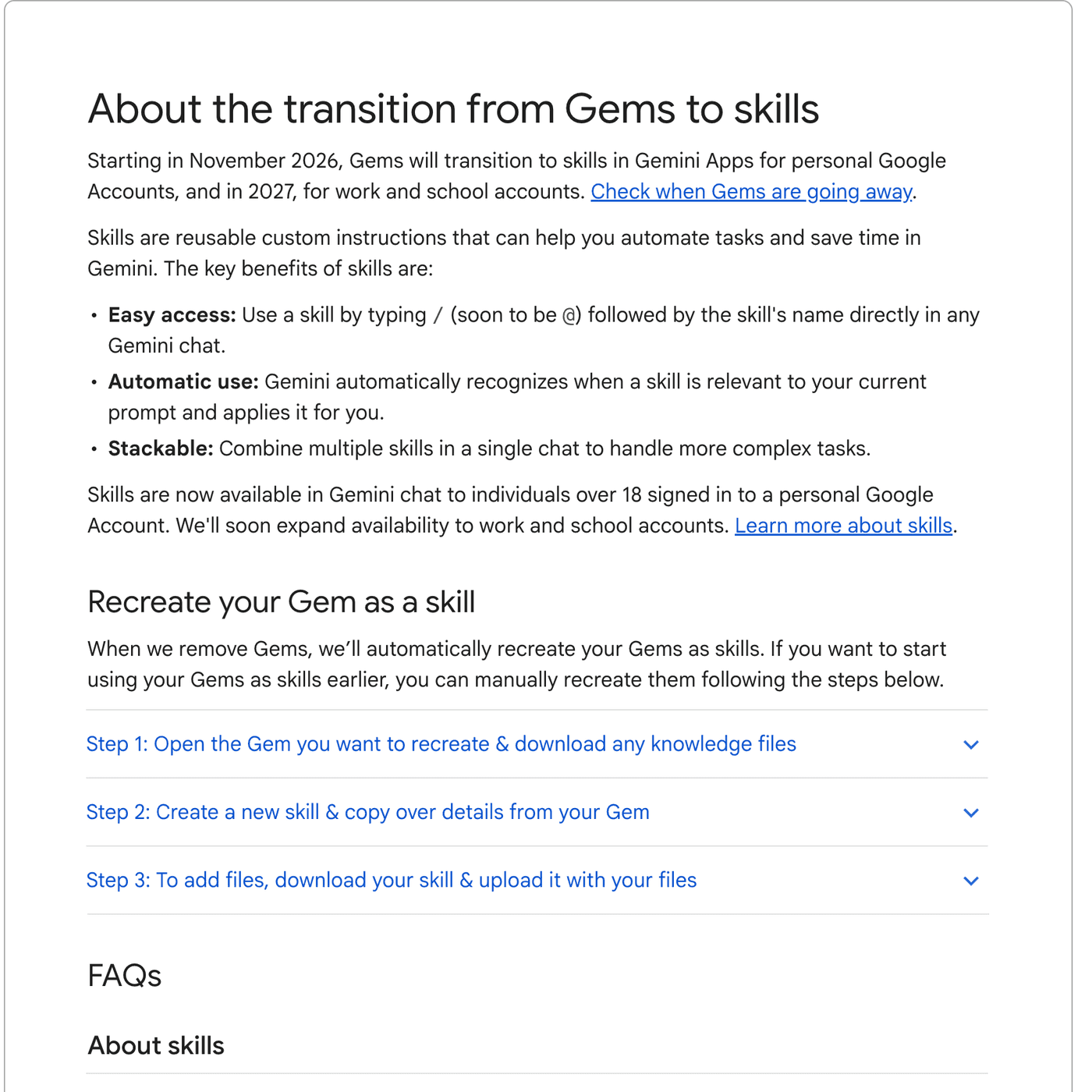
Source: Google's Gems transition help.
Skills are better for combining stable instructions
Suppose your current Gem writes weekly project updates. Its instructions may contain a writing style, a report structure, and a rule to separate facts from assumptions. Those rules are reusable, while this week's project notes are temporary.
With Skills, you can keep the stable rules in separate named instructions and supply the changing notes in the current chat. A writing-style Skill can be used for both updates and emails. A source-review Skill can be combined with the update format only when the task needs it. Google's documentation explicitly supports combining multiple Skills in one task.
That flexibility has a maintenance cost. Two Skills can ask for conflicting formats or tones. Before combining them, decide which rule controls the output. A concise factual update should not inherit a second Skill's request for a dramatic introduction. Modular instructions help only when their responsibilities are clear.
Manual invocation gives you a useful first test
Google currently documents /, or @ if your account has the updated shortcut, followed by selecting the Skill. For your first migration test, select the Skill explicitly. That lets you inspect the instructions' effect before asking whether automatic selection works.
Automatic selection is a separate behavior. Give the Skill a description that states the task and when it should apply. A vague name such as "helpful assistant" does not identify a weekly report. A description such as "Use when turning project notes into a weekly status update with decisions and unresolved questions" does.
A Skill stores a procedure. A task supplies the current goal, inputs, and work. That distinction also matters when reading about what an AI agent does. Saving instructions alone does not establish a scheduled job, grant access to every account, or guarantee a result while you are away.
Files and default tools are separate migration checks
The most useful migration question is what your Gem actually depends on. Instructions are one dependency. Knowledge files, a default tool, a shared link, and the place where you run it are others.
Google says supported knowledge files can transition automatically with Gems. For an early manual move, you download the files individually and then upload them together with the Skill's SKILL.md. The transition guide says GitHub files are not currently supported. A repository reference therefore needs its own replacement plan; do not assume it becomes a live repository connection.
The same guide says Skills do not yet support Canvas and Deep Research, and lists Create video, Create music, and Guided learning among the Gem default tools that do not work with Skills. A research prompt saved as a Skill is not proof that it invokes the Deep Research tool. For a workflow requiring citations and multi-source investigation, our research use-case guide helps identify the required output before you test a replacement.
Sharing, Google Drive files, and Gemini Notebook references are described as arriving in the coming weeks on the consumer announcement and transition help checked for this article. Treat that wording as a plan, not a completed migration. Recheck the current help page when moving a workflow that depends on one of those features.
The Gemini app and Workspace do not automatically share your Skills
Google explicitly says Skills do not currently sync between the Gemini app and Workspace apps. You must create them separately if you need the same instructions in both places. Using the same account or the same Skill name does not establish synchronization.
In an October 13 X post, practitioner Daichiro Uesaka calls attention to this deployment work: "利用面ごとに再作成が要ります。" In translation, the instructions need to be recreated for each environment. This is a migration-check suggestion; Google's own announcement is the evidence for the synchronization limit.
For Workspace Studio, Google also says you can no longer create flows with an Ask a Gem step, while existing flows continue for now. Include those flows in your inventory rather than examining only the Gems visible in the chat app.
How to migrate one Gem into a Skill
Google offers automatic conversion when Gems go away. Manual migration is useful if you want to test early or revise an overloaded Gem. You do not need to recreate every rarely used Gem on the first day.
The following steps follow Google's manual migration instructions. The suggested test record is an editorial checklist, not a claim of a completed product test.
1. Preserve the Gem and its dependencies
Open the Gem's edit view on your computer. Save its name, description, instructions, and the expected output. Download each knowledge file you need. Note whether it depends on a default tool, a shared link, a Drive reference, or a Studio flow.
Create a local folder using the intended Skill name, in lowercase with hyphens between words. Keep the original Gem open while you copy the instructions. Saving this material gives you a reference if the new output differs.
2. Create the Skill before reorganizing its instructions
Open Settings, then Skills, in a new Gemini tab. Choose Create manually. Copy the Gem's name, description, and instructions, then create the Skill. Google normalizes the name to the required format.
For the first comparison, preserve the original instructions rather than rewriting everything at once. Otherwise you cannot tell whether a changed answer came from the migration or from your edits. Once the basic version works, split clearly reusable rules into separate Skills.
3. Add supported reference files through the folder workflow
From Skill actions, download the new Skill. Google says this provides a ZIP containing SKILL.md. Extract that file and place it in the folder with your downloaded knowledge files.
Select Replace skill and upload the folder. The folder name must match the Skill name. A simple structure is:
weekly-project-update/
  SKILL.md
  reporting-guide.pdf
  example-update.txt
The file names are illustrative. Use your own supported documents. Check that any instruction referring to a file uses its actual name, and verify that the response can use a fact found only in that reference.
4. Compare the same task before relying on the result
Use the same input in the original Gem and the new Skill. Check the required sections, reference facts, tone, and any role-specific behavior. Then test automatic selection with a prompt that should match and one that should not.
One Reddit commenter describes uploading the information for a regular "council of members" Gem into a Skill and receiving a clean reply. They wrote:
the "council members" and their personalities were missing.
This is one user's report, not evidence that Skills cannot represent roles. It shows why copying the instructions is only the start of verification.
Record the result in a short file:
Original Gem:
New Skill:
Account and environment:
Same input used:
Required output sections preserved:
Reference-file fact reproduced:
Default tool available:
Explicit invocation result:
Automatic match and non-match result:
Unresolved differences:
If an important element fails, keep the original workflow while it remains available and fix that dependency. A successful upload should not be your only acceptance criterion.
A browser-based option for work that starts with webpages
A different problem arises when the reusable procedure must read several pages you already have open. For example, you may want to compare two official rollout notices with a community report. The instructions are stable, but the source pages change each time.
Tabbit Browser provides webpage and file context through @ references, as shown on its current official site. A practical workflow is to open the original sources, reference the relevant tabs, and ask for dates, account scope, missing evidence, and discrepancies. This keeps the procedure connected to the pages you selected. See webpage summary workflow for single-page questions and the research browser workflow for comparing sources.
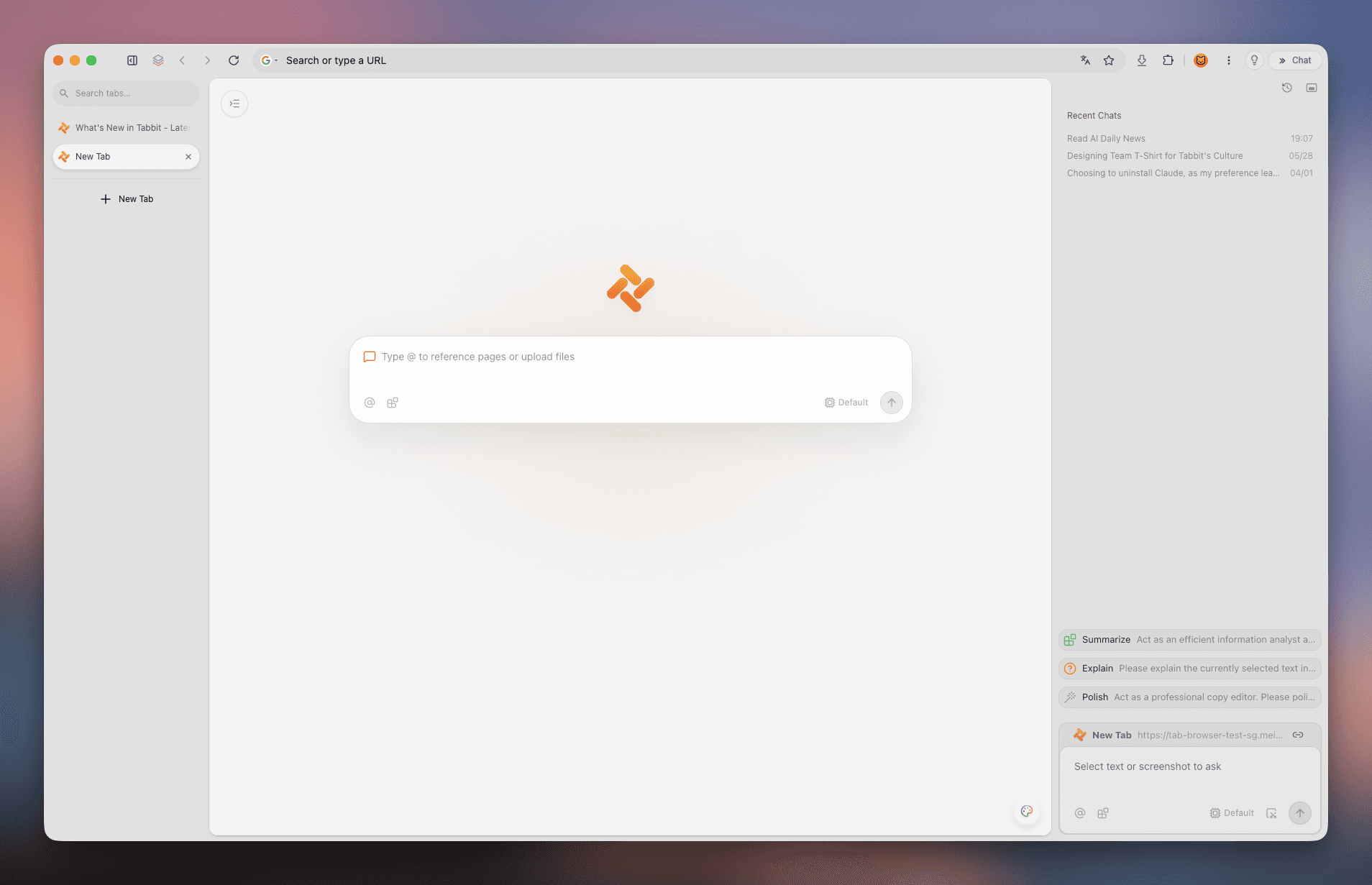
A source-checking prompt can stay specific:
Compare the referenced official pages and community report.
List each date, the account type it applies to, and its source URL.
Separate rollout, menu relocation, retirement, and automatic migration.
Flag conflicting statements or missing evidence.
Treat community experiences as individual reports, not product guarantees.
For tasks that also require webpage interaction, browser automation is a separate decision from saving writing instructions. Tabbit's practical workflow examples explain that distinction. We have not verified a direct Gemini Gems importer, Skill synchronization, or equivalent Google tools in Tabbit. Use it for the browser context it offers, while keeping Google's migration and Workspace deployment in Google's products.
Gemini CLI Skills use the name in a different environment
Search results for "Gemini skills" can include the Gemini app, Gemini CLI, API development Skills, and even training courses. Look at the product named on the source before following its instructions.
The official Gemini CLI documentation describes Skills discovered from local directories, activated with activate_skill, and subject to a confirmation explaining the directory access. Its examples include codebase migrations and security reviews. That is a terminal agent workflow, not the Settings menu used for moving a Gem.
Both can use SKILL.md, but the available tools and permissions come from the host product. A file that assumes shell access or a particular connector needs adaptation before you rely on it in Gemini chat. Shared syntax makes transfer easier; it does not verify equivalent execution.
What should you use now?
| Your situation | Recommended next step | Acceptance check |
|---|---|---|
| Repeated writing style or output format | Create a focused Skill | Explicitly selected Skill produces the required structure |
| Several reusable rules for the same task | Combine narrowly defined Skills | No conflict in format, tone, or missing-information handling |
| Gem with Canvas or Deep Research | Keep the available Gem and test a replacement separately | Required tool is actually available and output meets the task |
| Gem with knowledge files | Save files and migrate a supported folder | Response uses a fact from the intended file |
| Workflow in both Gemini and Workspace | Recreate and verify in each environment | Both copies have the correct instructions and access |
| Work across open webpages | Consider browser context in Tabbit | Selected sources remain traceable; no assumed Gemini import |
| Local coding agent | Follow Gemini CLI documentation | Directory discovery, activation, and permission behavior verified |
For new reusable instructions, choose Skills. For existing Gems, prioritize the ones whose files or tools matter to your daily work, and verify one complete task before moving the rest. The deadline is account-specific, and matching instructions does not prove matching results.
If your repeated task is reading and comparing webpages, Tabbit offers a useful place to apply that procedure to selected browser context. For the Gems transition itself, the next step is simpler: save one important Gem, identify its dependencies, and run the same input through the new Skill.

FAQ
Are Gemini Skills just renamed Gems?
Both save custom instructions, but Skills change how those instructions are applied. You can invoke them inside an ordinary chat, combine several, or allow relevant active Skills to run automatically. They do not yet reproduce every default tool available in Gems.
When will Gemini Gems go away?
Google says personal-account Gems start transitioning in November 2026. Its Workspace schedule moves Gems into Settings on November 17, with business and enterprise retirement no sooner than March 1, 2027 and education retirement no sooner than June 1, 2027. Check the schedule for your account type rather than applying one date to everyone.
Why is the Skills option missing from my Gemini account?
Availability is gradual and depends on the account and product environment. The personal-account help page currently specifies age 18 or older and Keep Activity on, while Workspace has a separate rollout. The September 30 announcement and October 13 Workspace rollout do not prove every account already has the same controls.
How do I move Gem knowledge files into a Skill?
For an early manual move, download each knowledge file, create the Skill, then download its SKILL.md file. Put that file and supported reference files in a folder named exactly like the Skill, and upload the folder using Replace skill. Google says supported files also migrate automatically when Gems go away, but GitHub files are currently unsupported.
Do Skills work with Canvas and Deep Research?
Google's transition help says Skills do not yet work with Canvas or Deep Research. Its current list also includes Create video, Create music, and Guided learning among unsupported Gem default tools. Verify the specific tool before moving a workflow that depends on it.
Are Gemini app Skills the same as Gemini CLI Skills?
They are different product environments that can share the SKILL.md format. Gemini app Skills customize conversations, while Gemini CLI Skills are discovered from directories and activated in a terminal agent. A shared file format does not guarantee the same tools, permissions, or execution behavior.