
You settle into your chair to watch a crisp 4K 60fps nature documentary, tech keynote, or live stream on YouTube. You click the gear icon, bump the resolution to 2160p60, and lean back—only for the video to transform into a jerky slideshow. Audio drifts out of sync, your computer's cooling fans roar to full speed, and moving your mouse makes the entire page hitch. Right-clicking the video and opening "Stats for Nerds" confirms your suspicion: thousands of dropped frames in just a few minutes.
What makes this especially maddening is that the exact same video plays effortlessly in Chromium-based browsers on the same machine. This is not an isolated annoyance. In a widely discussed r/firefox thread with over 2,000 upvotes, community members demonstrated how YouTube's default AV1 delivery triggers software decoding fallbacks and compositor bottlenecks in Firefox. As user @Chas3Perfection also highlighted, switching resolutions to 1440p or 4K forces different video codecs that can cause immediate stutter across the entire browser window.
The underlying culprit rarely boils down to slow internet or a broken graphics card. Instead, it stems from how YouTube negotiates the newer AV1 codec, how Firefox falls back to software CPU decoding through dav1d, and how texture compositing handles high-bitrate video streams.
With a few targeted tweaks in about:config, you can force YouTube to use hardware-accelerated VP9 streams and reclaim fluid playback in Firefox. And if you want a reliable, ultra-smooth daily browsing environment with built-in AI for summarizing long video lectures and research papers, Tabbit Browser offers an out-of-the-box Chromium architecture that eliminates media bottlenecks entirely.
Key takeaways
4K YouTube stuttering in Firefox typically happens when the browser fails to negotiate hardware AV1 decoding and falls back to CPU-bound
dav1dsoftware rendering.Decoding 4K 60fps video purely on the CPU demands processing roughly 500 million pixels every second, causing 80%–100% CPU spikes and massive frame drops.
Setting
media.av1.enabledtofalseinabout:configimmediately forces YouTube to stream VP9, which is hardware-accelerated on almost all modern GPUs.Enabling WebRender Layer Compositor (
gfx.webrender.layer-compositor) and Zero-Copy NV12 textures reduces GPU-to-CPU memory bandwidth bottlenecks on Windows.Turning off YouTube's "Ambient Mode" removes unnecessary real-time canvas Gaussian blur calculations that break video overlay compositing.
Firefox 4K YouTube playback issues at a glance
| What you see | Likely technical cause | First step to try | What not to do |
|---|---|---|---|
| Massive dropped frames and 100% CPU load on 4K60 | Unsupported AV1 codec forcing dav1d CPU software decoding | Set media.av1.enabled to false in about:config | Reinstalling your entire operating system |
| Smooth playback at 1080p, but stuttering starts at 1440p/4K | YouTube switching from AVC/H.264 to AV1/VP9 high-bitrate profiles | Verify codec in "Stats for Nerds" (av01 vs vp09) | Buying a new graphics card without checking settings |
| Micro-stutter when scrolling comments or moving mouse | WebRender layer compositing conflict with page DOM elements | Enable gfx.webrender.layer-compositor | Disabling hardware acceleration entirely |
| Choppy playback specifically on AMD Radeon GPUs | Texture copy bottleneck between GPU decode engine and DWM | Set media.wmf.zero-copy-nv12-textures-force-enabled to true | Running 10 random registry cleaner tools |
| Constant frame skips with theater mode glow enabled | Real-time <canvas> blur filter invalidating hardware overlays | Turn off "Ambient Mode" in YouTube player settings | Clearing all your browser cookies and saved logins |
Why 4K YouTube stutters in Firefox: AV1, dav1d, and hardware decoding
To understand why Firefox struggles with 4K video when other browsers breeze through it, you have to look at the intersection of video codecs, hardware decoder blocks, and browser compositing pipelines.
1. The AV1 codec and the hardware support gap
YouTube defaults to serving videos in the AV1 format (av01 in Stats for Nerds) for 1440p, 4K, and 8K resolutions because AV1 offers superior compression efficiency compared to VP9 and H.264. This saves bandwidth for Google's servers, but it places intense demands on your client hardware.
Dedicated hardware AV1 decoding is relatively modern. It is physically built into:
NVIDIA: GeForce RTX 30 series (Ampere) and RTX 40/50 series.
AMD: Radeon RX 6000 series (RDNA2, except RX 6400/6500 XT) and RX 7000 series (RDNA3).
Intel: 11th Gen Core CPUs with Iris Xe, 12th/13th/14th Gen, Core Ultra, and Intel Arc discrete GPUs.
Apple Silicon: M3, M4 series, and A17 Pro / A18 chips.
If you are using an NVIDIA GTX 10/16 series, RTX 20 series, AMD RX 500/5000 series, an older Intel processor, or an Apple M1/M2 Mac, your graphics card has no physical hardware silicon for AV1.
When Firefox encounters an AV1 stream on these systems, it has no choice but to route the video to dav1d, VideoLAN's open-source multi-threaded software decoder. Decoding 3840×2160 pixels at 60 frames per second on the CPU requires calculating nearly 500 million color values every second. Even powerful desktop CPUs will hit 80%–100% utilization on multiple cores, inducing thermal throttling, fan noise, and thousands of dropped frames.
In our broader guide on how to choose the right browser, we examine how architectural differences across rendering engines directly shape everyday performance and resource consumption.
2. Texture copy overhead vs. DirectComposition overlays
Even on computers equipped with AV1-capable GPUs (such as an AMD Radeon RX 6800 XT), users frequently report playback stutter in Firefox. This points to a secondary bottleneck: texture copying.
On Windows, Chromium-based browsers use Microsoft's DirectComposition system to place decoded video frames directly into hardware overlay planes. The decoded NV12 video frame passes straight from the GPU video engine to the display scanout without touching intermediate buffers.
In Firefox, the WebRender engine historically copied decoded textures through intermediate staging buffers before compositing them onto the webpage canvas. In Windows Task Manager under the GPU tab, you might see the "Copy" engine spike to 60% or higher alongside the "Video Decode" engine. This memory bandwidth choke causes frame pacing jitter, similar to the rendering lag analyzed in our teardown of browser PDF scrolling lag.
3. YouTube Ambient Mode and real-time canvas blur
YouTube features an "Ambient Mode" that dynamically projects a soft, colored glow around the video player to match the video's active scene.
While visually subtle, Ambient Mode renders a dynamic HTML5 <canvas> element with real-time CSS Gaussian blur filters. In Firefox, this continuous redraw forces the browser to invalidate and redraw the surrounding DOM layers every frame. At 4K60, this extra rasterization workload breaks hardware video overlay fast-paths and robs your GPU of the headroom needed for smooth playback.
When combined with excessive background extensions, the browser can suffer from severe browser bloat and memory pressure, much like why Chrome uses so much RAM when overloaded with media tasks.
Step-by-step troubleshooting: How to get smooth 4K playback in Firefox
If you want to keep Firefox as your primary browser while enjoying buttery-smooth 4K YouTube videos, follow this sequential troubleshooting checklist.
Step 1: Diagnose your active codec with "Stats for Nerds"
Before changing any preferences, verify what codec YouTube is feeding your browser:
Open any 4K 60fps video on YouTube in Firefox.
Right-click the video player and select Stats for nerds.
Locate the Codecs line.
If it begins with
av01..., YouTube is serving AV1.If it begins with
vp09..., YouTube is serving VP9.If it begins with
avc1..., YouTube is serving H.264.
Observe the Dropped Frames metric. If the counter ticks upward rapidly (e.g., hundreds of frames lost within seconds), your decoding pipeline is choked.
In a new tab, navigate to
about:supportand scroll down to the Graphics section. Check whether "Hardware Video Decoding" displays as "Supported" or "Default".
Step 2: Disable AV1 in about:config to force VP9
Forcing YouTube to serve VP9 instead of AV1 is the single most effective fix for systems lacking hardware AV1 support:
Type
about:configin the Firefox address bar and press Enter.Click Accept the Risk and Continue.
In the search box, paste:
media.av1.enabledDouble-click the preference (or click the toggle button) to switch its value from
truetofalse.Restart Firefox, return to your 4K YouTube video, and reopen "Stats for Nerds".
The video will now stream in VP9 (vp09). Because VP9 hardware decoding has been standard on virtually all GPUs since 2016 (including NVIDIA Pascal/Turing, AMD Polaris/Vega, Intel 7th Gen+, and Apple M1/M2), your GPU's dedicated hardware ASIC will handle 100% of the decoding load, dropping CPU usage back down to 2%–5%.
Step 3: Enable WebRender Layer Compositor and Zero-Copy
For users with modern GPUs—especially AMD Radeon systems where frame copies cause micro-stutter—two experimental flags dramatically streamline the rendering pipeline. As tech reviewer BrenTech demonstrated in a detailed performance guide, adjusting these compositor flags cleans up frame drops across high-resolution media:
In
about:config, search for:gfx.webrender.layer-compositorToggle it to
true. This allows WebRender to composite distinct screen layers independently, preventing entire-page redraws during video playback.If you are on Windows with an AMD graphics card, search for:
media.wmf.zero-copy-nv12-textures-force-enabledToggle it to
true. This eliminates redundant memory copies between the GPU decoder and the desktop window manager. (Note: If you notice green screens or visual artifacts on very old drivers, toggle this back to false.)Restart Firefox to apply the new compositor pipeline.
Step 4: Turn off YouTube Ambient Mode
Removing the dynamic background glow frees up GPU fill-rate for high-framerate video:
Start playing any YouTube video.
Click the Settings (gear icon) in the bottom right corner of the video player.
Locate Ambient mode.
Toggle it to Off.
Step 5: Isolate extension conflicts and DRM overlays
If playback remains choppy even under VP9, third-party extensions might be injecting heavy DOM observers or intercepting network requests:
Open a Private Window (
Ctrl+Shift+Pon Windows /Cmd+Shift+Pon Mac) and test the 4K video.If the video plays smoothly in Private Mode, disable your extensions one by one to find the offender. Heavy ad blockers with conflicting filter lists or outdated script managers are common culprits.
If you encounter broader tab crashes or memory allocation errors while interacting with media, consult our guide on browser crashes when dragging files or tabs and Chrome STATUS_ACCESS_VIOLATION errors.
If you also run into playback issues on protected streaming services, read our analysis on why some browsers cannot play Netflix DRM video.
A smoother workflow: Seamless 4K playback and AI video research with Tabbit
Fixing about:config flags can get Firefox running reasonably well, but manually tuning experimental flags after every browser update is tedious. More importantly, when you are watching a two-hour technical conference, a university lecture, or a detailed software tutorial in 4K, smooth playback is only half the battle. You still have to scrub back and forth through timelines, take notes, and search for specific answers.
This is where a modern, AI-integrated browser architecture changes your entire workflow.
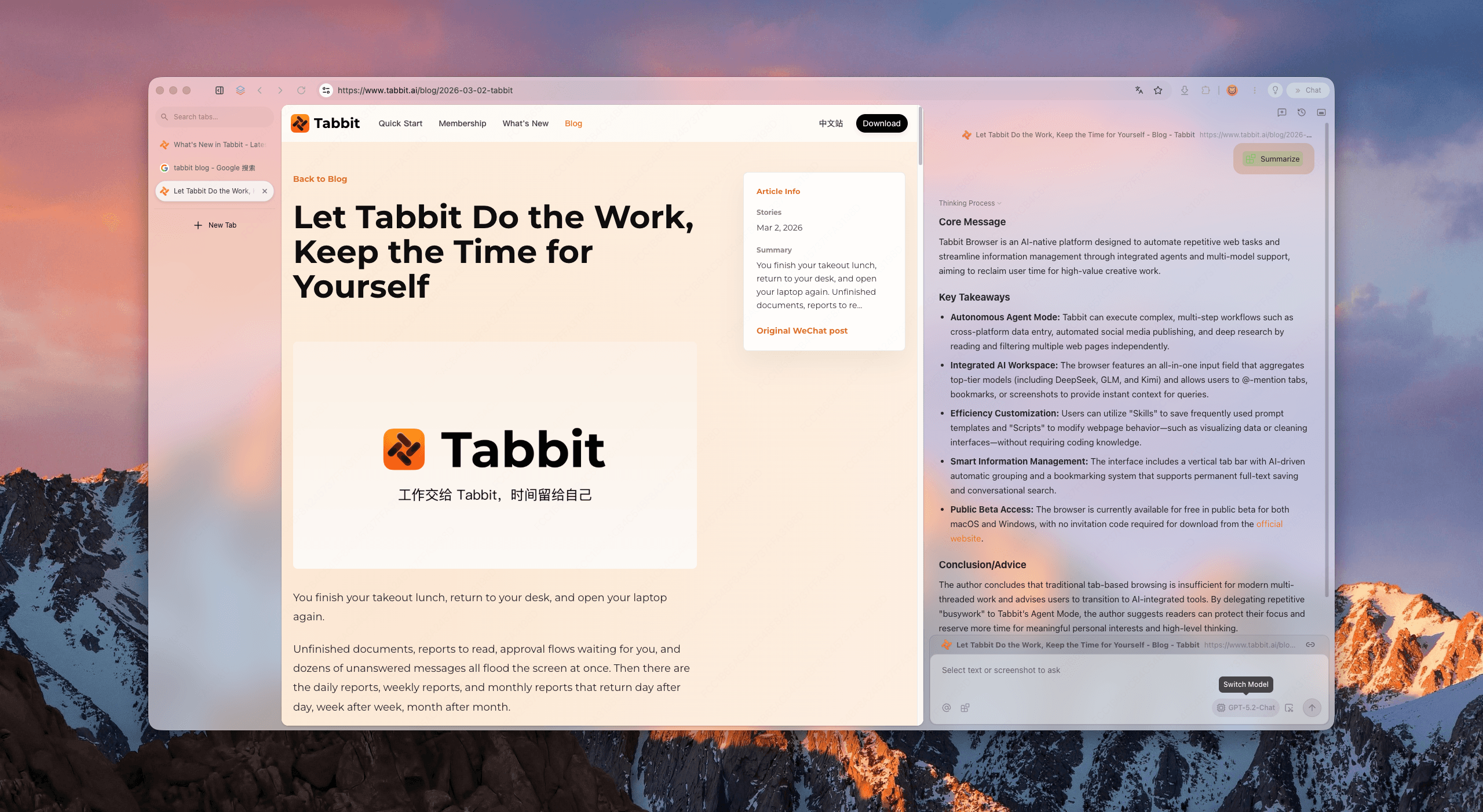
Tabbit Browser is built on an ultra-clean, high-performance Chromium engine. Unlike Firefox, which requires manual flag management to avoid texture copying bottlenecks, Tabbit leverages Chromium's mature DirectComposition and Metal hardware overlay architecture out of the box. Whether you are streaming 4K60 AV1 on an RTX 4080 or VP9 on an ultrabook, Tabbit negotiates the optimal hardware path without dropped frames.
Beyond pure playback stability, Tabbit transforms how you consume video content through its native AI capabilities:
Instant Video Summaries with Chat with Page: When watching lengthy keynotes or instructional videos, open Tabbit's AI sidebar to generate a structured executive summary, extract actionable steps, and pull direct timestamp links in seconds.
Interactive Video Q&A: Instead of guessing where a specific concept was discussed, ask the sidebar: "What were the three key benchmarks mentioned around minute 45?" Tabbit analyzes the transcript and surfaces exact answers instantly.
No Extension Overhead: Because AI features, sidebar workspaces, and ad-filtering efficiencies are integrated natively into the browser core, you avoid stacking bloated third-party extensions that cause browser bloat and media lag.
Focused Multitasking: With vertical tabs and isolated workspace groups, you can keep your 4K tutorial running in a dedicated tile while conducting deep research in adjacent tabs without crashing the renderer.
If you value a fast browser and a truly lightweight browser designed as a dedicated browser for productivity, Tabbit eliminates the friction between media playback and deep focus. You can learn more in our overview of Tabbit AI Browser.
Trade-off note: Tabbit is powered by modern Chromium. If your strict requirement is running an independent Gecko engine for philosophical or open-source testing reasons, the about:config optimizations outlined above remain your best path forward. If your goal is zero-lag 4K playback combined with next-generation AI research workflows, Tabbit is the superior daily driver.
Hardware, codec, and browser decision matrix
Use this decision matrix to pick the right codec strategy and browser environment for your specific setup:
| Hardware setup | Optimal video codec | Recommended browser workflow | Why this combination works best |
|---|---|---|---|
| Older GPU / CPU (GTX 10/16/20, RX 580/5000, Apple M1/M2) | VP9 (media.av1.enabled=false) | Tabbit Browser or tuned Firefox | Offloads 4K decoding entirely to mature GPU hardware ASICs, dropping CPU utilization from 100% to under 5%. |
| Modern GPU with AV1 (RTX 30/40/50, RX 6000/7000, Apple M3/M4) | AV1 (av01 hardware accelerated) | Tabbit Browser | Takes full advantage of native AV1 hardware decode blocks with DirectComposition zero-copy overlay pass-through. |
| High-Refresh-Rate Displays (144Hz / 240Hz monitors) | VP9 or AV1 with Layer Compositor | Tabbit Browser | Direct hardware overlays prevent frame delivery timing desync between the video's 60fps cadence and the monitor's high refresh rate. |
| Research & Heavy Video Learning (Lectures, Webinars, Tutorials) | Hardware-accelerated 4K + AI Sidebar | Tabbit Browser | Delivers smooth 4K playback while the native AI sidebar summarizes transcripts and answers technical queries simultaneously. |
Final verdict and next steps
Experiencing choppy 4K YouTube playback on a capable machine is frustrating, but it is almost always fixable. In Firefox, the culprit is nearly always the un-accelerated AV1 codec falling back to CPU software decoding (dav1d), compounded by WebRender texture copying and YouTube's Ambient Mode glow effects.
By disabling media.av1.enabled in about:config and enabling the WebRender layer compositor, you can immediately restore smooth, hardware-accelerated VP9 playback in Firefox.
If you are ready to move beyond manual browser tweaks and want a fast, crash-free workspace that pairs flawless 4K video rendering with native AI summarization and tab intelligence, download Tabbit Browser today and experience what a modern, productivity-first browser can do.

FAQ
Why does 4K YouTube video stutter in Firefox but run smoothly in Chrome?
Chrome and Chromium-based browsers use deeply optimized DirectComposition hardware overlays on Windows and Metal overlays on macOS, whereas Firefox can experience texture copying overhead with WebRender or fall back to CPU software decoding when AV1 hardware pipelines miscommunicate.
What does disabling media.av1.enabled in Firefox actually do?
Setting media.av1.enabled to false in about:config stops Firefox from accepting AV1 video streams. YouTube automatically falls back to VP9, which is supported by dedicated hardware decoding on virtually all modern and older graphics cards.
Does turning off hardware acceleration fix 4K video lag?
Usually no. Disabling hardware acceleration shifts all video decoding and compositor rendering onto your CPU, which severely worsens 4K 60fps playback. You should only toggle it off as a diagnostic test to identify driver crashes.
Why does YouTube Ambient Mode cause dropped frames in Firefox?
Ambient Mode renders a dynamic blurred glow around the video player using real-time canvas calculations. In Firefox, this continuous redraw invalidates GPU compositor layers and consumes extra rendering cycles needed for smooth 4K frame pacing.
How can I tell if my GPU supports hardware AV1 decoding?
AV1 hardware decoding is available on NVIDIA GeForce RTX 30 series and newer, AMD Radeon RX 6000 series and newer (except RX 6400/6500 XT), Intel 11th Gen Core with Xe graphics and Arc GPUs, and Apple Silicon M3/M4 or A17 Pro chips.
How does Tabbit Browser ensure smooth 4K video playback while researching?
Tabbit is built on modern Chromium with native zero-copy hardware overlays and efficient VP9/AV1 codec negotiation. It pairs silky 4K playback with an AI sidebar that can summarize long videos, extract key insights, and manage research tabs without slowing down.