
You open a 120-page technical whitepaper, financial audit, or product manual in your browser, flick your trackpad to browse the contents, and everything grinds to a halt. The scroll bar skips, pages turn into white placeholders, your laptop fans spin up, and each swipe feels like dragging a boulder across the screen.
What makes this frustrating is that the rest of the web runs fine. You can stream 4K video or manage twenty active tabs, yet a single static document turns Chrome, Edge, or Brave into a slideshow. As one r/chrome user reported, built-in browser viewers frequently stutter on complex files even with plenty of system memory available. Another user on r/brave shared a similar headache when navigating 100-to-200-page electronics service manuals and schematics, discovering that the same lag hit both Brave and Chrome.
The root cause is rarely your internet connection or general computer speed. It comes down to how browser engines rasterize complex vector paths and high-density bitmaps on the fly.
Before you give up and install bloated extensions, you can test a few straightforward browser switches to restore responsiveness. And if your primary goal is reading, synthesizing, and extracting facts from dense documents rather than fighting a clunky vertical scrollbar, Tabbit Browser offers a native AI reading workflow that bypasses manual page-hunting altogether.
Key takeaways
PDF scrolling lag happens because browsers must calculate and rasterize dense vector drawings, LaTeX formulas, or high-DPI scans continuously as you scroll through the viewport.
Toggling hardware acceleration (
chrome://settings/system) or disabling the experimental "Smooth Scrolling" flag inchrome://flagsfixes the majority of driver-level stutter.Virtual-printing a complex document via "Microsoft Print to PDF" or "Save as PDF" flattens complicated vector layers into an easily readable format.
Switching your view mode from continuous vertical scroll to single-page or two-page fit reduces the background rasterization queue.
For research and data extraction, Tabbit Browser provides a structured AI sidebar (
Chat with Page) so you can analyze long documents without scrolling through hundreds of heavy pages manually.
PDF scrolling symptoms at a glance
| What you see | Likely technical cause | First step to try | Do not start with |
|---|---|---|---|
| White checkerboards or blank pages when scrolling fast | Tile rasterization queue cannot keep up with scroll velocity | Switch to single-page view or toggle hardware acceleration | Reinstalling your entire operating system |
| Severe frame drops on schematics or vector charts | Thousands of un-rasterized Bézier curves and mathematical paths | Flatten the document via Print to PDF | Installing 5 random PDF extension tools from the Web Store |
| Choppy, jumpy scrolling after a browser update | Conflicting Smooth Scrolling flag or ANGLE graphics backend | Disable Smooth Scrolling in chrome://flags | Clearing your saved passwords and website logins |
| High CPU/GPU usage on single-page scanned forms | High-DPI uncompressed bitmap scanning layers | Enable hardware graphics acceleration in browser settings | Running aggressive third-party RAM cleaners |
| Browser tab crashes with out-of-memory error | PDF exceeds the sandboxed renderer process memory limit | Open in a dedicated desktop viewer or summarize via Tabbit | Disabling all essential security settings |
If you are dealing with broader system slowdowns across multiple tabs, our guide on why Chrome uses so much RAM and our breakdown of browser bloat explained cover how modern browser processes manage memory under load.
Why built-in browser PDF viewers lag
Web browsers were engineered to render HTML DOM elements, CSS styles, and JavaScript scripts. Documents formatted in PDF (Portable Document Format) operate under an entirely different graphics paradigm created for precise print publishing.
1. On-the-fly vector rasterization
When a PDF contains intricate CAD schematics, architectural blueprints, or academic papers with hundreds of LaTeX mathematical symbols, those elements are stored as raw vector instructions—mathematical paths, curves, and clipping paths.
Chromium browsers use the PDFium C++ library to parse these instructions. When you scroll continuously, PDFium must calculate and rasterize every single line and curve into visible screen pixels at your display's native resolution. If a page contains 15,000 vector nodes, calculating those coordinates at 60 or 120 frames per second will max out a CPU thread, causing dropped frames.
2. High-DPI scanned image layers
Many corporate reports, legal contracts, and historical records are scanned physical pages saved as uncompressed 300-DPI or 600-DPI bitmap images. When you scroll through a 50-page scanned document, the browser renderer has to decode, scale, and composite dozens of multi-megabyte image textures into GPU memory simultaneously.
3. GPU driver conflicts and ANGLE backends
To keep scrolling snappy, modern browsers use hardware graphics acceleration to offload compositing to your GPU. However, graphics driver updates, multi-monitor setups with mismatched refresh rates, or bugs in the ANGLE (Almost Native Graphics Layer Engine) translation layer can cause the GPU process to stall. When that happens, the browser stutters while waiting for the GPU buffer to flip.
If you are considering a faster daily setup, evaluating a fast browser or switching to a lightweight browser can prevent background renderer overhead from compounding document lag.
5 Practical fixes to restore smooth PDF scrolling
Before you download third-party software, walk through these five targeted troubleshooting steps in your current browser.
Step 1: Toggle graphics hardware acceleration
If your GPU driver is misbehaving, hardware acceleration can make PDF scrolling worse rather than better. Conversely, if it was accidentally disabled, your CPU might be struggling to render high-res images alone.
Open Chrome or Brave settings (click the three-dot menu and select Settings).
In the left navigation, click System.
Locate Use graphics acceleration when available (or Hardware Acceleration).
Toggle the switch to the opposite setting.
Click the Relaunch button to restart your browser.
Open your PDF and test scrolling performance.
If turning it off makes the document scroll smoothly, your GPU driver or ANGLE backend was the bottleneck. Keep it off temporarily or update your graphics card drivers.
Step 2: Disable the "Smooth Scrolling" flag
Chromium includes an experimental smooth-scrolling algorithm that adds an artificial deceleration curve to scroll wheel inputs. On complex PDFs, this animation curve repeatedly triggers intermediate rasterization passes, making the stutter feel twice as slow.
In your address bar, type
chrome://flagsand press Enter.In the search box at the top, type
Smooth Scrolling.Change the dropdown menu from Default to Disabled.
Click Relaunch at the bottom of the window.
Disabling this flag forces the viewport to jump immediately to your new scroll position without calculating intermediate animation frames, giving you a significantly snappier feel on dense files.
Step 3: Switch from continuous scroll to single-page fit
By default, browser PDF viewers render documents in a continuous vertical stream, loading upcoming pages into memory ahead of time. For complex files, this forces the browser to render 3–4 heavy pages at once.
Look at the floating toolbar in your browser's PDF viewer:
Click the Fit to page or Two-page view icon.
Use your keyboard arrow keys (
Page Down/Page UporSpacebar) to flip whole pages rather than smooth-scrolling.
Rendering one static page at a time completely eliminates the continuous rasterization queue.
Step 4: Flatten the PDF using virtual printing
If you have one specific PDF that crawls (such as an exported CAD drawing or a layered design draft), the fastest fix is to flatten the document's vector layers into clean bitmap pages:
Open the laggy PDF in your browser.
Press Ctrl + P (Windows) or Cmd + P (macOS) to open the print dialogue.
Set the destination printer to Save as PDF or Microsoft Print to PDF.
Click Save and choose a new filename.
Open the newly created PDF file.
This process removes invisible clipping masks, flattens overlapping vector layers, and creates a streamlined document that any built-in viewer can glide through effortlessly.
Step 5: Test in an Incognito window to isolate extensions
Third-party extensions—especially grammar checkers, dark mode replacers, screen capture tools, and outdated PDF annotators—often inject background scripts into every open tab.
Press Ctrl + Shift + N (or Cmd + Shift + N on Mac) to open a clean Incognito window, then drag and drop the PDF file into the tab. If the document scrolls fluidly without lag, one of your active extensions is interfering with the renderer process. Check chrome://extensions and disable non-essential add-ons one by one.
If you are exploring alternatives to your current browser stack, check our alternative to Google Chrome and our guide on how to choose the right browser for deeper workflow comparisons.
A better workflow for research and technical docs: Tabbit Browser
Fixing rendering flags helps with scrolling performance, but it does not solve the underlying productivity problem. When you open a 200-page financial disclosure, medical guideline, or technical manual, you rarely want to scroll through all 200 pages by hand. You want specific data points, chapter summaries, key takeaways, and answers to targeted questions.
This is where Tabbit Browser provides a modern alternative.
Instead of treating heavy PDFs as dumb digital paper that you have to flick through manually, Tabbit treats documents as interactive knowledge bases within an AI-native workspace.
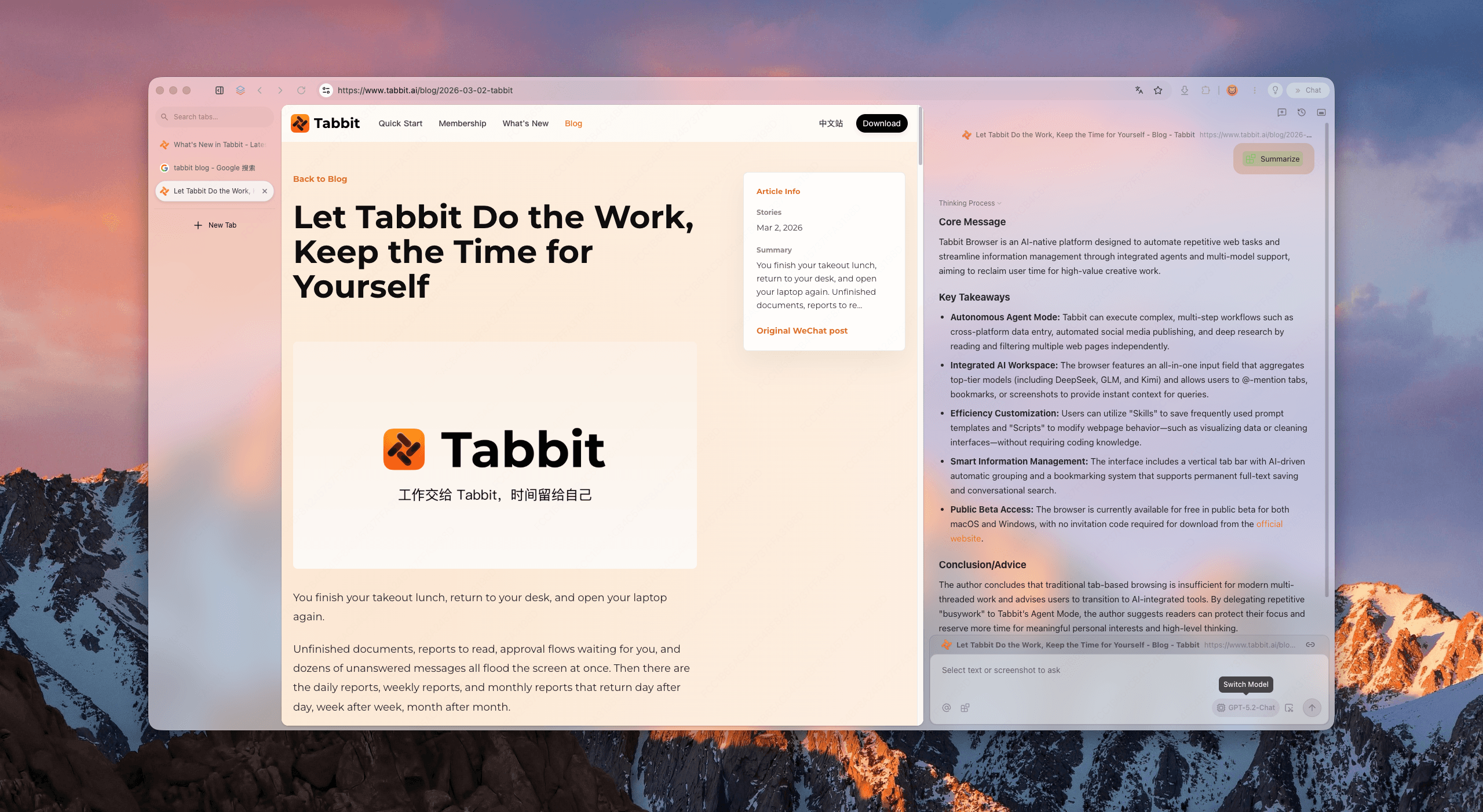
1. Chat with Page and instant document synthesis
With Tabbit's built-in Chat with Page feature, you can query any open PDF directly in a responsive side panel:
Ask: "What are the Q3 operating margin figures on page 42 compared to page 88?"
Extract embedded financial tables into clean markdown formatting with one click.
Request a bulleted breakdown of methodology, findings, and trade-offs.
Because the AI reads and indexes the document text directly, you get instant answers and jump links to exact paragraphs without triggering heavy continuous scroll re-renders.
2. Multi-tab research without memory choke
Researching complex topics usually means opening five PDFs, three reference articles, and multiple benchmark dashboards simultaneously. In conventional browsers, keeping several heavy PDFs active quickly consumes gigabytes of RAM and introduces tab clutter.
Tabbit combines a dedicated AI browser architecture with Smart Tab Organization. It automatically clusters your research papers, project notes, and documentation into organized project groups, keeping background processes lean while maintaining your active workspace context.
If you are comparing different approaches to tab management, explore how an AI tab manager and dedicated browser for productivity streamline heavy multitasking compared to standard tab bars.
3. Transparent limits and trade-offs
Tabbit is engineered for fast web browsing, document analysis, and AI-assisted workflows. It is built on a clean Chromium foundation, meaning it inherits standard web compatibility and speed. However:
If you need professional prepress color separation (CMYK plate proofs) or CAD layer editing, a specialized desktop engineering suite like Adobe Acrobat Pro is still the proper tool.
Tabbit accelerates how you consume and understand information; it does not replace native vector design software.
For a side-by-side breakdown of features and performance, see our Tabbit vs Chrome comparison.
Which reading setup fits your workflow?
| Scenario & document type | Recommended tool | Why it works better | Key trade-off / limitation |
|---|---|---|---|
| 1–10 page quick web invoice, receipt, or article | Built-in browser viewer (with Hardware Acceleration on) | Zero install needed; opens instantly inside your current tab | Limited markup tools; basic search only |
| 50–300 page whitepaper, report, or academic study | Tabbit Browser (AI sidebar & Chat with Page) | Instant synthesis, table extraction, and structured Q&A without manual scrolling | Requires using Tabbit as your research environment |
| Heavy CAD drawings, electrical schematics, or blueprints | Flattened PDF (Print to PDF) or Desktop Reader | Strips thousands of layered vector paths into fast-rendering bitmaps | Loses individual vector layer toggles |
| Official government forms with digital cryptographic signatures | Dedicated desktop PDF software (Acrobat, Foxit, PDF-XChange) | Full support for smartcards, certificate validation, and form fields | Heavy desktop application install required |
| Multi-tab research with dozens of open documents | Tabbit Browser with Smart Tab Organization | Groups related projects automatically and isolates memory | Built for knowledge workers, not print production |
When to use a dedicated desktop PDF reader
While modern browsers handle standard documents with ease, dedicated desktop applications remain necessary in specific technical scenarios:
Digital Certificate Signatures: If you must sign legal contracts using hardware tokens (CAC/PIV cards) or cryptographic timestamp authorities, browser sandboxes cannot access the required OS crypto modules.
Prepress and Print Production: If you need to inspect CMYK ink densities, bleed margins, spot color separations, or PDF/X compliance, use Adobe Acrobat Pro or dedicated prepress utilities.
Gigabyte-Scale Engineering Datasets: For multi-gigabyte GIS maps or 3D architectural models embedded in 3D PDF format, desktop software with direct OpenGL/DirectX rendering pipelines is essential.
For everyday reading, research, and technical analysis, however, keeping everything inside a clean, AI-native browser workspace saves hours of context-switching.
Final verdict & next steps
Laggy PDF scrolling in your browser is a solvable engineering bottleneck. Start with the immediate technical fixes:
Toggle Hardware Acceleration in
chrome://settings/system.Disable Smooth Scrolling in
chrome://flags.If an individual file remains stubborn, use Print to PDF to flatten complex vector layers.
When your daily work involves analyzing dense reports, academic papers, and technical documentation, stop wasting time fighting sluggish scrollbars.
Install Tabbit Browser for free on macOS or Windows. Open your heaviest research documents, fire up the AI sidebar, and let intelligent document synthesis pull the answers you need in seconds.

FAQ
Why does Chrome lag when scrolling through PDFs but not normal web pages?
Web browsers are built to lay out HTML elements and CSS styles. PDFs, by contrast, frequently pack thousands of un-rasterized vector paths, raw 300-DPI scans, or multi-layered transparencies. The browser has to compute and rasterize these tiles on the fly for every single frame of your scroll.
Does turning off hardware acceleration make PDF scrolling faster or slower?
It depends on your graphics card and driver stability. If your GPU driver clashes with Chromium's ANGLE graphics backend, disabling hardware acceleration offloads rendering cleanly to the CPU. For bitmap-heavy files with compatible drivers, keeping GPU acceleration on remains faster.
Why do large PDFs scroll smoothly in Firefox but stutter in Chrome or Brave?
Chrome and Brave rely on Chromium's PDFium engine, which calculates and paints visible viewport tiles on demand. Firefox uses PDF.js, an HTML5 and WebAssembly engine that handles canvas caching and font substitution under a different memory pipeline.
How do I make Chrome automatically open PDFs in a desktop reader?
Open Settings > Privacy and security > Site settings > Additional content settings > PDF documents, and select "Download PDFs" instead of "Open PDFs in Chrome." Chrome will then save files directly so your operating system's default viewer opens them.
Can Tabbit Browser extract tables and summaries from heavy PDFs without manual scrolling?
Yes. Tabbit's Chat with Page and AI sidebar interact directly with document contents. You can extract tables into markdown, summarize long sections, or locate specific data points without manually scrolling through hundreds of heavy pages.
What is the fastest way to fix a single laggy PDF document?
Open the document in your browser, press Ctrl+P (or Cmd+P on Mac), and print it to a new file using "Save as PDF" or "Microsoft Print to PDF." This flattens complex overlapping vector paths into a simplified format that browsers can render with minimal overhead.