
A browser that quits when you drag a screenshot into a document is not having a normal “the page did not accept the file” moment. In one Reddit report, a Mac user said that dragging the floating screenshot preview into Google Docs made Opera crash and restart. Turning off hardware acceleration helped only for a while, and clearing the cache did nothing. A commenter with the same problem found a temporary workaround: finish editing the screenshot first, then drag the saved file from the desktop.
That detail matters. The problem may be in the handoff between the screenshot preview, the browser window, and the website's drop zone. It may also be a browser profile, extension, graphics, or operating system issue. This guide starts with the least risky checks. Later, it shows how Tabbit can read a screenshot or local file through @ context, without making you drag the floating preview across the browser window.
Key takeaways
Save open documents, drafts, and important tabs before trying to reproduce the crash.
Separate a full browser exit from a single tab crash and from a page that simply rejects the file.
Test one layer at a time: screenshot preview, target website, extensions, hardware acceleration, profile, and operating system.
Do not delete a browser profile or reinstall before backing up bookmarks, passwords, sessions, and extensions. Opera's own crash guide lists those as separate data areas.
If your goal is to ask AI about an image or file, Tabbit can use
@in the Omnibox to attach that context without relying on drag and drop.
What exactly is crashing?
“The browser crashed” can mean three different things. Treating them as the same problem sends you toward the wrong fix.
| What you see | Likely boundary | First question |
|---|---|---|
| Every browser window disappears and reopens | Browser process, profile, extension, graphics, or OS drag service | Does it happen with a clean profile and a small saved file? |
| Only the current tab says it crashed | Renderer or page content | Does another page accept the same file? |
| The tab stays open but nothing happens | Website drop zone, permission, file type, or stuck drag state | Does the site's file picker work? |
| A screenshot thumbnail stays on screen or shows the wrong preview | Screenshot service or browser drag image | Does saving the screenshot first change the result? |
Mozilla's public bug tracker has examples of the first and fourth patterns. In one Firefox Nightly issue, dragging an image onto the home page or an upload site reproduced a browser crash even with a clean profile. Another report describes a file drag that first froze Firefox and then made it exit, with the drag thumbnail showing a page from a different tab. These are browser drag-and-drop failures, not proof that the file is corrupt.
A safe troubleshooting order
1. Protect the work that is already open
If the browser is still alive, stop reproducing the crash for a minute. Save the document, copy unsent text into a local file, and make a note of the tabs that matter. If you are preparing to reset or replace the browser, use the browser data backup checklist first.
This is more than caution. A drag crash can take the browser down while a form, editor, or checkout page is holding unsaved state. Do not assume that “restore previous tabs” will bring back text that was never saved.
Opera's crash and issues guide recommends backing up important browser files before upgrades or deeper troubleshooting. It names current session data, history, local state, cookies, login data, preferences, and extensions separately. Use that distinction when you decide what needs a copy.
2. Make the reproduction smaller
Change the drag path before changing ten settings at once. Try this order:
Save one screenshot as a normal file on the desktop.
Open a blank page or a simple test page.
Try the file in the middle of the page, not over the tab strip or a sidebar.
Try the site's file picker instead of its drop zone.
Try a small image and then the original file.
If the saved file works but the floating preview crashes the browser, the screenshot handoff is the first suspect. If the file picker works but the drop zone does not, focus on the page and its upload handler. If every page crashes, move up a layer and test the browser itself.
The Chrome help page for common errors also separates page crashes from connection and content problems. The useful idea is not a particular Chrome menu. It is to classify the failure before resetting the whole profile.
3. Test extensions and graphics without losing the evidence
Use a private window or a clean browser profile to test whether an extension is involved. Do not uninstall everything yet. Write down which extensions are active on the page, especially screenshot tools, password managers, download managers, clipboard utilities, window managers, and tools that inject controls into documents.
Hardware acceleration is another isolation test. Turn it off, restart the browser, and try the same saved file. If the crash disappears, that points toward the graphics path, a driver, or an interaction with a window overlay. It does not prove that hardware acceleration is “bad,” and it does not mean you should leave it off forever. Some sites need it.
Change one setting at a time. If you disable extensions, hardware acceleration, flags, cache, and profile data together, a later success tells you very little. A browser update troubleshooting guide uses the same principle for broken sites: preserve the comparison so you know which layer changed.
4. Check the screenshot and operating system path
On macOS, test the screenshot tool separately from the browser. If the floating thumbnail is involved, save the screenshot first or temporarily turn off the floating thumbnail in the screenshot options. Apple Community reports describe the thumbnail switch and a restart as useful checks for screenshot drag problems, but those are community workarounds, not a universal fix.
On Windows, test with a file copied to a simple local folder rather than a synced drive or a removable volume. A drag operation can involve Explorer, a cloud file provider, a virtual desktop, multiple monitors, and the browser at the same time. Reduce that path before you blame the image or PDF.
5. Record a report that another person can use
If the crash continues, collect:
browser name and full version;
operating system and version;
whether the browser, tab, or page disappeared;
the source object and destination, such as “macOS floating screenshot to Google Docs”;
the smallest file and shortest sequence that reproduces it;
results with extensions disabled, a clean profile, hardware acceleration off, and a second browser;
a crash ID or system log if the browser provides one.
Do not attach the original screenshot if it contains credentials, private messages, customer data, or a document you are not allowed to share. A blurred test image is enough to show the drag path. Opera and Chrome both direct users toward their help or feedback channels when the basic troubleshooting steps do not resolve a crash.
A decision table for the next move
| Symptom | Do first | Temporary workaround | Avoid |
|---|---|---|---|
| Floating Mac screenshot crashes the browser | Save it to the desktop, then test the saved file | Use the screenshot's Copy action or attach the saved file through a file picker | Repeating the same drag while an unsaved document is open |
| Only one website crashes | Test its file picker and another page | Use the site's normal upload control | Concluding that the browser is broken from one drop zone |
| Every page crashes with drag and drop | Clean profile, extension isolation, graphics test | Use another browser for the upload | Deleting the profile before a backup |
| Tab freezes after dragging an online image | Reload after saving the image, then test a local copy | Right-click save or use the site's download control | Dragging across the tab strip repeatedly |
| The browser survives but the file never arrives | Check permissions, file type, and drop target | Use the file picker | Treating a rejected file as a crash |
A practical option: Tabbit Browser
Sometimes the fastest fix is to stop using the fragile part of the workflow. If you only need an AI assistant to read a screenshot, a PDF, or another local file, the file does not need to be dragged across a browser window first.
Tabbit's official product page documents an Omnibox where @ can reference tabs, screenshots, files, and bookmarks. That gives you a different handoff: choose the context from the browser input, then ask the model what to do with it. Tabbit supports macOS and Windows, and its Agent Mode runs in an independent tab group when the next step involves web actions.
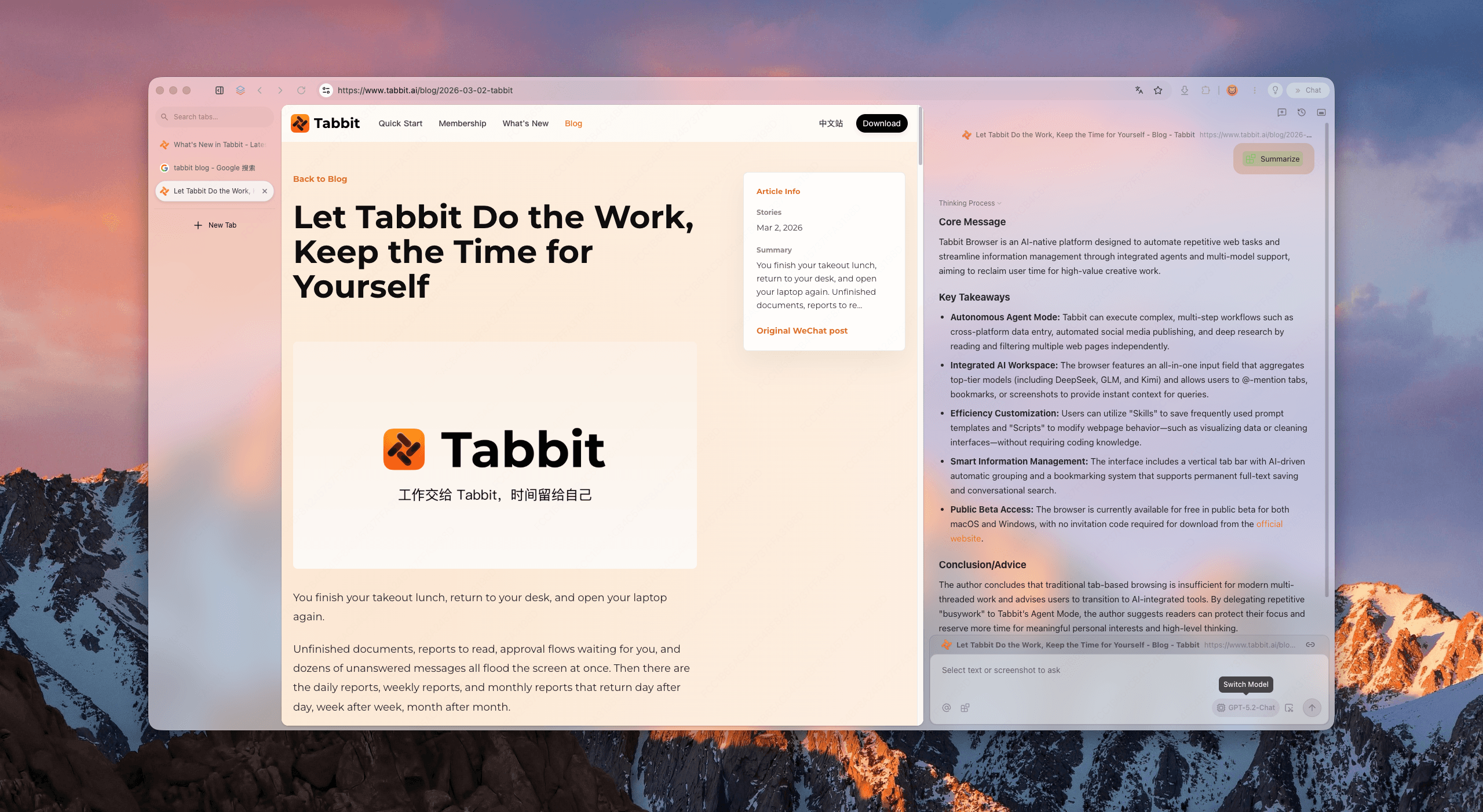
Use @ instead of dragging a floating screenshot
The exact labels can change as the product evolves, but the workflow is straightforward:
Open Tabbit and focus the Omnibox.
Type
@and choose the screenshot or local file you want to discuss.State the task and the output you need.
Check the answer before sending the file anywhere else.
For example:
Use @ to read this screenshot. Tell me what error message is visible, what page or app it appears to belong to, and which details are still uncertain. Do not guess text that is not readable.This is useful when the failure happens before the website has even received the file. It also keeps the purpose of the attachment explicit. You are not dragging a preview around and hoping the right drop zone catches it. You are giving the browser a file as model context.
Continue into a browser task only when you need to
After the screenshot or file is understood, you may want to search for the error, compare support pages, or fill a form. That is where Agent Mode or a browser automation workflow can help. The agent can work in its own tab group while you keep the original page open. For research-heavy work, the research browser guide explains how to combine page context and multi-page reading.
The important boundary is that Tabbit does not magically repair Opera's drag-and-drop code. It gives you a safer route for the part of the task that needs AI context. If a website still requires a real file upload, use that website's file picker or drop zone after you have confirmed the browser is stable.
What to check before attaching a file
Treat a local file as information sent to the model provider you select. Do not attach passwords, session exports, private customer records, or screenshots with personal data just to test the feature. If the task is confidential, review the provider's terms first and use a redacted copy where possible.
Tabbit is also a desktop browser. If the work begins on a phone or depends on a mobile-only app, keep that part of the workflow on the device that supports it. The browser for productivity guide is a better starting point for deciding which work belongs in a desktop browser.
How to choose the next move
| Your situation | Best next move | Why |
|---|---|---|
| One old browser crashes only on a screenshot drag | Back up, isolate the screenshot preview, and report the smallest repro | You may be dealing with a browser-specific bug |
| You need to read a screenshot or file right now | Use Tabbit @ context | It avoids the floating-preview drag path |
| You need to upload a file to one site | Test the site's file picker and a clean browser profile | The drop zone may be the failing layer |
| You need cross-page research after reading the file | Use Tabbit with a separate Agent tab group | The context and browser actions stay in one workspace |
| Your browser data is already unstable | Follow backup steps before switching | Sync and migration are separate risks; see browser sync troubleshooting |
| You have many open pages to preserve | Save important references, then use Smart Tab Organization | A stable workspace is easier to recover than a tab pile |
The short answer
Start by protecting the work you have open. Then save the screenshot or file, reduce the drag path, and test the browser, page, extension, graphics, and operating system layers separately. Clearing the cache may be harmless, but it is not a complete drag-and-drop diagnosis.
If your actual goal is to ask AI about a screenshot or local file, install Tabbit for macOS or Windows. Open the Omnibox, use @ to attach the file, and ask for the result you need. Keep the old browser available while you verify your data and the sites you rely on. You do not have to uninstall anything on day one.

FAQ
Why does a browser crash when I drag a file or screenshot into a tab?
The drag crosses several layers at once: the operating system's drag image, the browser window, the page's drop zone, and sometimes an extension or graphics process. A browser bug, profile problem, GPU issue, or site-specific handler can break that chain. The file itself is not automatically the cause.
Does turning off hardware acceleration fix a drag-and-drop crash?
It can be a useful diagnostic, especially when the crash is tied to a screenshot preview or window rendering. It is not a general fix, and it may break sites that need graphics acceleration. Change one setting, restart, and test before deciding what it tells you.
Why did clearing the browser cache not stop the crash?
Cache clearing targets stored web resources. Drag-and-drop crashes can live in the browser profile, extensions, graphics path, operating system drag service, or the website's upload handler. Clearing cache does not test those layers.
How can I work around a screenshot drag failure on a Mac?
Save the screenshot to the desktop before dragging it, or turn off the floating screenshot thumbnail while you test the system capture flow. If you only need AI to read the image, use a browser that can accept the screenshot as context instead of dragging the floating preview across the browser window.
Can Tabbit read a screenshot or local file without dragging it into a tab?
Yes. Tabbit's official product page says you can type @ in the Omnibox and reference a screenshot or local file as context. You can then ask Chat with Page or another built-in model to read it. This avoids the specific drag path; it does not repair the old browser's drag-and-drop implementation.
Is it safe to send a local file to Tabbit?
Treat the file as model context. Check the selected provider and its privacy terms before attaching confidential documents, credentials, customer data, or screenshots with personal information. Only attach the file when you know what you want the model to do with it.